
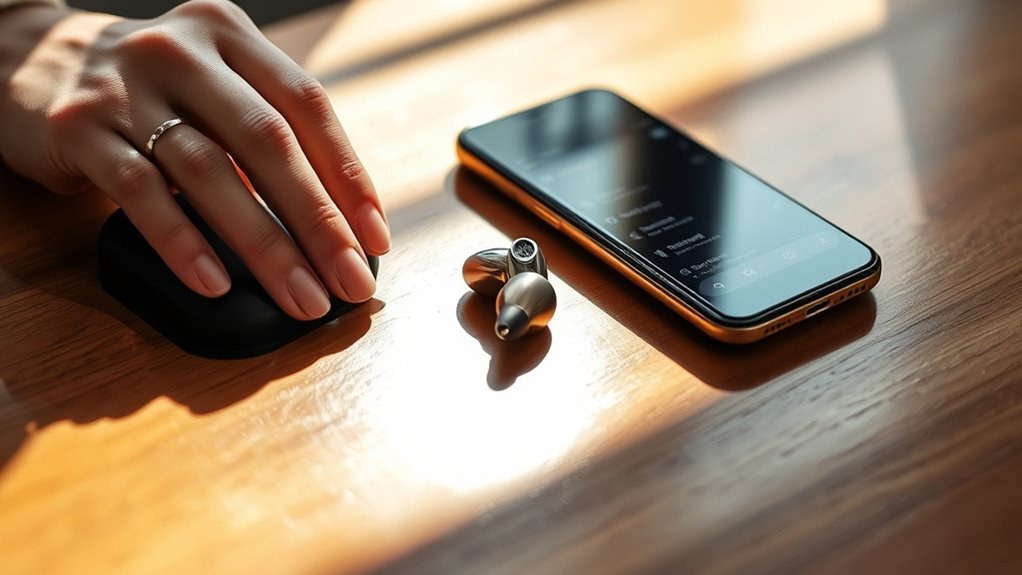

To pair your Onn Wireless Earbuds, first enable Bluetooth on your device. Next, take the earbuds out of the charging case and press the power button until the indicator light flashes, indicating they’re in pairing mode. Go to your device’s Bluetooth settings and select the earbuds to connect. Once paired, you can enjoy your audio without any fuss. If you need further assistance or tips, there’s more to explore to enhance your experience.
Unboxing Your Onn Wireless Earbuds
Unboxing your Onn wireless earbuds is an exciting first step toward enjoying your favorite music and podcasts. As you open the package, take a moment to appreciate the sleek design and compact charging case. Make sure to check for all included items: the earbuds, charging case, a USB-C cable, and extra ear tips. Here are some unboxing tips: gently remove the earbuds from their packaging, avoiding any force that could damage them. Familiarize yourself with the product features, like touch controls and voice assistant compatibility. This knowledge will help you maximize your experience. With everything in hand, you’re ready to plunge into the world of wireless audio freedom!
Charging Your Earbuds
Before you can enjoy your Onn wireless earbuds, you’ll need to charge them properly. Here are some essential charging tips to guarantee ideal battery care:
- Use the provided charging case: It’s designed to keep your earbuds safe while replenishing their power.
- Check the battery level: A quick glance at the LED indicator lets you know when they’re fully charged.
- Avoid overcharging: Unplug them once they reach 100% to prolong battery life.
Enabling Bluetooth on Your Device
To connect your Onn wireless earbuds, you’ll first need to enable Bluetooth on your device. Start by directing yourself to the settings menu, where you’ll find Bluetooth options. Depending on your device, this might be under “Connections” or “Network.” Once you locate Bluetooth, toggle it on. You’ll often see a list of available devices, and this is where you’ll check for compatibility with your earbuds. Make certain your device’s software is updated to guarantee smooth pairing. If you’re using a smartphone, tablet, or computer, enabling Bluetooth is generally straightforward. Remember, device compatibility is essential, so consult your device’s manual if you run into any issues. Once Bluetooth is activated, you’re ready to pair your earbuds!
Putting Your Earbuds in Pairing Mode
To put your Onn wireless earbuds in pairing mode, you’ll first need to locate the power button. Press and hold it until you see the indicator light flash, signaling that they’re ready to connect. Once in pairing mode, check your device to confirm the Bluetooth connection.
Locate Power Button
Finding the power button on your Onn wireless earbuds is the first step to getting them ready for pairing. Understanding the power button location is essential, as it’ll guide you towards the button’s functionality. Here’s what to look for:
- A small, circular button often located on the side or back of the earbuds.
- It may be slightly raised, making it easier to find by touch.
- The button might have an icon or symbol indicating power.
Once you identify this button, you’ll be one step closer to connecting your earbuds. Remember, knowing where it is and how it works will make the pairing process smoother and more enjoyable, giving you the freedom to enjoy your music without hassle.
Activate Pairing Mode
Once you’ve located the power button, you can easily activate pairing mode on your Onn wireless earbuds. To do this, press and hold the power button for a few seconds until you see a flashing LED light. This light indicates your earbuds are now in pairing mode, making them discoverable to your device. Utilizing the latest wireless technology, these earbud features enhance your listening experience by allowing you to connect seamlessly. Once in pairing mode, your earbuds can link to smartphones, tablets, or computers without the hassle of wires. Enjoy the freedom of movement and superior sound quality that comes with wireless listening. Now you’re ready to pair your earbuds with your preferred device.
Confirm Bluetooth Connection
Before you can enjoy your music, you’ll need to confirm the Bluetooth connection between your Onn wireless earbuds and your device. Start by ensuring both your earbuds and device have Bluetooth compatibility enabled. Once activated, follow these steps for smooth device recognition:
- Put your earbuds in pairing mode: Hold the multi-function button until you see a flashing LED light.
- Access your device’s Bluetooth settings: Navigate to the Bluetooth menu on your phone or tablet.
- Select your earbuds from the list: Look for your Onn earbuds and tap to connect.
Once connected, you’ll hear a confirmation tone. Now you’re ready to experience the freedom of wireless listening. Enjoy your tunes!
Connecting to Your Smartphone
To connect your Onn wireless earbuds to your smartphone, start by ensuring both devices are charged and within range. First, activate the Bluetooth on your smartphone. Open the settings and navigate to Bluetooth settings. Here, you’ll find various pairing methods. Make sure your earbuds are in pairing mode—typically indicated by a flashing light. Select your Onn earbuds from the list of available devices. If prompted, enter a pairing code, usually “0000” or “1234.” Once connected, you’ll see a confirmation on your smartphone, indicating successful device compatibility. Now, you’re ready to enjoy music or take calls with your wireless earbuds. Don’t forget to reconnect in the future; they should automatically pair when both devices are on.
Connecting to Your Tablet
Connecting your Onn wireless earbuds to a tablet is a similar process to pairing them with your smartphone. Start by ensuring your tablet’s Bluetooth is enabled. Then follow these simple steps to enjoy great audio quality:
- Put your earbuds in pairing mode: Press and hold the button until you see the LED light flash.
- Access Bluetooth settings on your tablet: Navigate to the Bluetooth section in settings.
- Select your earbuds: Look for your Onn earbuds in the list of available devices and tap to connect.
With their tablet compatibility, your Onn wireless earbuds will deliver the freedom to enjoy music, videos, or calls without the hassle of wires. Enjoy your listening experience!
Connecting to Your Laptop or Computer
If you’re ready to enjoy your Onn wireless earbuds with your laptop or computer, the process is straightforward and similar to other devices. First, verify your laptop’s Bluetooth is enabled. Put your earbuds into pairing mode, then select them from your laptop’s Bluetooth settings. This guarantees seamless laptop compatibility and excellent audio performance.
Here’s a quick reference table to help you understand the steps:
| Step | Action | Notes |
|---|---|---|
| Enable Bluetooth | Go to settings and turn on Bluetooth | Check your device settings |
| Pair Earbuds | Activate pairing mode on your earbuds | Usually involves holding a button |
| Connect | Select your earbuds from the list | Confirm connection if needed |
Now, you’re all set to enjoy your favorite tunes or videos!
Troubleshooting Common Connection Issues
If you’re having trouble connecting your Onn wireless earbuds, there are a couple of quick checks you can do. Start by ensuring your Bluetooth settings are correct on your device, and if that doesn’t help, try resetting the earbuds. These steps can often resolve common connection issues efficiently.
Bluetooth Settings Check
Before diving into troubleshooting, it’s essential to check your Bluetooth settings, as this can often resolve connection issues with your Onn wireless earbuds. Start by confirming your device has Bluetooth compatibility and is turned on. Next, verify that your earbuds are in pairing mode. Finally, examine your connection stability by checking for interference from other devices.
- Verify no other Bluetooth devices are connected.
- Move closer to your device to improve signal strength.
- Restart your device to refresh the Bluetooth connection.
Resetting Earbuds Process
Sometimes, even after checking your Bluetooth settings, you might still experience connectivity issues with your Onn wireless earbuds. If that’s the case, it’s time to reset them. Here are some effective resetting methods to try:
| Method | Steps |
|---|---|
| Soft Reset | 1. Turn off the earbuds. 2. Wait 10 seconds. 3. Turn them back on. |
| Hard Reset | 1. Remove earbuds from the device. 2. Hold the buttons for 10 seconds. 3. Re-pair with your device. |
| Factory Reset | 1. Forget the device on Bluetooth settings. 2. Press both buttons for 15 seconds. 3. Reconnect. |
These troubleshooting tips should help you get back to enjoying your music hassle-free. If issues persist, consider reaching out to customer support for further assistance.
Managing Bluetooth Connections
Managing Bluetooth connections for your Onn wireless earbuds is essential to guarantee a seamless listening experience. Here are some Bluetooth connection tips to keep in mind:
- Stay within range: Keep your earbuds within 30 feet of your device for ideal connectivity.
- Clear old connections: Remove unused devices from your Bluetooth settings to avoid confusion and enhance connection speed.
- Reset if needed: If you run into issues, try resetting your earbuds and reconnecting to your device using basic troubleshooting techniques.
Enjoying Your Audio Experience
Enjoying your audio experience with Onn wireless earbuds can elevate your listening to a whole new level. These earbuds deliver impressive audio quality, allowing you to immerse yourself in your favorite tunes without distraction. You’ll appreciate the crisp highs and deep lows, making every song feel alive.
To enhance your experience further, take advantage of sound customization options available through your device’s settings or audio apps. Adjust the EQ settings to match your personal preferences, whether you prefer a bass-heavy sound or a balanced mix.
With Onn wireless earbuds, you’ve got the freedom to tailor your listening experience. Whether you’re at home or on the go, you’ll love how easy it is to enjoy your favorite audio in style and comfort.
Frequently Asked Questions
Are Onn Wireless Earbuds Compatible With All Bluetooth Devices?
Onn wireless earbuds generally work with most Bluetooth devices, but compatibility issues can arise depending on the device’s version and Bluetooth range. Always verify your device supports the Bluetooth version required for peak performance.
How Do I Reset My Onn Wireless Earbuds?
To reset your Onn wireless earbuds, hold the power button for about 10 seconds until the LED flashes. This reset process can solve connection issues, so keep these troubleshooting tips handy for a smoother experience.
Can I Use One Earbud at a Time?
Yes, you can use a single earbud at a time. However, keep in mind that audio balance might be affected, so you’ll want to guarantee it’s set up correctly for the best experience.
What Should I Do if My Earbuds Won’t Charge?
If your earbuds won’t charge, don’t panic! Check for charging issues like dirty contacts or faulty cables. Guarantee proper battery maintenance by cleaning the ports and trying different power sources. Freedom awaits with functional earbuds!
How Can I Improve the Sound Quality of My Earbuds?
To improve your earbuds’ sound quality, try sound enhancement apps, adjust equalizer settings, and guarantee a snug fit. Experiment with audio tips like high-quality sources and proper pairing to elevate your listening experience.
