
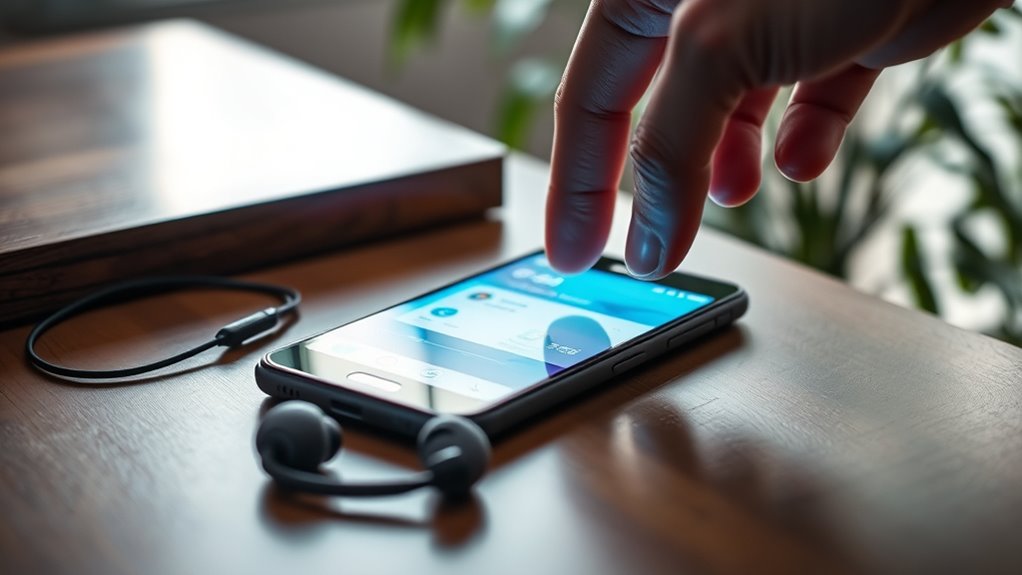

To pair your Skullcandy earbuds with your Android device, start by ensuring they’re charged. Turn on the earbuds by holding the power button until the LED flashes. Swipe down on your Android screen, tap the Bluetooth icon, and make sure Bluetooth is on. When your earbuds appear in the list of available devices, tap on their name to connect. Once connected, test the audio playback for clarity. Discover more tips for seamless connectivity and troubleshooting.
Preparing Your Skullcandy Earbuds for Pairing
Before you can enjoy your favorite tunes, you need to prepare your Skullcandy earbuds for pairing. First, check the battery life; make sure your earbuds are charged to guarantee uninterrupted listening. Most Skullcandy models feature a quick charge option that gives you hours of playtime in just a few minutes. Next, locate the power button on your earbuds and hold it until you see a flashing LED light, indicating they’re in pairing mode. Familiarize yourself with the specific earbud features, like touch controls or voice assistant integration, as these can enhance your experience once connected. With your earbuds ready, you’ll be set to enjoy your music without limits.
Accessing Bluetooth Settings on Your Android Device
Now that your Skullcandy earbuds are ready for pairing, the next step is to access the Bluetooth settings on your Android device. Start by swiping down from the top of your screen to open the Quick Settings menu. Look for the Bluetooth icon and tap it. This will take you to the Bluetooth settings. Verify that Bluetooth is turned on; you might see a toggle switch. Once activated, your device will search for nearby Bluetooth devices. Make sure your earbuds are in pairing mode, which allows for Bluetooth visibility. It’s essential to confirm that your Android device is compatible with your Skullcandy earbuds for a successful connection. You’re now set to connect!
Connecting Your Earbuds to Your Android Device
To connect your Skullcandy earbuds to your Android device, start by tapping on the name of your earbuds once they appear in the list of available devices in the Bluetooth settings. Confirm your earbuds are charged and in pairing mode for a seamless connection. Once connected, you can enjoy the impressive earbud features, like touch controls and built-in voice assistants. These features enhance your listening experience, allowing you to manage music and calls effortlessly. With superior sound quality, you’ll appreciate every beat and note. If you encounter any issues, simply disconnect and reconnect the earbuds or restart your device. Now, you’re ready to enjoy your favorite tunes and podcasts with complete freedom!
Testing the Connection
Testing the connection of your Skullcandy earbuds is essential to guarantee they’re functioning properly. To check connection stability and audio quality, try playing a variety of audio files. Listen for any interruptions or loss in sound clarity.
Here’s a quick checklist to help you assess the performance:
| Test Type | Observation |
|---|---|
| Music Playback | Smooth, uninterrupted audio |
| Phone Calls | Clear voice transmission |
| Range Test | Consistent sound at distance |
| Volume Levels | No distortion at max volume |
| Device Switching | Quick reconnection |
Troubleshooting Common Pairing Issues
While pairing your Skullcandy earbuds to your Android device is usually straightforward, you may encounter some common issues that can complicate the process. First, check for pairing failures; make sure your earbuds are charged and in pairing mode. If they still won’t connect, confirm your Android device’s Bluetooth is enabled and discoverable. Sometimes, device compatibility can be an issue, so verify that your Android version supports your earbuds. If problems persist, try unpairing any previous Bluetooth connections or restarting both your earbuds and device. Clearing the Bluetooth cache on your Android may also help. Remember, persistence is key. With a bit of troubleshooting, you’ll be enjoying your favorite tunes in no time!
Frequently Asked Questions
Can I Connect Skullcandy Earbuds to Multiple Devices Simultaneously?
No, you can’t connect Skullcandy earbuds to multiple devices simultaneously. Their Bluetooth connectivity allows for quick device management, but only one device can play audio at a time. Switch easily between them when needed.
What Should I Do if My Earbuds Won’t Charge?
If your earbuds won’t charge, try cleaning the charging port, checking the cable, and ensuring the charger works. Regular earbud maintenance helps prevent issues. Follow these charging troubleshooting steps for ideal performance and enjoyment.
Are Skullcandy Earbuds Waterproof or Sweat-Resistant?
While they won’t survive a full dunk like a submarine, Skullcandy earbuds often feature water resistance and sweat-proof design, making them great for workouts or light rain. Just keep ’em away from heavy moisture!
How Long Do Skullcandy Earbuds Typically Last on a Full Charge?
Skullcandy earbuds typically last around 6 to 10 hours on a full charge, depending on the model. To maximize battery life, try using them at a moderate volume and keep them properly charged when not in use.
Do Skullcandy Earbuds Have a Warranty?
Absolutely, Skullcandy earbuds come with a warranty that’s almost legendary! Warranty details and coverage vary, but typically, you can expect protection against defects for one to two years. Always check your specific model for precise terms.
