
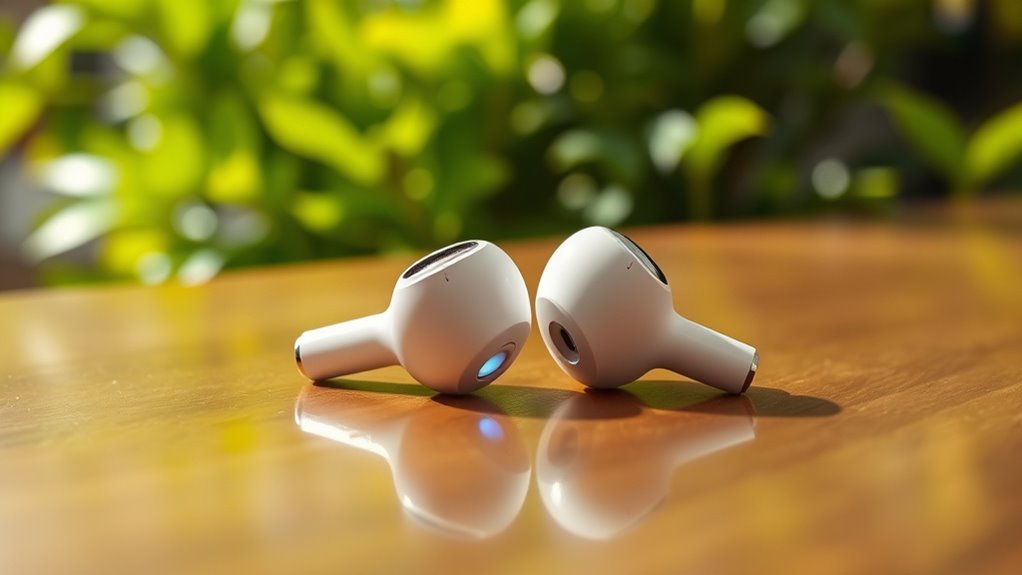

To put your Apple earbuds in pairing mode, open the charging case with your AirPods inside and press the setup button on the back until the LED flashes white. For AirPods Pro, do the same but verify they’re charged first. For wired earbuds, just plug them into the device. After that, check your device’s Bluetooth settings to connect. If you run into any issues, there are further steps you can explore to troubleshoot.
Understanding Different Types of Apple Earbuds
When you’re choosing Apple earbuds, it’s important to understand the different types available. You’ve got two main options: wired vs wireless. Wired earbuds connect directly to your device, offering a reliable sound quality without worrying about battery life. However, they can limit your movement. On the other hand, wireless earbuds provide freedom of movement and convenience, especially when you’re on the go.
When considering earbud features, think about sound quality, comfort, and battery life. Some wireless options come with noise-cancellation, while others may offer customizable controls. Depending on your lifestyle, one type may suit you better than the other. Evaluate your needs and preferences to find the perfect pair that enhances your listening experience.
Preparing Your Device for Pairing
To get your Apple earbuds ready for pairing, start by checking your device’s Bluetooth settings. Make sure Bluetooth is enabled so your device can find the earbuds. Finally, locate the controls on your earbuds to initiate the pairing process.
Check Bluetooth Settings
How can you guarantee that your device is ready to connect to your Apple earbuds? Start by checking the Bluetooth settings on your device. Confirm your device has Bluetooth compatibility, as older models may not support the latest earbud features. Navigate to the Bluetooth menu in your device’s settings and verify that Bluetooth is turned on. If it’s already on, you might want to toggle it off and back on again to refresh the connection. This simple step can often resolve connectivity issues. Once you’ve confirmed that Bluetooth is active, your device will be primed for pairing with your earbuds. With these adjustments, you’re one step closer to enjoying the freedom of wireless listening.
Enable Bluetooth Connection
After confirming that Bluetooth is active on your device, the next step is to ensure the Bluetooth connection is ready for pairing. First, verify your device is compatible with the Apple earbuds; check for Bluetooth compatibility by referring to the specifications. Once confirmed, keep your device within an ideal connection range—typically around 30 feet—to facilitate a smooth pairing process. If you’re using a smartphone or tablet, navigate to the Bluetooth settings, and make sure it’s discoverable. This allows your earbuds to find your device easily. Remember, the closer you are, the better the connection quality will be. With these steps complete, you’re now set for a seamless pairing experience with your Apple earbuds.
Locate Earbud Controls
Finding the controls on your Apple earbuds is essential for entering pairing mode. First, identify the main control features: the multifunction button, which is usually located on the right earbud. This button lets you play, pause, and answer calls. You may also find volume controls on the side or touch-sensitive areas, depending on your model.
To activate pairing mode, press and hold the multifunction button until you see the LED indicator flashing. This visual cue signals that your earbuds are ready to connect. Familiarizing yourself with these control functions will not only streamline your pairing process but also enhance your overall experience. With these earbud features at your fingertips, you’re all set to enjoy a wireless listening journey.
Putting AirPods in Pairing Mode
To connect your AirPods to a device, you’ll need to put them in pairing mode first. This process is straightforward and enhances the AirPods features, ensuring seamless Bluetooth compatibility with your devices. Here’s how you can do it:
- Open the charging case: Make sure your AirPods are inside.
- Press and hold the setup button: It’s on the back of the case.
- Watch for the LED light: It should flash white, indicating pairing mode is active.
- Go to your device’s Bluetooth settings: Open the Bluetooth menu on your phone or tablet.
- Select your AirPods: Tap on them to complete the connection.
Once paired, enjoy the freedom of wireless listening with your AirPods!
Putting AirPods Pro in Pairing Mode
To put your AirPods Pro in pairing mode, start by ensuring they’re charged and in their case. Simply open the case lid and press the button on the back until the status light flashes white. Once in pairing mode, you can easily connect them to your devices.
Activating Pairing Mode
While activating pairing mode on your AirPods Pro is a straightforward process, it’s essential to follow the steps carefully to secure a successful connection. This way, you can enjoy the wireless advantages of your earbuds without hassle. Here’s how to do it:
- Ensure your AirPods Pro are in the charging case.
- Open the lid of the case, keeping the AirPods inside.
- Press and hold the button on the back of the case until the LED light flashes white.
- Make sure Bluetooth is enabled on your device.
- Look for your AirPods Pro in the Bluetooth settings and select them.
Connecting to Devices
Connecting your AirPods Pro to devices is a seamless process that enhances your listening experience. First, verify your device has Bluetooth connectivity enabled. Open the lid of your AirPods Pro case, and press and hold the setup button on the back until the status light flashes white. This indicates that your earbuds are in pairing mode. On your device, navigate to Bluetooth settings, and look for your AirPods Pro under available devices. Tap to connect, and if prompted, confirm the pairing. Your AirPods Pro should now be connected, offering excellent device compatibility across iPhones, iPads, Macs, and other Bluetooth-enabled devices. Enjoy the freedom of wireless listening with just a few simple steps!
Connecting Standard Wired Apple Earbuds
If you’ve just purchased a set of standard wired Apple earbuds, getting them connected to your device is a straightforward process. These earbuds offer excellent wired earbud features like high-quality sound and in-line controls, making your listening experience enjoyable. To guarantee wired earbud compatibility, follow these simple steps:
- Plug the earbud jack into your device’s headphone port.
- Make sure your device is powered on.
- Adjust the volume to your desired level.
- Test the in-line controls for play, pause, and skip functions.
- Enjoy your favorite music or podcasts with ease.
Once connected, you’ll appreciate the freedom of high-quality audio without the need for batteries or charging. Enjoy your tunes!
Troubleshooting Common Pairing Issues
When you’re trying to pair your Apple earbuds but run into issues, it can be frustrating. Here are some common solutions to help you overcome pairing difficulties:
| Issue | Solution |
|---|---|
| Earbuds won’t connect | Make sure they’re charged |
| Device not recognizing earbuds | Turn Bluetooth off and back on |
| Earbuds keep disconnecting | Forget the device and re-pair |
| Audio quality is poor | Reset the earbuds’ settings |
| One earbud isn’t working | Clean the earbud and reconnect |
Tips for Maintaining Connection Stability
To guarantee your Apple earbuds maintain a stable connection, it’s important to keep a few key factors in mind. Here are some tips to help you reduce connection interference and improve signal strength:
- Stay close: Keep your device within a reasonable range to avoid signal dropouts.
- Limit obstacles: Remove physical barriers like walls or furniture that may obstruct the Bluetooth connection.
- Turn off other devices: Disconnect or turn off other Bluetooth devices that might cause interference.
- Check for updates: Regularly update your earbuds and device software for peak performance.
- Avoid crowded areas: Try to use your earbuds in places with less electronic traffic to guarantee a stronger connection.
Frequently Asked Questions
Can I Use Apple Earbuds With Non-Apple Devices?
Absolutely, you can use Apple earbuds with non-Apple devices! However, you might face compatibility issues and connection stability that could make you feel like you’re battling a tech dragon. Enjoy the freedom, but expect some quirks!
How Do I Reset My Airpods if Pairing Fails?
To reset your AirPods, hold the setup button on the case for about 15 seconds until the LED flashes amber. This reset method can resolve pairing issues; try these troubleshooting tips for smoother connections.
Do Apple Earbuds Support Voice Assistants Like Siri?
Imagine your earbuds as a trusted friend, always ready to listen. Yes, Apple earbuds support Siri functionality, allowing you to use voice commands effortlessly. Just tap and let your voice set you free.
Can I Pair Multiple Devices With My Airpods?
Yes, you can pair your AirPods with multiple devices. They support multiple device connections, allowing you to switch seamlessly between your iPhone, iPad, and Mac, enhancing your freedom to use them wherever you go.
What Is the Battery Life of Apple Airpods During Use?
Back in the day, you’d never imagine wireless freedom! Apple AirPods offer about five hours of battery performance during use. For ideal longevity, consider usage tips like lowering volume and minimizing background noise. Enjoy!
