


Resetting your Sonos speakers is a straightforward process that can resolve various connectivity and performance issues. In just a few simple steps, you’ll learn how to reset your speaker to its factory settings, allowing you to start fresh or troubleshoot problems effectively. This guide will cover when and how to reset your Sonos speakers, provide model-specific instructions, and offer tips for reconfiguring your system post-reset.
Understanding When to Reset Your Sonos Speaker
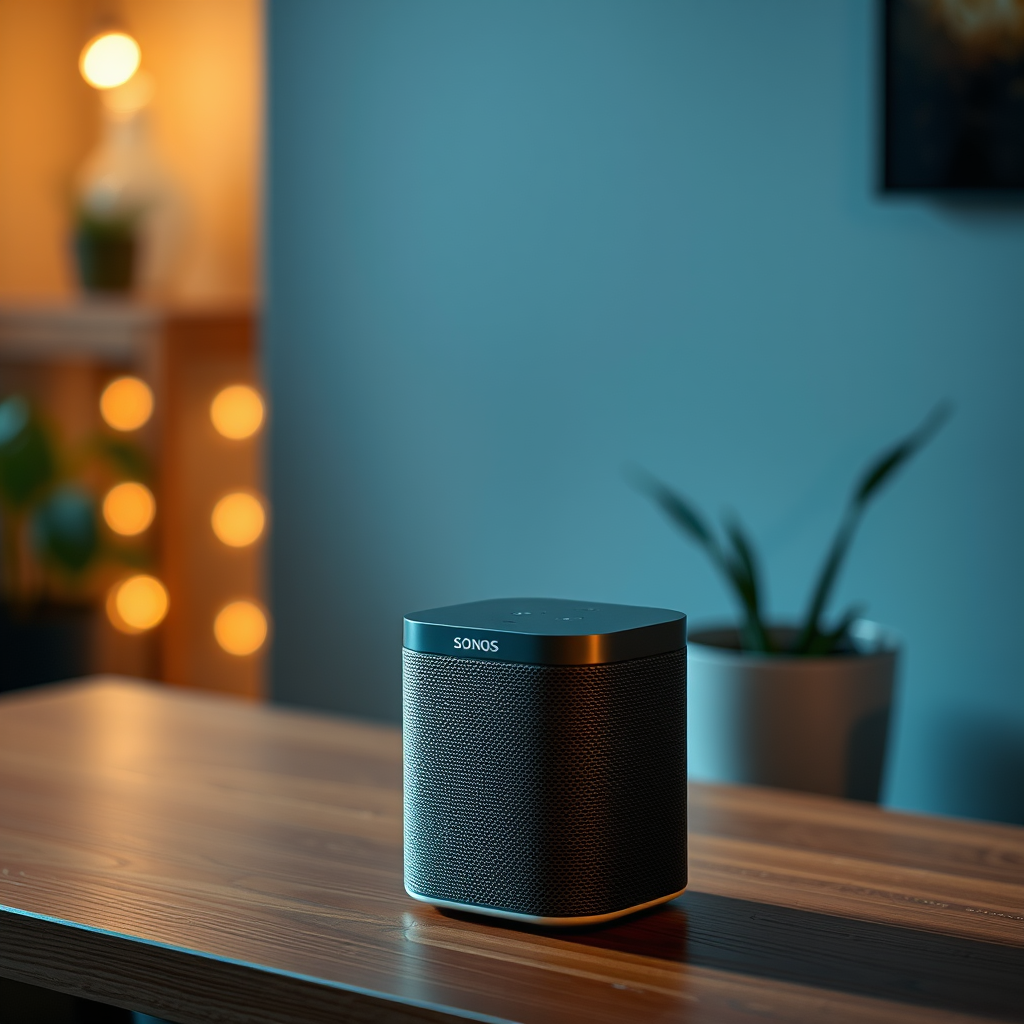
Resetting your Sonos speaker may be necessary when you encounter common issues like connection failures, persistent software glitches, or when you’re planning to sell or pass on your device. If your speaker frequently drops from Wi-Fi, cannot connect to the app, or exhibits erratic behavior, a factory reset can often resolve these problems.
The benefits of resetting include not only a fresh start but also the potential for improved performance. By clearing any corrupted data or misconfigurations, you can restore your speaker to its original settings, which may help it function more effectively and enhance your overall listening experience.
Preparing for the Reset
Before you proceed with the reset, ensure that your Sonos speaker is plugged into a power source and connected to your Wi-Fi network. It’s also crucial to back up any important settings or preferences if necessary, as a reset will erase all custom configurations. This includes saved playlists, speaker group settings, and any linked music services. Taking a moment to document or take screenshots of your current setup can save you time during the reconfiguration process.
How to Reset Different Sonos Speaker Models
Different Sonos speaker models have slightly different reset procedures. Here’s a step-by-step guide for some popular models:
Sonos One
1. Unplug the power cable from the Sonos One.
2. Press and hold the Connect button while plugging the power cable back in.
3. Continue holding the Connect button until the light on the top of the speaker flashes orange and white.
4. Release the button; the light will eventually flash green, indicating the speaker is ready to be set up.
Play:1
1. Unplug the power cable from the speaker.
2. Press and hold the Play/Pause button while reconnecting the power cable.
3. Keep holding the Play/Pause button until the light flashes orange and white.
4. Once it flashes green, the reset is complete.
Sonos Beam
1. Disconnect the Beam from power.
2. Press and hold the Play/Pause button while reconnecting the power.
3. Hold the button until the LED light flashes orange and white, then release it.
4. Wait for the light to change to green, indicating the factory reset has been successful.
Sonos Speaker Models and Reset Instructions
| # | Model | Reset Steps | Indicator Light |
|---|---|---|---|
| 1 | Sonos One | Hold Connect button, plug in, wait for light to flash green. | Flashes Green |
| 2 | Play:1 | Hold Play/Pause, plug in, wait for light to flash green. | Flashes Green |
| 3 | Sonos Beam | Hold Play/Pause, plug in, wait for light to flash green. | Flashes Green |
| 4 | Sonos Playbase | Press and hold the volume up and play buttons. | Flashes Green |
| 5 | Sonos Roam | Hold power button for 5 seconds until the light flashes. | Flashes Green |
| 6 | Sonos Move | Hold power button while charging until light flashes. | Flashes Green |
| 7 | Sonos Sub | Hold the Connect button, unplug, then plug back in. | Flashes Green |
Resetting Your Sonos System via the App
For users who prefer a software solution, you can also reset your Sonos system through the Sonos app. Here’s how to do it:
1. Open the Sonos app on your mobile device.
2. Go to the Settings tab.
3. Select System and then choose the speaker you wish to remove.
4. Tap on Remove Product to unlink the speaker from your account.
5. Once removed, follow the steps for resetting the speaker as outlined above.
6. After the reset, you can re-add the speaker by selecting Add Product in the app and following the prompts.
Using the app not only streamlines the process but also allows you to manage multiple devices more conveniently.
Troubleshooting Post-Reset Issues
After resetting your Sonos speaker, you may encounter some common issues, particularly with reconnecting to Wi-Fi or reconfiguring settings. Here are some troubleshooting tips:
– Wi-Fi Connection: If your speaker fails to connect to Wi-Fi post-reset, ensure that your router is functioning correctly and that your speaker is within range. You can try moving the speaker closer to the router during setup.
– Reconfiguration: After a reset, all saved settings are erased. You’ll need to re-link your music services and set up any group configurations again. Take your time to ensure everything is set according to your preferences.
– Software Updates: It’s recommended to check for software updates after resetting. Open the app, go to Settings, then System Updates to ensure you have the latest version, which can improve performance and resolve issues.
Reconfiguring Your Sonos Speaker
Setting up your Sonos speaker after a reset involves a few key steps:
1. Connect to Wi-Fi: Use the Sonos app to select your Wi-Fi network and enter the password when prompted.
2. Link Music Services: Re-add any music services you use, such as Spotify, Apple Music, or Amazon Music. This allows you to access your playlists and libraries seamlessly.
3. Group Your Speakers: If you have multiple Sonos devices, you can create groups for synchronized playback. The app will guide you through setting this up.
4. Check for Updates: As mentioned earlier, ensure all speakers are updated to the latest firmware for optimal performance.
These steps will help ensure that your Sonos system is running smoothly and that you can enjoy a cohesive audio experience throughout your home.
Additional Resources for Sonos Users
For further assistance and to explore additional features of your Sonos system post-reset, consider the following resources:
– Sonos Support Articles: Visit the [Sonos Support page](https://support.sonos.com) for detailed guides and FAQs.
– Community Forums: Engage with fellow Sonos users in the [Sonos Community Forum](https://community.sonos.com) for shared experiences and troubleshooting tips.
– Troubleshooting Tips: Check out specific troubleshooting articles based on your model and issue.
Exploring these resources can enhance your Sonos experience and help you make the most of your system.
By following these steps, you can successfully reset your Sonos speakers and resolve any issues you may encounter. Remember to troubleshoot any problems that arise after the reset and take advantage of the resources available to enhance your Sonos experience. Enjoy your music!
Frequently Asked Questions
How do you perform a factory reset on Sonos speakers?
To perform a factory reset on your Sonos speaker, first unplug the speaker from power. Then, while pressing and holding the Connect button (or the Play/Pause button for some models), plug the speaker back in. Continue to hold the button until the LED light flashes orange and white, indicating that the reset is complete.
Why would I need to reset my Sonos speakers?
You may need to reset your Sonos speakers if you are experiencing persistent connectivity issues, want to remove your device from your account, or are preparing to sell the speaker. A reset can resolve software glitches and restore the speaker to its original factory settings, making it easier to set up as new.
What should I do after resetting my Sonos speaker?
After resetting your Sonos speaker, you will need to set it up again using the Sonos app. Open the app, select “Set up a new system,” and follow the on-screen instructions to connect the speaker to your Wi-Fi network and add it to your existing Sonos system if applicable. This will ensure that your speaker is fully functional and ready for use.
Which Sonos models can be reset using the same method?
Most Sonos models, including the Sonos One, Sonos Play:1, and Sonos Play:5, can be reset using a similar method. However, it’s crucial to check the specific instructions for your model in the Sonos support documentation, as the button you need to press may vary slightly between models.
How can I tell if my Sonos speaker has been successfully reset?
A successful reset of your Sonos speaker is indicated by the LED light flashing orange and white and then changing to a solid white light once the reset is complete. If the light does not behave as described, you may need to repeat the reset process to ensure it was done correctly.
References
- Sonos
https://en.wikipedia.org/wiki/Sonos - Google Scholar Google Scholar
https://scholar.google.com/scholar?q=reset+sonos+speakers - https://www.bbc.com/news/technology-51698407
https://www.bbc.com/news/technology-51698407 - Google Scholar Google Scholar
https://scholar.google.com/scholar?q=Sonos+speaker+troubleshooting - https://www.lifewire.com/reset-sonos-speakers-4686572
https://www.lifewire.com/reset-sonos-speakers-4686572 - https://www.pcmag.com/how-to/how-to-reset-sonos-speakers
https://www.pcmag.com/how-to/how-to-reset-sonos-speakers - Google Scholar Google Scholar
https://scholar.google.com/scholar?q=how+do+you+reset+sonos+speakers - how do you reset sonos speakers – Search results
https://en.wikipedia.org/wiki/Special:Search?search=how+do+you+reset+sonos+speakers - https://www.ncbi.nlm.nih.gov/search/research-articles/?term=how+do+you+reset+sonos+speakers
https://www.ncbi.nlm.nih.gov/search/research-articles/?term=how+do+you+reset+sonos+speakers
