
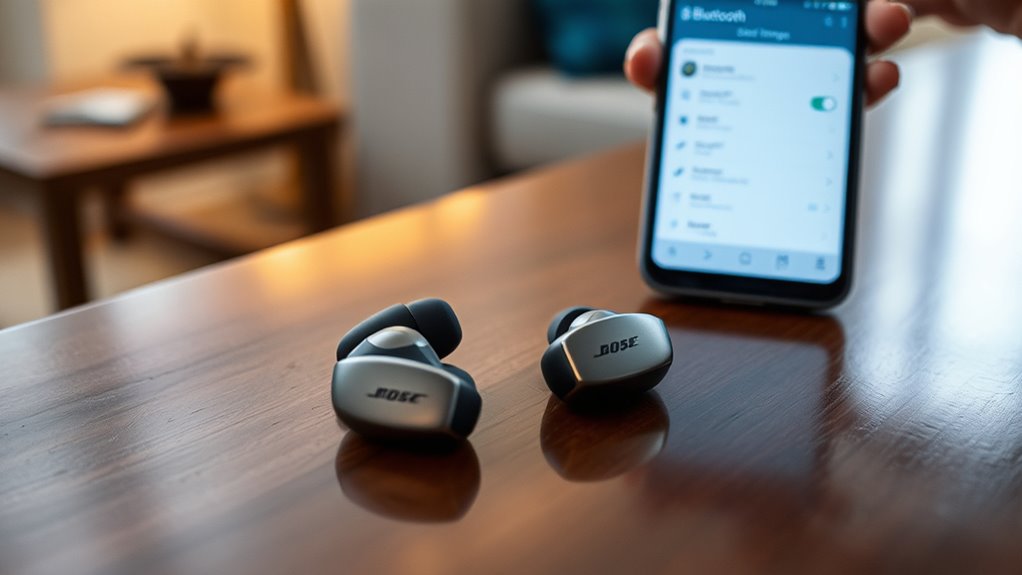

To sync your Bose earbuds, first make sure your device’s Bluetooth is enabled and that it’s discoverable. Then, power on your earbuds by pressing and holding the power button until you see a flashing light. Next, hold the Bluetooth button until it flashes blue to enter pairing mode. Finally, look for your earbuds in your device’s Bluetooth settings and select them to connect. For additional tips on optimizing your experience, continue with our guide.
Understanding Your Bose Earbuds
Understanding your Bose earbuds is essential for getting the most out of your listening experience. Let’s explore a quick Bose features overview. You’ll find that these earbuds often include noise cancellation, touch controls, and impressive battery life, all designed to enhance your audio enjoyment.
Now, for an earbuds design analysis, consider how their ergonomic shape fits comfortably in your ears, allowing for extended wear without discomfort. The lightweight materials add to this freedom, making them ideal for workouts or commutes. Plus, the sleek design doesn’t compromise on style. By familiarizing yourself with these features and design elements, you can fully appreciate what your Bose earbuds have to offer and enjoy an unparalleled listening experience tailored to your lifestyle.
Preparing Your Device for Connection
Before you can enjoy your Bose earbuds, it’s important to prepare your device for a seamless connection. First, check your device compatibility; most smartphones, tablets, and computers should work without issue. Make sure your device’s Bluetooth is enabled, as this is a key connection requirement for pairing with your earbuds. If you’re using an older device, confirm that it supports the Bluetooth version needed for your Bose earbuds. It’s also wise to remove any previous Bluetooth connections that might interfere. Finally, keep your device’s software updated to guarantee peak performance and compatibility. By taking these steps, you’ll pave the way for a smooth syncing experience, allowing you to enjoy your music or calls without interruptions.
Turning On Your Bose Earbuds
Once you’ve prepared your device, it’s time to turn on your Bose earbuds. To experience their impressive sound quality and various earbud features, follow these simple steps:
- Locate the power button: It’s usually on the right earbud or the charging case.
- Press and hold: Hold the button for a few seconds until you see a light flashing. This indicates your earbuds are powering on.
- Listen for audio cues: You’ll hear an audio prompt confirming your earbuds are ready to use.
Once they’re on, you can enjoy your music or podcasts with exceptional clarity. Remember, these earbuds are designed for freedom and comfort, so you can immerse yourself in your audio experience without any hassle.
Activating Bluetooth on Your Device
To sync your Bose earbuds, you first need to activate Bluetooth on your device. Start by enabling the Bluetooth settings in your device’s menu. Once you locate the device options, confirm that Bluetooth is turned on and ready to connect.
Enable Bluetooth Settings
Activating Bluetooth on your device is an essential step to sync your Bose earbuds. You’ll want to guarantee your Bluetooth settings are enabled to allow for smooth device recognition. Here’s how to do it effectively:
- Check Bluetooth Status: Go to your device settings and find the Bluetooth section. Make sure it’s turned on.
- Adjust Security Settings: Ascertain your Bluetooth security is set to a level that allows for easy pairing while keeping your device safe.
- Visibility Options: Set your device to be discoverable, allowing your Bose earbuds to find and connect seamlessly.
Once you’ve completed these steps, you’re ready to pair your earbuds and enjoy your music. Embrace the freedom of wireless listening!
Locate Device Options
Finding the device options on your smartphone or tablet is essential for syncing your Bose earbuds. To connect, you’ll need to activate Bluetooth. Here’s a quick guide to help you locate the device settings:
| Device Type | How to Find Device Options |
|---|---|
| iOS | Go to Settings > Bluetooth |
| Android | Swipe down for Quick Settings > Bluetooth |
| Windows | Click on the Start Menu > Settings > Devices |
Once you’re in the Bluetooth settings, you’ll be able to find earbuds. Make sure Bluetooth is turned on, so your device can discover the Bose earbuds. Enjoy the freedom of wireless listening!
Confirm Bluetooth Activation
Before you can sync your Bose earbuds, you’ll want to guarantee Bluetooth is activated on your device. Confirming Bluetooth status is straightforward, and following these Bluetooth confirmation steps will help you along the way:
- Access Settings: Open the settings app on your device, usually represented by a gear icon.
- Navigate to Bluetooth: Find the Bluetooth section, where you can see if it’s on or off.
- Toggle the Switch: If Bluetooth is off, simply switch it on to activate the feature.
Once you’ve completed these steps, your device is ready to connect with your Bose earbuds. Enjoy the freedom of wireless listening, and let the music play!
Pairing Mode: How to Enter
To enter pairing mode for your Bose earbuds, you’ll first need to adjust your Bluetooth settings. Make sure your device is compatible with the earbuds before proceeding. Once you’re ready, activating pairing mode is just a few simple steps away.
Activating Pairing Mode
If you want to connect your Bose earbuds to a device, you’ll need to activate pairing mode. This process is straightforward, but here are some pairing tips to guarantee a smooth experience and avoid common issues:
- Power On: Make sure your earbuds are charged and powered on.
- Press and Hold: Press and hold the Bluetooth button until you see the indicator light flashing blue.
- Device Selection: On your device, navigate to Bluetooth settings and select your Bose earbuds from the list.
Bluetooth Settings Adjustment
Once your Bose earbuds are in pairing mode, adjusting your Bluetooth settings on your device is crucial for a successful connection. First, open the Bluetooth menu on your device and verify Bluetooth is enabled. Look for your Bose earbuds in the available devices list. If they don’t appear, consider common Bluetooth interference solutions, like moving away from other electronic devices or restarting your Bluetooth. If you still can’t connect, try earbud reset procedures, which can resolve lingering issues. To reset, hold the power button for 10 seconds until you see the LED light flash. After resetting, re-enter pairing mode and attempt the connection again. With these adjustments, you’ll soon enjoy your Bose earbuds!
Device Compatibility Check
Before you can enjoy your Bose earbuds, it’s important to verify your device is compatible with them. Check the following to guarantee a smooth connection:
- Bose compatibility features: Make sure your device supports Bluetooth for seamless pairing.
- Supported audio codecs: Verify that your device can handle SBC, AAC, or aptX codecs for peak audio quality.
- Firmware updates: Keep your device’s software updated to avoid compatibility issues.
Once you confirm these aspects, you can easily enter pairing mode. Simply press and hold the Bluetooth button on your earbuds until you see a blinking light. This means they’re ready to sync with your device. Enjoy the freedom of wireless listening with your Bose earbuds!
Connecting to Your Device
Connecting your Bose earbuds to your device is a straightforward process that can enhance your listening experience. Start by ensuring your earbuds are charged and in pairing mode, which you can activate by holding the power button until the indicator light blinks. On your device, navigate to the Bluetooth settings and search for available devices. Select your Bose earbuds from the list, and they’ll connect automatically. Once paired, you’ll enjoy the impressive Bose earbuds features, including advanced noise cancellation and touch controls. You’ll also experience superior wireless audio quality that makes every note crisp and clear. With this connection, you’re free to move around and enjoy your favorite music or podcasts without the hassle of wires.
Troubleshooting Connection Issues
If you encounter connection issues with your Bose earbuds, don’t worry; there are several steps you can take to resolve them. First, let’s identify some common connection issues that might arise. Here are a few troubleshooting tips to help you get back on track:
Encountering connection issues with your Bose earbuds? Don’t worry—simple troubleshooting steps can help you resolve them quickly.
- Check Bluetooth Settings: Verify that Bluetooth is enabled on your device and that it’s within range.
- Reset Your Earbuds: Sometimes a simple reset can clear up connection problems. Follow the instructions in your user manual.
- Update Firmware: Make certain your earbuds have the latest firmware version, as updates can fix bugs and enhance performance.
Managing Multiple Devices
Managing multiple devices with your Bose earbuds can be a smooth experience, provided you know how to switch between them effectively. For seamless device switching, you can pair your earbuds with up to two devices at once, allowing easy connection management. Here’s a quick reference table for better understanding:
| Device | Connection Status |
|---|---|
| Smartphone 1 | Connected |
| Smartphone 2 | Connected |
| Laptop | Not Connected |
| Tablet | Not Connected |
| Smart TV | Not Connected |
To switch devices, simply pause audio on one device and start playback on another. Your earbuds will automatically connect to the active device, giving you the freedom to enjoy your audio experience without hassle.
Maintaining Your Bose Earbuds
To keep your Bose earbuds performing at their best, regular maintenance is essential. With a little care, you can enjoy great sound quality and long-lasting performance. Here are some handy cleaning tips and battery care advice:
Regular maintenance ensures your Bose earbuds deliver top-notch sound quality and durability. Follow these simple cleaning and battery care tips.
- Clean the ear tips: Remove and wash them with mild soap and water, then let them dry completely before reattaching.
- Wipe the surfaces: Use a soft, lint-free cloth to gently wipe the earbuds, avoiding any moisture in the openings.
- Charge wisely: Avoid letting your battery drop to 0% frequently. Instead, charge them when they hit around 20% to prolong battery life.
Updating Firmware for Optimal Performance
Keeping your Bose earbuds clean and well-maintained is just part of ensuring they perform at their best. Another vital aspect is updating the firmware. Firmware benefits include enhanced sound quality, improved connectivity, and access to new features. To start the update process, you’ll need the Bose Connect app installed on your smartphone. Open the app, and it’ll automatically check for available updates. If there’s an update, just follow the on-screen prompts to install it. Make sure your earbuds are charged and within range during this process. Regularly updating your firmware keeps your earbuds functioning at their best, allowing you to enjoy a seamless listening experience. So, don’t skip this step—stay in tune with your tech!
Frequently Asked Questions
Can I Use Bose Earbuds With Non-Bluetooth Devices?
No, you can’t directly use Bose earbuds with non-Bluetooth devices. However, using wired connections with audio adapters can connect them, allowing you to enjoy sound from those devices without losing freedom of movement.
How Do I Reset My Bose Earbuds?
To reset your Bose earbuds, simply press and hold the power button for 10 seconds until you see the Bluetooth light flash. This reset procedure can solve many issues, so it’s a great troubleshooting tip!
Are Bose Earbuds Water-Resistant?
Yes, Bose earbuds have water resistance features, providing sweat protection during workouts. They’re designed to withstand moisture, so you can enjoy your music without worrying about damage from sweat or light rain.
What Is the Battery Life of Bose Earbuds?
Bose earbuds typically offer around 5 to 15 hours of battery life, depending on the model. To enhance battery performance, consider charging tips like avoiding extreme temperatures and keeping them stored in their case when not in use.
Can I Use Bose Earbuds for Gaming?
Yes, you can use Bose earbuds for gaming, but be mindful of audio latency. While their gaming performance is decent, you might experience slight delays compared to wired options, affecting competitive gameplay.
