
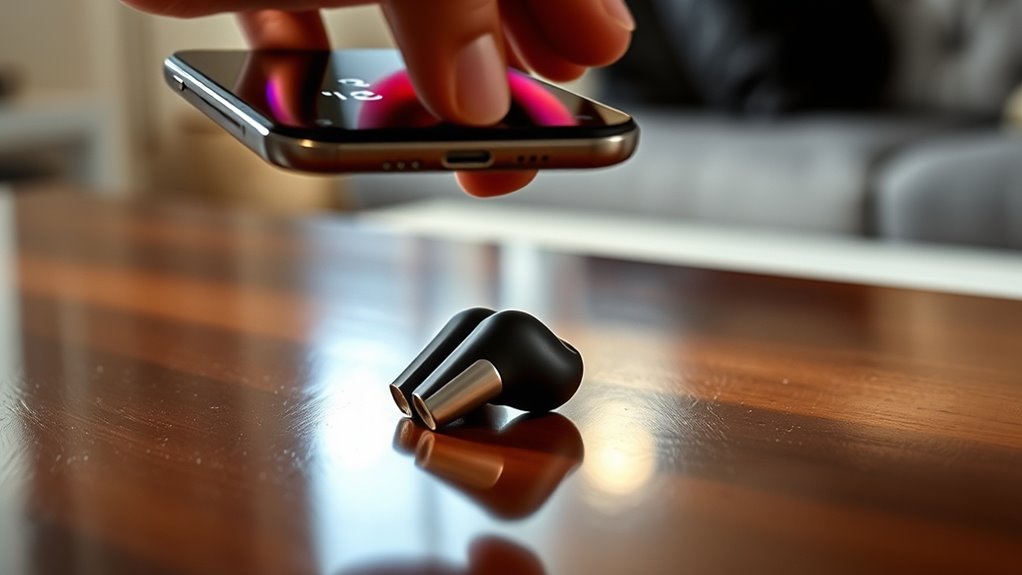

To sync your earbuds, start by ensuring Bluetooth is enabled on your device. Power on your earbuds; they should enter pairing mode automatically. Select your earbuds from the list of devices on your smartphone, laptop, or tablet, and confirm the connection if prompted. If you encounter issues, check battery levels, restart both devices, and keep them within range. For more tips on maintaining a stable connection and enhancing sound quality, see the following sections.
Understanding Bluetooth Technology
Understanding Bluetooth technology is vital for syncing your earbuds effectively. Bluetooth operates on radio waves, allowing devices to connect wirelessly within a certain range, typically up to 30 feet. The strength of your connection can be influenced by obstacles like walls or other electronic devices.
Bluetooth codecs play an important role in audio quality, determining how sound is compressed and transmitted. Common codecs include SBC, AAC, and aptX, each offering different levels of audio fidelity. For the best experience, make sure your earbuds and device support the same codec, which can enhance playback quality. By grasping these fundamentals, you’re setting yourself up for a seamless and enjoyable listening experience, giving you the freedom to move without being tethered by wires.
Preparing Your Earbuds for Syncing
Before syncing your earbuds, it’s important to make certain they’re ready for connection. Here’s how to prepare them:
- Check Earbud Compatibility: Confirm your earbuds are compatible with the device you plan to connect to. Look for Bluetooth specifications and supported profiles.
- Charge the Battery: Fully charge your earbuds to avoid interruptions during syncing. A low battery can hinder the connection process.
- Reset Your Earbuds: If you’re experiencing issues, resetting them can help clear previous connections and allow for a fresh start.
- Turn on Bluetooth: Make certain Bluetooth is enabled on your device. This sets the stage for a seamless syncing experience.
Connecting Earbuds to a Smartphone
Once your earbuds are prepared, connecting them to your smartphone is a straightforward process. First, verify your smartphone’s Bluetooth is enabled. Open the settings app and navigate to the Bluetooth section. Your earbuds should automatically enter pairing mode if they’re powered on. Look for their name in the list of available devices and select it. If prompted, confirm the connection.
Make sure your earbuds are compatible with your smartphone for peak audio quality. Once connected, you can enjoy your favorite tunes or take calls with ease. If you encounter issues, check that your earbuds are charged and within range. Now you’re ready to experience the freedom of wireless listening!
Syncing Earbuds With a Laptop or Tablet
To sync your earbuds with a laptop or tablet, start by verifying that the device’s Bluetooth is turned on. Follow these steps for seamless connection:
Sync your earbuds with ease by ensuring Bluetooth is on, and follow simple connection steps for seamless audio enjoyment.
- Check Laptop Compatibility: Confirm your laptop supports Bluetooth. If not, consider a USB Bluetooth adapter.
- Open Tablet Settings: Access the Bluetooth settings on your tablet. Verify it’s discoverable.
- Put Earbuds in Pairing Mode: Typically, pressing and holding the power button activates pairing mode. Check your earbuds’ manual for specifics.
- Connect: On your laptop or tablet, select your earbuds from the list of available devices. Wait for confirmation that the connection is successful.
Once connected, enjoy the freedom of wireless audio, whether you’re working or relaxing!
Pairing Earbuds With Smart TVS
While syncing your earbuds with a smart TV might seem intimidating, it’s a straightforward process that can enhance your viewing experience. First, verify your smart TV models support Bluetooth connectivity. Navigate to the audio settings on your TV and enable Bluetooth. Next, put your earbuds in pairing mode—this usually involves holding down a button until a light flashes. On your TV, search for available devices, and select your earbuds from the list. Once connected, you might need to adjust the audio settings for ideal sound quality. Enjoy the freedom of wireless audio while watching your favorite shows or movies. Remember, the process may vary slightly depending on your specific smart TV model, so consult the user manual if needed.
Troubleshooting Common Syncing Issues
Even though syncing your earbuds is usually a simple process, you might encounter some common issues that can disrupt your experience. Here’s how to troubleshoot syncing problems and connectivity issues effectively:
- Check Battery Levels: Verify your earbuds are charged, as low battery can cause syncing problems.
- Remove Interference: Keep your earbuds away from other electronic devices that might interfere with the Bluetooth connection.
- Restart Devices: Sometimes, a quick restart of both your earbuds and the device can resolve connectivity issues.
- Update Firmware: Confirm both your earbuds and device have the latest software updates, as outdated firmware can lead to syncing problems.
Resetting Your Earbuds
If you’re still facing syncing issues after troubleshooting, resetting your earbuds can often resolve persistent connectivity problems. To perform an earbud reset, first, ascertain your earbuds are charged and turned on. Then, locate the reset button or follow the specific instructions provided by your manufacturer. This usually involves pressing and holding certain buttons simultaneously for a few seconds. Once you’ve successfully reset, your earbuds will revert to factory settings, clearing any previous pairings. After the reset, reconnect your earbuds to your device, and check if the syncing issue is resolved. This simple step can restore your earbuds’ functionality, giving you the freedom to enjoy your music or calls without interruptions.
Syncing Multiple Devices
How can you enjoy seamless audio across multiple devices? With effective multi device management, you can easily switch between your smartphone, tablet, and laptop without missing a beat. Here’s how to set it up:
- Check device compatibility: Confirm your earbuds support multi-device connections.
- Pair each device: Connect your earbuds to each device individually through Bluetooth settings.
- Use the app: If your earbuds come with a companion app, utilize it for better management and easy switching.
- Switching devices: When you want to change, simply select your earbuds from the new device’s Bluetooth menu.
Maintaining a Stable Connection
To maintain a stable connection with your earbuds, you should start by clearing the Bluetooth cache on your devices. Keeping your firmware updated is also essential, as it can resolve compatibility issues. Additionally, minimizing sources of interference will help guarantee a reliable connection.
Clear Bluetooth Cache
While you might not think about it often, clearing your Bluetooth cache can greatly improve the stability of your connection to your earbuds. Over time, stored data can interfere with the performance. Here’s how to clear the cache effectively:
- Go to your device’s Settings.
- Tap on Bluetooth.
- Find your earbuds in the list and select them.
- Choose Forget or Unpair.
After you’ve cleared the Bluetooth cache, reconnect your earbuds. This simple step helps eliminate connection issues, ensuring a smoother listening experience. Enjoy the freedom of seamless audio without interruptions! By regularly clearing your cache, you can maintain a stable connection and get the most out of your earbuds.
Keep Firmware Updated
After clearing your Bluetooth cache, another key step to guaranteeing a stable connection is keeping your earbuds’ firmware updated. Firmware upgrades can markedly enhance performance and fix any bugs that might disrupt your listening experience. Most earbuds will provide update notifications through their companion app or directly on your device. Make sure you check these notifications regularly and don’t ignore them. Ignoring updates could lead to connectivity issues or degraded sound quality. To update, simply follow the prompts in the app, and verify your earbuds are charged and within range during the process. Staying proactive with firmware updates not only optimizes your earbuds but also empowers you to enjoy your audio freedom to the fullest.
Minimize Interference Sources
Even if you’ve updated your firmware, interference from other electronic devices can still disrupt your earbuds’ connection. To maintain signal clarity, here are some steps you can take to minimize interference sources:
- Keep your earbuds away from Wi-Fi routers: These can emit signals that disrupt your Bluetooth connection.
- Turn off nearby devices: If possible, switch off other electronics like microwaves or cordless phones when using your earbuds.
- Avoid crowded areas: Places with numerous Bluetooth devices can create interference; try to find a more open space.
- Limit physical obstructions: Walls and large objects can weaken the Bluetooth signal, so stay within a clear line of sight.
Enhancing Your Listening Experience
To truly enhance your listening experience with earbuds, it’s essential to contemplate both sound quality and fit. Start by investing in high-quality earbuds that deliver clear audio and deep bass. Look for those with noise-canceling features to block out distractions, allowing you to enjoy your music fully.
Next, guarantee a snug fit by trying different ear tips, as a proper seal can greatly improve sound quality. You might also consider using an equalizer to customize audio settings for your preferences, further enhancing your experience.
Lastly, keep your earbuds clean and charged, as maintenance plays a critical role in overall performance. By focusing on these aspects, you’ll reveal the full potential of your earbuds, leading to an exhilarating listening experience.
Frequently Asked Questions
Can I Use Earbuds While Charging Them?
You can’t use earbuds while charging them; it’s like trying to swim with weights. For charging safety, it’s best to avoid that. Plus, it’ll help maintain your battery lifespan, ensuring they last longer.
How Do I Know if My Earbuds Are Fully Charged?
You can tell your earbuds are fully charged by checking the battery indicators, typically found on the charging case or through a connected device. Charging times vary, so refer to the manufacturer’s guidelines for accuracy.
Are My Earbuds Waterproof or Sweat-Resistant?
Your earbuds might be sweat-resistant, but check their waterproof ratings to be sure. Most models specify their level of protection, so you can enjoy your workouts without worrying about damaging them. Stay free and active!
Can I Use My Earbuds With a Gaming Console?
Yes, you can use your earbuds with a gaming console, but check for gaming compatibility to avoid audio latency. Verify they support the console’s Bluetooth or wired connection for the best gaming experience.
How Do I Clean My Earbuds Properly?
Cleaning your earbuds is like tending a garden; proper earbud maintenance keeps them flourishing. Use a soft cloth, gentle cleaning techniques, and a bit of isopropyl alcohol for stubborn grime. Regular care guarantees lasting sound quality.
