
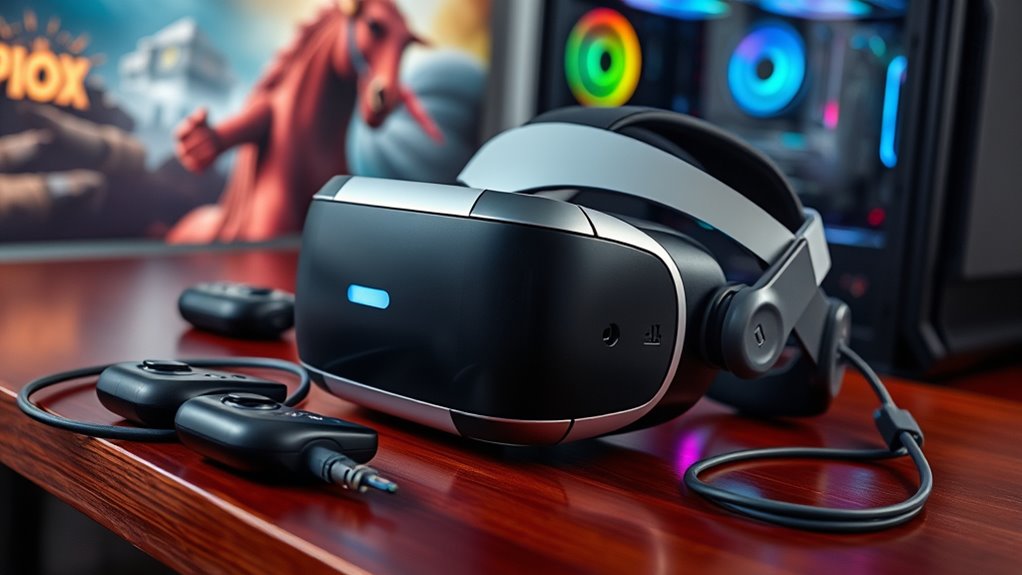

To use any VR headset on Steam, you’ll need a compatible PC with at least a quad-core CPU, dedicated graphics card (like NVIDIA GTX 970), and a minimum of 8GB of RAM. Confirm your VR headset is compatible with SteamVR and set up a safe play area free from obstacles. Install SteamVR from the Steam library and configure your settings for peak performance. Want to learn more about setting up and troubleshooting your VR experience?
Understanding VR Headset Types
When you immerse yourself in the world of virtual reality, understanding the different types of VR headsets can be essential for your experience. Tethered headsets like the Oculus Rift, HTC Vive, and Valve Index offer high-quality graphics and immersive experiences, but require a powerful PC. On the other hand, standalone headsets like the Oculus Quest deliver freedom without cables, perfect for those who want to explore VR without the setup hassle. Windows Mixed and PlayStation VR blend augmented reality elements, catering to diverse gaming preferences. Mobile VR headsets, while entry-level, provide a taste of virtual environments using your smartphone. Each type serves unique needs, so consider what suits your freedom to explore the vast domains of VR best.
Minimum PC Requirements for VR
To fully enjoy the immersive experiences VR has to offer, you’ll need to confirm your PC meets certain minimum requirements. First off, a solid processor speed is essential; aim for at least a quad-core CPU to handle the demands of VR applications. Next, don’t underestimate the importance of minimum graphics capabilities. A dedicated graphics card, like the NVIDIA GTX 970 or AMD Radeon R9 290, will guarantee smooth visuals. Additionally, your system should have a minimum of 8GB of RAM to prevent lag during intense gameplay. Finally, make sure you have enough USB ports for your headset and any additional accessories. By meeting these requirements, you can explore the enchanting world of VR without a hitch.
Recommended PC Specifications
When you’re gearing up for a VR experience on Steam, understanding the recommended PC specifications is essential. While minimum system requirements can get you started, investing in better hardware, especially a powerful graphics card, can greatly enhance your immersion. Let’s explore what upgrades can take your VR sessions to the next level.
Minimum System Requirements
Although VR gaming can be an exhilarating experience, having the right hardware is vital to secure smooth performance and immersion. To enjoy virtual reality on Steam, you’ll need a PC that meets minimum system requirements. This typically includes a multi-core processor, at least 8GB of RAM, and a compatible graphics card like the NVIDIA GTX 970 or AMD R9 290. Additionally, make sure your system has enough USB ports and HDMI outputs to connect your headset. Hardware compatibility is important; an outdated or underpowered setup can lead to lag and poor visuals, disrupting your experience. By meeting these minimum requirements, you can access the potential of virtual reality and enjoy the freedom it offers in immersive gaming worlds.
Recommended Hardware Upgrades
Upgrading your hardware can greatly enhance your VR gaming experience on Steam. To enjoy smooth gameplay and immersive environments, consider these recommended performance upgrades that guarantee hardware compatibility:
| Component | Recommended Upgrade |
|---|---|
| CPU | Intel Core i5 or better |
| RAM | 16 GB or more |
| Storage | SSD (minimum 256 GB) |
| USB Ports | USB 3.0 or higher |
| Motherboard | VR-ready compatible |
These enhancements will not only improve your VR experience but also future-proof your system for new titles. By investing in quality hardware, you’ll access the full potential of your VR headset, creating a truly liberating gaming atmosphere.
Graphics Card Importance
The graphics card plays a pivotal role in delivering an immersive VR experience on Steam. It’s not just about visuals; it’s about how your GPU compatibility can enhance graphics performance, making your virtual adventures fluid and engaging. A powerful graphics card guarantees you can handle demanding VR titles without lag, allowing you to fully explore expansive worlds and intricate details. If you want to enjoy the freedom of movement and interaction that VR offers, you’ll need to invest in a high-quality GPU that meets or exceeds Steam’s recommended specifications. This investment not only elevates your gaming experience but also future-proofs your setup for upcoming VR titles. After all, in VR, every frame counts for that enchanting sense of presence.
Choosing the Right VR Headset
How do you navigate the myriad options available when choosing the right VR headset? First, consider your budget considerations. High-end models offer immersive experiences but can be pricey, while budget-friendly options still deliver solid performance. Next, immerse yourself in brand comparisons. Popular brands like Oculus, HTC, and Valve each have unique features and ecosystems. Think about what matters most to you—field of view, resolution, or tracking capabilities. Don’t overlook comfort and compatibility with your existing hardware. Research user reviews to gauge real-world performance and support. Ultimately, your choice should align with your gaming preferences and how you envision using the headset. Freedom in your VR experience begins with making an informed choice that fits your lifestyle and aspirations.
Setting Up Your VR Space
While setting up your VR space may seem straightforward, it requires careful consideration to guarantee an ideal experience. Start by designating boundaries to make sure you won’t bump into furniture or walls while immersed in virtual worlds. Using a tape measure or virtual boundary tool can help you establish a safe area that maximizes your freedom of movement. Next, optimizing lighting is essential; avoid direct sunlight or harsh overhead lights that can interfere with sensors. Soft, diffused lighting is often best, creating a comfortable atmosphere that doesn’t distract. Finally, declutter your space to enhance both safety and immersion. By focusing on these aspects, you’ll create a VR environment that fosters exploration and enjoyment, allowing you to fully engage with your adventures.
Installing Steam and SteamVR
Before you can fully immerse yourself in virtual reality, you’ll need to install both Steam and SteamVR. First, it’s essential to check whether your system meets the necessary requirements to guarantee a smooth experience. Once you’ve confirmed that, the installation process is straightforward and will have you ready to explore VR in no time.
System Requirements Overview
To successfully install Steam and SteamVR, you’ll need to verify your system meets certain requirements that are vital for peak performance. Conducting system compatibility checks and a hardware performance evaluation is fundamental before diving into the VR experience. Here’s a quick overview of the key specifications:
| Requirement | Minimum Specs |
|---|---|
| OS | Windows 10 or later |
| Processor | Intel i5-4590 / AMD FX 8350 |
| RAM | 8 GB |
| Graphics Card | NVIDIA GTX 970 / AMD RX 480 |
| USB Ports | 1x USB 3.0 |
Installation Steps Guide
Installing Steam and SteamVR is a straightforward process, provided your system meets the necessary requirements. First, download the Steam client from the official website and install it. Once you’ve set up your account, search for SteamVR in the store and click “Install.” Confirm your VR headset compatibility; this guarantees a smooth experience. After installation, connect your headset and launch SteamVR. You’ll be prompted to complete some setup steps, including room-scale configuration if applicable. Keep an eye on SteamVR updates, as they enhance functionality and improve performance. With everything set up, you’re ready to plunge into immersive VR experiences, exploring a world of possibilities right from your PC. Enjoy your freedom in virtual reality!
Connecting Your VR Headset
Connecting your VR headset to Steam can seem intimidating, but it’s a straightforward process that opens up a world of immersive gaming experiences. Start by confirming your headset is compatible with SteamVR. If you’re using a wired headset, focus on cable management to avoid tangles and guarantee a clear play area. Connect the appropriate cables to your PC, following the manufacturer’s guidelines. For those opting for wireless options, make sure you have a strong Wi-Fi connection and install any necessary software to facilitate the link. Once connected, you’ll be ready to explore various games and applications. Each setup may vary slightly, so refer to your headset’s manual for specific instructions. Enjoy the freedom of virtual reality!
Configuring VR Settings in SteamVR
Once your VR headset is connected, it’s essential to configure the settings in SteamVR to optimize your experience. You’ll need to check the system requirements, follow the installation steps, and customize your controller options for seamless gameplay. Understanding these aspects can greatly enhance your virtual reality adventures.
System Requirements Overview
As you plunge into the immersive world of virtual reality on Steam, understanding the system requirements is fundamental for guaranteeing a smooth experience. Start by evaluating your PC’s hardware—your CPU and GPU play significant roles in VR performance optimization. Aim for a powerful graphics card that meets or exceeds the specifications of your chosen headset. Don’t forget about RAM; 8GB is often the minimum, but 16GB is ideal for seamless performance.
Headset compatibility considerations are also essential. Confirm your VR headset is compatible with SteamVR, as not all devices work seamlessly. Finally, keep your software updated to avoid conflicts. By carefully reviewing these factors, you’ll set the stage for an exhilarating VR adventure.
SteamVR Installation Steps
Installing SteamVR is a straightforward process that paves the way for your VR experience. Start by downloading SteamVR from the Steam library. Once installed, you’ll face minimal installation challenges, often just related to hardware setup. After installation, launch SteamVR to access its diverse features, enhancing your virtual environment.
| Step | Action |
|---|---|
| 1. Download SteamVR | Open Steam, find SteamVR |
| 2. Install | Follow the prompts |
| 3. Launch SteamVR | Access settings menu |
Once you’re in, configure your VR settings to optimize performance and comfort. Don’t hesitate to explore each feature; it’s all about creating your perfect virtual space. Enjoy the freedom of immersive gaming!
Controller Configuration Options
After you’ve launched SteamVR, the next step is to configure your controller settings for an ideal experience. You’ll want to explore the controller mapping options, where you can customize button layouts to suit your playstyle. SteamVR allows you to remap buttons easily, so you can assign specific functions to your preferred controls, enhancing your comfort and efficiency. Don’t hesitate to experiment with different setups; the freedom to tailor your controls can greatly impact your immersion. Remember, each game might require unique settings, so take the time to adjust your controller configurations for specific titles. With the right button layouts, you’ll find maneuvering virtual worlds more intuitive and enjoyable, maximizing your VR experience.
Exploring VR Games and Experiences
While diving into the world of VR games and experiences on Steam, you’ll find a diverse array of options that cater to various tastes and preferences. From thrilling adventures to serene explorations, these experiences offer something for everyone. You’ll appreciate how immersive storytelling draws you into intricate narratives, making you feel like you’re part of the action. Multiplayer experiences further enhance this freedom, allowing you to connect with friends or meet new players in virtual spaces. Whether you’re battling foes or collaborating on creative projects, the potential for interaction is limitless. This rich tapestry of VR offerings not only entertains but also invites you to explore your imagination in ways you might not have thought possible.
Troubleshooting Common VR Issues
As you dive deeper into the immersive world of VR, you might encounter various issues that can disrupt your experience. Don’t worry; common issues can often be resolved with a few VR troubleshooting tips. First, check your headset connections—loose cables can lead to display problems. If you’re experiencing tracking issues, make certain that your sensors are positioned correctly and free from obstructions. Software glitches might require a simple restart or updating your drivers. If your performance lags, verify that your system meets the VR requirements and close unnecessary applications. Finally, consult the Steam support forum for specific issues related to your headset. By addressing these common issues, you can reclaim your VR freedom and enjoy a smoother experience.
Frequently Asked Questions
Can I Use a VR Headset With a Laptop?
Yes, you can use a VR headset with a laptop, but make certain your laptop specifications meet the required standards for VR performance. Otherwise, you might face lag or lower visual quality in your experiences.
Do I Need a Specific USB Port Type for VR?
You don’t necessarily need a specific USB port type for VR, but verify your headset’s USB compatibility matches your ports. USB 3.0 is preferred for ideal performance, providing a smoother, more immersive experience.
Are VR Headsets Compatible With Different Operating Systems?
Yes, many VR headsets offer OS compatibility and cross-platform support, allowing you to use them across different operating systems. However, always check specific requirements to guarantee a seamless experience with your chosen headset.
Can I Use Multiple VR Headsets on One PC?
Yes, you can use multiple VR headsets on one PC, but VR headset compatibility varies. A multiple headset setup requires careful management of settings and resources, ensuring a seamless experience without sacrificing performance or quality.
Is There an Age Restriction for Using VR Headsets?
Yes, there’re age recommendations for VR headsets, often suggesting 12 or older. It’s essential you consider health considerations, as prolonged use may affect young users’ development. Always prioritize safety and comfort when diving into virtual experiences.
