
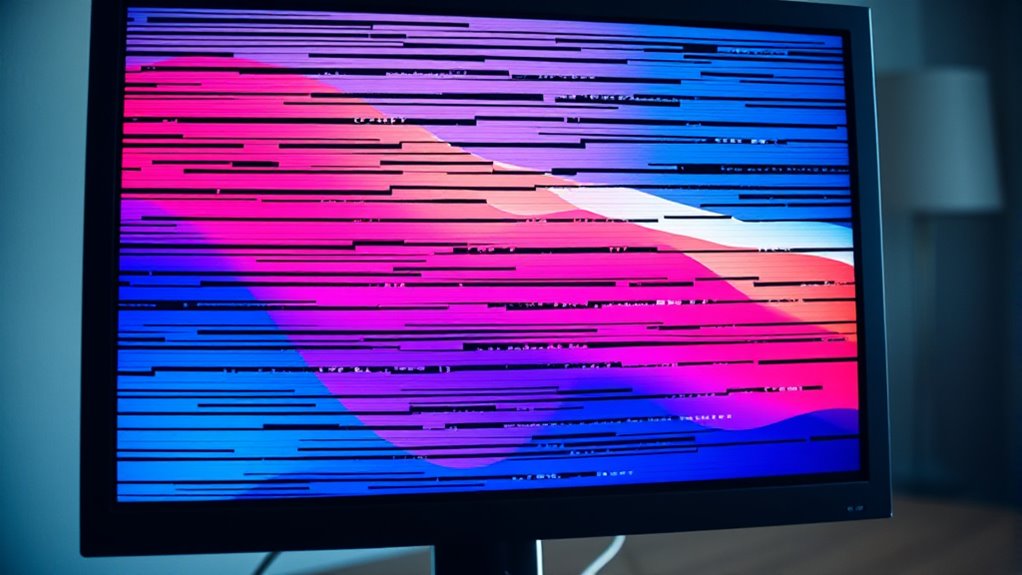

If your monitor has lines, it could be due to several factors. Common causes include loose or damaged cables, a faulty graphics card, or incorrect display settings. Hardware issues can also arise from internal components failing. To fix it, start by checking connections and recalibrating your display settings. If the problem persists, you might need to consult a professional for assistance. Understanding these issues better can help you troubleshoot effectively and enhance your visual experience.
Understanding Monitor Lines: An Overview
When your monitor displays lines, it can be frustrating, especially if you rely on it for work or entertainment. Understanding the different monitor types and screen technology can help you identify the issue. Monitors come in various forms, including LCD, LED, and OLED, each utilizing unique technologies to render images. Lines on your screen may indicate a problem with the display panel, graphics card, or connection. For instance, LCD monitors often experience issues due to faulty pixels or damaged cables, while OLED screens might show lines due to burn-in or hardware faults. Familiarizing yourself with these technologies can empower you to troubleshoot effectively, giving you more control over your viewing experience and helping you maintain your digital freedom.
Common Causes of Monitor Lines
If you’re seeing lines on your monitor, several common causes could be at play. It might be due to cable connection issues, misconfigured display settings, or even hardware malfunctions. Let’s explore these factors to help you pinpoint the problem.
Cable Connection Issues
Several factors can contribute to your monitor displaying lines, and one of the most common culprits is cable connection issues. If you’re using subpar or damaged cables, it can greatly affect connection quality. Different cable types—like HDMI, DVI, or VGA—have varying levels of robustness, and using an inferior or incompatible cable can lead to display problems. Check for any visible damage to the cables, such as fraying or bent connectors. Additionally, verify that all connections are secure; loose cables can cause signal interference, resulting in lines on your screen. By addressing these cable connection issues, you can restore your monitor’s clarity and enjoy a seamless visual experience once again.
Display Settings Misconfiguration
Misconfigured display settings can often be the reason behind those frustrating lines on your monitor. One common culprit is the display resolution; using a resolution that doesn’t match your monitor’s native settings can lead to distortion. Similarly, an incorrect refresh rate can cause flickering and lines across your screen.
| Setting | Correct Value | Impact of Misconfiguration |
|---|---|---|
| Display Resolution | Native Resolution | Distortion, blurry images |
| Refresh Rate | Monitor’s Max Rate | Flickering, lines |
| Scaling | 100% | Image stretching, pixelation |
Ensure your display settings are properly configured to enjoy a clear viewing experience. It’s your right to have a finely tuned screen!
Hardware Malfunctions
One common cause of lines on your monitor is hardware malfunctions. These issues often stem from a damaged video cable or a failing graphics card. If you’ve noticed screen flickering alongside those lines, it’s a strong indicator that your hardware might be at fault. Pixel distortion can also occur, where individual pixels misbehave, leading to visible lines across your display. Sometimes, overheating components can exacerbate these problems. To troubleshoot, check all connections and consider testing with another cable or monitor. If the problem persists, your graphics card may need repair or replacement. Staying aware of these potential hardware issues can help you maintain a clear and consistent monitor display, allowing you the freedom to work or play without interruptions.
Hardware Malfunctions: Cables and Connections
Cables and connections play an essential role in delivering a clear image to your monitor, so any issues in this area can lead to annoying lines or distortion on the screen. Ensuring connection integrity is vital. Here are some common culprits to check:
- Frayed or damaged cables: Look for any visible wear and tear.
- Loose connections: Make sure all cable types are securely plugged in.
- Incompatible adapters: Using the wrong adapter can cause signal issues.
Graphics Card Issues
If you notice lines on your monitor despite having checked your cables, the issue might stem from your graphics card. One common culprit is graphics card overheating. When your card runs too hot, it can cause display issues, including those annoying lines. Make certain your system is well-ventilated and think about cleaning out dust that may be blocking airflow.
Another factor to reflect on is graphics card compatibility. If you’ve recently upgraded your hardware, verify that your graphics card is fully compatible with your monitor and other components. Incompatible parts can lead to visual glitches and performance issues. By addressing these two areas, you can often resolve the line issues and enjoy a clear, uninterrupted display.
Display Settings and Software Conflicts
Your monitor’s display issues could stem from incorrect resolution and refresh rate settings, which can cause lines on the screen. Additionally, outdated or incompatible graphics drivers might contribute to the problem, making it essential to keep them updated. Don’t forget to check scaling and compatibility settings, as they can also impact how your monitor displays content.
Resolution and Refresh Rate
A monitor’s resolution and refresh rate play crucial roles in delivering a smooth visual experience. If you’re experiencing lines on your display, it might be time for some resolution adjustments and refresh rate enhancement.
Consider how these settings affect your viewing:
- Pixel density: Higher resolution means sharper images, reducing the chance of lines.
- Frame rates: A higher refresh rate gives you smoother motion, especially in fast-paced content.
- Compatibility: Confirm your monitor and graphics card settings align for peak performance.
Graphics Driver Issues
Although graphics drivers often function seamlessly, outdated or corrupted drivers can lead to display issues like lines on your monitor. Regular graphics driver updates are essential to guarantee your system runs smoothly. If you’ve recently updated your operating system, you might encounter driver compatibility issues that can cause visual artifacts.
| Issue | Possible Cause | Solution |
|---|---|---|
| Lines on Monitor | Outdated Graphics Driver | Update Driver |
| Flickering Display | Driver Compatibility Issues | Rollback Driver |
| Blurry Graphics | Corrupted Driver | Reinstall Driver |
| Color Distortion | Incorrect Settings | Adjust Display Settings |
| Screen Freezing | Conflicting Software | Check for Conflicts |
Addressing these concerns can help restore your monitor’s visual integrity and enhance your freedom of use.
Scaling and Compatibility Settings
After addressing potential graphics driver issues, it’s important to contemplate how scaling and compatibility settings might impact your display. Incorrect scaling factors can distort your screen, leading to unwanted lines or artifacts. Adjusting these settings can help you achieve a clearer image.
Consider these adjustments:
- Scaling factors that match your monitor’s native resolution
- Compatibility modes for older software or games
- Settings that optimize your graphics card’s performance
Faulty Monitor Components
Faulty monitor components can be the root cause of those distracting lines marring your display. One common issue is faulty pixels, which can cause lines to appear across your screen. These pixels may become stuck or dead, disrupting the overall visual experience. Additionally, problems within the display circuitry can lead to inconsistent signal transmission, resulting in horizontal or vertical lines. If your monitor’s internal connections are damaged or malfunctioning, it can further exacerbate these issues. Understanding these components is essential, as they directly affect your monitor’s performance. By recognizing the potential for faulty pixels and display circuitry, you can better assess the problem and decide on your next steps towards a clearer, line-free display.
How to Troubleshoot Monitor Lines
Identifying the cause of the lines on your monitor is the first step toward resolving the issue. Start by checking your connections and cables. A loose or damaged cable could easily cause display problems. Next, consider monitor calibration; adjusting the settings might bring clarity back to your screen. Finally, test your display technology.
Identifying the source of monitor lines starts with checking cables, adjusting settings, and testing display technology for clarity.
- Inspect the cable for frays or bends
- Adjust the brightness and contrast settings
- Try connecting to another device to see if the problem persists
If the lines remain, it might be an underlying hardware issue. By methodically troubleshooting, you can often pinpoint the problem and reclaim a clear visual experience. Don’t let those lines limit your freedom to enjoy your digital world!
When to Seek Professional Help
If you’re still seeing lines on your monitor after troubleshooting, it may be time to seek professional help. Persistent lines can indicate deeper issues that simple fixes won’t resolve. You might be dealing with hardware damage or internal component failure, which requires expert insight. Professional diagnostics can pinpoint the exact problem, saving you time and frustration.
If your monitor’s still under warranty, contacting the manufacturer for monitor repair is advisable. Even if it’s not, professional services can often bring your display back to life, ensuring you get the most out of your investment. Don’t hesitate to reach out for help; it’s better to act sooner than later to avoid further damage or costly repairs down the line.
Frequently Asked Questions
Can Monitor Lines Affect My Computer’s Performance?
Lines on your monitor won’t directly affect your computer’s performance, but they can indicate underlying graphics issues. If left unresolved, these problems might hinder your overall experience, impacting how smoothly your system runs.
Do Different Types of Monitors Have Unique Line Issues?
Yes, different monitors do have unique line issues. LCD issues might show ghosting, OLED problems can cause color banding, LED flickering may create visual disturbances, and CRT lines often result from aging components or interference.
Can Monitor Lines Appear Due to Environmental Factors?
Yes, monitor lines can appear due to environmental factors. High humidity effects and temperature fluctuations can damage internal components, leading to display issues. Keeping your monitor in a stable environment helps prevent these problems.
Are Certain Brands More Prone to Monitor Line Problems?
Certain brands can be more prone to monitor line problems, depending on brand reliability and monitor specifications. It’s wise to research reviews and specifications before purchasing, ensuring you enjoy a seamless visual experience.
How Can I Prevent Monitor Lines From Appearing?
You can prevent monitor lines by ensuring regular screen maintenance, like cleaning, and using high-quality cables. Checking connections frequently helps too. A little care goes a long way in keeping your display clear and vibrant.
