
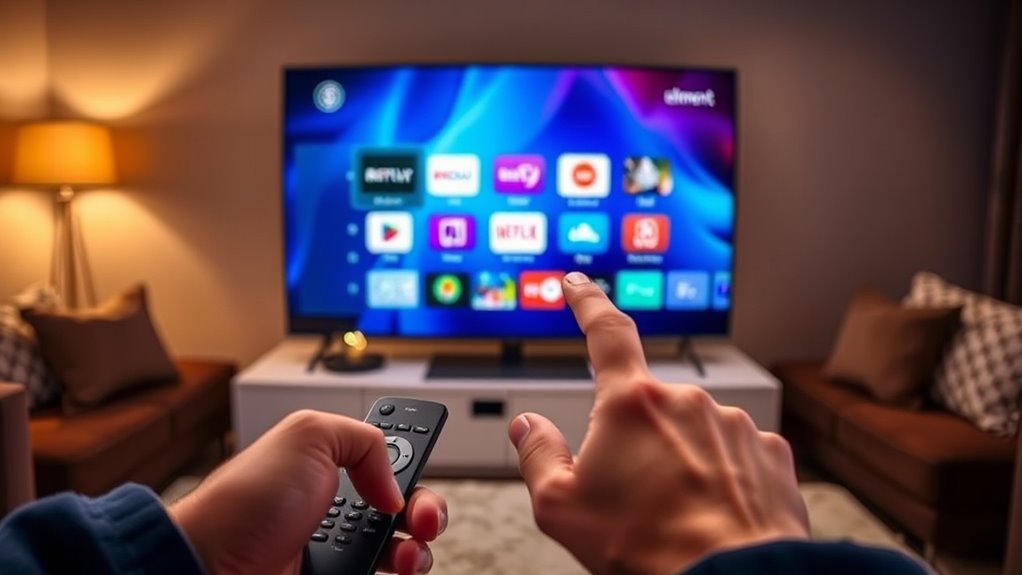

To download apps on your Element Smart TV, first, connect it to the internet using Wi-Fi or Ethernet. Then, navigate to the App Store from the main menu. From there, you can browse or search for apps you want to install. Once you find an app, select it and follow the prompts to download. Remember to keep your apps updated for the best experience. There’s more to explore about managing your apps and features!
Understanding Your Element Smart TV Interface
When you first power on your Element Smart TV, you’ll notice a user-friendly interface designed to make navigation simple. The layout is intuitive, allowing you to easily explore various Element TV features without feeling overwhelmed. You’ll find a straightforward menu that includes categories like apps, settings, and channels, which helps streamline your user interface navigation.
Using the remote, you can swiftly move through options, selecting what you want with minimal effort. Each section is clearly labeled, so you can quickly identify where to go for your favorite shows or settings. Whether you’re a tech novice or an experienced user, the interface empowers you with the freedom to customize your viewing experience efficiently.
Connecting Your TV to the Internet
To fully enjoy the features of your Element Smart TV, you’ll need to connect it to the internet. You can choose between a Wi-Fi connection or an Ethernet setup, depending on your preference and available options. A Wi-Fi connection offers flexibility and ease, while an Ethernet setup can provide a stable connection for streaming.
| Connection Type | Pros | Cons |
|---|---|---|
| Wi-Fi | Wireless, easy | Signal interference |
| Ethernet | Stable, reliable | Limited mobility |
| Both | Flexible options | Setup complexity |
Whichever method you choose, make certain your network is secure to protect your data. Once connected, you’ll be ready to explore all the amazing apps your Element Smart TV has to offer!
Accessing the App Store
To access the App Store on your Element Smart TV, start by exploring the main menu. Look for the “Apps” or “App Store” icon, which will lead you to a list of available applications. From there, you can browse and find the apps you want to download.
Navigating the Menu
While exploring the menu on your Element Smart TV, accessing the App Store is a straightforward process that opens up a world of entertainment options. Using your Element remote, navigate through the menu layout to find the App Store icon. Just a few clicks will lead you to countless apps tailored to your interests.
Here’s what you can look forward to:
- Discover new content that keeps you entertained for hours.
- Enjoy the freedom to personalize your viewing experience.
- Stay connected with friends and family through social apps.
Take a moment to immerse yourself in the App Store, and embrace the endless possibilities your Element Smart TV has to offer!
Finding Available Apps
Once you’ve navigated to the App Store on your Element Smart TV, finding available apps is a breeze. You’ll see various app categories like streaming, games, and news, making it easy to browse. Just select a category that interests you, and you’ll be presented with a list of compatible apps. Keep an eye on app compatibility, as not all apps work with every TV model. If you’re searching for something specific, use the search feature to quickly locate your desired app. Once you find it, check the details to confirm it meets your needs before downloading. With just a few clicks, you can unleash a world of entertainment and freedom right on your screen!
Browsing Available Apps
As you explore your Element Smart TV, you’ll find a variety of apps available for download that can enhance your viewing experience. By diving into different app categories, you’ll discover popular apps that cater to your interests. Whether you’re into streaming, gaming, or fitness, there’s something for everyone.
Here are a few exciting things you might find:
- New shows and movies to binge-watch, keeping your entertainment fresh.
- Interactive games that bring fun and excitement to your living room.
- Fitness apps that help you stay active, even while at home.
Take your time browsing through these options, and enjoy the freedom to customize your TV experience to reflect your lifestyle!
Searching for Specific Apps
How can you quickly find the apps you’re interested in on your Element Smart TV? Start by using the search function on your home screen. Just type the name of the app you’re looking for; this will save you time browsing through options. Keep in mind that not all apps will have the same app compatibility or app performance on your TV, so verify the app you want is optimized for your model. If you can’t find what you need, check the app store for categories or popular selections. This way, you can discover new apps that enhance your viewing experience while confirming they align with your preferences. Enjoy the freedom to customize your entertainment!
Downloading and Installing Apps
To download and install apps on your Element Smart TV, you’ll first need to access the App Store. Once you’re in, you can browse or search for the apps you want, including third-party options. Let’s go through the steps to get your favorite apps up and running.
Accessing the App Store
Once you’re ready to enhance your Element Smart TV experience, accessing the App Store is your first step. With simple app store navigation, you’ll open up a world of entertainment tailored just for you. Here’s what you can look forward to:
- Discover new shows and movies that captivate your imagination.
- Enjoy personalized app store recommendations based on your interests.
- Connect with friends through social apps and gaming.
To get started, just press the “Home” button on your remote, scroll to the “Apps” section, and delve into the App Store. Browse through various categories, explore trending options, and find the perfect apps that resonate with your unique tastes. Your next adventure in streaming awaits!
Installing Third-Party Apps
If you’re enthusiastic to expand your Element Smart TV’s capabilities, installing third-party apps can offer a wealth of additional entertainment options. To get started, you’ll need to enable sideloading apps, which allows you to install apps not available in the official app store. Go to your TV’s settings and enable the option for unknown sources, granting the necessary app permissions.
Next, download the APK file of your desired app using a web browser on your TV or a USB drive. Once downloaded, use a file manager to locate the file and initiate the installation. Follow the on-screen prompts to complete the process. With third-party apps, you can truly customize your viewing experience and enjoy an array of content tailored to your preferences.
Managing Your Installed Apps
Managing your installed apps on an Element Smart TV is straightforward and essential for a smooth viewing experience. It’s all about app organization, so you can find what you love without hassle. Here’s how to make it easier:
Efficiently managing your Element Smart TV apps enhances your viewing experience and helps you easily access your favorites.
- Uninstalling apps you don’t use frees up space and keeps your interface clean.
- Rearranging your apps allows you to prioritize your favorites for quick access.
- Regularly checking for updates guarantees you’re enjoying the best features.
Updating Apps on Your Element Smart TV
Keeping your apps up to date on your Element Smart TV is essential for peak performance. You’ll want to start by checking for software updates to guarantee your system is running the latest version. After that, managing your app preferences can help you customize your viewing experience.
Check for Software Updates
Making sure your Element Smart TV is up to date is vital for ideal app performance. Regular software updates enhance software compatibility and improve update frequency, allowing you to enjoy your favorite apps without interruptions. Here’s how to check for updates:
- Stay connected: A stable internet connection is important for downloading updates.
- Navigate settings: Go to the Settings menu, select System, and find Software Update options.
- Automatic updates: Enable automatic updates to guarantee you never miss out on new features or important fixes.
Manage App Preferences
While you may enjoy downloading new apps on your Element Smart TV, it’s equally important to keep your existing apps updated for peak performance. Regular updates guarantee that you access the latest features and improvements. To manage your app preferences, navigate to the settings menu on your TV. Here, you’ll find customization options that allow you to enable automatic updates or update apps manually. If you prefer control, opt for manual updates, checking periodically for any app requiring attention. Staying on top of app updates not only enhances your viewing experience but also helps maintain security. By managing your app preferences effectively, you can enjoy a seamless and personalized entertainment experience on your Element Smart TV.
Troubleshooting Common App Issues
If you encounter issues with apps on your Element Smart TV, don’t worry—troubleshooting is often straightforward. Here are some common problems and quick fixes to regain your freedom to enjoy streaming:
- App crashes: Restart the app or your TV. It’s a simple reset that can solve most issues.
- Slow performance: Close unused apps running in the background. This often frees up resources and boosts speed.
- Installation errors: Check your internet connection and verify your TV’s software is up to date for better app compatibility.
Exploring Additional Features and Settings
Once you’ve resolved any app issues, you might want to explore the additional features and settings available on your Element Smart TV. One key aspect is app customization options, allowing you to organize your favorite apps for easy access. You can rearrange, uninstall, or even hide apps you don’t use often, giving you a tailored viewing experience.
Additionally, consider setting up parental control settings. This feature lets you restrict access to certain apps or content, ensuring that your kids can safely enjoy TV time. It’s a simple process; just navigate to the settings menu and follow the prompts. By making the most of these features, you can enhance your viewing experience and maintain control over what’s accessible on your TV.
Frequently Asked Questions
Can I Download Apps Not Available in the App Store?
Yes, you can download apps not available in the app store by sideloading them from alternative app stores. Curiously, over 60% of users explore this method for enhanced functionality and app variety on their devices.
How Do I Uninstall Apps From My Element Smart TV?
To uninstall apps from your Element Smart TV, navigate to the app management section, select the app you want to remove, and confirm the uninstall process. It’s a simple way to free up space!
Are There Any Subscription Fees for Downloaded Apps?
In the garden of apps, some bloom freely while others require a toll. You’ll find many subscription models and app pricing varies; some apps have fees, while others let you roam without cost.
Can I Use a USB Drive to Install Apps?
You can’t use a USB drive to install apps directly. Element Smart TVs typically don’t support USB compatibility for app installation, so you’ll need to download apps through the TV’s built-in platform instead.
What to Do if an App Won’t Open After Installation?
If an app won’t open, try restarting your TV first. Then check for software updates, as they can resolve compatibility issues. If problems persist, consider uninstalling and reinstalling the app for better troubleshooting.
