
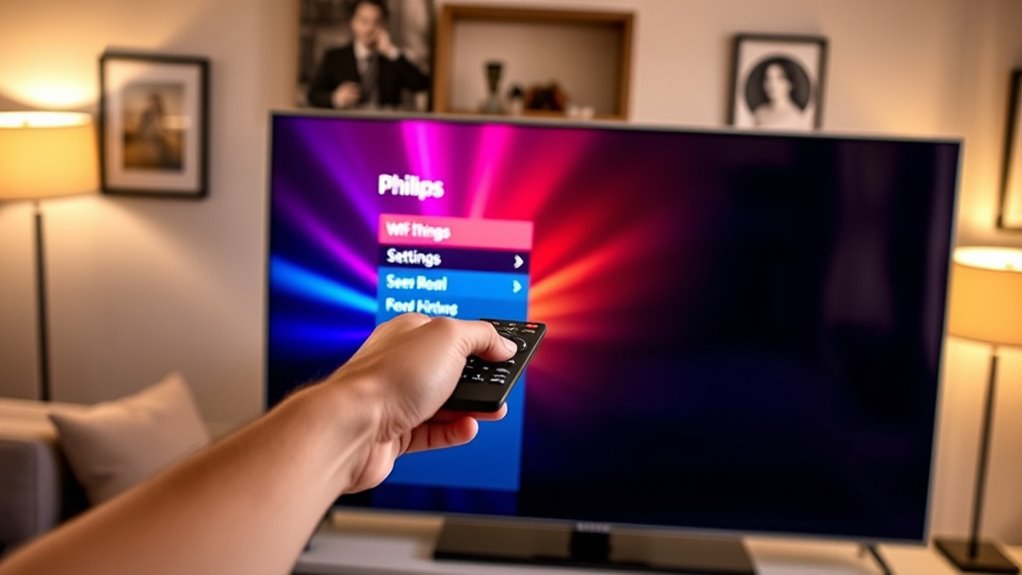

To connect your Philips Smart TV to Wi-Fi, power on the TV and press the “Home” button to access the settings menu. Navigate to Wi-Fi settings and select your desired wireless network. Enter your Wi-Fi password accurately, including special characters, and confirm your selection. If you face connection issues, check for interference and make sure the router is centrally located. There’s more to optimizing your connection and enhancing your streaming experience if you explore further.
Understanding Your Philips Smart TV Model
When you’re trying to connect your Philips Smart TV to Wi-Fi, it’s essential to understand your specific model, as features and settings can vary. Philips model variations offer different Smart TV features, impacting how you access and manage your network connections. For instance, some models may include built-in Wi-Fi, while others require an external adapter. Additionally, the user interface and menu layout can differ, affecting how you navigate to Wi-Fi settings. Familiarizing yourself with your model’s specifications will allow you to troubleshoot any connection issues more effectively. By understanding these nuances, you’ll guarantee you’re taking full advantage of your Philips Smart TV’s capabilities and enjoying seamless streaming experiences without unnecessary interruptions.
Locating the Wi-Fi Settings Menu
To connect your Philips Smart TV to Wi-Fi, start by accessing the Settings menu from the home screen. Once there, look for the Network options, which will guide you toward setting up your Wi-Fi connection. This step is essential for enabling internet access on your TV.
Accessing Settings Menu
Accessing the settings menu on your Philips Smart TV is essential for locating the Wi-Fi settings. Begin by turning on your TV and pressing the “Home” button on your remote. This action will take you to the main screen, where you can start exploring menus. Look for the gear icon, typically labeled as “Settings.” Once you select it, you’ll enter the settings interface. Here, you can easily adjust settings related to your display, audio, and network. Using the arrow keys on your remote, scroll through the options until you find the Wi-Fi settings. Being familiar with this menu allows you to customize your experience and connect your TV to the internet seamlessly.
Finding Network Options
After entering the settings interface, look for the option labeled “Network” or “Network Settings.” This section is where you’ll find all the necessary configurations for connecting your Philips Smart TV to Wi-Fi. Once you’re in the network menu, you’ll see various network types available for connection, such as Wi-Fi and wired options. Choose Wi-Fi to access available networks. If you encounter signal interference, consider moving your router closer to the TV or minimizing obstacles between them. It’s essential to select a strong network to guarantee smooth streaming and performance. Once you select your network, enter the password, and your TV should connect seamlessly, granting you the freedom to enjoy your favorite content.
Connecting to a Wireless Network
Once you’ve powered on your Philips Smart TV, connecting to a wireless network is a straightforward process. Begin by heading to the settings menu, where you’ll find options for various wireless network types, like 2.4GHz and 5GHz. Select the type that best suits your needs. Your TV will scan for available networks; choose your desired one from the list. Pay attention to the Wi-Fi security settings displayed, as they determine how your connection will be secured. Be certain to select a network with strong encryption, like WPA2, to guarantee your data remains safe. Once you’ve confirmed your selection, your TV will attempt to connect, paving the way for seamless streaming and browsing.
Entering Your Wi-Fi Password
To connect your Philips Smart TV to your Wi-Fi network, you’ll need to enter your Wi-Fi password. Using the remote, navigate to the password entry field. Type in your password carefully, as accuracy is vital for maintaining password security. Make sure you include any special characters, as these are often necessary for a successful connection. If you make a mistake, use the backspace button to correct it. Once you’ve entered the password, double-check it to verify there are no errors that could compromise connection stability. A strong, secure password helps protect your network from unauthorized access, allowing you to enjoy uninterrupted streaming and browsing on your Smart TV. After confirming, proceed to connect your TV to the network.
Testing the Internet Connection
With your Wi-Fi password entered and confirmed, it’s time to ascertain your Philips Smart TV is connected properly. Start by testing connectivity through the TV’s settings. Navigate to the network options and select “Test Internet Connection.” This will verify speed and ascertain you’re ready to stream your favorite content.
Here’s a quick reference table for common speed results:
| Speed (Mbps) | Connectivity Status | Recommended Use |
|---|---|---|
| Less than 1 | Poor | Basic browsing |
| 1 – 5 | Fair | SD streaming |
| 5 – 25 | Good | HD streaming |
| 25 – 50 | Very Good | 4K streaming |
| 50+ | Excellent | Multiple devices |
Once completed, you’ll know if your connection meets your needs!
Troubleshooting Common Connection Issues
If you’re experiencing connectivity issues with your Philips Smart TV, it’s essential to troubleshoot effectively. First, check for Wi-Fi interference; devices like microwaves and cordless phones can disrupt signals. Make sure your router is properly placed, ideally in a central location, to maximize coverage. If the signal’s weak, consider using signal boosters to enhance connectivity. Additionally, verify that your network security settings aren’t blocking your TV from accessing the Wi-Fi. Sometimes, security features can prevent devices from connecting. Finally, reboot your router and TV; a simple reset can resolve many issues. By addressing these common problems, you’ll increase your chances of a stable, reliable connection for your Philips Smart TV.
Updating Your TV’s Software
To guarantee your Philips Smart TV runs smoothly, you’ll need to keep its software updated. Start by checking the current software version, then download and install any available updates. This process helps enhance performance and access new features.
Checking Current Software Version
Checking the current software version on your Philips Smart TV is essential for guaranteeing peak performance and access to the latest features. To start, navigate to the settings menu using your remote. Look for the “About” or “System” section; this is where you’ll find the software version displayed. Understanding the software’s importance can’t be overstated—having the latest version guarantees you benefit from improved functionality, security updates, and enhanced version features. If your software is outdated, you may miss out on new apps or smart capabilities. Regularly checking your version keeps your TV running smoothly and effectively, allowing you the freedom to enjoy a seamless viewing experience without unnecessary interruptions.
Downloading Latest Updates
While keeping your Philips Smart TV updated is essential for peak performance, downloading the latest software updates is a straightforward process. Start by directing yourself to the settings menu on your TV. From there, select “Software Update” or “System Update.” Confirm your Wi-Fi connection is stable to optimize download speed. If you encounter slow speeds, check for other devices using bandwidth and disconnect them temporarily. Before downloading, it’s also wise to manage storage space; delete unused apps or content that might hinder the update. Once you initiate the download, your TV will notify you when it’s ready for installation. This simple step can enhance your viewing experience considerably, keeping your TV’s features up-to-date and fully functional.
Installing Software Updates
Once the download is complete, installing the software updates on your Philips Smart TV is a quick and easy process. To begin, navigate to the settings menu using your remote. Look for the “Software Update” option, and select it. Your TV will check for update notifications, ensuring you’re aware of the latest features and security enhancements available. If an update is found, follow the on-screen prompts to initiate the installation. This process may take a few minutes, but it’s vital for maintaining software compatibility with apps and features. Once completed, your TV will restart, and you’ll enjoy an optimized viewing experience. Regular updates help keep your TV running smoothly and securely, so don’t ignore them!
Using Ethernet as an Alternative
If you’re looking for a stable internet connection for your Philips Smart TV, using an Ethernet cable can be a reliable alternative to Wi-Fi. A wired setup typically offers faster speeds and lower latency, which is essential for streaming HD content. To establish an Ethernet connection, simply plug one end of the cable into your TV’s Ethernet port and the other into your router. Once connected, go to your TV’s network settings to verify it’s detecting the wired connection. This method reduces interference from other devices, giving you a seamless viewing experience. Plus, it’s perfect if Wi-Fi signals aren’t strong in your area. Overall, an Ethernet connection can greatly enhance your streaming quality and reliability.
Enhancing Your Wi-Fi Signal
Improving your Wi-Fi signal can greatly enhance your Philips Smart TV’s streaming experience. If you’re facing connectivity issues, consider using Wi-Fi extenders or signal boosters. These devices help bridge the gap between your router and TV, ensuring a stronger, more reliable connection.
| Option | Description | Benefits |
|---|---|---|
| Wi-Fi Extenders | Amplifies your existing signal | Expands coverage area |
| Signal Boosters | Enhances signal strength | Reduces buffering while streaming |
| Mesh Wi-Fi Systems | Multiple nodes for full coverage | Seamless connection throughout home |
Enjoying Streaming Services on Your Philips Smart TV
To enjoy streaming services on your Philips Smart TV, you’ll want to guarantee compatibility with various apps. A strong Wi-Fi signal is essential for smooth playback and a best viewing experience. Once that’s set, you can easily install your preferred streaming apps through the TV’s interface.
Streaming Service Compatibility
Philips Smart TVs are designed to provide seamless access to a variety of popular streaming services, making it easy for you to enjoy your favorite shows and movies. However, you might encounter some compatibility issues with certain apps. Here’s a quick reference to help you navigate:
| Streaming Service | Compatibility |
|---|---|
| Netflix | Supported |
| Hulu | Supported |
| Amazon Prime | Supported |
| Disney+ | Supported |
| HBO Max | Possible Issues |
Before streaming, always check if your Philips Smart TV supports the specific service you want. By doing so, you can avoid frustration and guarantee a smooth viewing experience. Embrace the freedom of entertainment with your Philips Smart TV!
WiFi Signal Strength
Enjoying your favorite streaming services on a Philips Smart TV relies heavily on WiFi signal strength. To guarantee smooth playback and minimal buffering, consider implementing some wifi performance tips. First, position your router centrally in your home, away from obstructions. If your signal is weak, explore signal booster options like WiFi extenders or mesh networks to enhance coverage. You might also want to limit the number of devices using the network simultaneously to prioritize bandwidth for your TV. Additionally, using a 5GHz band can provide a faster connection, reducing interference. Regularly check your internet speed to confirm it meets the requirements for streaming. A strong, stable connection will greatly enhance your viewing experience.
App Installation Process
Once you’ve confirmed a strong WiFi connection, installing apps on your Philips Smart TV is a straightforward process. Start by exploring the app store on your TV’s home screen. Browse through the available categories or use the search function for specific apps. When selecting apps, consider app selection tips such as user ratings, features, and compatibility with your viewing preferences. Once you’ve found an app you want, click on it, then follow the installation guidelines displayed on-screen. Typically, it involves pressing an “Install” button and waiting for the download to complete. After installation, the app will appear on your home screen, ready for you to enjoy your favorite streaming services instantly. Happy streaming!
Frequently Asked Questions
Can I Connect My Philips Smart TV to a Public Wi-Fi Network?
Yes, you can connect your Philips Smart TV to a public Wi-Fi network. However, be prepared for potential connection issues due to network restrictions or bandwidth limitations, which might affect streaming and performance.
What to Do if My Wi-Fi Signal Is Weak?
If your Wi-Fi signal’s weak, think of it as a dim star. You can boost it using Wi-Fi extenders or signal boosters, illuminating your connection and allowing your Philips Smart TV to shine brightly once more.
How to Reset Network Settings on My Philips Smart TV?
To reset network settings on your Philips Smart TV, go to Settings, choose Network, then select Network Troubleshooting. If issues persist, consider a factory reset, restoring your TV to original settings for ideal performance.
Will Connecting to Wi-Fi Affect My Tv’s Performance?
Connecting to Wi-Fi can impact your TV’s performance, primarily affecting streaming quality. If your connection’s weak or unstable, you might experience buffering or lower resolution. A strong Wi-Fi signal usually enhances overall viewing experience.
Can I Use a Mobile Hotspot for My Philips Smart TV?
Yes, you can use a mobile hotspot setup for your Philips Smart TV. Just be mindful of data usage implications; streaming might consume significant data, potentially limiting your freedom to browse elsewhere without interruptions.

[…] with login and ending with a working connection. If you’re updating Wi‑Fi, passwords, or network options, follow these instructions and you’ll know what to do at every […]