
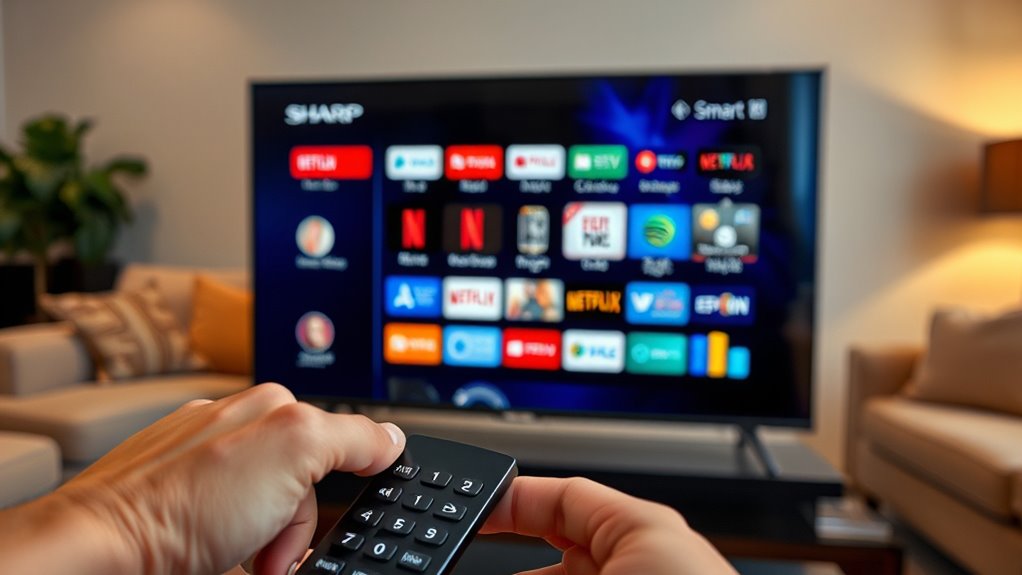

To put apps on your Sharp Smart TV, start by maneuvering to the App Store from the home screen. Use the remote’s directional pad to find the app icon, usually resembling a shopping bag. Once in the App Store, either browse categories or use the search feature to find specific apps. Select your desired app and follow the prompts to install it. If you run into any issues, you can manage your installed apps for troubleshooting or fixes. There’s plenty more to explore!
Understanding Your Sharp Smart TV Interface
Maneuvering your Sharp Smart TV interface can feel overwhelming at first, but it’s designed to be user-friendly. To make the most of your experience, familiarize yourself with the layout. The main menu displays apps and settings, while the home screen shows recently used features. Use the arrow keys on your remote to navigate effortlessly through options.
For quick access, try creating shortcuts for your favorite apps. Don’t hesitate to explore the settings menu for customization options that suit your preferences.
Accessing the App Store
To access the App Store on your Sharp Smart TV, start by maneuvering to the Home Screen. Look for the app icon or section labeled “Apps” or “App Store.” Once you find it, you’ll be ready to explore and download the apps you want.
Navigating the Home Screen
While exploring your Sharp Smart TV, accessing the App Store is a straightforward process that opens up a world of entertainment options. To get there smoothly, consider these navigation tips:
- Familiarize Yourself with the Home Screen Layout: Understand where your apps and settings are located for quick access.
- Use the Remote: The directional pad will help you move through the menus easily.
- Look for the App Icon: Typically, it’s labeled “App Store” or “Apps,” making it easy to find.
Finding the App Store
After getting comfortable with the home screen, locating the App Store is your next step. You’ll usually find it represented by an icon that resembles a shopping bag or an app grid. Click on that icon, and you’ll enter a world of app store features designed to enhance your viewing experience. Here, you can browse through various app store categories, making it easy to find what you’re looking for—whether it’s streaming services, games, or utilities. Use the search function if you have a specific app in mind. Once you’ve selected an app, follow the prompts to download it. With just a few clicks, you’ll be revealing a treasure trove of entertainment options right on your Sharp Smart TV!
Searching for Apps
How can you easily find apps on your Sharp Smart TV? Start by using the built-in search features to explore various apps tailored to your interests. Here are some tips to streamline your search:
- Use Search Filters: Narrow down results based on categories like movies, games, or music to find what you want quickly.
- Check App Recommendations: Look for curated lists highlighting popular or trending apps to discover new favorites.
- Browse Categories: Explore specific sections in the app store, making it easier to find apps that suit your needs.
Installing Apps on Your Sharp Smart TV
Now that you’ve found the apps you want to use, it’s time to install them on your Sharp Smart TV. You can easily access the App Store to download popular applications, or even explore options for installing third-party apps. Let’s take a closer look at how to get those apps up and running on your TV.
Accessing the App Store
To access the App Store on your Sharp Smart TV, you’ll first need to navigate through its user-friendly interface. Here’s how to get started with app store navigation:
- Locate the Home Button: Press the home button on your remote to bring up the main menu.
- Select the App Store Icon: Look for the App Store icon among the available options. It’s usually marked and easy to find.
- Explore App Store Features: Once inside, you can browse categories, search for specific apps, or check out recommendations tailored for you.
Installing Third-Party Apps
Once you’ve accessed the App Store, you might want to expand your options by installing third-party apps. Sideloading apps can give you access to content that isn’t available through the official store. To do this, you’ll need to use APK files, which are the installation packages for Android applications. First, enable “Unknown Sources” in your TV’s settings to allow installations from outside the App Store. Next, download the desired APK file onto a USB drive. Plug it into your Sharp Smart TV and use a file manager app to locate the file. Once you find it, simply select and install the app. Enjoy the newfound freedom of accessing a wider range of apps on your Sharp Smart TV!
Managing Installed Apps
While managing installed apps on your Sharp Smart TV may seem challenging at first, it’s actually a straightforward process that enhances your viewing experience. Here’s how to streamline your app organization and uninstalling apps:
- Access the Home Screen: Press the Home button on your remote to view your installed apps.
- Select an App: Navigate to the app you want to manage and highlight it.
- Open Options: Press the options button to see choices like uninstalling or moving the app.
Troubleshooting Common App Issues
Even with effective app management, you might encounter occasional issues that can disrupt your viewing experience. If you’re facing app crashes, try restarting your Sharp Smart TV. This often resolves temporary glitches. If the problem persists, consider uninstalling and reinstalling the app; this can fix installation errors that may have occurred during the initial setup.
Ensure your TV’s software is up to date, as outdated firmware can lead to compatibility issues. Also, check your internet connection; a weak signal might cause apps to malfunction. If you’ve tried these steps and still face problems, consult the app’s support page or the Sharp customer support for further assistance. Enjoy your viewing experience without the hassle!
Frequently Asked Questions
Can I Use My Smartphone to Control Apps on My Sharp Smart TV?
Yes, you can use your smartphone to control apps on your Sharp Smart TV. With smartphone compatibility and a remote control app, you’ll easily navigate and manage your viewing experience from the palm of your hand.
Is There a Limit to the Number of Apps I Can Install?
Yes, there’s a limit to the number of apps you can install based on your TV’s app capacity and available storage. Regular storage management can help you optimize space and maximize your app experience.
How Do I Update Apps on My Sharp Smart TV?
To update apps on your Sharp Smart TV, use the app management tips in the settings menu. You can enable automatic updates or manually check for updates under the app section for each installed app.
Can I Delete Pre-Installed Apps From My Sharp Smart TV?
You can’t usually delete pre-installed apps on your Sharp Smart TV. For app management, consider disabling them if possible. If it’s necessary, a factory reset might help, but be cautious—it’ll erase all your settings.
Are There Any Subscription Fees for Specific Apps on Sharp Smart TV?
Yes, some apps on your Sharp Smart TV have subscription options, while others are free. It’s best to check each app individually for any fees or premium features that may require payment.
