
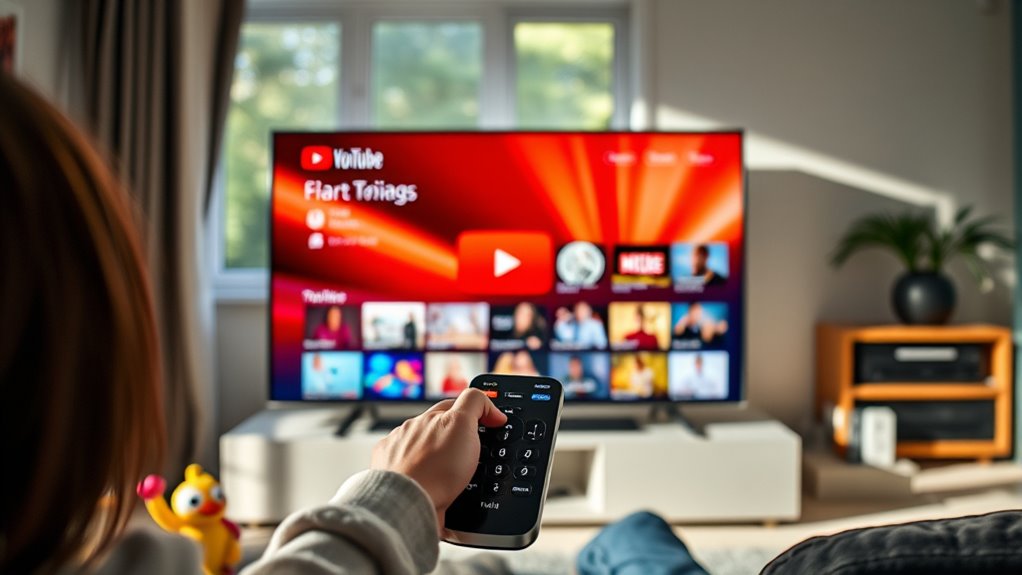

To set parental controls on YouTube via your Smart TV, start by accessing the YouTube app and moving to the settings icon. Look for “Restricted Mode” in the privacy settings to filter inappropriate content. For a more tailored experience, create a YouTube Kids account that allows you to customize what your child can watch. You can also monitor viewing activity for adjustments. Keep exploring to discover more ways to enhance safety and engagement for your kids.
Understanding YouTube Parental Controls
When it comes to keeping your kids safe online, understanding YouTube’s parental controls is essential. These tools empower you to set restrictions that help filter out inappropriate content, ensuring a safer viewing experience. The benefits of restrictions include limiting exposure to harmful material and promoting healthier online habits. However, there are challenges of monitoring your child’s activity on this vast platform. YouTube’s diverse content can make it tough to oversee what they’re watching, and relying solely on parental controls might not be enough. Striking a balance between freedom and safety is vital. By familiarizing yourself with these controls, you can create an environment where your kids can explore, learn, and enjoy, while still being protected from potential dangers online.
Setting Up a YouTube Kids Account
To guarantee your child has a safe and enjoyable experience on YouTube, setting up a YouTube Kids account is a great first step. This platform provides a child-friendly environment with robust content filtering options. Here’s how you can set it up:
- Download the YouTube Kids app on your device.
- Sign in with your Google account.
- Create a profile for your child, selecting their age group.
- Customize content settings to filter what they can see.
- Set up a timer for screen time limits.
Once you’ve completed these steps, your child can explore YouTube Kids with confidence, enjoying age-appropriate videos while you maintain peace of mind. It’s all about giving them the freedom to learn and play safely!
Accessing YouTube on Your Smart TV
To access YouTube on your Smart TV, you’ll first need to locate the YouTube app on your device. Once you’ve found it, signing into your account will grant personalized content for you and your family. Let’s explore these steps to get you started!
Locate YouTube App
Finding the YouTube app on your smart TV is essential for accessing a world of video content. Here’s how to navigate your way to it:
- Check your home screen: The app might already be pre-installed and visible.
- Use the search function: Type in “YouTube” to quickly locate the app.
- Explore the app store: If it’s not installed, head to your smart TV’s app store for easy installation.
- Look for categories: YouTube often appears under entertainment or video apps.
- Consult the user manual: If you’re still stuck, the manual can guide you through app navigation.
Once you find the app, you’ll be ready to plunge into endless videos, all while maintaining control over what’s viewed.
Sign In Account
How do you access your YouTube account on your smart TV? First, open the YouTube app. Once it’s launched, navigate to the settings menu, usually found in the top corner. Select “Sign In,” and you’ll see a prompt for your Google account credentials. Enter your email and password to guarantee account security. If you prefer, you can also use the QR code option on your mobile device for a quicker sign-in experience. Just scan the code displayed on your TV screen, and your account will be linked instantly. Remember, signing in not only grants you access to your personalized content but also helps maintain a safe viewing environment for you and your family. Enjoy your freedom on YouTube!
Navigating to the Settings Menu
To manage parental controls on YouTube, you’ll first need to access the Settings menu on your Smart TV. From there, you can easily locate the parental control option. Once you find it, you can set your preferences to guarantee a safer viewing experience for your kids.
Access Settings Menu
Accessing the settings menu on your Smart TV is a straightforward process that can usually be completed in just a few clicks. By mastering the settings navigation, you can guarantee menu accessibility for parental controls.
Here’s how to get there:
- Turn on your Smart TV and select the home button.
- Navigate to the ‘Settings’ icon, often shaped like a gear.
- Scroll through the menu options until you find ‘All Settings’ or ‘General Settings.’
- Select this option to explore various settings available.
- Look for categories like ‘Privacy’ or ‘Restrictions’ to customize your viewing experience.
Once you’re in the settings menu, you’re one step closer to customizing your YouTube experience and guaranteeing a safe viewing environment for everyone.
Locate Parental Control Option
Once you’ve navigated to the settings menu, where can you find the parental control option? Look for a section labeled “Parental Controls” or “Restrictions.” This area is often nestled within the general settings or privacy settings of your smart TV. Depending on your TV brand, it might be found under “User Preferences” or similar smart TV features. Once you locate it, you’ll see a variety of parental control options tailored to manage your viewing experience. This setup not only allows you to restrict content but also empowers you to create a safe space for your family while enjoying YouTube. Take a moment to explore these features, ensuring that your viewing environment aligns with your family’s values.
Set Restrictions Preferences
Now that you’ve found the parental control option, it’s time to set your restrictions preferences. This step helps guarantee your kids enjoy YouTube while keeping unsuitable content at bay. Here’s how to get started:
- Limit content types: Choose what’s appropriate for your child’s age.
- Adjust preferences: Tailor settings based on your family’s values.
- Block specific channels: Prevent access to unwanted content creators.
- Enable restricted mode: Filter out mature content effectively.
- Set viewing time limits: Control how long they can watch.
Enabling Restricted Mode
To create a safer viewing experience for your family, enabling Restricted Mode on YouTube for your Smart TV is a simple yet effective step. This feature helps filter out content that may not be suitable for younger viewers, giving you peace of mind. To enable it, start by opening the YouTube app and finding your way to the settings menu. From there, look for the “Restricted Mode” option and toggle it on. While adjusting settings, you can also explore enabling filters to block certain types of content. Remember, no filter is perfect, so it’s important to regularly check what your kids are watching. With Restricted Mode activated, you’re taking a proactive approach to safeguard their viewing experience.
Creating a Family Link Account
After setting up Restricted Mode, you might want to ponder creating a Family Link account. This can enhance your control over your child’s YouTube experience while offering them some freedom within safe boundaries. Here are some key family link features to reflect on:
- Manage app permissions: Control which apps your child can access.
- Set screen time limits: Guarantee balanced usage of devices.
- Monitor activity: Stay informed about what your child’s watching.
- Create individual accounts: Tailor settings for each child’s needs.
- Receive activity reports: Get insights on app usage and screen time.
Creating accounts through Family Link can empower you to foster a healthy digital environment for your kids while letting them explore responsibly.
Monitoring Viewing Activity and Adjusting Controls
How can you guarantee your child’s YouTube experience remains safe and appropriate? Monitoring their viewing activity and adjusting controls is key. Regularly check their viewing habits to understand what they’re interested in. This way, you can fine-tune their content preferences and verify they’re engaging with appropriate material.
Here’s a simple table to help you track their activity:
| Viewing Habits | Action Needed |
|---|---|
| High engagement | Review content regularly |
| Inappropriate content | Adjust restrictions |
| New interests | Update content filters |
| Low engagement | Explore new channels |
Frequently Asked Questions
Can I Set Different Controls for Multiple Children?
Yes, you can set multiple profiles for your children on YouTube, allowing for personalized settings. This way, each child can enjoy content suitable for them while you maintain control over what they watch.
Will Parental Controls Affect My Youtube Account Settings?
Parental controls won’t cage your account settings; they’ll simply act like a filter, allowing you to maintain account privacy while shaping content filtering. You can still explore freely, just with added safety for your children.
What if My Child Knows the Restrictions Password?
If your child knows the restrictions password, consider resetting it. You want to maintain control while also promoting awareness. Open a dialogue about online safety, ensuring your child understands the importance of those restrictions.
How Do I Disable Parental Controls When Needed?
To disable parental controls, navigate to the settings, enter your password, and select the option for disabling parental controls. For temporary access, consider creating a guest profile or adjusting settings for specific timeframes.
Are There Age Recommendations for Youtube Kids Content?
YouTube Kids offers content ratings to help you choose age-appropriate videos. Typically, it’s designed for children aged 2-12, but you should always review the content to verify it aligns with your child’s maturity and interests.
