
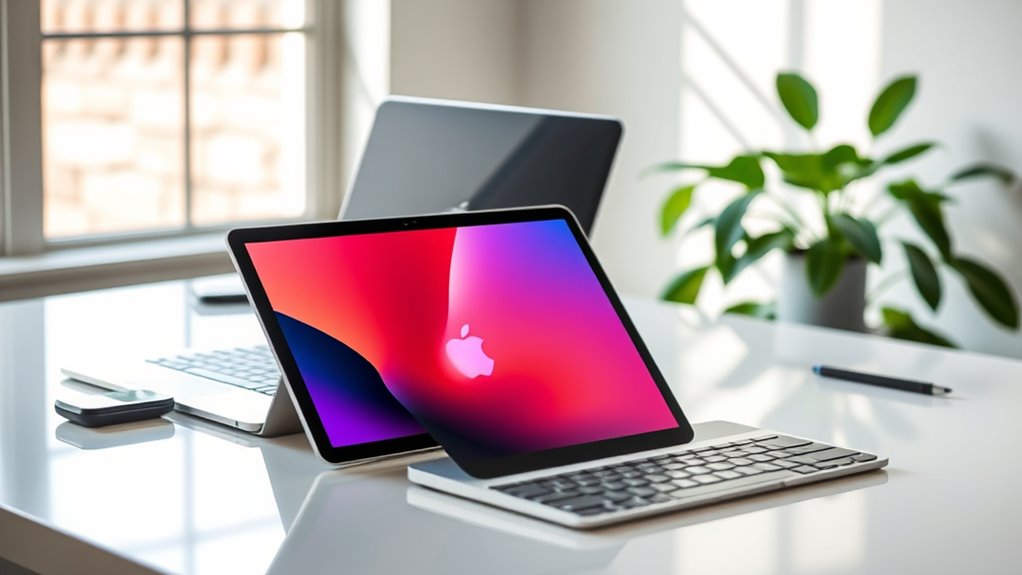

Yes, you can definitely use your iPad as a second monitor to boost productivity and multitasking efficiency. With features like AirPlay and Sidecar, sharing screens is seamless and wireless, letting you manage multiple apps side by side. By installing third-party apps like Duet Display, you can enhance functionality, customizing your experience further. Setting it up is straightforward, and optimizing your dual-screen experience can help you get the most out of this setup. Discover more tips and tricks to make it work even better.
Understanding the Benefits of Using an Ipad as a Second Monitor
When you consider enhancing your workspace, using an iPad as a second monitor can considerably boost your productivity. Imagine having your main tasks on one screen while keeping essential information, like emails or research, on the iPad. This setup encourages enhanced multitasking, allowing you to switch between tasks effortlessly without losing focus. With a larger visual area, you can also manage multiple applications side by side, streamlining your workflow. It’s perfect for those who crave freedom in their work environment, enabling you to break free from traditional setups. Plus, the portability of an iPad means you can create an efficient workspace anywhere you choose. Embrace this tech-savvy solution and elevate your efficiency to new heights!
Exploring Built-in Features for Screen Sharing
Using an iPad as a second monitor not only enhances your productivity but also leverages built-in features for seamless screen sharing. With AirPlay, you can easily mirror your Mac or PC screen to your iPad, creating an extended workspace without any additional software. The built-in features of iOS allow you to connect wirelessly, giving you the freedom to move around while maintaining your workflow. Additionally, Sidecar enables you to use your iPad as an extension of your desktop, enhancing multitasking capabilities. You can drag and drop files or keep critical apps open, all while enjoying a clean, organized workspace. Embrace these built-in features, and you’ll find your iPad becomes an invaluable tool for productivity and creativity.
Third-Party Apps That Enhance Functionality
While built-in features provide a solid foundation for using your iPad as a second monitor, third-party apps can greatly enhance its functionality. These apps often offer advanced screen mirroring options, allowing for seamless integration between your devices. You’ll find various options tailored to your specific needs, whether you’re looking for extended screen space or precise app compatibility.
Popular choices like Duet Display and Air Display enable effortless connections and a smooth user experience. They can support multiple formats and resolutions, making them versatile for different tasks. With the right third-party app, your iPad can transform into a powerful auxiliary display, giving you the freedom to multitask and improve productivity without limitations. Explore your options, and choose what works best for you!
Setting up Your Ipad as a Second Monitor
Setting up your iPad as a second monitor is a straightforward process that can greatly enhance your workflow. First, verify both your iPad and primary device are on the same Wi-Fi network for a seamless wireless setup. Choose an app designed for connecting devices, like Duet Display or Sidecar, and install it on both devices. Once installed, open the app on your iPad and your primary device. Follow the on-screen prompts to establish the connection. You’ll find your iPad quickly recognized as an additional display, ready for multitasking. Adjust the settings as needed to suit your preferences, and enjoy the newfound freedom of extra screen real estate for productivity or creative work.
Tips for Optimizing Your Dual-Screen Experience
To make the most of your dual-screen setup, adjusting your display settings is key. This can enhance visibility and reduce eye strain, making it easier to work for longer periods. Additionally, utilizing productivity apps can streamline your workflow and help you stay organized across both screens.
Adjust Display Settings
When you’re ready to take your multitasking to the next level with your iPad as a second monitor, adjusting the display settings is key to optimizing your dual-screen experience. Start by setting the right display resolution for both devices. This guarantees everything looks sharp and clear. Additionally, don’t forget about color calibration; matching colors across screens can greatly enhance your workflow.
| Setting | Recommended Value |
|---|---|
| Display Resolution | 1920 x 1080 (or higher) |
| Brightness | 70% |
| Color Temperature | 6500K |
| Refresh Rate | 60Hz |
| Orientation | Landscape |
Use Productivity Apps
With your display settings adjusted for ideal clarity, it’s time to enhance your productivity by using the right apps. Leveraging apps designed for dual-screen setups can provide a significant productivity boost and improve your multitasking efficiency. Here are some top choices:
- Duet Display: Seamlessly extends your desktop to your iPad.
- Sidecar: Apple’s built-in option for macOS users, perfect for drawing or editing.
- Microsoft Office: Ideal for working on documents and spreadsheets side-by-side.
- Trello: Manage tasks visually while keeping your main screen focused.
- Slack: Stay connected with your team without losing focus on your primary work.
Utilizing these apps can empower you to work smarter and enjoy the freedom of a more dynamic workspace.
Potential Limitations and Considerations
Although using an iPad as a second monitor can enhance your productivity, there are potential limitations and considerations to keep in mind. First, the screen resolution of your iPad might not match that of your primary monitor, which could affect how you view and interact with content. This discrepancy might lead to a less seamless multitasking experience. Additionally, connection stability is essential; relying on Wi-Fi can sometimes result in lag or disconnections, disrupting your workflow. You may also encounter app compatibility issues, as not all applications are optimized for dual-screen use. To make the most of your setup, consider these factors and test your configuration before fully committing to using your iPad as an extended display.
Frequently Asked Questions
Can I Use an Ipad as a Monitor for Gaming?
You can use an iPad as a monitor for gaming, but the gaming performance and display quality might not match a dedicated gaming setup. For casual use, it’s a fun option, but expect some limitations.
Is There a Delay When Using an Ipad as a Second Monitor?
You might experience some screen lag, but with a stable connection, it can feel like a dream. Just make certain your Wi-Fi is strong, and you’ll enjoy a smooth experience, almost like magic!
Can Multiple Ipads Be Used Simultaneously as Monitors?
Yes, you can use multiple iPads in your setup. With the right display options, each iPad can function as an individual monitor, giving you freedom and flexibility for multitasking and expanding your workspace.
Does Using an Ipad as a Monitor Drain Its Battery Quickly?
Yes, using an iPad as a monitor can drain its battery quickly due to increased power consumption. To maximize battery life, consider reducing brightness and closing unnecessary apps while in use. Stay mindful of your device’s needs!
Can I Use an Ipad With a Windows PC as a Second Monitor?
Absolutely, you can use an iPad with a Windows PC as a second monitor! Just make certain you check iPad compatibility and adjust your display settings. It’s a game-changer for multitasking and productivity!
