
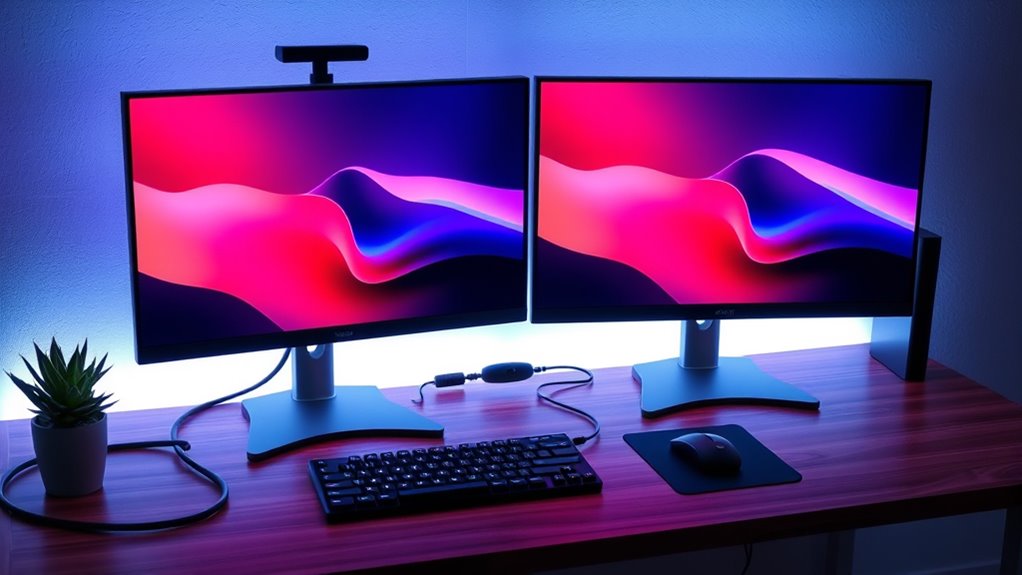

To configure dual monitors, start by choosing the right monitors based on size, resolution, and refresh rate. Connect them using the appropriate cables and guarantee your computer supports dual displays. Adjust the display settings for each monitor, calibrating colors and resolution for clarity. Arrange the monitors ergonomically at eye level and in a comfortable position. If you face issues like flickering or resolution mismatch, troubleshoot by checking connections or adjusting settings. There’s more to optimizing your setup effectively.
Choosing the Right Monitors
When you’re setting up dual monitors, it’s crucial to choose the right ones to maximize productivity and enhance your workspace. Start by evaluating monitor specifications, focusing on factors like size, refresh rate, and panel type. A larger screen can provide more workspace, while a higher refresh rate benefits gaming or video editing. Screen resolutions matter too; consider at least 1080p for clarity, but 1440p or 4K can offer even sharper images. Confirm both monitors match in resolution to avoid scaling issues, which can hinder multitasking efficiency. Additionally, consider connectivity options to guarantee compatibility with your system. By carefully selecting monitors that meet these criteria, you’ll create a seamless and effective dual-monitor setup tailored to your needs.
Connecting Your Monitors
After selecting the right monitors, the next step is connecting them to your computer. Begin by checking the cable types your monitors require, as well as the ports available on your computer. Common cable types include HDMI, DisplayPort, DVI, and VGA; make certain you’ve got the right ones for your setup. Assess monitor compatibility—some monitors may require adapters if their cable type doesn’t match your computer’s ports. Connect each monitor securely, making sure the cables are firmly plugged in. If you’re using multiple connections, verify that your computer can support dual monitors simultaneously. Once connected, you’re one step closer to enjoying the freedom and productivity that dual monitors provide.
Configuring Display Settings
Once you’ve connected your monitors, the next step is configuring the display settings to optimize your workspace. Start by adjusting the display resolution for each monitor. Go to your system settings, select “Display,” and choose the recommended resolution for clarity and performance. Higher resolutions provide sharper images, enhancing your multitasking experience.
Next, perform color calibration to guarantee consistent color representation across both screens. Use built-in calibration tools or third-party software to fine-tune brightness, contrast, and color accuracy. This will help reduce eye strain and improve visual comfort during extended use.
Arranging Your Monitors
When arranging your monitors, consider the placement options that best suit your workspace. You’ll want to adjust the orientation settings for ideal viewing angles and alignment. Proper arrangement enhances productivity and reduces strain during use.
Monitor Placement Options
Arranging your monitors effectively can greatly enhance your productivity and comfort. Start by guaranteeing your monitor height is at eye level, reducing strain on your neck. Ideally, the top of the screen should be just below your line of sight. This positioning helps maintain proper viewing angles, allowing for a more natural line of sight while you work. If you’re using two monitors, consider placing one slightly in front and the other slightly to the side, creating a slight arc that accommodates your natural head movement. This arrangement minimizes excessive neck rotation and promotes an ergonomic setup. Finally, guarantee that your monitors are parallel to each other for consistent viewing angles, maximizing visual efficiency and minimizing distractions.
Orientation Settings Adjustment
After ensuring your monitors are placed ergonomically, the next step is to adjust the orientation settings. You can choose between landscape mode and portrait mode based on your workflow. To switch the orientation, right-click on your desktop and select “Display settings.” Here, you’ll see options for each monitor. For landscape mode, select the default option, typically “Landscape.” If you prefer portrait mode, choose “Portrait” from the dropdown menu. Don’t forget to identify which monitor you’re adjusting by selecting “Identify” within the settings. Once you’ve made your choice, click “Apply” to confirm. This adjustment allows for a more tailored setup, enhancing productivity while giving you the flexibility to work how you want.
Optimizing for Productivity
How can you make the most of your dual monitor setup for increased productivity? Start by optimizing your workspace organization. Allocate one monitor for your primary tasks—documents, spreadsheets, or applications—while using the second for secondary activities like task management tools, email, or communication apps. This separation reduces clutter and keeps your focus sharp.
Utilize features like virtual desktops to categorize projects and streamline your workflow. Arrange windows so you can glance at critical information without constant switching. Customizing your display settings, including brightness and contrast, can also enhance comfort during long sessions. Remember, an organized workspace fosters creativity and efficiency—embrace the freedom dual monitors offer by tailoring them to your unique workflow needs.
Troubleshooting Common Issues
Have you ever encountered issues with your dual monitor setup? One common problem is screen flickering, which can be caused by outdated drivers or incorrect refresh rates. To fix this, make certain your graphics drivers are up to date and adjust the refresh rate in your display settings. Another frequent issue is resolution mismatch. If your monitors display different resolutions, it can lead to distorted images or alignment problems. Check each monitor’s resolution settings and verify they match the recommended values for peak performance. If problems persist, try swapping cables or ports to rule out hardware issues. Remember, troubleshooting can be a process, but with a few adjustments, you can enjoy a seamless dual monitor experience.
Frequently Asked Questions
Can I Use Monitors of Different Sizes and Resolutions?
Yes, you can use monitors of different sizes and resolutions. Just verify monitor compatibility and adjust your display settings accordingly to optimize your experience. It allows flexibility while maintaining functionality across varied screen setups.
Will Dual Monitors Affect My Computer’s Performance?
Yes, dual monitors can impact performance, primarily through resource allocation. If your system’s hardware isn’t powerful enough, you might notice slower response times or lag, especially during demanding tasks like gaming or video editing.
How Do I Switch Between Monitors Quickly?
Think of your monitors as a pair of wings; to switch quickly, use keyboard shortcuts like Windows + P. Adjust your display settings for seamless changes, ensuring you’re always in control of your workspace.
Are There Specific Graphics Cards for Dual Monitor Setups?
Yes, certain graphics cards offer better compatibility for dual display technology. Look for cards with multiple outputs and support for your desired resolutions to guarantee a seamless experience across both monitors without limitations.
Can I Use My TV as a Second Monitor?
Absolutely, you can use your TV as a second monitor, provided it’s compatible. Just tweak your display settings to extend or duplicate your desktop, giving you the freedom to enjoy a larger workspace.
