
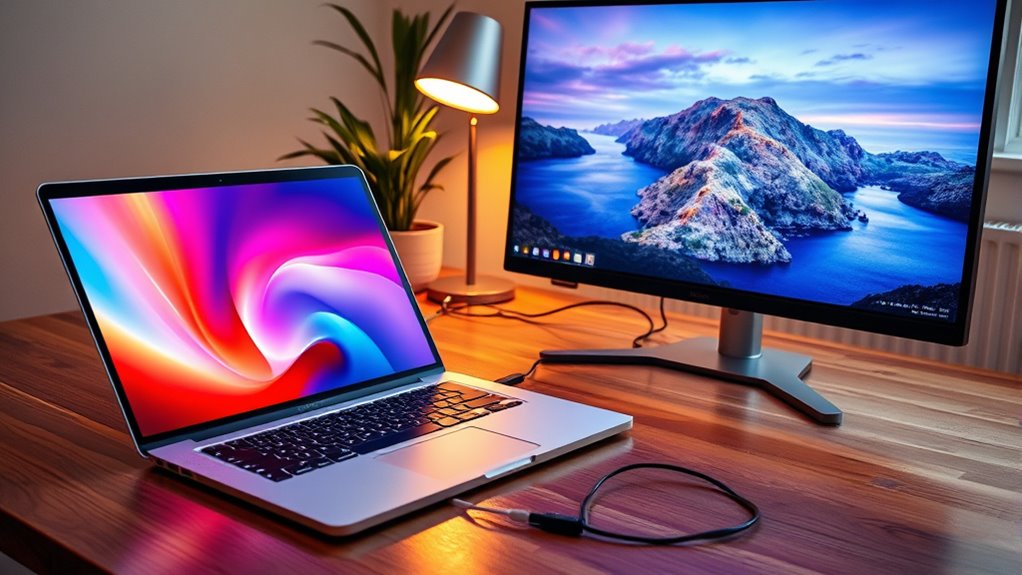

Yes, you can use a monitor with your laptop to boost productivity and create a better workspace. Simply connect the monitor via HDMI, DisplayPort, or VGA, and adjust the display settings to your preference. A larger screen lets you multitask efficiently by dedicating different applications to each display. Plus, an external monitor can enhance your gaming experience too! If you’re curious about choosing the right monitor and setting it up, there’s more to explore.
Understanding the Benefits of an External Monitor
When you connect an external monitor to your laptop, you might not realize just how much it can enhance your overall productivity. A larger screen provides ample space for multitasking, allowing you to open multiple applications side by side without feeling cramped. This productivity boost means you can tackle projects more efficiently, streamline your workflow, and minimize distractions.
Moreover, an external monitor can greatly improve your workspace organization. By having dedicated screens for different tasks, you can keep your focus sharp and your workspace tidy. You’ll find that switching between tasks becomes seamless, and you won’t waste time searching for windows. Embracing this setup not only enhances your efficiency but also gives you the freedom to work in a way that suits your style.
Choosing the Right Monitor for Your Laptop
How do you choose the right monitor for your laptop? First, consider the monitor size. A larger screen can enhance your experience, especially for multitasking or creative work, but make sure it fits your workspace. Generally, a 24 to 32-inch monitor strikes a good balance between comfort and practicality. Next, think about the screen type. IPS panels offer vibrant colors and wide viewing angles, while TN panels provide faster response times for gaming. If you’re into graphic design or video editing, an IPS screen is a must. Also, check the resolution—1080p is standard, but 4K offers stunning clarity. Ultimately, choose a monitor that meets your specific needs while allowing you the freedom to work and play effectively.
Types of Connections: HDMI, DisplayPort, and More
When connecting a monitor to your laptop, understanding the types of connections available is essential. HDMI is the most common and versatile option, but DisplayPort offers unique advantages, especially for high-resolution displays. Let’s explore these connections to help you choose the best one for your setup.
HDMI Connection Overview
Connecting your laptop to an external monitor can greatly enhance your productivity, and understanding the various connection types is essential. One popular option is HDMI. HDMI standards explained cover different versions that support various resolutions and refresh rates. You’ll find HDMI cable types like Standard, High-Speed, and Premium High-Speed, each catering to different needs, from basic use to high-performance gaming or 4K streaming. When choosing an HDMI cable, consider both your laptop’s output and the monitor’s capabilities to guarantee compatibility. With the right setup, you can enjoy a seamless experience, whether you’re multitasking or enjoying media. So, explore the world of HDMI and reveal the potential of your laptop and monitor combination!
DisplayPort Advantages Explained
While HDMI is a well-known connection option, DisplayPort offers several advantages that make it a strong contender for connecting your laptop to an external monitor. One of the key DisplayPort benefits is its ability to support higher resolutions and refresh rates, which is perfect for gamers and graphic designers seeking crisp visuals. Plus, DisplayPort can daisy-chain multiple monitors, simplifying your setup and reducing cable clutter. Regarding DisplayPort compatibility, it works seamlessly with many devices, including laptops, monitors, and docking stations. Additionally, it supports adaptive sync technologies like FreeSync and G-Sync, enhancing your gaming experience. If you’re looking for flexibility and performance, DisplayPort is definitely worth considering for your external monitor connection.
Setting up Your Monitor With a Laptop
Although setting up your monitor with a laptop may seem intimidating at first, it’s a straightforward process that can greatly enhance your productivity. Start by choosing the right monitor placement; position it at eye level to reduce strain and maximize comfort. Next, connect your monitor to the laptop using the appropriate cable, like HDMI or DisplayPort. Once connected, verify you manage your cables well to avoid a cluttered workspace. Tidy up those cables using clips or sleeves, giving your area a clean, organized look. This not only improves aesthetics but also makes it easier to move around. With these simple steps, you’ll be ready to enjoy the benefits of a dual-screen setup and experience freedom in your work environment.
Configuring Display Settings on Your Laptop
Once you’ve connected your monitor, it’s time to configure your display settings for the best experience. You’ll want to adjust the screen resolution, decide whether to extend or duplicate your displays, and set your primary monitor. These tweaks can enhance your productivity and make multitasking much easier.
Adjusting Screen Resolution
When you connect a monitor to your laptop, adjusting the screen resolution is essential for achieving ideal display quality. To do this, go to your display settings and look for resolution options. You’ll see a list of resolutions suited for your monitor; select the one that fits best. If you want everything to appear larger or smaller, consider using screen scaling. This feature allows you to adjust how items display on your screen without changing the resolution itself. Experiment with different resolution settings to find the perfect balance between clarity and size. Remember, a higher resolution can enhance your viewing experience, so take the time to tweak these settings for superior performance. Enjoy the freedom of a personalized display!
Extending vs. Duplicating Displays
Deciding whether to extend or duplicate your displays can greatly affect your productivity and viewing experience. When you choose to extend your displays, you’re fundamentally creating a larger workspace, allowing for improved screen management. This mode lets you drag windows between screens, giving you the freedom to multitask efficiently. On the other hand, duplicating displays mirrors your laptop screen, which can be useful for presentations or sharing content with others. Each display mode serves distinct purposes, so consider how you plan to use your setup. Whether you’re working on a project or watching a movie, the right choice can enhance your experience. So, weigh your options and pick the display mode that best suits your needs!
Setting Primary Monitor
After choosing between extending or duplicating your displays, the next step is configuring your laptop’s display settings to set your primary monitor. To do this, navigate to your display settings—on Windows, right-click the desktop and select “Display settings.” Here, you’ll see your external display setup. Click on the monitor you want as your primary, and check the box that says “Make this my main display.” This action designates your chosen screen for taskbars and app launches, giving you a seamless experience. If you’re on a Mac, go to “System Preferences,” then “Displays,” and drag the white menu bar to your desired monitor. With these adjustments, your primary monitor configuration will be tailored to your needs, enhancing your workflow.
Using Multiple Monitors for Enhanced Productivity
Have you ever wondered how much more you could accomplish with multiple monitors? In today’s remote work environment, setting up dual or even triple monitors can be one of the best productivity hacks you can implement. By expanding your screen real estate, you can easily multitask, keeping essential apps open—like your email on one screen and a project on another. This not only streamlines your workflow but also reduces the time spent switching between tabs. Imagine having video calls on one monitor while researching on another; it’s a game changer! Plus, you can customize your layout to suit your work style, giving you the freedom to create an efficient, personalized workspace. Embrace the power of multiple monitors, and watch your productivity soar!
Troubleshooting Common Connection Issues
While setting up your laptop with an external monitor can greatly enhance your workspace, you might encounter some common connection issues that can be frustrating. First, check for common cable issues; verify your HDMI, DisplayPort, or VGA cables are securely connected and undamaged. If you’re experiencing screen flickering, try adjusting the display settings on your laptop. Lowering the refresh rate or resolution can sometimes solve the problem. Additionally, verify your graphics drivers are up to date, as outdated drivers can cause display discrepancies. If the monitor isn’t recognized, restarting both your laptop and monitor can refresh the connection. By troubleshooting these common issues, you’ll be back to enjoying your enhanced workspace in no time!
Considerations for Gaming With an External Monitor
When gaming with an external monitor, there are several important factors to take into account to guarantee an ideal experience. First, you’ll want to choose a monitor with a high refresh rate; this can greatly enhance your gaming performance. A higher refresh rate minimizes motion blur, making fast-paced games look smoother and more responsive. Additionally, consider your laptop’s graphics capabilities; verify it can support the monitor’s resolution and refresh rate without lagging. Connection type matters too—HDMI and DisplayPort offer different advantages, so pick what suits your setup best. Finally, don’t forget about input lag; a responsive monitor can make a huge difference in competitive gaming. With the right choices, you’ll maximize your gaming potential.
Tips for Optimizing Your Experience With an External Display
To fully enjoy the benefits of using an external display, optimizing your setup is key. Start by ensuring your display positioning is comfortable; your screen should be at eye level and about an arm’s length away. This reduces strain and enhances productivity. Next, don’t overlook color calibration. Adjust your monitor’s settings to achieve accurate colors, which is especially important if you’re working with graphics or photos. Use built-in calibration tools or software for the best results. Finally, consider using multiple displays if your workflow demands it; this can greatly boost your efficiency. With these simple adjustments, you’ll create an engaging and productive environment that gives you the freedom to work or play without limitations.
Frequently Asked Questions
Can I Use a Monitor With Any Laptop Model?
Yes, you can use a monitor with many laptop models. In fact, around 70% of users report improved productivity with dual-screen setups. Just check your laptop’s compatibility with various monitor types for peak performance.
Will Using a Monitor Drain My Laptop’s Battery Faster?
Yes, using a monitor can increase your laptop’s power consumption, which might drain your battery life faster. However, managing settings and using power-saving modes can help mitigate the impact while you enjoy the larger display.
Can I Connect Multiple External Monitors to My Laptop?
Yes, you can connect multiple external monitors to your laptop using docking stations. Just adjust your display settings accordingly, and you’ll enjoy a more expansive workspace that enhances your productivity and freedom to multitask.
Is There a Maximum Resolution for External Monitors With Laptops?
Yes, there’s a maximum resolution for external monitors, dependent on your laptop’s graphics capabilities. Check your model’s specifications to guarantee ideal external monitor compatibility, allowing you to enjoy stunning visuals without limitations.
Do I Need Special Software to Use an External Monitor?
You don’t need special software, but your laptop might require specific drivers for display compatibility. Isn’t it funny how technology can be both freeing and confining? Just make sure your setup meets those driver requirements.
