
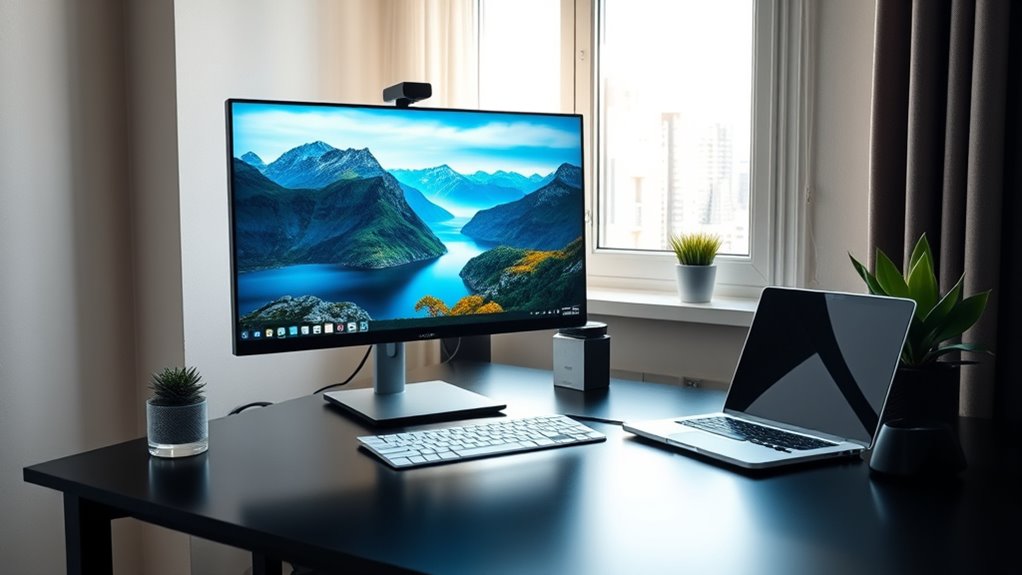

You don’t always need a PC for a monitor. Modern monitors can function independently with features like streaming, browsing, and apps. Smart monitors elevate your experience as they include integrated functions without needing a computer. If you connect your devices, like laptops, tablets, or smartphones, you can enjoy high-quality visuals without a dedicated PC. Understanding various monitor types and their capabilities can help you make an informed decision about your ideal setup. Explore more about optimizing your workspace!
Understanding the Role of Monitors
Have you ever stopped to think about what a monitor really does? At its core, a monitor’s purpose is to display information from your computer, translating data into visuals you can interact with. There are various monitor types—LCD, LED, and OLED—each utilizing different display technology to present images. LCD monitors, for instance, use liquid crystals to achieve vibrant colors, while OLED offers deeper blacks and better contrast. Understanding these differences can empower you to choose the right monitor for your needs. Whether you’re gaming, working, or simply browsing, the right display technology can enhance your experience and provide you the freedom to explore your digital world fully. So, knowing what a monitor does is essential for making the best choice.
Monitors With Laptops: a Seamless Experience
Connecting your laptop to a monitor can dramatically enhance your productivity. Whether you opt for an HDMI cable or take advantage of wireless display options, the process is straightforward and effective. Plus, with extended desktop functionality, you’ll have more screen real estate to work with, making multitasking a breeze.
Connecting via HDMI Cable
While using an HDMI cable may seem straightforward, it can greatly enhance your experience when connecting a monitor to your laptop. HDMI cables not only support high display resolution but also guarantee excellent audio output, making them a versatile choice. When connecting, consider the display refresh rate for smoother visuals, especially for gaming or video editing. Good cable management keeps your setup tidy and prevents tangling. Always check device compatibility; some laptops may require adapter types to connect to certain monitors. A high-quality HDMI cable guarantees superior signal quality, avoiding lag and distortion. By understanding these factors, you can enjoy a seamless and efficient connection that liberates your workspace and boosts productivity.
Wireless Display Options
For those looking to untether themselves from cables, wireless display options offer a convenient way to connect your laptop to a monitor. With advancements in wireless technology, you can enjoy seamless display streaming without the hassle of cords. Many modern monitors support technologies like Miracast or Wi-Fi Direct, letting you mirror or extend your laptop’s screen effortlessly.
Here’s a quick comparison of popular wireless display options:
| Technology | Compatibility | Range |
|---|---|---|
| Miracast | Windows, Android | Up to 30 ft |
| Chromecast | Android, iOS | Up to 30 ft |
| Apple AirPlay | macOS, iOS | Up to 30 ft |
| WiDi | Intel devices | Up to 30 ft |
| DLNA | Various devices | Varies |
With these options, you’ll embrace the freedom of a cable-free workspace.
Extended Desktop Functionality
Have you ever wondered how an extended desktop can transform your productivity? By connecting a monitor to your laptop, you can create a seamless workspace that enhances your efficiency. With an extended desktop, you’re not just limited to one screen; you can spread your applications across multiple displays. This setup allows you to multitask effortlessly—keeping your email open on one screen while working on a document on another. The freedom of having more screen real estate leads to a significant productivity boost, letting you focus more on your tasks without constant window switching. So, why not embrace the extended desktop functionality? Your laptop and monitor can work together to create a dynamic environment tailored to your needs.
Using Monitors With Tablets and Smartphones
Using monitors with tablets and smartphones can greatly enhance your viewing experience, but it’s important to take into account your connectivity options. You’ll want to guarantee compatibility with your device and reflect on display quality to get the best results. Let’s explore how to seamlessly connect your portable devices to a monitor for a larger, more vibrant display.
Connectivity Options Explained
When it comes to connecting monitors with tablets and smartphones, there are several options available that can enhance your viewing experience. Depending on the monitor types you choose, you’ll find different connectivity solutions that support various display resolutions. Here are some popular options:
- HDMI: Widely used for high-quality video and audio.
- USB-C: Great for newer devices, providing power and data transfer.
- VGA: An older option, mainly for legacy devices.
- DisplayPort: Ideal for high refresh rates and resolutions.
- Wireless: Using technologies like Miracast or Chromecast for a cable-free experience.
Each option has its perks, so consider what fits your devices best and enjoy the flexibility!
Display Quality Considerations
Choosing the right connectivity option is just the start; display quality plays a significant role in your overall experience with monitors connected to tablets and smartphones. You’ll want to take into account the display resolution, as higher resolutions like 1080p or 4K provide crisper images and improved detail. This is especially vital for tasks like graphic design or gaming, where clarity matters.
Additionally, color accuracy is key for an immersive experience. Displays that reproduce colors accurately make sure that what you see on your tablet or smartphone translates well on the larger screen, enhancing your enjoyment of media and productivity tasks alike. So, when selecting a monitor, prioritize these factors to truly elevate your visual experience.
Compatibility With Devices
While many monitors are designed primarily for PCs, they can also be compatible with tablets and smartphones, expanding your options for larger displays. To make the most of this compatibility, keep these device requirements in mind:
- Connection Type: Verify your monitor has USB-C, HDMI, or DisplayPort inputs compatible with your device.
- Resolution Support: Check if the monitor supports the resolution your tablet or smartphone can output.
- Aspect Ratio: Consider if the monitor’s aspect ratio matches your device for an ideal viewing experience.
- Power Supply: Some tablets or smartphones may require additional power for display connections.
- Adapter Needs: You might need adapters or cables to connect devices, so plan ahead.
With the right setup, you can enjoy a more versatile screen experience!
Gaming Setups: The Importance of a Dedicated Monitor
Although some gamers may rely on their laptops or consoles, investing in a dedicated monitor can greatly enhance your gaming experience. A dedicated monitor allows you to optimize your gaming performance, providing sharper visuals and smoother gameplay. With features like a high refresh rate, you’ll notice reduced motion blur and quicker response times, crucial for first-person shooters and fast-paced games. Plus, larger screen sizes can immerse you in your favorite virtual worlds, making every detail pop. You’ll also benefit from adjustable settings to match your preferences, ensuring comfort during long gaming sessions. Ultimately, a dedicated monitor isn’t just a luxury; it’s an essential upgrade that can elevate your gaming to new heights.
Monitors for Creative Work: Design and Editing
For those involved in creative work like design and editing, a high-quality monitor can make all the difference in achieving precise and vibrant visuals. You’ll want to take into account the following features when choosing a monitor to use with your creative software:
- Color Accuracy: Verify your monitor displays colors faithfully for true-to-life results.
- Resolution: Opt for at least 4K to see fine details clearly.
- Screen Size: A larger screen allows for better multitasking and detailed work.
- Panel Type: IPS panels provide better color consistency and viewing angles.
- Calibration: Look for monitors that support calibration for enhanced color precision.
Investing in the right monitor not only elevates your work but also enhances your creative freedom.
Smart Monitors: The Rise of Standalone Displays
As technology evolves, smart monitors have emerged as versatile standalone displays that combine functionality with convenience. You don’t need a traditional PC to enjoy a powerful computing experience anymore. With integrated smart features, these monitors can stream content, browse the web, and even run apps independently. Imagine having touchscreen capabilities that let you interact directly with your display, making navigation simple and intuitive. Whether you’re working, gaming, or watching movies, smart monitors provide the freedom to customize your setup without being tethered to a computer. Plus, their sleek design complements any workspace, blending technology with aesthetic appeal. Embrace the future of displays and discover how a smart monitor can elevate your digital experience.
Connectivity Options: HDMI, DisplayPort, and More
Smart monitors not only bring advanced features to your workspace but also offer a variety of connectivity options to enhance your experience. Understanding these options can help you maximize your setup. Here are some key points to evaluate:
- HDMI Specifications: Commonly used for its versatility, supporting both audio and video.
- DisplayPort Advantages: It offers higher resolutions and refresh rates, perfect for gamers.
- USB-C: Great for connecting modern devices while providing power delivery.
- VGA: Older but still useful for legacy devices.
- DVI: Good for digital video connections, though less common now.
Each option has its strengths, allowing you to choose what best fits your needs without being limited. Explore these connections and enjoy a more flexible workspace!
Making the Right Choice for Your Setup
How do you know which monitor best suits your needs? Start by considering the monitor types available, like IPS, TN, or VA, each offering unique benefits for color accuracy, response time, and viewing angles. Think about your primary use—gaming, graphic design, or general productivity. Next, explore resolution options; do you need 1080p for casual tasks or 4K for stunning visuals? Higher resolutions provide greater detail but may require a more powerful setup. Don’t forget about size and ergonomics; a larger screen can enhance immersion but might demand more desk space. Ultimately, weigh your preferences against your budget, ensuring you choose a monitor that aligns with your lifestyle and enhances your experience. Freedom in choice leads to a happier setup!
Frequently Asked Questions
Can a Monitor Work Without Being Connected to a Computer?
Yes, some standalone displays can function without a computer. They often have built-in features, like streaming apps or USB ports. So, you can enjoy media directly on your monitor without needing a PC connected.
Do All Monitors Require External Power Sources to Function?
Yes, most monitors require external power sources to function. However, power requirements vary by monitor types; some portable monitors can run on USB power. Understanding these differences can help you choose the right setup for your needs.
Are There Monitors Specifically Designed for Use With Gaming Consoles?
Yes, there are monitors specifically designed for gaming consoles, offering features like high refresh rates and gaming console compatibility. These monitors enhance your gaming experience, providing smoother visuals and quicker response times for immersive gameplay.
How Do Monitors Affect Eye Strain and Fatigue?
Monitors can be double-edged swords; they may lead to eye strain and fatigue due to blue light exposure. You can ease discomfort by adjusting brightness, taking breaks, and using blue light filters for a more comfortable experience.
Can I Use a Monitor for Video Conferencing Without a PC?
Yes, you can use a monitor for video conferencing without a PC if it’s compatible with devices like tablets or smartphones. Just make certain it has the right ports and connections for seamless communication during your calls.
