
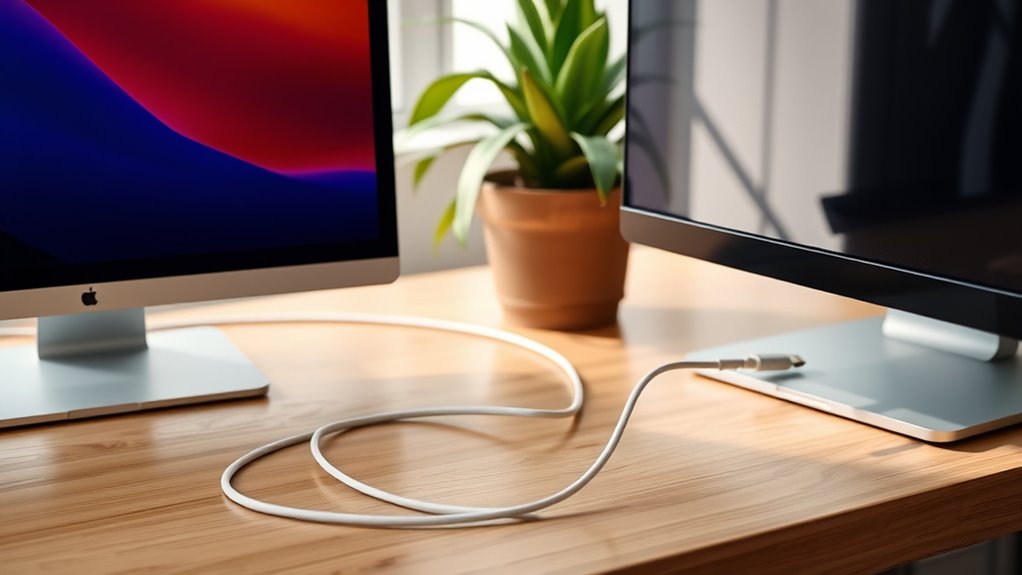

To connect your MacBook to a monitor, first, check that both devices are compatible regarding connection types like HDMI or USB-C. Gather the necessary cables or adapters based on your MacBook model. Plug in the monitor, connect it to your MacBook, then open System Preferences to adjust the display settings. You’ll want to select screen mirroring or extend the display. If you run into issues, you can troubleshoot specific connection problems for a smooth experience.
Check Your MacBook and Monitor Compatibility
Before you plunge into connecting your MacBook to a monitor, it’s essential to confirm they’re compatible. Start by checking the compatibility types, which include HDMI, USB-C, and Thunderbolt options. Verify that your MacBook supports the connection type your monitor requires. Next, consider the display resolution; both devices should support a similar resolution for peak performance. If your monitor has a higher resolution than your MacBook can handle, you won’t get the best experience. Check the specifications of both devices to make sure they’ll work seamlessly together. This step is vital because a mismatch in compatibility can lead to frustrating issues, limiting your freedom to enjoy your expanded workspace. Take your time and make sure everything aligns before moving forward.
Gather the Necessary Cables and Adapters
To successfully connect your MacBook to a monitor, you’ll need the right cables and adapters. First, identify the cable types your monitor supports—common options include HDMI, DisplayPort, and VGA. Depending on your MacBook model, you may need an adapter to bridge the connection. For example, if your MacBook has USB-C ports, an HDMI adapter will be necessary for an HDMI monitor. Similarly, if your monitor uses DisplayPort, look for a USB-C to DisplayPort adapter. Check that all adapters and cables are compatible with both your MacBook and monitor to guarantee a smooth connection. By gathering the right equipment, you’re one step closer to enjoying a larger display and enhanced productivity.
Connect Your MacBook to the Monitor
Connecting your MacBook to the monitor is a straightforward process that can enhance your workspace. Once you’ve gathered the necessary cables and adapters, follow these steps:
Connecting your MacBook to an external monitor is simple and can greatly improve your productivity.
- Plug in the external display: Connect your monitor to a power source and turn it on.
- Use the right cable: Depending on your MacBook model, connect your MacBook to the monitor using the appropriate cable (HDMI, USB-C, etc.).
- Select screen mirroring: On your MacBook, open System Preferences, click on Displays, and select the option for screen mirroring or extend the display.
Once you complete these steps, you’ll enjoy the benefits of a larger screen, allowing for better multitasking and productivity in your daily tasks.
Configure Display Settings on Your MacBook
Configuring display settings on your MacBook is essential for optimizing your viewing experience. To get started, click on the Apple menu, then select “System Preferences,” and choose “Displays.” Here, you can adjust the display resolution to fit your preferences. Higher resolutions provide clearer images, while lower resolutions may enhance performance.
Next, arrange your screens by selecting the “Arrangement” tab. You can drag the display icons to match the physical layout of your monitors, making it easier to navigate between them. If you want a seamless experience, make sure the displays are aligned properly. Don’t forget to select which monitor will serve as your primary display by dragging the menu bar to your preferred screen. Enjoy your enhanced workspace!
Troubleshooting Common Connection Issues
Even if you’ve followed all the steps to connect your MacBook to a monitor, you may still encounter some issues. Here are a few troubleshooting tips to help you out:
- Check Cable Types: Verify you’re using the correct cable type for your monitor and MacBook. Adapters may be necessary for compatibility.
- Adjust Display Resolution: Sometimes, the display resolution might not be set correctly. Go to System Preferences > Displays to adjust and optimize the resolution for your monitor.
- Restart Both Devices: A simple restart of both your MacBook and the monitor can often solve connectivity problems.
Frequently Asked Questions
Can I Use Multiple Monitors With My Macbook?
You can use multiple monitors with your MacBook. Isn’t it great to have those external display options? Just verify your Mac supports multiple monitor setups, and you’re all set to enhance your workspace!
Will Connecting a Monitor Drain My Macbook’s Battery Faster?
Yes, connecting a monitor can increase your MacBook’s battery usage, especially if it’s not plugged in. Adjusting your power settings might help minimize the impact, allowing you to enjoy your setup without draining the battery too quickly.
Can I Mirror My Display Instead of Extending It?
Yes, you can definitely mirror your display! About 60% of users prefer this option for presentations. Just head to display settings and select mirror mode to duplicate your screen effortlessly. Enjoy that seamless experience!
What Resolution Should I Set for Optimal Display Quality?
For ideal resolution, set your display settings to match your monitor’s native resolution. Typically, it’s 1920×1080 for Full HD or 3840×2160 for 4K. This guarantees crisp visuals and the best overall viewing experience.
How Do I Switch Between Connected Monitors?
Switching between connected monitors is as easy as a breeze! Just open your display settings or use monitor shortcuts like Command + F1. You’ll effortlessly toggle between screens and enjoy your workspace freedom like never before.
