
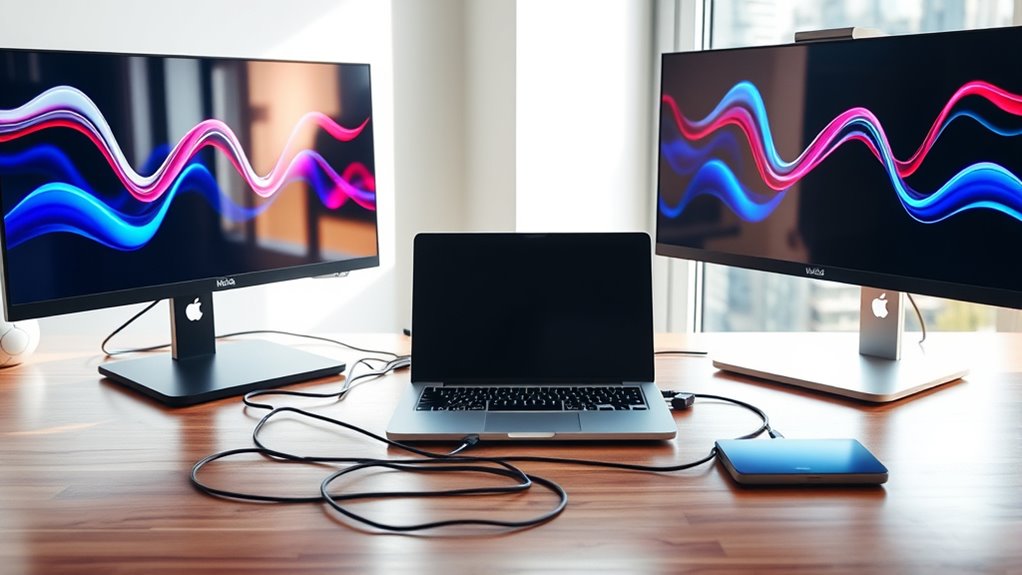

To connect your laptop to two monitors, first check your laptop’s ports (HDMI, DisplayPort, or USB-C) and confirm compatibility with your monitors. Connect the first monitor using the appropriate cable, adjust display settings by right-clicking your desktop, and select “Extend these displays.” For the second monitor, verify graphics capabilities and available ports before connecting. Finally, configure resolution settings for clarity. There’s more to enhance your setup for peak productivity and comfort.
Understanding Your Laptop’s Ports
Before you plunge into connecting your laptop to two monitors, you need to understand the various ports available on your device. Laptop ports come in several types, each serving a specific purpose. HDMI ports are common, providing a high-quality video and audio connection. DisplayPort offers similar capabilities but supports higher resolutions and refresh rates. USB-C ports, increasingly popular, can transmit data, video, and power, depending on the device’s compatibility. VGA ports, though less common today, are still found on some older models for connecting to legacy monitors. Knowing these port types guarantees you can effectively connect your laptop to two monitors, optimizing your workspace and enhancing your productivity. Understanding your laptop’s ports is essential for a seamless multi-monitor setup.
Choosing the Right Monitors
When choosing monitors, you’ll want to take into account size, resolution, and connectivity options to guarantee peak performance. Larger screens can enhance productivity, but they must also match your laptop’s resolution capabilities to avoid display issues. Additionally, check the available ports on your laptop to confirm compatibility with your selected monitors.
Monitor Size Considerations
Choosing the right monitor size is essential for optimizing your workspace and enhancing productivity. Consider the monitor dimensions relative to your desk space and viewing distance; larger monitors can provide immersive experiences but may require more desk real estate. Ideally, you want monitors that fit comfortably within your field of vision without straining your neck or eyes. For ergonomic placement, aim for the top of the monitor screen to be at or slightly below eye level, and about an arm’s length away. This setup minimizes discomfort and maximizes efficiency. If you’re working with multiple monitors, make sure they’re of similar size to create a seamless experience, allowing you the freedom to switch tasks without losing focus.
Resolution Compatibility
While you might be tempted to pair any monitors together, guaranteeing resolution compatibility is essential for a seamless multi-monitor experience. Different monitors may support various resolution standards, such as Full HD (1920×1080) or 4K (3840×2160). When selecting your monitors, check their native resolutions; mismatched resolutions can lead to screen scaling issues, where one display appears larger or smaller than the other. This inconsistency can hinder productivity and cause visual fatigue. Ideally, choose monitors with the same resolution for a uniform look. If that’s not possible, guarantee that the scaling settings in your operating system are adjusted accordingly to maintain clarity and usability across both screens. Freedom in design shouldn’t come at the cost of functionality.
Connectivity Options Available
Since your laptop may offer multiple connectivity options, selecting the right ports is essential for connecting two monitors effectively. You can typically find HDMI, DisplayPort, USB-C, or VGA ports. If your laptop supports wireless connectivity, consider using technologies like Miracast or Chromecast to connect monitors without cables, providing a cleaner setup. Alternatively, docking stations can expand your connectivity options; they often include multiple HDMI or DisplayPort outputs and additional USB ports. When choosing monitors, verify they match your laptop’s output capabilities and desired resolutions. Remember, the right combination of ports and docks not only enhances your workspace but also offers the freedom to customize your dual-monitor setup according to your needs.
Connecting the First Monitor
To connect your first monitor, you’ll need to gather the required cables and adapters that match your laptop’s output ports, such as HDMI, DisplayPort, or USB-C. Once you’ve connected the monitor physically, you’ll adjust the display settings on your laptop to recognize and configure the new screen. Make certain you select the correct resolution and orientation to optimize your viewing experience.
Required Cables and Adapters
Connecting your laptop to the first monitor requires specific cables and adapters tailored to your device’s ports. Depending on your laptop’s output, you may need to select from various cable types and adapter options. Here’s a quick reference table to help you choose the right setup:
| Cable Type | Adapter Options |
|---|---|
| HDMI | USB-C to HDMI Adapter |
| DisplayPort | Mini DisplayPort to DP |
| VGA | VGA to HDMI Adapter |
| DVI | DVI to HDMI Adapter |
| USB-C | USB-C to DisplayPort |
Ensure you’ve got the right combination to achieve seamless connectivity. Once equipped, you’ll enjoy the freedom of multitasking across multiple screens.
Connecting via Display Settings
How do you make sure your laptop recognizes the first monitor after physically connecting it? Begin by right-clicking on your desktop and selecting “Display settings.” In the Display Settings menu, you’ll see your connected monitor(s) listed. Click on “Detect” if it doesn’t appear automatically. Once recognized, you can adjust the display arrangement to suit your multi monitor setup. Choose whether to extend or duplicate the display, depending on your needs. For an extended setup, drag the monitor icons to arrange them as they’re positioned on your desk. Finally, click “Apply” to confirm your changes. This process guarantees your laptop effectively utilizes the first monitor, enhancing productivity and providing a seamless multi monitor experience.
Connecting the Second Monitor
Once you’ve confirmed your laptop’s graphics capabilities support multiple displays, you can move forward with connecting the second monitor. First, identify the available ports on your laptop—typically HDMI, DisplayPort, or USB-C. Choose the appropriate cable to connect your second monitor to your laptop. For ideal dual display benefits, verify the monitor’s resolution matches or complements your laptop’s screen. Once connected, power on the monitor and verify it’s set to the correct input source. If you’re using adapters, confirm they’re compatible to avoid connectivity issues. This setup enhances your multi-tasking efficiency, allowing you to work on multiple applications simultaneously. With the second monitor in place, you’ll experience a more productive workspace, maximizing your creative freedom.
Configuring Display Settings
After you’ve successfully connected your second monitor, you’ll need to configure the display settings to optimize your viewing experience. Start by right-clicking on your desktop and selecting “Display settings.” Here, you’ll see both monitors represented. To adjust the display arrangement, drag the monitor icons to match their physical placement on your desk. This guarantees your mouse moves seamlessly between screens. You can also choose to extend or duplicate your display; for a multi monitor setup, select “Extend these displays” for increased workspace. Adjust the resolution for each monitor to guarantee clarity, and don’t forget to apply the changes. Finally, click “Keep changes” to save your settings, empowering you to work efficiently across both screens.
Optimizing Your Workspace
With your display settings configured, the next step is to optimize your workspace for productivity and comfort. Start by arranging your monitors in a way that complements your workflow; a dual-screen setup should allow for easy visibility and access. Position your primary monitor directly in front of you and the secondary to the side, angled slightly toward you. Make certain your chair and desk height create an ergonomic setup, keeping your elbows at a 90-degree angle and your feet flat on the ground. Use monitor stands or mounts to align screens at eye level, reducing neck strain. Finally, minimize clutter on your desk to enhance focus, making sure that your workspace layout promotes efficiency while fostering a sense of freedom in your tasks.
Troubleshooting Common Issues
While setting up dual monitors can enhance your productivity, you may encounter several common issues that could disrupt your workflow. Here are some typical problems and solutions for common connectivity issues and display detection problems:
| Issue | Possible Cause | Solution |
|---|---|---|
| No signal on monitor 1 | Incorrect cable connection | Check and reconnect cables |
| Monitor not detected | Outdated drivers | Update graphics drivers |
| Resolution mismatch | Wrong display settings | Adjust settings in Display |
If you’re experiencing these issues, verify all connections are secure and that your laptop settings recognize both monitors. Restarting your laptop can also resolve temporary glitches. Stay patient; troubleshooting can lead to a seamless dual-monitor experience.
Tips for Maximizing Dual Monitor Productivity
To maximize productivity when using dual monitors, it’s essential to understand how to effectively manage your workspace. Start by organizing your screens based on task prioritization; dedicate one monitor for primary tasks and the other for secondary tasks like emails or research. Utilize software tools that allow you to manage windows efficiently, enabling quick access to applications. Implement effective time management strategies, such as the Pomodoro Technique, to maintain focus and prevent burnout. Customize your display settings for best comfort, adjusting brightness and resolution according to your preference. Finally, regularly assess your workflow to identify areas for improvement, ensuring your dual monitor setup evolves with your productivity needs. Embrace this flexibility to fully harness your potential.
Frequently Asked Questions
Can I Connect Different Brands of Monitors Together?
Yes, you can connect different brands of monitors together. Curiously, about 70% of users report no issues with monitor compatibility. Just make sure their resolutions match for ideal brand performance and a seamless multi-monitor experience.
Will Using Dual Monitors Drain My Laptop Battery Faster?
Yes, using dual monitors’ll drain your laptop’s battery life faster due to increased power consumption. More screens require additional processing power, impacting overall efficiency. You might want to contemplate power-saving settings for better longevity.
What Resolution Should I Use for Each Monitor?
For ideal resolution, aim for 1920×1080 for clarity. If your monitors differ in size, consider screen scaling to guarantee text and images appear consistent across both displays, creating a seamless multitasking experience without sacrificing quality.
Can I Connect More Than Two Monitors to My Laptop?
Yes, you can connect more than two monitors if your laptop supports multiple monitor setups and has the necessary ports. However, be cautious of potential laptop compatibility issues that may limit your connections or performance.
How Do I Switch Between Different Display Modes?
To switch display modes, access your display settings. You can also use keyboard shortcuts like Windows + P. This lets you quickly toggle between modes like duplicate, extend, or second screen only for versatility.
