
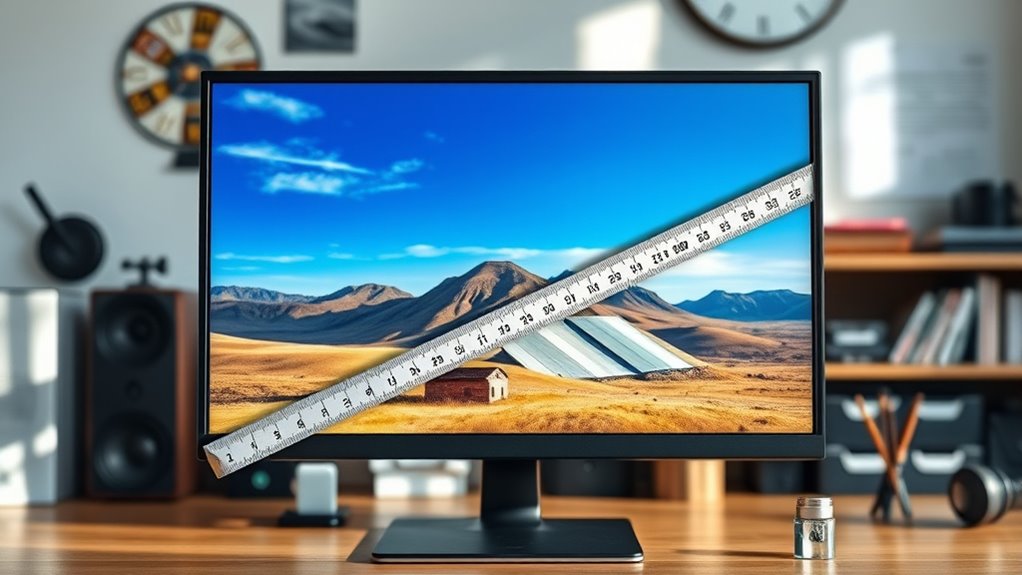

To measure the size of your computer monitor, use a tape measure to find the diagonal length from the top left corner to the bottom right corner of the screen, excluding the bezel. Make sure your monitor is on a flat surface for accuracy. Remember that monitor sizes are listed diagonally in inches, which is the standard for comparing screens. If you want to learn more about selecting the right monitor for your needs, keep exploring.
Understanding Monitor Size Measurements
When you’re looking to measure the size of a computer monitor, it’s important to understand how those measurements work. Monitor dimensions typically refer to the width and height of the screen, but they can also include the bezel, which affects the overall size. Different screen types, like LCD and LED, can have varying thicknesses that impact how they fit in your space. You’ll often find sizes listed in inches, measured diagonally from one corner of the screen to the opposite corner. This diagonal measurement is essential for accurately comparing monitors. Knowing how to interpret these dimensions helps you choose the right monitor that meets your needs while ensuring it fits comfortably in your workspace. Understanding these factors is key to a satisfying setup.
The Importance of Diagonal Measurement
When measuring a computer monitor, the diagonal measurement is essential because it’s the standard method used in the industry. This measurement directly impacts your display experience, affecting how much screen real estate you have for multitasking and viewing. Understanding this can help you choose the right monitor for your needs.
Standard Measurement Practices
One key aspect of measuring a computer monitor is understanding the importance of diagonal measurement. This method provides a standard way to assess monitor dimensions, making it easier to compare different models. To get accurate readings, you’ll need reliable measurement tools like a tape measure or ruler. Start by measuring from one corner of the screen to the opposite corner, ensuring you avoid the bezel, as it doesn’t contribute to the display size. This diagonal measurement gives you the size in inches, which is the most commonly referenced metric. By knowing how to effectively measure your monitor, you can make informed decisions when purchasing or upgrading your setup, ensuring you find the perfect fit for your needs.
Impact on Display Experience
Measuring a monitor’s diagonal size isn’t just a technical detail; it directly influences your display experience. The size affects how you perceive display resolution, which is vital for clarity and detail in your visuals. A larger screen often allows for better resolution, making text sharper and images more vibrant. However, it’s important to take into account your viewing distance. If you sit too close to a large monitor, you might notice pixelation, negating the benefits of high resolution. Conversely, if you’re too far from a smaller screen, you might miss out on the finer details. Balancing monitor size with your viewing distance guarantees you can fully enjoy the immersive experience without straining your eyes. Choose wisely, and elevate your digital freedom!
Measuring the Screen Diagonally
To accurately determine your monitor’s size, you’ll need to measure the screen diagonally from one corner to the opposite corner. This method works across different monitor types, ensuring you get a precise size. Here’s how to do it efficiently:
- Gather your measurement tools: Use a tape measure or a ruler for accuracy.
- Position the monitor: Make sure it’s on a flat surface to avoid any miscalculations.
- Locate the corners: Identify the top left and bottom right corners of the screen.
- Take the measurement: Measure from corner to corner, avoiding the bezel.
Accounting for Bezel Size
While you may have a clear diagonal measurement of your monitor, it’s essential to account for the bezel size, as this can affect the overall dimensions. Bezel considerations play a significant role in how much screen real estate you actually have. A thicker bezel can detract from screen aesthetics and may change how you integrate your monitor into your workspace.
Here’s a quick reference table to help understand bezel sizes:
| Monitor Model | Bezel Width | Total Width |
|---|---|---|
| Model A | 1.5 cm | 61.5 cm |
| Model B | 2.0 cm | 62.0 cm |
| Model C | 0.8 cm | 60.8 cm |
| Model D | 1.2 cm | 61.2 cm |
Understanding Aspect Ratios
When choosing a monitor, understanding aspect ratios is essential. Common ratios like 16:9 or 4:3 can greatly impact your viewing experience, whether you’re gaming, watching movies, or working. Knowing these differences helps you select a screen that fits your needs.
Common Aspect Ratios
Understanding aspect ratios is essential for selecting the right computer monitor, as they determine how images and videos are displayed. Knowing common aspect ratio definitions can help you choose a monitor that fits your needs. Here are some popular ratios and their typical resolutions:
- 16:9 – Standard for most TVs and monitors; common resolutions include 1920×1080 (Full HD) and 3840×2160 (4K).
- 16:10 – Slightly taller than 16:9; often found in professional displays with resolutions like 1920×1200.
- 4:3 – Classic ratio for older monitors; common resolution is 1024×768.
- 21:9 – Ultra-wide format for immersive experiences; common resolution is 2560×1080.
Choosing the right aspect ratio can make a significant difference in your viewing experience.
Impact on Viewing Experience
The aspect ratio of your monitor can greatly influence your overall viewing experience, as it affects how content is displayed and perceived. A wider aspect ratio, like 16:9, can enhance your immersion, especially for movies and gaming, while a standard 4:3 might feel limiting for modern media. Your viewing distance plays a significant role too; sitting too close can distort images, while being too far can impact clarity. Higher screen resolutions paired with the right aspect ratio can make text sharper and images more vibrant. This combination allows you to enjoy content without straining your eyes. Ultimately, understanding how aspect ratio interacts with viewing distance and screen resolution empowers you to create a more enjoyable and personalized experience.
Choosing the Right Monitor Size for Your Space
How do you choose the right monitor size for your workspace? It’s vital to evaluate several factors to guarantee your monitor size fits your needs and enhances your workspace compatibility. Here are some key points to contemplate:
- Desk Space: Measure your desk to determine how much room you have.
- Viewing Distance: Reflect on how far you’ll sit from the monitor for ideal comfort.
- Usage Type: Ponder whether you’re gaming, working, or streaming, which may require different sizes.
- Monitor Resolution: Higher resolutions can make larger monitors more usable without sacrificing clarity.
Comparing Different Monitor Sizes
Once you’ve settled on the right size for your workspace, it’s important to compare different monitor sizes to find the best fit for your needs. Start by evaluating your monitor preferences—do you prefer a larger screen for multitasking or a more compact display for simplicity? Consider how various sizes affect your productivity and comfort.
Look at the size compatibility with your desk and the distance you’ll be sitting from the screen. Larger monitors can enhance immersion but may require more space. Meanwhile, smaller monitors can be easier to manage in tighter setups. By weighing these factors, you’ll be better equipped to make an informed choice that aligns with your unique requirements and enhances your overall computing experience.
Practical Tips for Measuring Your Workspace
Measuring your workspace accurately is essential for selecting the right monitor size. Start by evaluating your workspace layout to guarantee you have the perfect fit. Here are some practical tips to help you:
- Clear the Area: Remove any clutter that might obstruct measurements.
- Measure the Desk: Use a tape measure to get the width and depth of your desk for proper monitor placement.
- Consider Viewing Distance: Keep in mind how far you’ll sit from the monitor; this affects size choice.
- Check Cable Accessibility: Verify that your monitor’s cables can connect easily to your computer without straining.
Recommendations for Popular Monitor Sizes
When choosing a monitor size, it’s important to contemplate your specific needs and preferences, as different sizes cater to various tasks and viewing experiences. For everyday use, a 24-inch monitor is a popular choice, striking a balance between size and desk space. If you’re into gaming or graphic design, consider a 27-inch or even 32-inch monitor for immersive visuals and ample workspace. For multitasking, dual setups with 24-inch monitors can enhance productivity. Remember, popular monitor dimensions like 21:9 are great for cinematic experiences, while 16:9 remains the standard for most tasks. Ultimately, your ideal screen sizes should align with your unique workflow and comfort. Choose wisely, and enjoy your upgraded computing experience!
Frequently Asked Questions
How Do I Convert Inches to Centimeters for Monitor Size?
To convert inches to centimeters, multiply the inch measurement by 2.54. Using this conversion method helps you switch between measurement units easily. Just remember, for quick reference, 1 inch equals 2.54 centimeters!
What Tools Are Needed to Measure a Monitor Accurately?
To measure a monitor accurately, you’ll need a tape measure for straightforward dimensions and a digital caliper for precision. With these tools, you can guarantee your measurements reflect true size, offering freedom in your setup.
Can I Measure the Monitor While It’s Mounted on the Wall?
Yes, you can measure a wall-mounted monitor using measuring techniques like a tape measure or laser measure. Just guarantee you measure diagonally from one corner to the opposite corner for accurate wall mount measurement.
Does Monitor Size Affect Gaming Performance?
Yes, monitor size can affect gaming performance. Larger screens often have higher resolutions and refresh rates, providing a more immersive experience. However, it’s essential to balance size with your graphics card’s capabilities for peak performance.
How Does Monitor Size Impact Eye Strain?
Monitor size can markedly impact eye comfort and visual clarity. Larger screens often reduce eye strain, allowing for easier reading and better focus, but they can also create discomfort if positioned too close. Balance is key.

[…] viewing). After you pick the diagonal in inches, convert to the TV’s marketing size (which is the diagonal measurement). This method helps you choose a screen that matches your distance without needing complicated […]