
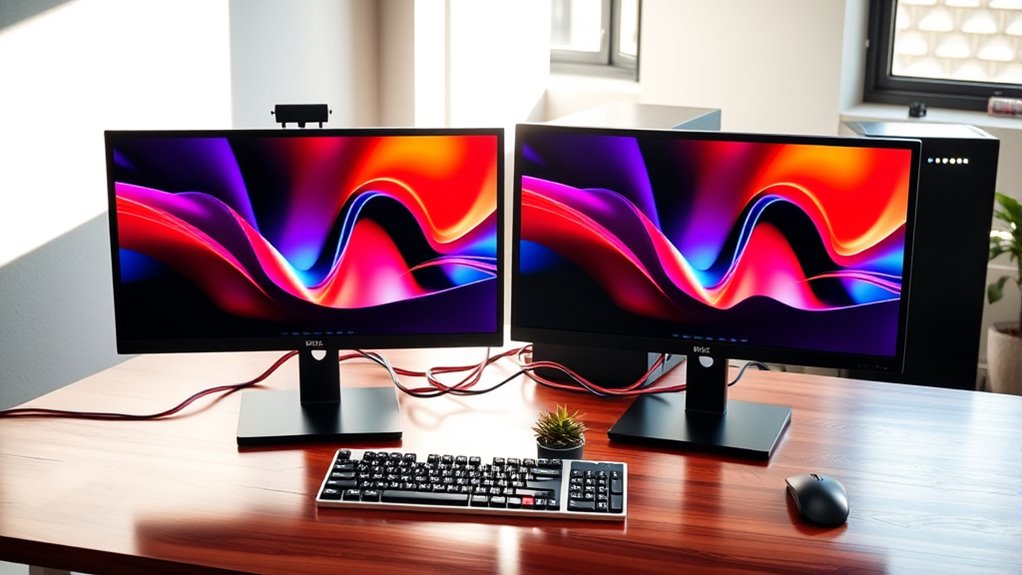

To connect two monitors to one computer, first, check if your graphics card supports multiple displays and gather the necessary cables (HDMI, DisplayPort, or DVI). Connect the monitors to the appropriate ports on your graphics card. Once connected, access your display settings to adjust resolution and choose to extend or duplicate displays. Make sure the monitors are positioned for comfort. If you encounter issues, there are troubleshooting steps you can follow to resolve them for ideal performance.
Understanding Dual Monitor Setup
When you’re looking to enhance your productivity or expand your workspace, understanding a dual monitor setup is essential. This configuration allows you to leverage dual monitor productivity by effectively utilizing two screens for various tasks. You can keep your email open on one monitor while working on a document or conducting research on the other, greatly boosting your multitasking efficiency. With a dual monitor setup, you can minimize the need to switch between tabs, reducing distractions and streamlining your workflow. Additionally, it provides a more immersive experience for graphic design, programming, or data analysis tasks. Ultimately, a well-implemented dual monitor setup empowers you to work smarter, giving you the freedom to manage your time and projects more effectively.
Checking Your Computer’s Compatibility
Before setting up dual monitors, it’s essential to verify your computer can support this configuration. Start by checking your system requirements, which include your graphics card’s capabilities. Most modern graphics cards have multiple outputs, but you’ll need to confirm that yours can handle two monitors simultaneously. Refer to your monitor specifications to ascertain compatibility with your graphics card and available ports. Look for supported resolutions and refresh rates, as these can affect your experience. If you’re using older hardware, you might need to upgrade your graphics card to meet the demands of dual displays. Always consult your computer’s documentation or manufacturer’s website for specific details on supported configurations to avoid any issues during setup.
Choosing the Right Cables
When connecting two monitors, it’s essential to choose the right cables based on your monitor connection types. You’ll also need to take into account cable compatibility to guarantee optimal performance, especially regarding resolution and refresh rates. Selecting the correct cables will help you achieve the best display experience.
Monitor Connection Types
Choosing the right cables for connecting two monitors to one computer is essential, as it directly impacts your setup’s performance and functionality. HDMI is a popular choice due to its advantages, including support for high-definition video and audio, making it ideal for multimedia tasks. If you’re looking for higher refresh rates and better resolutions, DisplayPort offers significant benefits, such as daisy-chaining multiple monitors and delivering more bandwidth. It’s particularly useful for gamers and professionals needing enhanced visual fidelity. When deciding between the two, consider the types of ports available on your computer and monitors. Both HDMI and DisplayPort can deliver excellent results, so choose the one that best meets your needs for productivity and entertainment.
Cable Compatibility Considerations
Understanding cable compatibility is essential for guaranteeing that your dual-monitor setup functions smoothly. You’ll want to choose the right cable types and lengths to match your monitors and computer ports. Here are some key considerations:
- Cable Types: Guarantee you’re using the right type, like HDMI, DisplayPort, or DVI, that supports your monitors.
- Cable Lengths: Measure the distance between your computer and monitors to avoid cable strain or connection issues.
- Adapters: If your ports don’t match, look into high-quality adapters that won’t compromise signal quality.
Resolution and Refresh Rates
While it’s important to reflect on cable compatibility, the resolution and refresh rates of your monitors also play a significant role in selecting the right cables. Before you connect, verify that your cables support the desired resolution settings for each monitor. Higher resolutions require more bandwidth, so using DisplayPort or HDMI cables is often preferable.
Next, consider refresh rate adjustments. If you’re gaming or working with video, a higher refresh rate can enhance your experience. Check both monitors’ specifications and choose cables that can handle their maximum refresh rates without issues. Balancing resolution and refresh rates will guarantee that you maximize the performance of your dual-monitor setup, providing you with the freedom to multitask efficiently.
Connecting the Monitors
To connect two monitors to your computer, you’ll first need to determine the available ports on your graphics card and the types of connections your monitors support. Once you’ve identified these, you can proceed with the actual connection. Here’s what you’ll typically need:
- Cables: HDMI, DisplayPort, or DVI cables, depending on your monitors.
- Adapters: If the ports don’t match, you might need adapters for compatibility.
- Cable Management Tools: Velcro ties or clips to keep your setup tidy.
After connecting the monitors, verify your display arrangement meets your needs. Good cable management will not only enhance aesthetics but also provide easier access to ports. Now you’re ready to enjoy the freedom of a dual-monitor setup!
Configuring Display Settings
Once you’ve connected your monitors, it’s time to configure the display settings for ideal performance. You can adjust the display resolution, choose to extend or duplicate your displays, and set your primary monitor. These adjustments will enhance your multitasking capabilities and overall workflow.
Adjusting Display Resolution
When you connect two monitors to a single computer, adjusting the display resolution is essential for optimal performance and usability. Proper resolution settings guarantee that both screens display content clearly and proportionately, enhancing your overall experience. Here’s how to achieve ideal display scaling:
- Access Display Settings: Right-click on your desktop and select “Display settings.”
- Select Monitors: Choose the monitor you want to adjust from the dropdown menu.
- Adjust Resolution: Use the resolution options to find the best fit for each monitor, ensuring they’re set to their native resolutions.
Extending or Duplicating Displays
Whether you prefer to extend your desktop across both monitors for increased workspace or duplicate your display for presentations, configuring these settings is straightforward. To start, right-click on your desktop and select “Display settings.” From there, you’ll see options for extending displays or duplicating displays. If you choose to extend, select the option that allows you to use both monitors as one large desktop, giving you more room for multitasking. For duplicating, select the option that mirrors your primary screen, perfect for showcasing your work to an audience. Adjust the arrangement of displays as needed, ensuring your cursor flows seamlessly between screens. Once configured, click “Apply” to make your changes effective. Enjoy your enhanced setup!
Changing Primary Monitor
Here’s what you should keep in mind:
- Your primary monitor will show the taskbar and start menu.
- This setup allows you to customize where your applications open.
- You can easily switch back if you change your mind later.
Adjusting Monitor Position and Orientation
As you set up dual monitors, adjusting their position and orientation is essential for optimizing your workspace and reducing eye strain. Start by guaranteeing both monitors are at eye level, adjusting their monitor height as needed. This minimizes neck strain and promotes comfort during extended use. Next, align the screens so that they are level with each other; this guarantees a seamless shift between displays. You might need to tilt or rotate your monitors slightly for the best viewing angle. Take a moment to sit back and assess your setup, making tweaks to achieve proper screen alignment. A well-positioned dual monitor setup can greatly enhance your productivity while maintaining your comfort throughout the day.
Troubleshooting Common Issues
Although setting up dual monitors can greatly enhance your productivity, you may encounter some common issues during the process. Here are a few troubleshooting tips to address connection problems:
Setting up dual monitors can boost productivity, but be prepared for potential connection issues.
- Check cable connections: Verify all cables are securely connected to both monitors and your computer.
- Adjust display settings: Go to your computer’s display settings to confirm both monitors are detected. You may need to click “Detect” if display detection problems occur.
- Update drivers: Make certain your graphics drivers are up to date, as outdated drivers can lead to common connection issues.
Optimizing Your Workspace
To optimize your workspace with dual monitors, start by arranging them in a way that minimizes neck strain and maximizes efficiency. Position your primary monitor directly in front of you, while the secondary monitor should be adjacent, angled slightly to reduce movement. This setup promotes better workspace organization and allows you to access both screens seamlessly.
Next, use software tools to manage windows effectively. Consider utilizing virtual desktops or specific applications that facilitate task management across your monitors. This approach not only streamlines your workflow but also supports productivity enhancement by enabling multitasking without distraction.
Finally, keep your workspace clutter-free and guarantee all cables are neatly organized, promoting a clean and focused environment conducive to work freedom.
Tips for Effective Dual Monitor Use
Utilizing dual monitors can greatly enhance your productivity, but there are key strategies to implement for ideal use. Here are some effective productivity tips to optimize your workspace organization:
- Designate primary and secondary screens: Use the main monitor for your primary tasks and the secondary for reference materials or communication tools.
- Utilize window management tools: Explore software that helps you easily arrange and switch between applications on both screens.
- Maintain visual consistency: Ascertain both monitors have similar brightness and color settings to reduce eye strain and maintain focus.
Frequently Asked Questions
Can I Use Different Monitor Brands Together?
Sure, you can mix brands, but monitor compatibility matters. Just confirm they share resolution and refresh rates for ideal performance. It’s like pairing a vintage vinyl with a modern stereo—some adjustments might be needed!
Will Dual Monitors Affect My Computer’s Performance?
Yes, dual monitors can affect your computer’s performance, particularly graphics performance. Verify your system meets the requirements for multiple displays; otherwise, you might experience lag or reduced efficiency during resource-intensive tasks.
How Do I Switch Between Monitors Quickly?
You can switch between monitors quickly by using monitor shortcuts like Windows + P. About 70% of users find this method efficient. Just adjust your display settings for seamless shifts between extended and duplicate modes.
Can I Use My TV as a Second Monitor?
Yes, you can use your TV as a second monitor. Just adjust the TV settings and make certain the display resolution matches your computer’s. This setup allows for a more expansive workspace and enhanced viewing experience.
Do I Need a Graphics Card for Dual Monitors?
You don’t necessarily need a graphics card for a dual monitor setup, but it helps. Just make sure your monitors are compatible and your system can handle the extra workload. Freedom to multitask awaits!
