
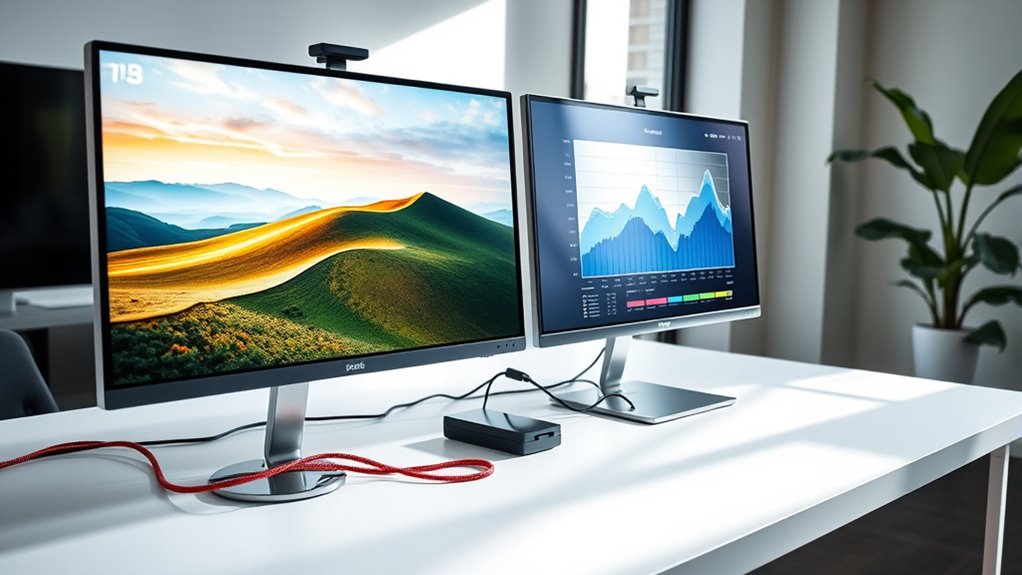

To connect two monitors, first, verify your graphics card supports multiple displays. Choose the right cables, like HDMI or DisplayPort, matching your monitors and system ports. Securely connect the monitors to your computer and access the display settings through your operating system to configure their arrangement. Adjust resolutions for each display as needed. Regular maintenance and troubleshooting can enhance your setup. Continue exploring for more detailed steps and tips for optimizing your dual monitor experience.
Understanding the Requirements for Dual Monitors
To successfully set up dual monitors, you’ll need to confirm your computer meets several key requirements. First, check your graphics card; it must support multiple displays. Most modern GPUs do, but older models might not. Next, consider monitor placement; verify there’s adequate desk space and that both monitors can be connected to your system without obstruction. Additionally, you’ll need to configure resolution settings. Each monitor should ideally run at its native resolution for best clarity and performance. This involves adjusting settings in your operating system’s display settings menu. Finally, verify that your operating system supports dual displays, as most current versions do. Meeting these requirements will give you the freedom to utilize your workspace efficiently.
Choosing the Right Cables and Adapters
When connecting two monitors, it’s essential to understand the various connection types available for your setup. You’ll need to take into account cable compatibility based on the ports on both your monitors and your computer, as well as any adapters that may be required. Selecting the right cables and adapters guarantees peak performance and functionality for your dual monitor configuration.
Monitor Connection Types
Choosing the right cables and adapters is essential for successfully connecting two monitors. You should first identify the monitor types you’re using, as different technologies like LCD, LED, or OLED might require specific connections. Common connection types include HDMI, DisplayPort, DVI, and VGA. Each of these can support various display resolutions, so verify the cable matches your monitors’ capabilities. For instance, HDMI and DisplayPort often handle higher resolutions and refresh rates, ideal for gaming or graphic design. DVI and VGA are older standards, suitable for lower resolutions. Knowing your monitor’s specifications will help you choose the appropriate cables and adapters, guaranteeing peak performance and visual quality across both displays.
Cable Compatibility Considerations
Understanding cable compatibility is essential for guaranteeing that your dual-monitor setup functions smoothly. Selecting the right cable types directly impacts your system’s signal quality and overall performance. Here are some key considerations:
- Connector Types: Confirm your monitors and graphics card have matching ports (HDMI, DisplayPort, DVI, VGA).
- Cable Length: Choose cables long enough for your setup without compromising signal quality; longer cables can lead to degradation.
- Cable Quality: Invest in high-quality cables to maintain signal integrity and reduce interference.
- Resolution Support: Verify that your cables support the resolution and refresh rates of your monitors to achieve peak display performance.
Paying attention to these factors will help you avoid potential issues and enhance your multitasking experience.
Adapter Options Available
Even with the right cables, you might encounter situations where different connector types are involved. In these cases, using the right adapter is crucial. Here are some common adapter types and brands you might consider:
| Adapter Type | Recommended Brands |
|---|---|
| HDMI to VGA | Cable Matters, UGREEN |
| DisplayPort to HDMI | AmazonBasics, StarTech |
| USB-C to HDMI | Anker, Belkin |
| DVI to HDMI | Cable Matters, Benfei |
Selecting the appropriate adapter guarantees compatibility between your devices, allowing you to set up dual monitors efficiently. Remember, investing in quality adapter brands can save you from connection issues down the line, providing you with the freedom to multitask and enhance your productivity.
Connecting the Monitors to Your Computer
While the process of connecting two monitors to your computer may seem intimidating, it can be straightforward if you follow the right steps. Here’s how to get started:
Connecting two monitors may seem challenging, but it can be simple with the right steps. Here’s how to begin.
- Check Monitor Compatibility: Confirm both monitors support the same connection types as your computer’s ports.
- Select the Right Cables: Use HDMI, DisplayPort, or VGA cables, depending on your monitors and computer.
- Connect the Monitors: Plug in the cables to the respective ports on your computer and monitors.
- Adjust Display Resolution: After connecting, verify that both monitors display correctly and adjust the display resolution for peak performance.
Configuring Display Settings on Your Operating System
Once your monitors are connected, you’ll need to configure the display settings for ideal use. Depending on your operating system—whether it’s Windows, macOS, or Linux—the steps for adjusting resolution, arrangement, and scaling will vary. Let’s go through the specific configurations for each system to guarantee you get the most out of your dual-monitor setup.
Windows Display Configuration
To effectively configure your display settings in Windows, you’ll first need to access the Display Settings menu. Here, you can optimize your setup for enhanced multi monitor productivity. Follow these steps:
- Right-click on the desktop and select “Display settings.”
- Choose your preferred display arrangement—extend, duplicate, or second screen only.
- Adjust the display scaling to guarantee text and images are clear across both monitors.
- Select the resolution for each monitor to match their specifications.
Macos Display Arrangement
When connecting two monitors to a Mac, you’ll need to navigate to the Display settings to arrange your screens effectively. Start by going to System Preferences and selecting Displays. Here, you’ll see the Arrangement tab, where you can drag and position your monitors according to your workspace needs. This setup allows you to experience the dual display benefits, such as improved multitasking and increased productivity. Don’t forget to use macOS shortcuts to switch between applications more efficiently. You can also choose which monitor will serve as the primary display by dragging the menu bar. Once configured, you’ll have a seamless dual-monitor setup that enhances your overall workflow and freedom to work more creatively.
Linux Multi-Monitor Setup
Setting up a multi-monitor configuration on Linux can markedly enhance your productivity. To get started, you’ll need to navigate through your Linux desktop environments and configure the Xorg settings appropriately. Here’s a step-by-step guide:
- Identify Displays: Use the command `xrandr` in the terminal to list connected monitors.
- Configure Layout: Determine how you want your screens arranged (e.g., side-by-side, extended).
- Edit Xorg Configuration: For permanent settings, edit your `/etc/X11/xorg.conf` file to define monitor positions.
- Apply Changes: Execute `xrandr –output [your-monitor] –right-of [other-monitor]` to apply your desired layout.
Optimizing Your Dual Monitor Setup
While having two monitors can greatly enhance your productivity, optimizing their setup is essential for maximizing efficiency. Start with monitor placement; position them at eye level to promote good workspace ergonomics. This minimizes neck strain and allows for a comfortable viewing experience. Make sure the screens are aligned horizontally to avoid awkward head movements, which can disrupt focus. Utilize the extended display feature to manage tasks seamlessly between screens. Adjust the resolution settings for uniformity, preventing visual fatigue. Finally, consider using monitor stands to customize height and angle, further enhancing ergonomics. By prioritizing these factors, you’ll create a dual monitor setup that not only boosts productivity but also provides a comfortable and liberating work environment.
Troubleshooting Common Issues
Connecting two monitors can sometimes lead to a few common issues that may disrupt your workflow. Here’s how to troubleshoot:
- Check Cables: Verify all cables are securely connected and in good condition. Loose or damaged cables can cause common connectivity issues.
- Update Drivers: Outdated graphics drivers can lead to display detection problems. Always keep your drivers up to date.
- Adjust Settings: Sometimes, your operating system won’t automatically detect the second monitor. Go to display settings and manually detect it.
- Test Monitors: Swap the monitors to see if the problem persists. This helps identify if a specific monitor is malfunctioning.
Frequently Asked Questions
Can I Use Different Monitor Brands Together?
Absolutely, you can mix monitor brands! Just make sure they’re compatible with your graphics card. Brand differences might affect color accuracy or resolution, but as long as connections match, you’ll enjoy the freedom of dual screens!
Will Dual Monitors Affect My Computer’s Performance?
Yes, dual monitors can affect your computer’s performance. The performance impact depends on your system’s specs and resource allocation. More resources may be required for graphics processing, potentially slowing down other applications if not managed properly.
How Do I Arrange My Monitors Physically?
To arrange your monitors, prioritize monitor placement for an ergonomic setup. Position them at eye level, about an arm’s length away, ensuring minimal neck strain. Adjust angles to reduce glare and enhance comfort during use.
Can I Connect Two Monitors to a Laptop?
Yes, you can connect two monitors to your laptop, provided it supports multiple displays. Check your laptop’s compatibility and choose the right monitor types, such as HDMI or DisplayPort, for ideal performance and functionality.
What Is the Maximum Number of Monitors I Can Connect?
You can typically connect up to four monitors, depending on your graphics card’s capabilities. However, monitor limitations vary by model, so it’s crucial to check your card’s specifications to guarantee proper support for multiple displays.
