
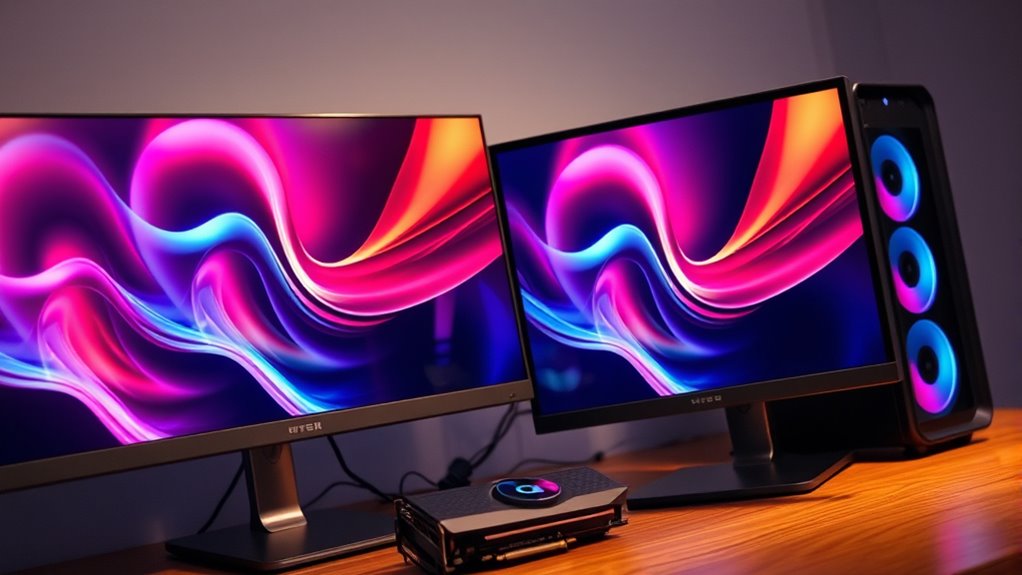

To connect two monitors to your PC, first, check if your graphics card supports multiple displays. Next, gather the appropriate cables based on your monitors’ inputs, like HDMI or DisplayPort. Connect the monitors to the available outputs on your graphics card, then access the display settings in Windows to configure your setup. Arrange the monitors and set resolutions for ideal clarity. If you encounter issues, explore further tips to maximize your dual monitor experience.
Understanding Your Computer’s Graphics Capabilities
Before you attempt to connect two monitors to your PC, it’s crucial to understand your computer’s graphics capabilities. Start by identifying the graphics card types in your system. They can range from integrated graphics, which share resources with the CPU, to dedicated graphics cards that provide superior performance. Check the performance benchmarks of your graphics card to verify it can handle multiple displays effectively. Some cards support dual outputs natively, while others may require specific configurations. Knowing your card’s specifications helps you gauge how well it can manage additional monitors. This understanding not only enhances your multitasking experience but also guarantees you maximize the potential of your setup without compromising on performance.
Choosing the Right Cables and Adapters
To connect two monitors, you’ll need to take into account the input types on each display and your PC’s output options. Check for compatibility with cables like HDMI, DisplayPort, or VGA, depending on what ports your monitors and graphics card support. Choosing the right cables and adapters is essential for ensuring a seamless multi-monitor setup.
Monitor Input Types
Connecting two monitors to one PC requires an understanding of monitor input types and the appropriate cables or adapters to facilitate the setup. You’ll encounter various monitor types, including HDMI, DisplayPort, DVI, and VGA. Each input standard has its own characteristics and capabilities, so it’s vital to match your monitors with the right connections. For instance, HDMI supports both video and audio, making it a popular choice, while DisplayPort offers higher resolutions and refresh rates. DVI is commonly found on older monitors, and VGA is largely outdated but may still be in use. Knowing these input standards helps you guarantee compatibility and maximize your dual-monitor setup’s potential. Choose wisely to enjoy the freedom of enhanced productivity!
Cable Compatibility Options
While selecting the right cables and adapters for your dual-monitor setup, it’s essential to guarantee compatibility with both your monitors and your PC’s output ports. Here are some common cable types and connection methods to take into account:
- HDMI: Widely used, supports audio and video, ideal for most modern monitors.
- DisplayPort: Great for high-resolution displays, supports multiple monitors through daisy-chaining.
- DVI: Older technology, primarily for video, doesn’t carry audio signals.
- VGA: An older analog option, best for legacy devices but lacks high-definition support.
Ensure you choose the appropriate cables based on your monitors’ input types and your PC’s output capabilities for a seamless dual-monitor experience.
Connecting the Monitors to Your PC
To connect your monitors to the PC, start by checking the available video outputs on your computer. Once you know what you have, choose the appropriate cables that match those outputs. After connecting, you’ll need to configure the display settings to guarantee both monitors work correctly.
Check Video Outputs
Before you begin the setup process, it is essential to identify the available video outputs on your PC. Knowing your video output types is vital for creating multiple display configurations. Here’s how to check:
- Inspect the back of your PC: Look for ports like HDMI, DisplayPort, DVI, or VGA.
- Check your graphics card: If you have a dedicated graphics card, verify it has multiple outputs.
- Use device manager: Open Device Manager on your PC and locate the display adapters to view supported outputs.
- Consult your user manual: Refer to your PC or motherboard manual for specific video output types.
Once you know what’s available, you can move on to connecting your monitors effectively.
Choose Appropriate Cables
Now that you’ve identified the available video outputs on your PC, the next step is selecting the right cables to connect your monitors. You’ll want to take into account both cable types and cable lengths to guarantee a seamless setup.
| Cable Type | Length Options |
|---|---|
| HDMI | 3ft, 6ft, 10ft |
| DisplayPort | 3ft, 6ft, 15ft |
| VGA | 6ft, 10ft, 25ft |
Each cable type has its own specifications and advantages, so choose based on your monitor’s input and your setup’s distance. Make certain the lengths fit your workspace without excess slack, allowing for a clean, organized look. Enjoy the freedom of multitasking across screens with the right connections!
Configure Display Settings
Once you’ve connected your monitors to the PC, it’s crucial to configure the display settings to optimize your multi-monitor experience. Follow these steps:
- Access Display Settings: Right-click on the desktop and select “Display settings.”
- Choose Display Arrangement: Drag and drop the monitor icons to match their physical arrangement. This helps guarantee a seamless shift between screens.
- Set Screen Resolution: Click on each monitor and adjust the screen resolution to your preferred settings for clarity.
- Apply Changes: Once you’re satisfied with the configuration, click “Apply” to save your settings.
Configuring Display Settings in Windows
To effectively configure display settings in Windows, you’ll first need to make sure both monitors are properly connected to your PC. Once that’s done, right-click on your desktop and select “Display settings.” Here, you can choose how you want to use your monitors, whether as an extended display or duplicate view.
Adjust the display scaling to make certain that items appear at a comfortable size across both screens. You can also create multiple desktops for different tasks, enhancing your productivity.
Here’s a quick reference table to help you understand:
| Setting | Description |
|---|---|
| Display Scaling | Adjusts size of text, apps, etc. |
| Multiple Desktops | Create different workspaces |
| Orientation | Change screen layout (landscape/portrait) |
Optimizing Your Dual Monitor Setup
While configuring your dual monitor setup can enhance productivity, optimizing it further guarantees you get the most out of your screens. Here are some effective screen arrangement tips to maximize your efficiency:
- Align Monitors: Make sure both screens are at eye level to reduce neck strain and maintain comfort.
- Use Extended Mode: Instead of duplicating the display, choose extended mode for a broader workspace.
- Organize Desktop Icons: Place frequently used applications on the primary monitor for easy access, while keeping secondary tasks on the other.
- Adjust Display Settings: Tweak brightness, contrast, and resolution to make certain consistent visuals across both monitors.
Implementing these strategies can lead to significant productivity boosts, allowing you to work smarter and more efficiently.
Troubleshooting Common Issues
Even with an optimized dual monitor setup, you might encounter issues that can hinder your workflow. Common connection errors often arise from loose cables or incompatible ports. Make sure all connections are secure and check if your cables are in good condition. If one monitor isn’t detected, it could be a display detection issue. Right-click on your desktop, select “Display settings,” and click “Detect” to see if your PC recognizes the second monitor. If issues persist, try updating your graphics drivers or adjusting your display settings. Restarting your PC can also help resolve temporary glitches. With a bit of troubleshooting, you can get back to enjoying the freedom of your dual monitor setup.
Frequently Asked Questions
Can I Use Different Monitor Brands With My Setup?
Yes, you can certainly mix brands in your setup. Just guarantee monitor compatibility is maintained; varying resolutions and refresh rates might affect performance. Embrace the freedom to customize your workspace as you see fit!
How Do I Switch Between Extended and Duplicate Display Modes?
You can switch display modes by using keyboard shortcuts: press Windows + P. From there, choose between “Duplicate” or “Extend.” Alternatively, adjust settings in your display settings for more options tailored to your preferences.
Will Connecting Two Monitors Affect My Pc’s Performance?
Connecting two monitors can feel like releasing a graphics card-powered beast, but it might slightly impact monitor performance. If your card’s capable, you’ll enjoy multitasking without significant slowdowns, ensuring your freedom remains intact.
Can I Connect More Than Two Monitors to One PC?
Yes, you can connect more than two monitors to one PC, depending on your graphics card capabilities and available ports. Multi monitor setups often allow various display configurations, enhancing productivity and immersive experiences.
Is It Possible to Use a TV as a Second Monitor?
Yes, you can use a TV as a second monitor. Just make certain it’s compatible, check display resolution, and connect via HDMI. Screen mirroring is another option, granting you the freedom to expand your workspace creatively.
