
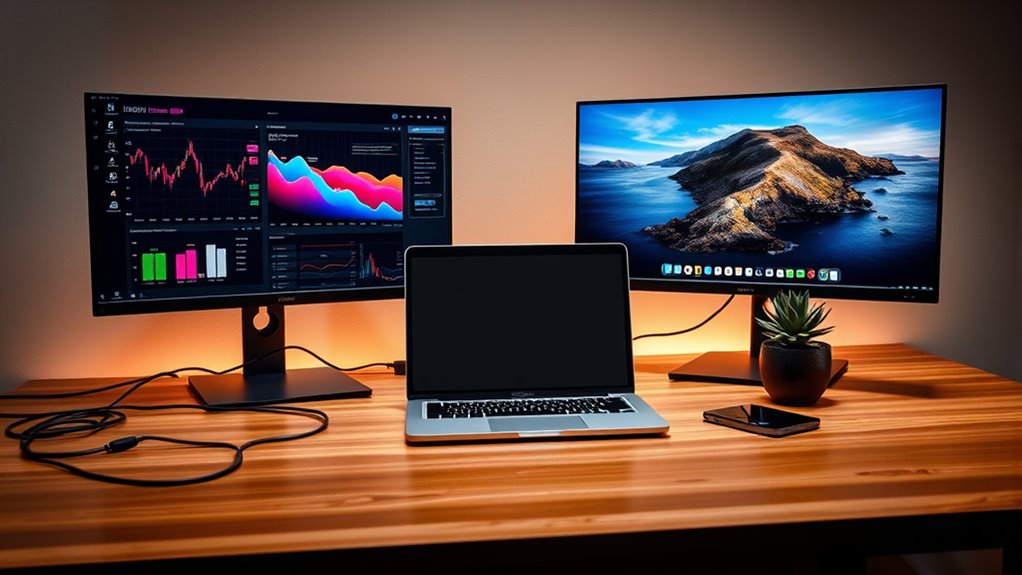

To add two monitors, start by evaluating your desk space and ergonomics for compatibility. Choose monitors with similar resolutions and sizes to enhance your workflow. Make certain your computer’s graphics card supports multiple displays and check connection types like HDMI or DisplayPort. Once connected, configure your display settings to optimize clarity and positioning. Utilize dual monitor software to boost your multitasking efficiency. Discover more detailed steps and tips for a successful dual monitor setup ahead.
Assessing Your Current Setup
Before adding two monitors to your setup, it’s crucial to assess your current configuration. Start by evaluating space; make certain you have enough desk area to accommodate the additional monitors without cluttering your workspace. Consider the placement of your existing monitor and peripherals to maintain an ergonomic layout that suits your working style.
Next, assess your needs. Think about what you’ll be using the extra monitors for—whether it’s multitasking, gaming, or creative work. This will influence not just the size and resolution of the monitors you choose later, but also how you arrange them. By thoroughly evaluating these factors, you’ll guarantee a seamless integration into your current setup, enhancing productivity and freedom in your workspace.
Choosing the Right Monitors
When choosing the right monitors, you’ll want to take into account both screen size and resolution compatibility. The size impacts your workspace and viewing comfort, while resolution guarantees that your displays can effectively handle the tasks you plan to perform. Matching the resolution of your monitors also prevents display issues and enhances your overall experience.
Screen Size Considerations
Choosing the right screen size for your dual monitor setup is essential for optimizing your workspace and productivity. First, consider monitor dimensions; larger screens often provide better visibility and multitasking capability. Aim for a balanced setup where both monitors have similar sizes to avoid strain. Standard screen ratios, like 16:9, are common but might not suit everyone’s needs. If you work with documents side by side or design graphics, ultrawide monitors can offer a more immersive experience. However, make sure you have adequate desk space to accommodate larger dimensions. Ultimately, choose monitors that complement your workflow and enhance your freedom to work efficiently without compromising comfort.
Resolution Compatibility Factors
Although monitors may have similar sizes, their resolutions can vary greatly, impacting your overall experience. To guarantee you enjoy seamless resolution scaling, it’s crucial to evaluate resolution matching between your monitors. Mismatched resolutions can lead to inconsistent display quality and hinder productivity.
Here’s a quick reference table to help you assess resolution compatibility:
| Monitor Model | Resolution |
|---|---|
| Model A | 1920×1080 |
| Model B | 2560×1440 |
| Model C | 3840×2160 |
| Model D | 1366×768 |
| Model E | 1920×1200 |
When choosing your monitors, prioritize those with similar resolutions for a superior dual-screen experience. This way, you’ll access your full potential and enjoy the freedom of multitasking.
Checking Compatibility With Your Computer
Before adding two monitors, you need to check your computer’s compatibility. Start by verifying the monitor connection types supported by your system, such as HDMI, DisplayPort, or VGA. Next, assess your graphics card capacity to guarantee it can handle multiple displays effectively.
Monitor Connection Types
When you’re setting up dual monitors, it is crucial to check the connection types available on your computer to guarantee compatibility. HDMI cables are widely used and support high-definition resolutions, making them ideal for most setups. If you’re considering performance, DisplayPort options offer superior refresh rates and can daisy-chain multiple monitors. For older devices, VGA connections are still around, but they’re less efficient compared to DVI interfaces, which provide a digital signal. If your computer has USB C compatibility or Thunderbolt advantages, you can benefit from faster data transfer and versatility. When comparing HDMI vs VGA, the former is preferred for modern multi-monitor setups, ensuring you maximize your screen real estate and productivity without hassle.
Graphics Card Capacity
Many users overlook the importance of checking their graphics card capacity before adding dual monitors. Confirming your graphics card can handle dual monitor setups is vital for a seamless experience. Different graphics card types support varying numbers of displays, so it’s important to verify compatibility before making a purchase.
Here are some key points to reflect on:
- Monitor Resolution: Higher resolutions require more graphics power.
- Ports Available: Verify your graphics card has enough outputs for both monitors.
- Performance Needs: Think about what tasks you’ll be doing; gaming or video editing demands more from your card.
- Driver Support: Check if your card’s drivers support dual monitor setups effectively.
Connecting the Monitors
To successfully connect your monitors, you’ll first need to confirm your computer has the appropriate ports available. After that, select the right monitor types and verify you have the correct cable lengths for connection. Common ports include HDMI, DisplayPort, and VGA, so check your monitors and graphics card.
Here’s a quick reference table:
| Monitor Type | Cable Type | Recommended Length |
|---|---|---|
| LCD | HDMI | Up to 15 feet |
| LED | DisplayPort | Up to 6 feet |
| CRT | VGA | Up to 25 feet |
Once you have the correct cables, plug them into the corresponding ports on your computer and monitors. This sets the stage for your multi-monitor experience.
Configuring Display Settings
Once your monitors are connected, you’ll need to configure the display settings to optimize your setup. Start by detecting the connected monitors, then adjust the resolution settings for clarity. Finally, arrange the monitor layout to suit your workflow and guarantee a seamless experience.
Detecting Connected Monitors
Although connecting two monitors can enhance your productivity, verifying that your computer detects them correctly is essential. You can use several monitor detection methods to check if both screens are recognized.
Here are some quick tips for troubleshooting detection issues:
- Check cables: Verify all cables are securely connected.
- Display settings: Right-click on your desktop and select “Display settings” to see if both monitors show up.
- Graphics drivers: Make sure your graphics drivers are up-to-date.
- Restart your computer: Sometimes, a simple reboot can help the system recognize the monitors.
Adjusting Resolution Settings
Adjusting the resolution settings for your monitors is essential for ideal display performance. To start, right-click on your desktop and select “Display settings.” Here, you’ll see options for resolution scaling. Verify each monitor is set to its native resolution to maximize clarity. If text or images seem too small or large, you can adjust the scaling percentage for better readability.
Next, perform display calibration to fine-tune colors and brightness. This process can enhance your overall viewing experience. Many operating systems provide built-in calibration tools, which guide you step-by-step. By properly configuring these settings, you’ll achieve a superior setup, allowing you to work efficiently across multiple displays without sacrificing visual quality or comfort.
Arranging Monitor Layout
After ensuring your monitors are properly calibrated and set to their ideal resolutions, the next step is arranging your monitor layout. Good monitor positioning is essential for an ergonomic setup, preventing strain and enhancing productivity.
Here are some tips to keep in mind:
- Align the tops of your monitors at eye level to reduce neck strain.
- Place the primary monitor directly in front of you, with the secondary monitor at an angle.
- Ensure adequate distance (about an arm’s length) to avoid eye fatigue.
- Adjust brightness and contrast to match between monitors for a smooth visual experience.
Arranging Monitors for Optimal Use
To maximize productivity and comfort while using dual monitors, you’ll need to reflect on their arrangement carefully. Proper monitor positioning is vital for an ergonomic setup. Position your primary monitor directly in front of you, slightly below eye level, and guarantee the secondary monitor is adjacent, angled towards you. This reduces neck strain and enhances focus.
Here’s a simple layout to evaluate:
| Primary Monitor | Secondary Monitor | Distance from Eyes |
|---|---|---|
| Directly in front | To the side | 20-30 inches |
| Slightly tilted | Adjust angle | Eye level |
| Stable base | Adjustable height | Comfortable posture |
This arrangement helps you switch tasks seamlessly while maintaining comfort and efficiency.
Utilizing Dual Monitor Software
While you might think that simply connecting two monitors is enough, utilizing dual monitor software can considerably enhance your workflow. This software helps with dual monitor management, providing tools to customize your setup for maximum productivity. Here are some benefits you’ll appreciate:
- Screen Splitting: Easily organize windows across screens.
- Virtual Desktops: Create distinct workspaces for different tasks.
- Hotkeys: Quickly switch between applications with keyboard shortcuts.
- Taskbar Management: Control your taskbar across both monitors for seamless navigation.
Tips for Effective Multitasking
Utilizing dual monitor software can greatly streamline your multitasking capabilities. To maximize your efficiency, implement productivity techniques like arranging your screens for ideal workflow. For instance, dedicate one monitor to your primary tasks and the other for reference materials or communication tools. This separation enhances focus and reduces distractions.
Moreover, employ multitasking strategies such as using keyboard shortcuts to switch between applications quickly. You can also take advantage of split-screen functionalities to keep multiple windows visible simultaneously. Remember to periodically assess your setup; adjusting your layout can improve your overall experience. By mastering these techniques, you’ll gain the freedom to manage tasks more effectively, boosting both your productivity and satisfaction with your dual monitor setup.
Troubleshooting Common Issues
When setting up dual monitors, you may encounter a few common issues that can hinder your experience. To troubleshoot effectively, keep these points in mind:
- Check your connections: Verify cables are securely plugged in; loose connections can lead to common connection issues.
- Update drivers: Outdated graphics drivers can cause display flickering problems. Always keep them current.
- Adjust display settings: Access your display settings to verify both monitors are recognized and configured correctly.
- Test with different cables: If issues persist, try swapping out cables to rule out faulty hardware.
Enhancing Your Workspace Aesthetics
Creating a visually appealing workspace can enhance your productivity and comfort, especially with dual monitors. Start by selecting a cohesive color scheme that resonates with your style and promotes focus. Neutral tones can create a calming environment, while pops of color can energize your space.
Next, prioritize desk organization. Use cable management solutions to minimize clutter and keep your workspace tidy. Invest in monitor stands to elevate your screens and free up desk space for essential items. Incorporate decorative elements, such as plants or artwork, to personalize your area without overwhelming it.
With the right color schemes and effective desk organization, you’ll transform your workspace into an inspiring environment that fosters creativity and efficiency.
Frequently Asked Questions
Can I Use Different Monitor Brands Together?
Sure, you can use different monitor brands together. Just keep in mind monitor compatibility and brand differences. As long as they share the same ports and resolutions, you’re free to mix and match!
What Cables Do I Need for Dual Monitors?
You’ll need HDMI cables or DisplayPort connections for dual monitors. Check your graphics card and monitor ports to guarantee compatibility. Using the right cables maximizes your display’s potential, giving you the freedom to multitask effectively.
Will Dual Monitors Affect My Computer’s Performance?
Yes, dual monitors can impact your computer’s performance, particularly if your hardware isn’t up to par. For example, using an outdated GPU may lead to lag during multitasking, stressing your system’s resources and capabilities.
Can I Extend My Desktop to a TV?
Yes, you can extend your desktop to a TV. Just access your desktop settings, navigate to display options, and select the TV as an additional display. This setup enhances your workspace and viewing experience greatly.
How Do I Switch Between Monitor Displays?
To switch between monitor displays, access your monitor settings. Select display options and choose the desired monitor. You can also use keyboard shortcuts like Windows + P to quickly toggle between display modes.
