
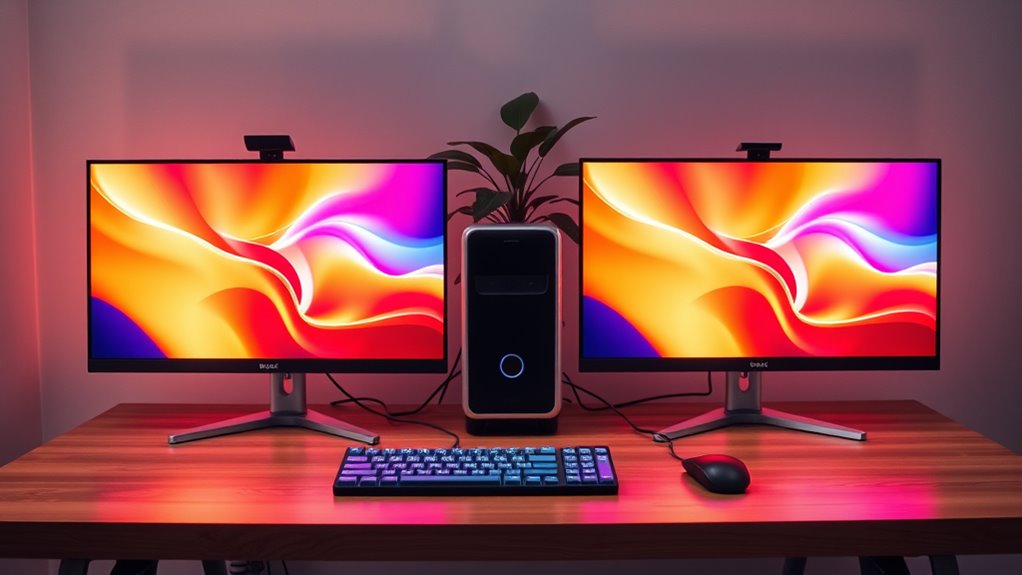

To add two monitors to one computer, first, check your graphics card for dual display support and verify your operating system is compatible. Choose monitors with the right resolution and connection types. Gather necessary cables or adapters, then connect the monitors to your computer’s ports. Power on your system, detect the monitors in display settings, and adjust settings for resolution and arrangement. This setup can enhance productivity—continue to explore tips for optimization and troubleshooting.
Check Your Computer’s Compatibility
Before adding two monitors to your computer, you need to check its compatibility. Start by examining your graphics card; it must support dual display compatibility. Look up the monitor specifications, confirming that your card has the right ports, such as HDMI, DisplayPort, or DVI. If you’re unsure, consult your computer’s manual or the manufacturer’s website for detailed information. Next, verify the maximum resolution your graphics card can handle when using multiple displays. Some systems may limit performance when connecting two monitors, affecting display quality. Finally, verify your operating system supports multiple monitors; most modern OS versions do, but it’s worth double-checking. By taking these steps, you’ll guarantee a seamless dual-monitor setup that enhances your productivity.
Choose the Right Monitors
Choosing the right monitors is essential for maximizing your dual-display setup. You’ll want to evaluate several factors to guarantee a superior experience.
Selecting the perfect monitors is crucial for enhancing your dual-display setup and ensuring an optimal user experience.
- Monitor Brands: Research reputable brands like Dell, Asus, and LG, known for their quality displays.
- Screen Sizes: Think about your workspace; 24 to 27 inches is ideal for most setups.
- Resolution: Opt for at least 1080p for clarity, especially if you’re multitasking.
- Panel Type: Choose IPS panels for better color accuracy and viewing angles.
Gather the Necessary Cables and Adapters
To set up dual monitors, you need to identify the types of connections your monitors support, such as HDMI, DisplayPort, or VGA. Next, choose the appropriate cables that match these connection types. Finally, assess whether you need any adapters to facilitate compatibility with your computer’s output ports.
Identify Monitor Types
When setting up dual monitors, identifying the types of monitors you plan to use is essential for a seamless experience. The monitor types you choose will impact your display resolutions and overall productivity. Here are some common types to evaluate:
- LCD (Liquid Crystal Display): Great for everyday use and energy-efficient.
- LED (Light Emitting Diode): Offers brighter displays and better color accuracy.
- IPS (In-Plane Switching): Ideal for graphic design, providing wide viewing angles.
- Curved Monitors: Enhance immersion, especially for gaming and multitasking.
Choose Appropriate Cables
After selecting the right monitor types, the next step is gathering the appropriate cables and adapters for your dual monitor setup. Understanding cable types and connection methods is essential for seamless operation. Here’s a quick reference table to help you choose the right cables:
| Monitor Type | Cable Type | Connection Method |
|---|---|---|
| HDMI | HDMI Cable | Direct Connection |
| DisplayPort | DisplayPort Cable | Direct Connection |
| VGA | VGA Cable | Analog Connection |
| DVI | DVI Cable | Digital Connection |
| USB-C | USB-C to HDMI | Adapter Required |
Ensure you have the necessary cables to match your monitor outputs and computer inputs. This way, you’ll maximize your productivity and enjoy the freedom of a dual-screen experience.
Consider Adapter Requirements
Guaranteeing you have the right adapters is essential for connecting multiple monitors to your computer. Different adapter types and connection methods can impact performance and compatibility. Here’s what you need to take into account:
- HDMI to DisplayPort: Ideal for connecting modern monitors.
- VGA to HDMI: Useful for older monitors, but may require a powered adapter.
- DVI to HDMI: A straightforward option if your monitors support DVI.
- USB-C to HDMI/DisplayPort: Perfect for laptops with USB-C ports.
Before buying, check your computer’s output ports and your monitors’ input ports. Having the proper adapters guarantees you can maximize your setup and enjoy the benefits of multi-monitor productivity without hassle.
Connect the Monitors to Your Computer
To connect two monitors to your computer, start by identifying the available ports on both your monitors and your computer. Look for HDMI, DisplayPort, DVI, or VGA connections. Once you’ve determined the ports, use the appropriate cables to link each monitor to your computer. If your computer has only one output, you may need a splitter or a dual display adapter to accommodate both monitors. Verify that the connections are secure and check if your graphics card supports multiple displays. A proper monitor setup will allow you to extend your desktop space, enhancing productivity and multitasking. Finally, confirm that your operating system recognizes both monitors before proceeding to adjust display settings.
Power On and Detect the Monitors
Once you’ve connected the monitor cables, power on both monitors and your computer. Your operating system should automatically detect the additional displays. If not, you may need to access the display settings to configure them manually.
Connect Monitor Cables
Before you can enjoy the benefits of a dual-monitor setup, you’ll need to connect the monitor cables correctly. Depending on your monitor types and cable specifications, follow these steps to guarantee a smooth connection:
- Check the ports on your computer and monitors; common options include HDMI, DisplayPort, or VGA.
- Use the appropriate cables for each connection; verify they meet the necessary specifications for your monitors.
- Plug one end of the cable into the monitor and the other into the appropriate port on your computer.
- Power on both monitors and your computer to facilitate detection.
Once connected, your operating system should recognize the additional monitors, allowing you to customize your workspace effortlessly. Enjoy the expanded screen real estate!
Access Display Settings
After connecting the monitor cables, it’s time to access your display settings to confirm both monitors are recognized by your computer. Start by powering on your monitors and the computer. Once booted, right-click on the desktop and select “Display settings.” Here, you’ll see a graphical representation of your multiple displays. Click “Detect” if one isn’t showing up. You can then adjust the display resolution for each monitor to guarantee ideal clarity. It’s crucial to match the recommended resolution for each display to maintain visual quality. You can also choose how you want to use the displays—mirroring or extending your workspace. Once you make your adjustments, click “Apply” to save the settings. Enjoy your expanded workspace!
Adjust Display Settings
As you connect your additional monitor, you’ll need to adjust the display settings to confirm both screens function seamlessly. This process guarantees ideal display resolution and enhances your productivity with multiple displays. Follow these steps to get started:
- Open your computer’s display settings.
- Select the connected monitor you want to adjust.
- Choose the appropriate display resolution for each screen.
- Configure the display mode (duplicate or extend).
Configure the Monitor Arrangement
Once you’ve adjusted the display settings, the next step is to configure the monitor arrangement to match your physical setup. Start by identifying how you’ve positioned your monitors—whether side by side, stacked, or one above the other. In your display settings, you’ll find an option for “Display Arrangement” or “Monitor Positioning.” Drag the monitor icons to reflect their real-world locations. This guarantees proper screen alignment, allowing your mouse to move smoothly across screens. If one monitor is taller or lower, adjust the icons accordingly. Don’t forget to apply changes once you’re satisfied with the layout. This setup not only enhances your workflow but also gives you the freedom to multitask effectively.
Optimize for Your Workflow
To optimize your dual-monitor setup for maximum productivity, you should evaluate how you use each screen during your daily tasks. This assessment can greatly enhance your workflow efficiency and leverage the dual display benefits.
- Assign one monitor for primary tasks like document editing or coding.
- Use the second monitor for research, communication, or reference materials.
- Consider utilizing software that allows window snapping for better organization.
- Adjust display settings, such as brightness and resolution, to reduce eye strain.
Troubleshooting Common Issues
While setting up dual monitors can greatly enhance your productivity, it’s not uncommon to encounter a few technical issues along the way. One of the most frequent hiccups are common connection issues. Confirm your cables are securely plugged in and compatible with both monitors and your computer. If you’re using adapters, verify they’re functioning correctly.
Resolution problems can also arise; if one monitor displays a lower resolution than expected, right-click on the desktop, select ‘Display settings,’ and adjust the resolution for each monitor. Don’t forget to check for driver updates, as outdated graphics drivers can lead to compatibility issues. With these troubleshooting tips, you should be well on your way to a seamless dual-monitor experience.
Frequently Asked Questions
Can I Use Different Monitor Brands Together?
Yes, you can use different monitor brands together. Just verify they’re compatible with your computer’s output. While brand differences might affect color and resolution, most systems handle multiple monitors without issues.
Will Adding Monitors Affect My Computer’s Performance?
Adding monitors is like expanding your horizons. If your graphics card can handle the load, you won’t see much performance impact. However, underpowered hardware might struggle, leading to lag and reduced efficiency in tasks.
How Do I Maintain Monitor Color Consistency?
To maintain monitor color consistency, use calibration techniques regularly and apply accurate color profiles for each display. This guarantees that colors match across monitors, providing a seamless visual experience that enhances your productivity and creativity.
Can I Use My TV as a Second Monitor?
Absolutely, you can use your TV as a second monitor! Just verify it’s compatible with your computer, then connect via HDMI. With the right setup, it’ll feel like your workspace expanded exponentially.
What Is the Maximum Number of Monitors My Computer Can Support?
Your computer’s maximum monitor support depends on its graphics card and available connection types. Typically, modern graphics cards can handle two to six monitors, but check your specific model’s specifications for precise limits.
