
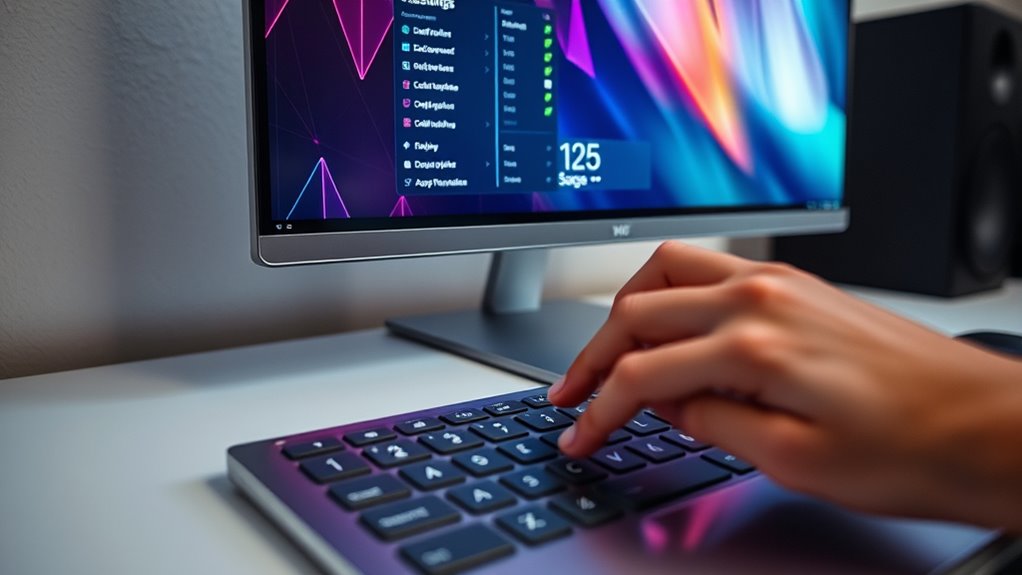

To change your monitor’s refresh rate, right-click on your desktop and select “Display settings” if you’re using Windows. Then, head to “Advanced display settings,” choose your monitor, and select the desired refresh rate from the dropdown menu. For macOS, open the Apple menu, go to “System Preferences,” choose “Displays,” and pick the refresh rate you want. If you run into issues, there are troubleshooting steps you can follow, which can help you achieve ideal performance.
Understanding Refresh Rate and Its Importance
Refresh rate, measured in hertz (Hz), plays an essential role in your overall viewing experience. It determines how many times your monitor refreshes the image per second, directly impacting monitor performance. Higher refresh rates lead to smoother visuals, minimizing motion blur and providing a more immersive experience, especially in fast-paced activities like gaming or video editing. Understanding your display technology is vital, as it affects how you perceive motion and clarity. For instance, a 60Hz monitor may struggle to keep up with rapid movements, while a 144Hz display offers a significant upgrade. By grasping the importance of refresh rate, you can make informed choices that enhance your freedom to enjoy content seamlessly and responsively.
Checking Your Monitor’s Current Refresh Rate
How can you determine your monitor’s current refresh rate? First, check your monitor specifications, which typically list the refresh rate. If you can’t find it there, you can easily check it through your operating system. On Windows, right-click on the desktop, select Display settings, and click on Advanced display settings. Here, you’ll see the current refresh rate displayed in hertz (Hz).
Familiarizing yourself with refresh rate terminology can also help clarify the data you’re viewing. Whether it’s 60Hz, 144Hz, or higher, knowing your refresh rate lets you understand your monitor’s performance. This knowledge empowers you to decide if an upgrade is necessary for a smoother visual experience that aligns with your needs.
Adjusting Refresh Rate in Windows
If you’re looking to enhance your monitor’s performance, adjusting the refresh rate in Windows is a straightforward process. First, right-click on your desktop and select “Display settings.” Scroll down and click on “Advanced display settings.” Here, you’ll see your monitor’s current refresh rate. To change it, click on the monitor you want to adjust, then find the “Refresh rate” dropdown menu. Select your desired refresh rate from the options available. Remember, higher refresh rates can lead to smoother motion and improved display performance. Once you make your selection, click “Apply” to save the changes. You may need to confirm the new settings, after which you can enjoy an enhanced visual experience tailored to your needs.
Changing Refresh Rate on Macos
While adjusting the refresh rate on macOS may seem intimidating, it’s a simple process that can greatly improve your display experience. To start, open the Apple menu and select “System Preferences.” From there, click on “Displays.” You’ll see a drop-down menu labeled “Refresh Rate.” Here, you can choose from the available options that suit your monitor. Keep in mind that selecting a higher refresh rate can enhance your Mac’s performance impact, especially during gaming or video playback. Once you’ve made your choice, close the window, and your settings will automatically save. Experimenting with different rates can help you find the perfect balance between smooth visuals and system responsiveness, providing you the freedom to customize your viewing experience.
Troubleshooting Common Refresh Rate Issues
After adjusting the refresh rate on macOS, you might encounter some common issues that can affect your experience. These can include screen flickering and graphical glitches. To help you troubleshoot, here’s a quick overview of possible solutions:
| Issue | Symptoms | Solutions |
|---|---|---|
| Screen Flickering | Unstable visuals | Lower refresh rate |
| Graphical Glitches | Distorted images | Update graphics drivers |
| Connection Problems | No signal or lag | Check cable connections |
| Compatibility Issues | Incompatible settings | Reset to default settings |
If you’re experiencing any of these issues, try the solutions listed above. Freedom in your viewing experience is essential, so don’t hesitate to experiment until you find the right settings.
Frequently Asked Questions
Does Changing the Refresh Rate Affect Game Performance?
Changing the refresh rate’s like adjusting a painter’s brush, enhancing game visuals. Higher rates can smooth frame rates, creating a seamless experience. It’s your canvas; don’t settle for less when freedom in gaming awaits.
Can I Change the Refresh Rate on a Laptop?
Yes, you can change the refresh rate on a laptop. Just head to your laptop settings, find display options, and adjust the refresh rate to suit your preferences for a smoother visual experience.
What Cables Support Higher Refresh Rates?
If you want smooth visuals, HDMI and DisplayPort cables support higher refresh rates. DVI connections can do well too, but don’t forget VGA limitations—it’s stuck in the past, holding you back.
Is a Higher Refresh Rate Always Better?
A higher refresh rate isn’t always better. While it offers refresh rate advantages like smoother motion and improved gaming experience, factors like resolution, hardware capability, and personal preference play essential roles in your overall enjoyment.
How Does Refresh Rate Impact Eye Strain?
Like a gentle breeze, a higher refresh rate enhances eye comfort, reducing visual fatigue. When you’re staring at a screen, smoother visuals can lessen strain, allowing your eyes to relax and enjoy more freedom.

[…] 1080p to a 4K projector, the scaling is normal—but if you feed an unsupported mode or unusual refresh rate, output can drop or look […]
[…] content, not just the “4K” label. Focus on measurable specs—brightness, resolution handling, refresh rate, and motion processing—then verify artifact sensitivity with real fast-motion […]
[…] Refresh rate is supported (especially if you’re using consoles or a […]
[…] consistent brightness across long viewing sessions. For sports and fast motion, the projector’s refresh rate, motion handling, and input lag matter as much as raw […]
[…] or passive synchronization. You’ll learn exactly what the projector’s light engine, optics, and refresh rate must do to turn two flat images into a convincing 3D […]
[…] performance traits. In practical terms, your projector receives timing and image data (resolution, refresh rate, and color format), then synchronizes that data with its imaging method and optical […]