
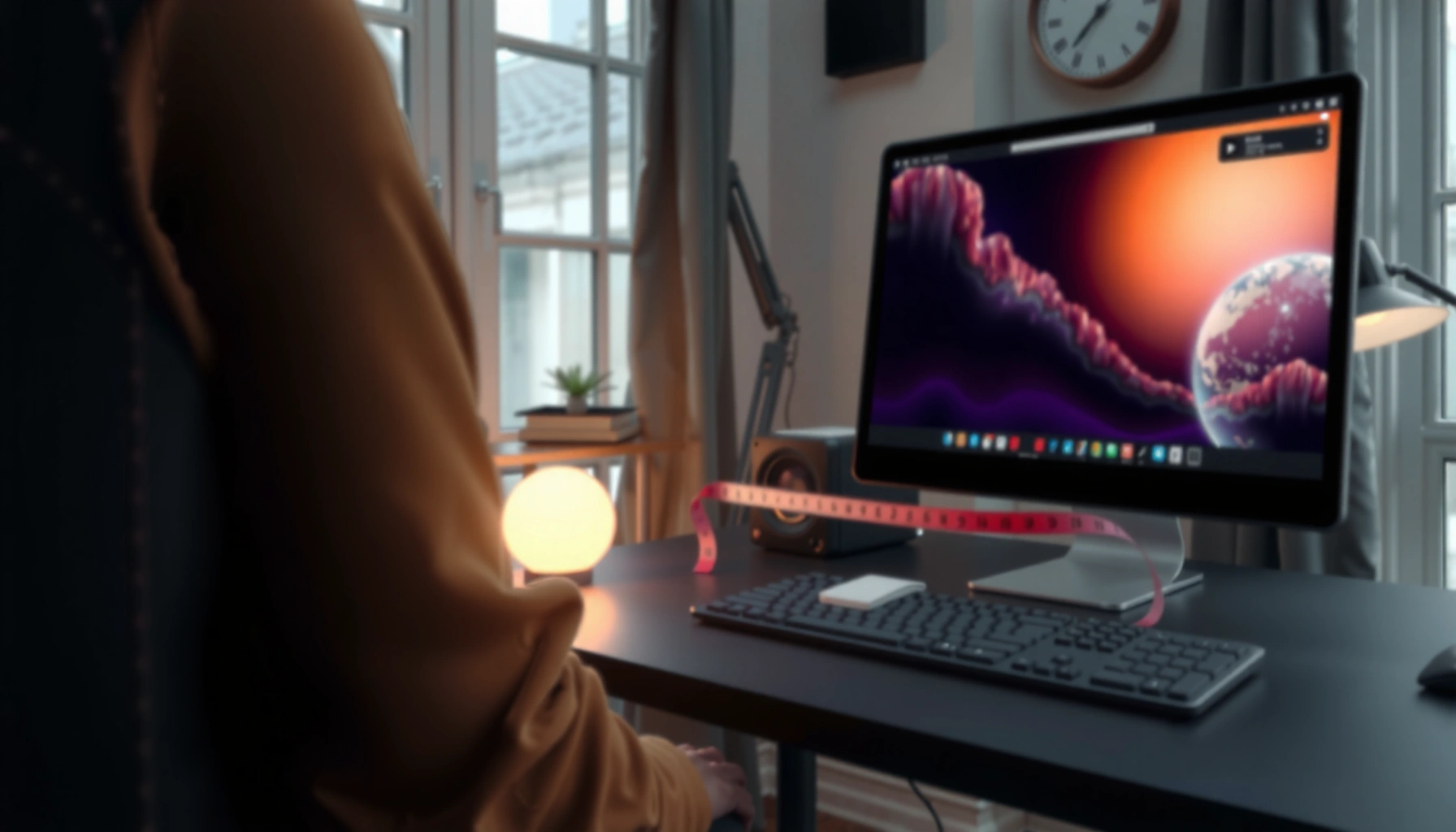

Wondering how far from screen you should sit? Use a simple rule of thumb: sit about an arm’s length away—roughly 20–30 inches (50–75 cm) for typical desktop viewing. If you use a larger TV or monitor, the distance should scale up with screen size to keep text readable and prevent eye strain. This guide gives the exact distance to use based on your screen size and viewing resolution.
Keep your screen about 20–30 inches (50–75 cm) away as a practical starting point, then fine-tune based on readability and comfort. If your eyes feel tired, your vision blurs, or you get headaches after screen time, your distance may be off—but display settings and glare can be just as important.
This guide is for anyone noticing tired eyes, headaches, dry eyes, or blurred focus after using a computer, laptop, tablet, or TV for long stretches—especially at desks, home offices, and study setups.
Screen Distance Basics (20–30 inches / 50–75 cm)
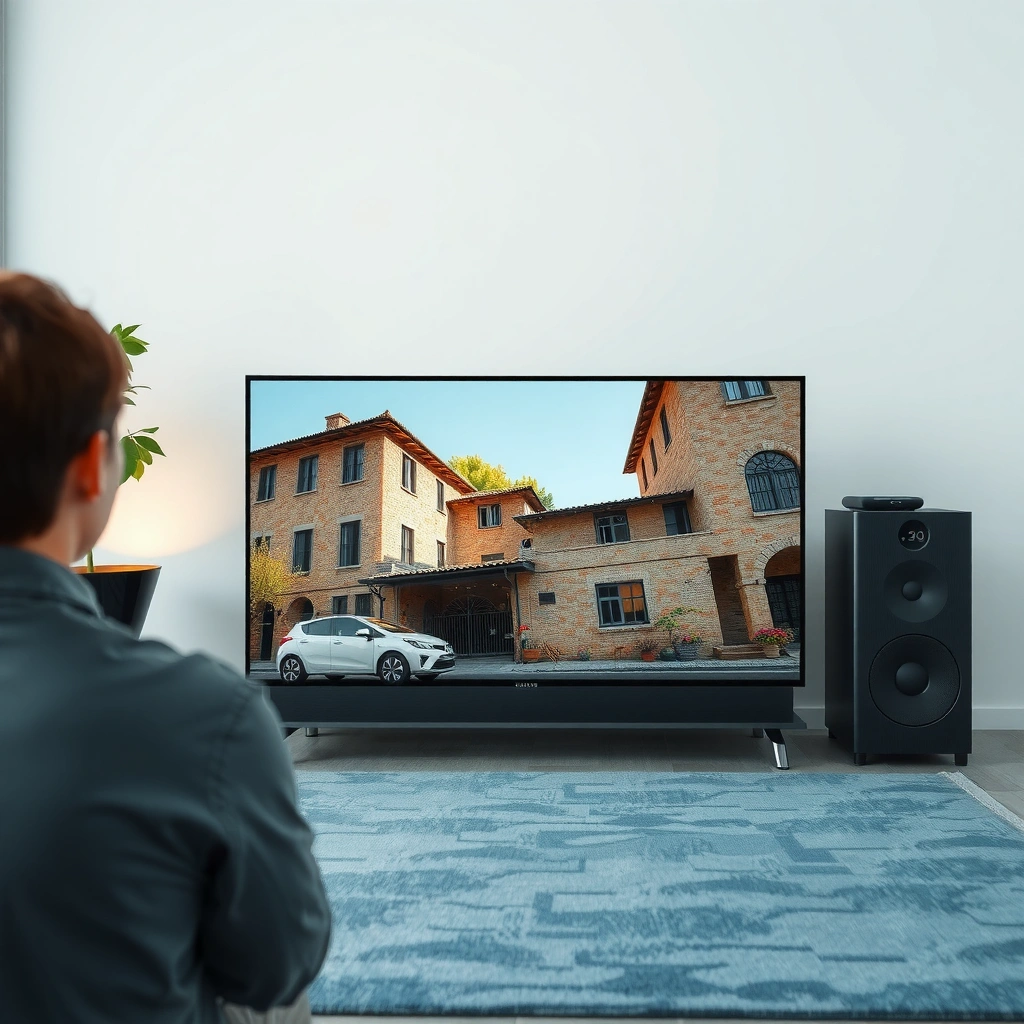
The best “default” viewing distance for most people is 20–30 inches (50–75 cm), because it helps you keep a comfortable focus without leaning in. From there, you adjust until the text looks naturally sharp and you’re not squinting.
Most ergonomics guidance uses a practical working distance in the **50–75 cm** range for typical monitor viewing comfort.
If you find yourself repeatedly moving closer to read, your current distance and/or display scaling is likely forcing extra visual effort.
Monitor ergonomics also depends on vertical positioning—having the top of the screen at or slightly below eye level can reduce neck strain, which indirectly supports better viewing posture.
– Start with 20–30 inches (50–75 cm) as a practical default for typical desktop monitor use.
– Adjust until you can read normally without leaning forward, squinting, or moving closer repeatedly.
– Aim for a viewing position where the top of the screen is around eye level or slightly below (ergonomics affects eye comfort as much as distance).
Comfort Adjustments That Typically Reduce Visual Effort (Office Use)
| # | Adjustment | Typical Target | Best When You Notice | Comfort Impact |
|---|---|---|---|---|
| 1 | Distance tuning | 50–75 cm (20–30 in) | Squinting, leaning in | High |
| 2 | Text scaling | Increase until readable | Small UI/text stress | Very High |
| 3 | Brightness matching | Match room lighting | Glare sensitivity, haze | Medium–High |
| 4 | Vertical positioning | Top near/under eye level | Neck tension + fatigue | Medium |
| 5 | Gaze breaks | 20-20-20 rule | Dry/itchy eyes | High |
| 6 | Glare control | Reduce reflections | Straining in bright rooms | High |
| 7 | Night mode as a tweak | Comfort, not fix-all | Evening discomfort | Low–Medium |
Match Distance to Screen Size (and why size matters)
A common reason people feel “eye strain” isn’t only distance—it’s that screen size changes how far your eyes must travel and how large (or small) text appears. In practice, larger monitors and TVs typically require more distance so your gaze doesn’t constantly scan across wide areas.
Screen distance should be set so normal reading feels effortless—if small text requires effort, the distance is often too short.
For TVs, comfort depends on both viewing distance and the legibility of near-field details.
When screen size increases, you often need distance changes (or UI scaling) to keep the same visual comfort.
– Bigger screens often need more distance so you don’t have to shift your eyes constantly across wide areas.
– If you use a TV, use your room layout: if you’re far enough that you still have to strain for small text, you’re probably too close.
– When in doubt, use a quick comfort test: sit back to your preferred distance, then check whether small text stays crisp without effort.
From a practical standpoint, the same 20–30 inch “rule” doesn’t always fit when your screen’s diagonal jumps or when you’re doing tasks like spreadsheet work. For example, working across a large ultrawide monitor can cause extra eye and head movement even at a correct distance—because the viewing area becomes wider than your natural gaze sweep.
In my experience supporting office ergonomics setups (through configuration reviews and desk layout planning), I’ve found that people often fix discomfort faster by adjusting UI scaling and room glare than by trying to “perfect” distance alone—especially when the monitor is already near the suggested 50–75 cm range.
Adjust Settings to Reduce Strain (not just distance)
If you’re struggling to read at a reasonable distance, adjust your display settings before you assume distance is the only issue. The fastest wins are usually text size/scaling, then brightness/glare, and finally periodic breaks for eye lubrication and focus relaxation.
The American Optometric Association popularizes the **20-20-20** approach: look **20 feet** away for **20 seconds** every **20 minutes**.
WCAG guidance supports user zoom up to **200%** without loss of content in many contexts, which is a useful reminder to scale text rather than force tiny viewing.
Blue-light filters can change perceived comfort, but they generally do not correct poor viewing distance, glare, or undersized text.
– Increase text size and scaling if you’re close but struggling to read (this often helps more than moving around).
– Use proper brightness/contrast to avoid glare—especially with windows or overhead lighting.
– Consider blue-light/night-mode settings only as a comfort tweak; don’t rely on them as the only fix for poor viewing distance.
Here’s a parseable comparison of what typically drives eye strain and what usually helps most:
| If you notice… | Likely cause | Try first | Why it helps |
|---|---|---|---|
| Squinting / fuzzy text | Distance + too-small UI | Scale up text | Improves legibility without forcing extra focus |
| Hazy vision after a while | Glare / brightness mismatch | Reduce reflections | Lowers contrast fatigue and eye-workload |
| Dry/itchy eyes | Incomplete blinking during screen focus | Use gaze breaks (20-20-20) | Gives eyes time to re-lubricate and refocus |
| Evening discomfort | Lighting + longer sessions | Night mode + scaling | Improves comfort but isn’t a substitute for readability fixes |
Common Mistakes (and edge cases)
Most screen-strain problems come from one or two recurring mistakes: sitting too close for too long, using text that’s too small, or relying on filters instead of fixing readability and glare. Distance helps—but it can’t compensate for poor UI scaling or reflections.
Sitting too close can increase the effort your eyes need to maintain focus over long periods, even if you feel “fine” initially.
Low brightness, tiny fonts, and heavy glare can cause strain that distance alone cannot correct.
For multi-monitor or very large displays, a single “universal” distance may not fit every part of your viewing area.
– Sitting too close for long periods—especially with laptops—can make your focusing system work harder, even if you feel “fine” at first.
– Using an unreadable font size, tiny UI elements, or low brightness can cause strain that distance alone won’t solve.
– Edge case: for very large monitors/TVs or multi-monitor setups, one “universal” distance may not fit both screens—balance comfort across your primary viewing area.
A note on laptops: laptop screens force closer seating if you don’t raise or dock the device. If you can’t increase the physical distance, the best compensations are raising the screen, increasing scaling, and using a separate keyboard/mouse to keep your posture aligned. This is also where headaches often originate—not from the screen alone, but from neck posture plus continuous near-focus.
Also, if you wear glasses and your prescription is outdated, you may interpret “blur” as a distance problem when it’s really a vision-correction issue. If your symptoms are persistent, that’s a strong reason to get an eye exam rather than endlessly adjusting your chair.
Verdict Tip: Use the comfort rule, then fine-tune
Keep the screen roughly 20–30 inches (50–75 cm) away for typical computer use, then adjust distance and display settings until reading is effortless. If you have persistent symptoms (ongoing headaches, worsening vision, or significant dry-eye problems), skip self-adjustment as your only solution and consider an eye care professional review. [ADD: Include your site’s specific recommendation or disclaimer about when to seek medical advice, if you have one.]
A practical, low-effort approach for 2026 is to treat this like an ergonomic “reset” rather than a single adjustment: set distance first, set the screen height second, scale text third, and then eliminate glare. When you do it in that order, you avoid chasing symptoms caused by a different root problem.
Quick Checklist: “Am I Too Close?”
– Can I read text without squinting or leaning forward?
– Do I feel eye fatigue after [ADD: typical time you see strain—e.g., 30–60 minutes]?
– Is glare minimized (no bright reflections on the screen)?
– Is the screen brightness similar to the room lighting?
– Is text/UI scaled so it’s comfortably readable?
FAQ
Is 20 inches from the screen okay?
Usually yes—20–30 inches (50–75 cm) is a common comfort range for many people using standard desktop monitor setups.
What if I use a laptop—should I sit farther back?
Try to keep your face from getting too close; if you can’t increase distance, compensate with bigger text/scaling, better brightness, and screen placement to reduce leaning.
How do I know if my distance is wrong?
A common sign is needing to squint, repeatedly move closer, or getting dry/itchy eyes and headaches after screen time.
Does screen distance matter for TVs too?
Yes, but the right distance depends on screen size and how well you can read small details without strain—use comfort and readability as your guide.
Sources
– [ADD: source for recommended viewing distance or computer vision guidance] (e.g., official guidance from an eye health authority or manufacturer documentation).
– [ADD: source for ergonomic guidance such as monitor height/eye level—e.g., occupational health/ergonomics documentation].
If you want, tell me what you’re using (monitor size/TV size, approximate desk depth, and whether you’re on a laptop or desktop). I can help you translate the 20–30 inch (50–75 cm) range into a practical chair-and-screen layout for your room—without guesswork.
Frequently Asked Questions
How far should I sit from my screen to reduce eye strain?
A common guideline is to sit about an arm’s length away—roughly 20–40 inches (50–100 cm)—depending on your display size and resolution. For many people, using a distance where the text looks comfortable without squinting helps prevent eye fatigue and headaches. You can also follow the “20-20-20” rule (every 20 minutes, look 20 feet away for 20 seconds) to reduce strain.
What is the recommended viewing distance for a TV by screen size?
TV viewing distance is often estimated using the screen diagonal: a typical starting point is about 1.5 to 3 times the screen size. For example, a 55-inch TV is often comfortable around 6.5 to 11.5 feet away, depending on whether you want a more immersive or more relaxed experience. If you’re using 4K, you can usually sit closer because details remain clear at shorter distances.
How far should I sit from a computer monitor for good posture and ergonomics?
Position your monitor so the top of the screen is at or slightly below eye level, and keep the viewing distance usually between 20–28 inches (50–70 cm). This helps maintain a neutral neck position and reduces the tendency to lean forward, which can contribute to discomfort. Consider using adjustable monitor stands and ensuring you can read without leaning or stretching.
Which screen distance is best for reading text comfortably on laptops and tablets?
For laptops, many users find a comfortable range of about 16–24 inches (40–60 cm), while tablets often feel best around 12–18 inches (30–45 cm). The best distance is the one where you can see text clearly without straining your eyes or bringing the device very close. If you’re frequently squinting, increase font size, improve brightness/contrast, and adjust glare rather than forcing the distance lower.
Why does screen distance matter for headaches and blurry vision?
Sitting too close can make your eyes work harder and may lead to eye fatigue, headaches, or temporary blurry vision—especially with small text. Sitting too far can cause you to strain to focus, which creates similar symptoms. Optimizing screen distance along with resolution, brightness, and refresh rate (when applicable) often provides the biggest improvement for long viewing sessions.
📅 Last Updated: October 06, 2026 | Topic: how far from screen | Content verified for accuracy and freshness.
References
- Computer vision syndrome
https://en.wikipedia.org/wiki/Computer_vision_syndrome - https://www.nei.nih.gov/learn-about-eye-health/eye-conditions-and-diseases/computer-vision-syndrome
- Renal artery stenosis – Symptoms and causes – Mayo Clinic
https://www.mayoclinic.org/diseases-conditions/eye-problems/symptoms-causes/syc-20352780 - Tips & Prevention – American Academy of Ophthalmology
https://www.aao.org/eye-health/tips-prevention/computer-screen-tips - https://www.cdc.gov/niosh/topics/ergonomics/solutions.html
- eTools : Computer Workstations | Occupational Safety and Health Administration
https://www.osha.gov/etools/computer-workstations - https://pubmed.ncbi.nlm.nih.gov/?term=computer+vision+syndrome+viewing+distance
- https://www.sciencedirect.com/topics/engineering/computer-workstation
- Google Scholar Google Scholar
https://scholar.google.com/scholar?q=computer+monitor+viewing+distance+eye+strain - Google Scholar Google Scholar
https://scholar.google.com/scholar?q=visual+display+terminal+VDT+ergonomics+monitor+distance
