
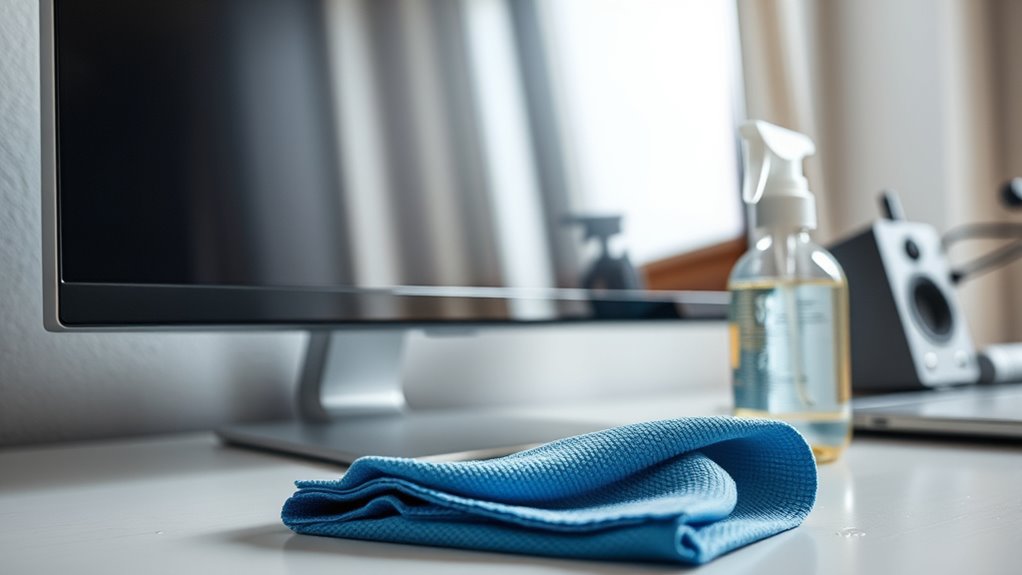

To clean your PC monitor, first power it down and unplug it. Use a microfiber cloth to gently wipe the screen in circular motions, avoiding pressure. Prepare a cleaning solution of equal parts distilled water and isopropyl alcohol or vinegar. Lightly dampen the cloth with this solution, testing it on a small area first. Wipe the monitor frame and stand with a mild cleaner. Regular maintenance is essential for longevity—there’s more to guarantee peak performance.
Gathering the Right Cleaning Supplies
To effectively clean your PC monitor, gathering the right cleaning supplies is crucial. First, identify your monitor type—LCD, LED, or OLED—since they may require different care. For all types, soft microfiber cloths are ideal; they won’t scratch the surface. Avoid paper towels or rough materials. You’ll also need a suitable cleaning solution, preferably a mixture of distilled water and isopropyl alcohol in a 1:1 ratio. Never apply the solution directly to the screen; instead, lightly moisten the cloth. If necessary, commercial cleaning tools designed for electronics can be used but verify they’re safe for your specific monitor type. With these supplies, you’ll maintain your monitor’s clarity and lifespan while enjoying the freedom of a clean workspace.
Powering Down Your Monitor
Before you start cleaning your monitor, it’s vital to power it down to guarantee your safety and prevent any electrical hazards. Disconnect the power supply to eliminate the risk of shock or damage to the device during the cleaning process. Taking these precautions helps maintain both your safety and the longevity of your monitor.
Importance of Safety
While cleaning your PC monitor may seem straightforward, guaranteeing safety by powering it down is essential to prevent electrical hazards and protect the device. Monitor safety should always be your priority. By shutting down your monitor, you eliminate the risk of electric shock that can occur if moisture seeps into the device during cleaning. Additionally, a powered-down monitor allows you to see smudges and fingerprints more clearly, enabling a thorough clean. Always follow proper cleaning precautions, like using a microfiber cloth and suitable cleaning solution, to avoid damaging the screen. Taking these steps not only protects your monitor but also guarantees your personal safety, allowing you to clean with confidence and freedom.
Disconnecting Power Supply
Disconnecting the power supply is an essential step in the cleaning process for your PC monitor. Before you start, verify your monitor is powered down for monitor safety. Locate the power button and switch it off. Unplug the power cord from the outlet to avoid any electrical hazards. This simple step not only protects you but also prevents potential damage to your monitor.
| Step | Action | Purpose |
|---|---|---|
| Locate Power | Find the power button | Turn off the monitor |
| Switch Off | Press the power button | Verify it’s powered down |
| Unplug | Remove the power cord | Safety from electricity |
Now you’re ready to clean without worry!
Dusting Off the Surface
Dusting off the surface of your PC monitor is essential for maintaining its clarity and performance. Start by using a clean microfiber cloth, as these are specifically designed to lift dust without scratching your screen. Gently wipe the monitor in circular motions, applying minimal pressure to avoid damaging any screen protectors or the display itself. Make sure you cover the entire surface, including the edges where dust tends to accumulate. Avoid using paper towels or rough fabrics, as they can leave lint or scratches. If your monitor has a screen protector, dusting will also help in prolonging its lifespan. Regularly dusting helps maintain a superior viewing experience and keeps your workspace looking tidy and professional.
Preparing Your Cleaning Solution
When preparing your cleaning solution, it’s essential to select safe ingredients that won’t damage your monitor’s surface. A common mixture involves combining distilled water with a small amount of isopropyl alcohol, typically in a 1:1 ratio. Make sure you mix these components thoroughly to achieve an effective and gentle cleaning solution.
Choose Safe Ingredients
To effectively clean your PC monitor, it’s crucial to choose safe ingredients for your cleaning solution. Opting for natural cleaners not only protects your device but also promotes a healthier environment. Here are three great options for homemade solutions:
- Distilled Water: Free from impurities, it won’t leave streaks or residues.
- White Vinegar: A natural disinfectant that cuts through grime without harsh chemicals.
- Isopropyl Alcohol: When diluted, it’s effective against fingerprints and smudges without damaging screens.
Using these ingredients allows you the freedom to clean your monitor without fear of harmful effects. Remember, sticking to safe, natural solutions will keep your screen pristine and your mind at ease!
Mix Proper Ratios
Mixing the right ratios for your cleaning solution is essential to guarantee effective cleaning without damaging your monitor. For a safe and effective solution, combine distilled water and white vinegar in a 1:1 ratio. This balance assures that the solution effectively breaks down dirt and grime while minimizing the risk of streaks or damage. If you prefer a more gentle approach, consider a 2:1 ratio of distilled water to vinegar. Always avoid using ammonia-based cleaners, as they can strip coatings off the screen. Once you’ve mixed your solution, test it on a small, inconspicuous area to confirm its effectiveness. Remember, achieving the right mixing ratios is key to maintaining your monitor’s clarity and longevity while assuring solution effectiveness.
Applying the Cleaning Solution
Before you start applying the cleaning solution, make sure you have a microfiber cloth ready, as it’s the best choice for preventing scratches on your monitor’s surface. Now, considering the cleaning techniques and solution types you’ve prepared, follow these steps for effective application:
- Lightly dampen the cloth with your chosen solution—avoid soaking it.
- Test a small area of the screen first to verify compatibility.
- Start at the top of the monitor and work your way down, keeping the cloth flat against the surface.
Wiping the Screen Properly
When wiping the screen, it’s essential to use a gentle, circular motion to avoid streaks and guarantee even coverage. Different screen materials, such as LCD or LED, may require specific care, so always check the manufacturer’s guidelines. Start at the top and work your way down, ensuring you don’t miss any spots. Use a microfiber cloth, as it’s soft and won’t scratch the surface. If your monitor’s particularly dirty, dampen the cloth slightly with your cleaning solution; never apply it directly to the screen. For ideal clarity, aim to clean your monitor every few weeks, adjusting the frequency based on dust and fingerprints. This routine will keep your screen pristine, enhancing your viewing experience.
Cleaning the Monitor Frame and Stand
Although you might focus primarily on the screen, cleaning the monitor frame and stand is equally important for maintaining a tidy workspace. Dust and grime can accumulate here, detracting from your overall environment. To effectively tackle this task, follow these steps for monitor frame and stand cleaning:
- Use a microfiber cloth—it’s gentle and won’t scratch surfaces.
- Dampen the cloth with a mild cleaner—ensure it’s suitable for electronics to avoid damage.
- Wipe down the frame and stand in circular motions, paying attention to corners where dust hides.
Drying the Screen
After you’ve cleaned the monitor screen, it’s vital to confirm it dries properly to prevent streaks and moisture damage. Using microfiber cloths is important as they effectively absorb moisture without scratching the surface. Here are some effective screen drying techniques:
| Technique | Description | Benefits |
|---|---|---|
| Air Drying | Allow the screen to dry naturally in a well-ventilated area. | Reduces risk of scratches. |
| Gentle Wiping | Use a dry microfiber cloth to gently wipe the screen in circular motions. | Prevents streaks and spots. |
| Pat Drying | Lightly pat the screen with a dry cloth to absorb excess moisture. | Quick and effective drying. |
| Tilt Method | Tilt the monitor slightly to encourage moisture runoff. | Enhances air circulation. |
These methods confirm your monitor dries thoroughly without damage.
Maintaining a Clean Monitor
Once your monitor is thoroughly dried, maintaining its cleanliness becomes a priority to guarantee peak performance and longevity. You’ll want to implement a few effective monitor longevity tips and screen protection methods to keep your display pristine.
- Regular Dusting: Use a microfiber cloth weekly to remove dust and prevent buildup that can scratch the screen.
- Avoid Direct Sunlight: Position your monitor away from direct sunlight to reduce glare and potential heat damage.
- Use Screen Protectors: Consider applying a screen protector to shield against scratches and fingerprints, enhancing durability.
Frequently Asked Questions
Can I Use Paper Towels to Clean My Monitor?
You shouldn’t use paper towels on your monitor; they can scratch the surface. Instead, opt for microfiber cloths or screen wipes, which are designed to clean without damaging. Your screen deserves the best care possible.
How Often Should I Clean My Monitor?
You should clean your monitor every 2-4 weeks for best performance. Following these monitor maintenance tips, adjust cleaning frequency recommendations based on dust accumulation and usage, ensuring a clear, vibrant display without streaks or smudges.
What if My Screen Has Stubborn Stains?
If you’ve got stubborn smudges, try a microfiber cloth with a mix of distilled water and a gentle cleaning product. Avoid harsh chemicals, as they can damage your screen. Gently wipe until the stains disappear.
Is It Safe to Use Vinegar on Monitors?
It’s generally not safe to use vinegar on monitors, as its acidity can damage certain monitor materials. While vinegar benefits cleaning, opting for manufacturer-recommended solutions guarantees you maintain your screen’s integrity and longevity.
Can Cleaning Solutions Damage Anti-Glare Coatings?
Cleaning solutions can indeed harm your monitor’s anti-glare properties, much like a storm erodes a fragile shoreline. Always opt for gentle cleaning materials to preserve clarity and protect those essential anti-glare coatings you rely on.
