
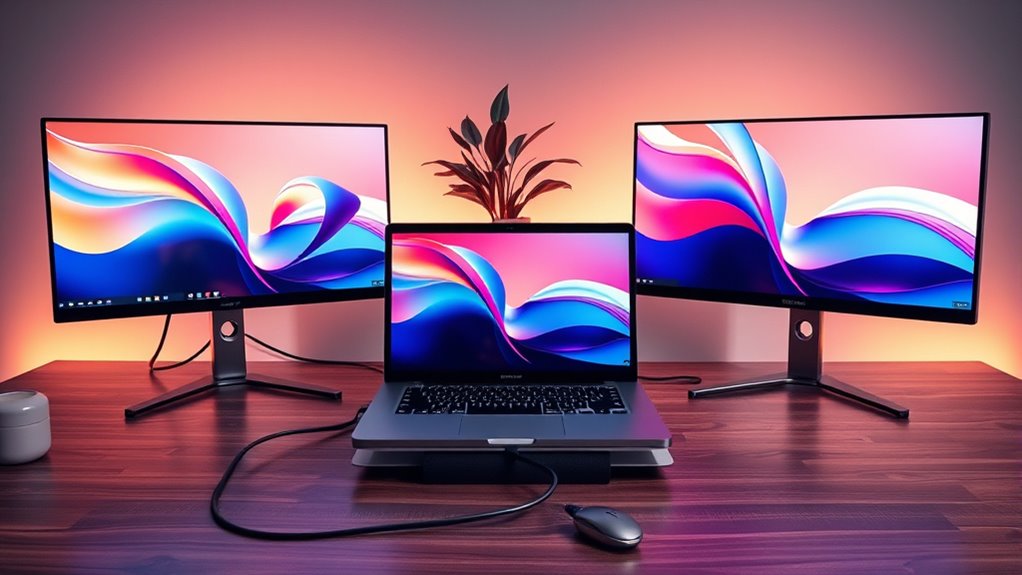

To connect your laptop to two monitors, first, check your laptop’s display capabilities regarding supported resolutions and ports. You’ll likely need HDMI or DisplayPort cables, and possibly adapters for USB-C connections. Next, configure your display settings to choose between extended or duplicate displays. If you encounter connection issues, verify all cables are secure and update your graphics drivers. For optimized workspace ergonomics, consider proper monitor placement and arrangement. There’s more to explore on setting this up effectively.
Understanding Your Laptop’s Display Capabilities
Before you connect your laptop to two monitors, it’s essential to understand its display capabilities. Start by checking your laptop specifications to determine how many external displays it can support. Most laptops have a limit based on their graphics card and port types. Verify you’ve updated your display drivers, as outdated drivers may restrict functionality or cause compatibility issues. If your laptop has a dedicated GPU, it generally allows for better performance with multiple monitors. Look for features like DisplayPort or HDMI support, as they often provide higher resolutions and refresh rates. Knowing these details will help you maximize your workspace and achieve a seamless dual-monitor setup, giving you the freedom to multitask efficiently.
Types of Connections for Dual Monitors
When connecting dual monitors to your laptop, it’s essential to understand the types of connections available. HDMI, DisplayPort, VGA, and DVI each offer different advantages depending on your setup and requirements. Let’s explore these options to find the best fit for your dual monitor configuration.
HDMI Connections Overview
Connecting two monitors to your laptop typically involves utilizing HDMI ports, which come in various types. Understanding the HDMI standards comparison is essential for ensuring compatibility and best performance. The most common HDMI cable types are Standard, High Speed, and Premium High Speed. Standard cables suffice for basic tasks, while High Speed cables support 1080p and beyond, making them ideal for gaming and video editing. Premium High Speed cables are designed for 4K and higher resolutions, ensuring your dual monitors deliver crisp visuals. When selecting cables, consider the distance between your laptop and monitors, as longer runs may require active cables or signal boosters. This way, you can maximize your setup’s potential and enjoy a seamless multi-monitor experience.
DisplayPort Advantages Explained
Many users find that DisplayPort offers significant advantages over HDMI when connecting dual monitors. One of the key DisplayPort benefits is its ability to support higher resolutions and refresh rates, making it ideal for multi monitor setups. With support for up to 8K resolution at 60Hz, DisplayPort guarantees crystal-clear visuals, enhancing your productivity or gaming experience. Additionally, DisplayPort allows for daisy chaining, meaning you can connect multiple monitors through a single port, reducing cable clutter. This feature not only simplifies your workspace but also maximizes the use of available ports on your laptop. If you’re looking for flexibility and high performance in your dual monitor setup, DisplayPort is a compelling choice that caters to your needs.
VGA and DVI Options
While DisplayPort and HDMI are popular for dual monitor setups, VGA and DVI also offer viable options for connecting your laptop to multiple displays. However, you should be aware of some limitations.
- VGA limitations: This analog connection can’t support high resolutions, often capping out at 1080p, which might restrict your visual experience.
- DVI resolution: On the other hand, DVI supports higher resolutions, up to 1920×1200, making it a better choice for clarity.
- Versatility: Both connections can still give you the freedom to expand your workspace, even if they aren’t the most cutting-edge options available.
When choosing between them, consider your monitor’s capabilities and your specific needs for productivity.
Necessary Cables and Adapters
To successfully connect your laptop to two monitors, you’ll need to gather the right cables and adapters tailored to your device’s specifications. Start with HDMI cables, which are widely used for high-definition connections. If your monitors support DisplayPort, consider using DisplayPort adapters for a robust link. For laptops with USB C connections, you’ll need compatible adapters that can transmit video signals. If you’re working with older monitors, VGA cables might still be an option, but keep in mind they won’t deliver the same quality as HDMI or DisplayPort. Verify you check the ports on both your laptop and monitors to select the appropriate cables and adapters, allowing for a seamless dual-monitor experience.
Configuring Your Display Settings
Once your monitors are connected, you’ll need to configure your display settings. Start by identifying the display connections and accessing the appropriate settings on your laptop. After that, arrange the monitor layout to suit your workflow.
Identify Display Connections
Before you start connecting your laptop to two monitors, it’s crucial to identify the available display connections on your device. Understanding the types of ports can guarantee you achieve the best display resolutions and connection compatibility.
- Feel the excitement of a multi-monitor setup enhancing your productivity.
- Imagine the freedom to extend your workspace, making tasks easier.
- Embrace the clarity of larger screens for a more immersive experience.
Check for HDMI, DisplayPort, or USB-C ports on your laptop. Each connection type has its advantages, so knowing your options will help you select the right cables and adapters. By doing this, you’ll lay the groundwork for a seamless dual-monitor experience that maximizes your workflow and creativity.
Access Display Settings
After connecting your laptop to the monitors, you’ll need to access the display settings to configure how the screens function together. On Windows, right-click the desktop and select “Display settings.” Here, you’ll see options to adjust monitor resolution and display scaling. Choose the resolution that best suits your monitors for ideal clarity. For instance, if one monitor supports 4K, set it accordingly to take advantage of its capabilities. Adjust the display scaling to guarantee text and images appear at a comfortable size across both screens. This step is essential for maintaining a seamless workflow and making sure that you have the freedom to work efficiently across multiple displays.
Arrange Monitor Layout
Now that you’ve accessed the display settings, it’s time to arrange your monitor layout. This step is vital for optimizing your workspace and enhancing productivity. Proper monitor positioning allows you to achieve seamless desktop organization and makes multitasking feel effortless.
- Feel empowered as you create a workspace that suits your needs.
- Experience the freedom of having all your essential tools within reach.
- Enjoy the satisfaction of a clutter-free, efficient digital environment.
To arrange your monitors, drag the display icons to reflect their physical positions. Verify that the primary screen is set correctly; this will streamline your workflow. With the right layout, you’ll release the potential for a more dynamic and efficient workspace.
Setting Up Extended vs. Duplicate Displays
When connecting a laptop to two monitors, you’ll often choose between extended and duplicate display modes. Extended display benefits include increased screen real estate, allowing you to multitask effectively by spreading applications across both screens. This setup is ideal for work environments where you need to reference documents while working on other tasks. On the other hand, duplicate display scenarios are perfect for presentations or sharing content where you want identical visuals on both monitors. This mode mirrors your laptop screen, making it easy for an audience to follow along. Ultimately, your choice depends on how you intend to use the monitors and the type of tasks you plan to accomplish. Choose the mode that best enhances your productivity.
Troubleshooting Common Connection Issues
Although connecting a laptop to two monitors can enhance your workspace, you may encounter some common issues that can disrupt the process. Here are a few connection issues you might face:
Connecting a laptop to dual monitors boosts productivity, but be prepared for potential connection hiccups.
- Display detection failures: Sometimes, your laptop won’t recognize the monitors, leading to frustration.
- Resolution mismatches: You might find one monitor displaying poorly, affecting your workflow.
- Cable incompatibilities: Using the wrong cables can leave you staring at a blank screen.
To troubleshoot, start by checking your connections and ensuring all cables are securely plugged in. Next, access your display settings to manually detect displays. If problems persist, consider updating your graphics drivers. Remember, solving these issues can bring you one step closer to an efficient dual-monitor setup!
Optimizing Your Workspace for Productivity
After resolving any connection issues, it’s time to focus on optimizing your workspace for maximum productivity. Start by adjusting your monitor heights to eye level, ensuring good workspace ergonomics. This prevents strain and keeps you comfortable during long hours. Position the monitors at an angle that minimizes neck movement; this aids in reducing fatigue.
Leverage the multi monitor benefits by organizing your applications across screens. Use one monitor for primary tasks and the other for reference materials or communication tools. This setup streamlines your workflow and enhances focus. Finally, declutter your workspace. A clean environment promotes clarity and efficiency, allowing you to harness the full potential of your dual-monitor setup for a more liberated work experience.
Tips for Managing Multiple Monitors
To effectively manage multiple monitors, it is crucial to establish a clear organizational system for your applications and tasks. This not only enhances your workflow but also maximizes your productivity. Here are some productivity tips for monitor organization:
Establishing a clear organizational system for your applications and tasks enhances workflow and boosts productivity.
- Designate specific tasks for each monitor to minimize distractions.
- Utilize window management tools to easily switch between applications without losing focus.
- Regularly declutter your desktops to maintain a clear visual space.
Frequently Asked Questions
Can I Connect Two Monitors to a Laptop Wirelessly?
Yes, you can connect two monitors to a laptop wirelessly. In fact, around 75% of modern laptops support wireless display technology, allowing for screen mirroring that enhances your multitasking capabilities and freedom of movement.
What Is the Maximum Resolution for Dual Monitors?
The maximum resolution for dual monitors depends on your laptop’s graphics capability. Typically, many laptops support dual resolutions of up to 1920×1080 each, but higher resolutions like 4K can be achieved with compatible hardware.
Will Using Dual Monitors Drain My Laptop’s Battery Faster?
Yes, using dual monitors will likely drain your laptop’s battery faster due to increased battery usage. Implementing power management features can help mitigate this impact, allowing you to enjoy extended use without constantly worrying about charging.
Can I Use Different Monitor Sizes Together?
Absolutely, you can use different monitor sizes together. Think of it like assembling a puzzle; monitor compatibility and display settings will guarantee everything fits and works seamlessly, giving you the freedom to customize your workspace.
How Can I Switch Between Extended and Duplicate Displays Quickly?
You can quickly switch between extended and duplicate displays by using keyboard shortcuts. Press Windows + P to access display settings, then select your preferred mode. It’s efficient and gives you control over your screen arrangement.
