
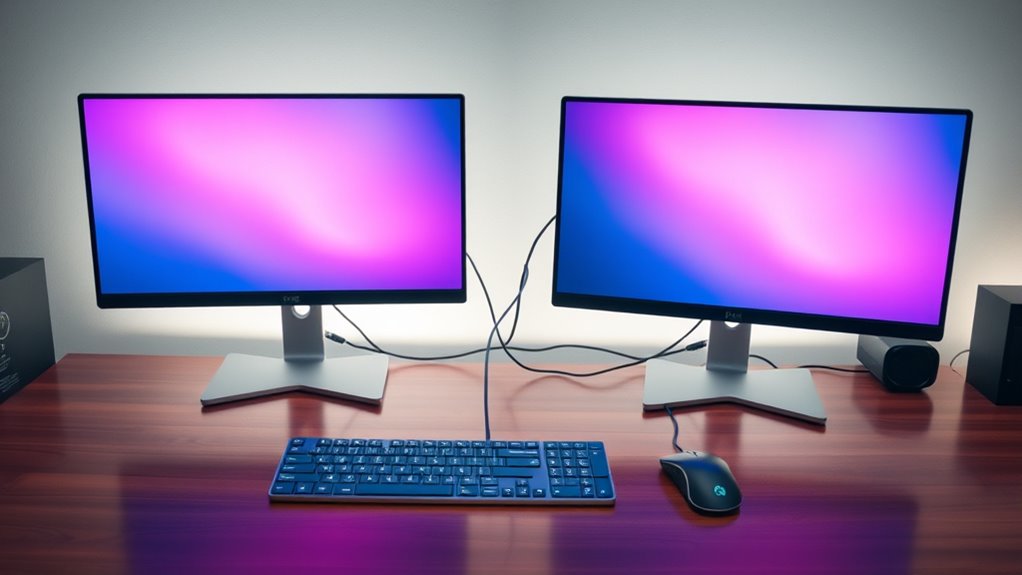

To hook up dual monitors, first check your computer’s compatibility, focusing on graphics card support and available ports. Next, select monitors that complement each other in size and resolution. Gather the necessary cables, ensuring they match the ports. Connect each monitor to your computer, power them on, and then adjust the display settings in your operating system to arrange the monitors correctly. With these steps, you’ll maximize your workspace and productivity, and there’s more to discover about optimizing your setup.
Understanding the Benefits of Dual Monitors
When you consider upgrading your workspace, dual monitors can greatly enhance your productivity and efficiency. By expanding your screen real estate, you’ll find it easier to manage multiple tasks at once. This setup allows for enhanced multitasking, as you can keep important documents open on one screen while browsing or communicating on the other. You’ll notice increased productivity because you won’t waste time switching between tabs or applications. With dual monitors, you can compare data side by side, streamline workflows, and minimize distractions. Whether you’re working on a project, analyzing data, or engaging in video calls, the dual monitor setup gives you the freedom to optimize your time and focus, ultimately leading to better results in less time.
Checking Your Computer’s Compatibility
Before setting up dual monitors, you need to check if your computer can support them. Start by reviewing your graphics card requirements and ensuring it can handle multiple displays. Next, look at the available ports on your computer to see if you have the right connections for both monitors.
Graphics Card Requirements
To guarantee a smooth dual monitor setup, you must first check your graphics card’s compatibility with multiple displays. Start by identifying your graphics card types, as some are better suited for dual monitor support than others. If you’ve got a dedicated graphics card, chances are it’ll easily handle two monitors. Integrated graphics, on the other hand, may limit your options. Look up your card’s specifications online or in the manual to see how many displays it supports. Remember, dual monitor setups often require specific outputs, so knowing your graphics card’s capabilities assures you won’t hit any snags later. Once you confirm compatibility, you’ll be ready to plunge into the exciting world of dual monitors!
Available Ports Check
After confirming your graphics card can support dual monitors, the next step is to check the available ports on your computer. Different port types dictate what cables you can use, so you’ll want to verify your monitors are compatible. Here’s a quick reference table to help you out:
| Port Type | Cable Compatibility |
|---|---|
| HDMI | HDMI, DVI |
| DisplayPort | DisplayPort, HDMI |
| VGA | VGA, DVI |
| USB-C | USB-C, HDMI |
| Thunderbolt | Thunderbolt, DisplayPort |
Identify which ports are available on your computer, and match them with the cables for your monitors. This verifies a smooth dual monitor setup.
Selecting the Right Monitors for Your Setup
Choosing the right monitors is essential for creating an effective dual-display setup. Start by considering monitor size; larger screens enhance productivity, while smaller ones save desk space. Aim for a size that fits your workspace and meets your needs. Next, think about resolution preference. Higher resolutions like 4K provide crisper images and more screen real estate, which is great for multitasking. If you’re gaming or editing photos, a higher resolution can make a significant difference in visual quality. Additionally, make certain the monitors complement each other in size and resolution for a seamless experience. By carefully selecting monitor size and resolution, you’ll create a setup that not only looks good but also maximizes your efficiency and enjoyment.
Gathering the Necessary Cables and Adapters
Before you set up your dual monitors, you need to gather the right cables and adapters. Start by identifying the ports on your monitors and your computer to verify compatibility. Once you know what you need, select the appropriate cables and consider any adapters that might be required for your setup.
Identify Monitor Ports
To successfully set up dual monitors, you’ll first need to identify the available ports on your computer and monitors, as this determines which cables and adapters you’ll require. Look for common monitor types such as HDMI, DisplayPort, VGA, or DVI. Each port has its own characteristics and cable compatibility. Check your computer’s back panel and the sides of your monitors to see which ports are present. If you find a mix of older and newer ports, you may need adapters to connect them. Knowing the specific ports will help you avoid frustration during setup, ensuring you can enjoy the freedom of extended screen space without unnecessary delays. Take a moment to assess before moving forward.
Select Appropriate Cables
Once you’ve identified the ports on your computer and monitors, it’s time to gather the necessary cables and adapters. Depending on your setup, you’ll likely need specific cable types like HDMI, DisplayPort, or DVI. Make certain you choose cables that match the ports you’ve identified. Additionally, consider the cable lengths; they should be long enough to reach from your computer to your monitors without straining. If you’re positioning your monitors far away, opt for longer cables. Check for any existing cables you may already have to avoid extra costs. Having the right cables ready will streamline the setup process and guarantee you get the most out of your dual monitor experience.
Consider Adapter Options
After gathering the necessary cables, you might discover that some of your devices require adapters to connect properly. Different adapter types exist to bridge the gap between various connection standards. For instance, if your monitor uses HDMI but your laptop has a DisplayPort, an HDMI to DisplayPort adapter will be crucial. Similarly, if you’re working with older devices, you may need a VGA or DVI adapter. Before purchasing, check the specifications of your devices to ascertain compatibility. It’s also wise to take into account the resolution and refresh rate supported by these adapters, as they can impact your overall experience. With the right adapters in hand, you’ll enjoy the freedom of multiple monitors without any hassle.
Connecting Your Monitors to the Computer
Connecting your monitors to the computer is a straightforward process that can markedly enhance your workspace. To get started, follow these steps:
- Identify monitor types: Check your monitors for HDMI, DisplayPort, or VGA ports.
- Choose the right cables: Select cables that match your monitor types and guarantee they’re long enough to reach your computer.
- Connect the monitors: Plug one end of the cable into your monitor and the other into your computer’s corresponding port.
- Power on: Turn on your monitors and your computer to see the setup in action.
Make certain you’ve got the right cable lengths to avoid any stretching or strain. Enjoy the freedom of multitasking with your new dual-monitor setup!
Configuring Display Settings in Your Operating System
With your monitors connected, the next step is to configure the display settings in your operating system. Start by right-clicking on your desktop and selecting “Display settings.” Here, you’ll see both monitors displayed. You can adjust the display arrangement by dragging the monitor icons to match their physical layout. This guarantees a smooth shift when moving your cursor between screens. Next, check the resolution settings for each monitor; select the recommended resolution for ideal clarity. If you want to customize, feel free to choose a different resolution, but keep in mind that higher resolutions generally provide better detail. Once you’ve made your adjustments, click “Apply” to finalize your settings, and enjoy your newfound screen space!
Optimizing Your Workspace for Maximum Efficiency
While setting up dual monitors can greatly enhance productivity, optimizing your workspace is essential for maximizing that efficiency. Here are some key workspace organization tips to help you thrive:
Setting up dual monitors boosts productivity, but workspace optimization is key to achieving maximum efficiency.
- Position your monitors at eye level to reduce strain.
- Use cable management solutions to keep your area tidy.
- Organize your desktop by grouping related apps or files on each screen.
- Utilize productivity tools like task managers or timers to stay focused.
Troubleshooting Common Dual Monitor Issues
Setting up dual monitors can sometimes lead to unexpected issues that disrupt your workflow. If you’re facing monitor detection issues, first check your connections. Make sure cables are snug and your graphics card supports dual displays. Restarting your computer can also prompt detection.
For resolution mismatches, right-click on your desktop, select “Display settings,” and adjust each monitor’s resolution to match your preferences. Confirm you select “Extend these displays” to utilize both screens effectively.
If problems persist, updating your graphics drivers can resolve compatibility issues. Remember, troubleshooting is part of the process, and with a little patience, you’ll have your dual monitors running smoothly. Enjoy the freedom of expanded workspace!
Frequently Asked Questions
Can I Use Monitors of Different Brands Together?
Yes, you can use monitors of different brands together. In fact, 65% of users report improved productivity with dual setups. Just verify monitor compatibility and adjust your display settings for ideal experience. Enjoy your extended workspace!
Will Dual Monitors Slow Down My Computer Performance?
Dual monitors might slightly impact performance, but it often depends on your system’s specs and resource allocation. If your hardware is robust enough, you shouldn’t notice significant slowdowns while enjoying the benefits of increased screen space.
What Is the Ideal Resolution for Dual Monitors?
For dual monitors, the ideal resolution often hovers around 1920×1080, giving you clarity and space. Adjust your display settings to match, and you’ll feel like you’re soaring through your tasks with newfound freedom.
Can I Use a TV as a Second Monitor?
Yes, you can use a TV as a second monitor. Just make certain it’s compatible with your device. Adjust your Display settings to extend or mirror your screen, giving you more flexibility for multitasking.
How Do I Switch Between Extended and Mirrored Display Modes?
To switch between extended and mirrored display modes, right-click your desktop, select “Display settings,” then adjust your monitor configurations. Choose your preferred mode under “Multiple displays” and click “Apply” to save changes.

[…] placement can trigger enough keystone correction to noticeably affect edge clarity, especially at higher resolutions like […]