
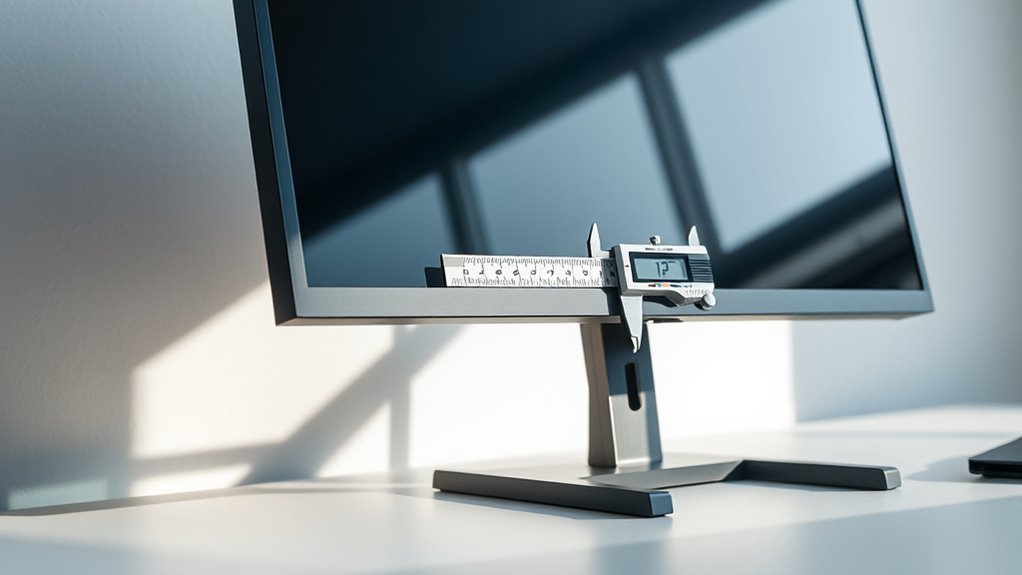

To measure a computer monitor, start by determining its diagonal length using a measuring tape from one corner to the opposite corner. This gives you the size in inches. Next, check the aspect ratio, typically 16:9 for HD content, and evaluate the display resolution for clarity. Make sure the monitor fits comfortably at your viewing distance, ideally 20 to 30 inches away. If you want to explore different types and features of monitors, there’s more to discover.
Understanding Monitor Screen Size
When it comes to choosing a computer monitor, understanding screen size is essential. You’ll want to evaluate not just the size but also the screen shape and the various monitor types available. Flat screens are common, but curved monitors can enhance immersion, especially for gaming or design work. The aspect ratio, too, plays a role in how you experience content. A widescreen monitor offers more horizontal space, making it easier to multitask. When selecting a monitor, think about your needs—whether you’re gaming, working, or just browsing. The right screen size and shape can greatly impact your comfort and productivity. So, take your time to explore your options, ensuring you find a monitor that fits your lifestyle and preferences.
Measuring Diagonal Length
Choosing the right monitor size involves knowing how to accurately measure its dimensions, particularly the diagonal length. To start, grab a measuring tape and position it from one corner of the screen to the opposite corner. This measurement gives you the diagonal length, which is vital for understanding the monitor’s size. While measuring, make certain the screen is properly calibrated; this helps avoid inaccuracies caused by bezels or non-display areas. Familiarize yourself with various measuring techniques to guarantee you’re getting the most precise measurement possible. Remember, the diagonal length is often the primary factor in choosing a monitor that fits your workspace and meets your visual needs. Aim for accuracy, and you’ll enjoy a better viewing experience.
Determining Aspect Ratio
Now that you’ve measured the diagonal length of your monitor, it’s time to determine its aspect ratio. Common aspect ratios include 16:9 and 4:3, and calculating the ratio is essential for understanding how your display will look. Choosing the right ratio can enhance your viewing experience, so let’s explore how to find the best fit for your needs.
Common Aspect Ratios
Understanding common aspect ratios is essential for selecting the right monitor for your needs. The most common ratio you’ll encounter is 16:9, popular for its compatibility with HD content, making it ideal for movies and gaming. If you prefer more screen real estate, consider wide screens with a 21:9 aspect ratio, which provide a cinematic experience. For those who crave even more space, ultra-wide ratios like 32:9 can enhance productivity by allowing you to multitask efficiently. These options offer freedom in how you utilize your monitor, whether for work or leisure. Knowing these ratios helps you make an informed choice, ensuring your monitor aligns with your lifestyle and viewing preferences.
Calculating Aspect Ratio
Calculating the aspect ratio of a computer monitor is a straightforward process that can help you confirm its suitability for your needs. To determine the aspect ratio, simply measure the width and height of the display in the same units, preferably inches or centimeters. Then, divide the width by the height. For example, if your monitor is 24 inches wide and 16 inches tall, you’d calculate 24 ÷ 16, which simplifies to 1.5. This means your monitor has a 3:2 aspect ratio, indicating its display proportions. Knowing the aspect ratio is essential, especially for gaming, video editing, or general use, as it directly affects your viewing experience and the content you’ll be working with.
Choosing the Right Ratio
When selecting a monitor, it is crucial to evaluate the aspect ratio that best fits your intended use. The aspect ratio’s importance can’t be overstated, as it impacts your viewing experience greatly. Here’s a quick guide to help you decide:
| Aspect Ratio | Best For |
|---|---|
| 16:9 | Movies & Gaming |
| 16:10 | Productivity & Design |
| 21:9 | Cinematic Experience |
Consider how you plan to use the monitor. Are you editing videos, gaming, or working on spreadsheets? Each task may require a different aspect ratio. By selecting the right monitor, you’ll enhance your experience and enjoy more freedom in your activities.
Evaluating Display Resolution
To effectively evaluate display resolution, you should start by considering the number of pixels that make up the screen’s width and height. This pixel arrangement directly impacts display clarity and pixel density, which are vital for a sharp and vibrant viewing experience.
When evaluating resolution, keep these points in mind:
- Higher pixel counts generally mean improved detail.
- Confirm the resolution matches your intended use, like gaming or graphic design.
- Check for standard resolutions such as 1080p, 1440p, or 4K.
- Remember that higher resolution might require more powerful hardware.
Assessing Physical Dimensions
When you’re evaluating a monitor’s physical dimensions, the screen size measurement is essential. It’s typically measured diagonally from corner to corner, giving you a clear idea of the display’s size. Additionally, understanding the aspect ratio helps you determine how the screen’s width compares to its height, which affects your viewing experience.
Screen Size Measurement
Measuring the screen size of a computer monitor is essential for guaranteeing it fits your workspace and meets your viewing needs. To get accurate measurements, you’ll want to use reliable screen measurement tools. Here’s how to do it effectively:
- Diagonal Measurement: Measure from one corner to the opposite corner of the screen.
- Aspect of Frame: Consider the monitor’s bezels, as they can impact overall dimensions.
- Monitor Size Comparison: Compare your measurement with standard sizes to better understand your options.
- Workspace Fit: Verify the monitor’s dimensions suit your desk or setup to avoid cramped conditions.
Aspect Ratio Explanation
Understanding aspect ratio is essential for evaluating the physical dimensions of a computer monitor. The aspect ratio defines the width-to-height ratio, impacting how content appears on your screen. Different aspect ratio types serve various needs, whether you’re gaming, watching movies, or working.
| Aspect Ratio Type | Description |
|---|---|
| 4:3 | Traditional, older displays |
| 16:9 | Standard for HD content |
| 21:9 | Ultra-wide for immersive views |
| 16:10 | Balanced for productivity |
| 32:9 | Super ultra-wide for multitasking |
Understanding aspect ratio importance helps you choose the right monitor for your activities, ensuring an ideal viewing experience. Embrace your freedom to select the perfect fit for your needs!
Checking Mounting Compatibility
Before you invest in a new monitor, it’s vital to check its mounting compatibility to verify it fits your setup. You’ll want to make sure that your monitor can be securely mounted using the appropriate mounting options. Here are some compatibility checks to keep in mind:
- VESA Standard: Make certain the monitor follows the VESA mounting standard, which is essential for easy installation.
- Weight Capacity: Check if your mount can support the monitor’s weight to avoid accidents.
- Size Limitations: Confirm that the mount can accommodate the size of your new monitor.
- Adjustment Features: Look for mounts that offer tilt, swivel, or height adjustments for better ergonomics.
Considering Viewing Distance
When setting up your computer monitor, it’s essential to take into account how far away you’ll be sitting. The ideal viewing distance can vary based on screen size, affecting your comfort and overall experience. Understanding these guidelines can help you optimize your workspace for better visibility and reduced eye strain.
Ideal Distance Guidelines
Finding the right viewing distance for your computer monitor can greatly enhance your experience. To achieve an ideal viewing distance, consider the following ergonomic setup guidelines:
- Position your eyes about 20 to 30 inches from the screen.
- The top of the monitor should be at or slightly below eye level.
- Adjust your chair height to guarantee your feet are flat on the ground.
- Use a comfortable angle for your neck to reduce strain.
These tips can help you maintain a comfortable posture while working or gaming for extended periods. By following these guidelines, you’ll not only improve your comfort but also boost productivity and reduce eye fatigue. Remember, a well-placed monitor is key to a more enjoyable experience!
Screen Size Impact
Although many factors influence your overall viewing experience, screen size greatly impacts how comfortably you can view your monitor from a distance. A larger screen size can enhance your user experience, especially when you’re sitting farther away. Ideally, you want a monitor that allows you to see details without straining your eyes. For instance, if you’re using a 27-inch screen, sitting about 3 to 4 feet away is often ideal. This distance helps reduce eye fatigue and enhances clarity. Conversely, a smaller screen may require you to sit closer, which can limit comfort. Ultimately, choosing the right screen size, considering your viewing distance, will elevate your user experience and let you enjoy your content more freely.
Comparing Panel Types
As you explore the various panel types available for computer monitors, it’s essential to understand how each technology affects performance and viewing experience. Different panel technologies can greatly impact your satisfaction, and knowing their strengths and weaknesses helps you make an informed choice.
Understanding the strengths and weaknesses of monitor panel types is crucial for enhancing your viewing experience.
- IPS (In-Plane Switching): Offers excellent color accuracy and wide viewing angles.
- TN (Twisted Nematic): Known for fast response times, but may lack color richness.
- VA (Vertical Alignment): Balances good contrast and decent color, ideal for multimedia.
- OLED (Organic Light Emitting Diodes): Provides stunning colors and deep blacks, but can be pricier.
Each panel type has unique characteristics that influence panel performance, so consider your specific needs before making a decision.
Analyzing Color Accuracy
How can you guarantee your monitor delivers accurate colors? Start by understanding color calibration. This process adjusts your monitor’s settings to make certain it reproduces colors true to life. Use calibration tools or software to achieve precise results. You’ll want to check the color gamuts your monitor supports as well. Different monitors cover various ranges of colors, and knowing these can help you select a screen that meets your needs. Look for a monitor with a wide color gamut if you work in creative fields like photography or graphic design. Regularly calibrating your monitor will maintain its color accuracy over time, making sure you enjoy the freedom of vibrant, true-to-life visuals.
Reviewing Additional Features
When you’re shopping for a computer monitor, it’s essential to contemplate additional features that can enhance your overall experience. Beyond just size and resolution, consider these aspects:
- Color Calibration: Guarantees that the colors on your screen match the original source accurately, improving your visual experience.
- Refresh Rates: Higher refresh rates lead to smoother motion and are particularly beneficial for gaming or fast-paced video.
- Adaptive Sync Technology: Reduces screen tearing and stuttering, providing a seamless visual experience.
- Blue Light Filter: Helps reduce eye strain during long hours of use, making your workspace more comfortable.
Frequently Asked Questions
How Do I Calculate the Monitor’s Pixel Density?
To calculate your monitor’s pixel density, divide the screen resolution’s width and height in pixels by the diagonal size in inches. This gives you the pixels per inch (PPI), which indicates the pixel density.
What Tools Can I Use to Measure My Monitor?
To measure your monitor, you’ll need a tape measure for monitor dimensions and consider using software tools for precise measurements. These measuring techniques can set you free, ensuring your display’s perfect fit for your workspace.
Can I Measure a Curved Monitor the Same Way?
You can measure a curved monitor similarly, but consider the curvature. Use flexible measuring tapes for accurate curved monitor measurements. Employ standard measuring techniques, ensuring you account for the screen’s arc to get precise dimensions.
Does Monitor Size Affect Gaming Performance?
Monitor size can shape your gaming experience like a painter’s canvas. Different monitor types cater to various gaming preferences; larger screens offer immersion, while smaller ones enhance responsiveness. Ultimately, it’s about what feels right for you.
How Do I Convert Measurements From Inches to Centimeters?
To convert inches to centimeters, multiply your measurement by 2.54. For measurement accuracy, you can use conversion techniques like online calculators or conversion charts. This simple method gives you quick and reliable results every time.

[…] closed or lights on during presentations. LCD systems also typically maintain sharpness across common aspect ratios used by business decks and streaming content, and they often deliver predictable color after basic […]
[…] 4. Check for “supported input resolution” vs “display resolution” […]
[…] more keystone correction than the image can handle. Additionally, using the wrong screen size, aspect ratio, or resolution settings can make the issues more […]
[…] Set aspect ratio and confirm resolution (avoid overscan/underscan […]
[…] “looks okay.” The goal isn’t perfection—it’s clean image geometry (square edges), correct aspect ratio, and minimal optical correction. That’s why experienced installers treat centering as a variable: […]
[…] the screen), you can estimate a maximum diagonal, then validate it against brightness (lumens), aspect ratio, and resolution. I’ve done this step-by-step on multiple installs—once in a small boardroom and […]
[…] “size” is commonly specified as the diagonal inches measurement, so aspect ratio (e.g., 16:9) determines actual width and […]
[…] TV size in shopping listings refers to the diagonal measurement of the screen. That means a “65-inch TV” isn’t 65 inches wide—it’s 65 inches corner-to-corner across the display, typically with a 16:9 aspect ratio. […]
[…] by setting the correct aspect ratio, then calibrate brightness and contrast so whites aren’t clipped and blacks aren’t crushed, […]
[…] of your TV. This is the fastest, most reliable method—because TV sizes are always reported by diagonal length, not width or […]
[…] business models, I often see the flip controls grouped with “Aspect Ratio,” “Keystone,” “Screen,” or “Projection Mode.” The important analytical point is this: […]
[…] get a sharp, well-aligned image, focus on image mode, aspect ratio, and resolution matching the source. Next, use lens focus and zoom controls, then correct keystone […]