
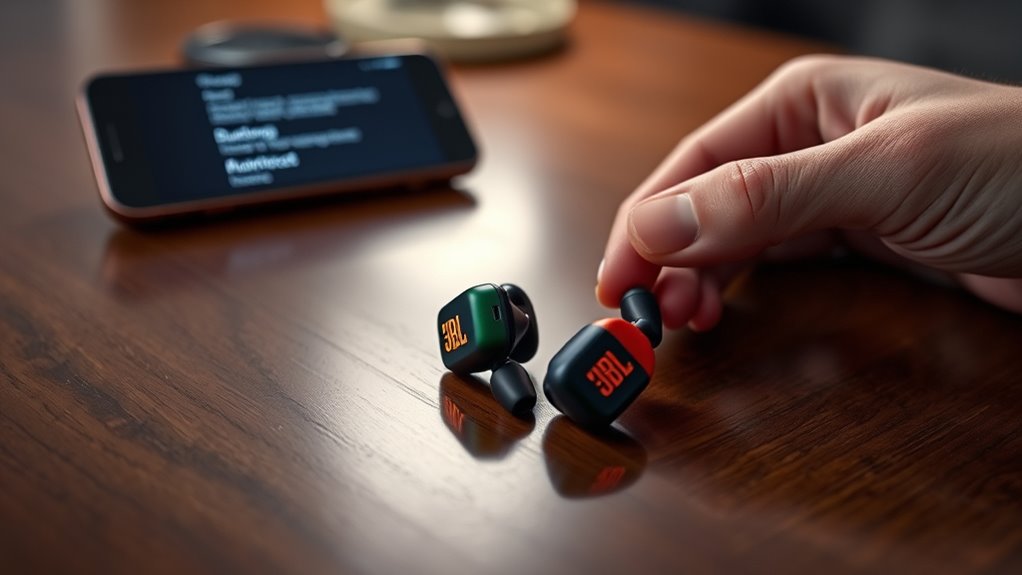

To pair your JBL earbuds, start by ensuring your devices are compatible and Bluetooth is enabled on both. Press and hold the power button on your earbuds until the LED blinks to activate pairing mode. On your smartphone or other devices, go to Bluetooth settings, search for new devices, and select your JBL earbuds from the list. If you encounter any issues, there are simple troubleshooting steps available to resolve them and enhance your audio experience.
Preparing Your Devices for Pairing
Before you can enjoy your JBL earbuds, you’ll need to prepare your devices for pairing. First, check the device compatibility; verify your smartphone, tablet, or computer supports Bluetooth. Most modern devices do, but it’s always good to confirm. Next, explore your Bluetooth settings. On your device, navigate to the settings menu and locate the Bluetooth option. Make sure Bluetooth is turned on; this is essential for establishing a connection. If your device has previously paired with other Bluetooth devices, you might want to disconnect those to prevent any interference. With these steps completed, you’re ready to seamlessly connect your JBL earbuds and experience the freedom of wireless audio. Enjoy your music without the hassle!
Activating Pairing Mode on JBL Earbuds
Now that your devices are ready for pairing, it’s time to activate pairing mode on your JBL earbuds. To do this, simply press and hold the power button until you see a blinking LED light, which indicates that your earbuds are in pairing mode. This feature is one of the key JBL earbuds features that enhance user experience, allowing for quick connectivity. If you’re unsure, refer to your user manual for specific instructions tailored to your model. Once activated, your earbuds will be discoverable by other devices, making it easy to connect and enjoy your music or calls. Remember, the freedom to move without wires starts here, so verify your earbuds are properly set up for a seamless audio experience.
Connecting JBL Earbuds to Your Smartphone
To connect your JBL earbuds to your smartphone, you’ll first need to enable Bluetooth on your phone. Once that’s set, you can follow a few simple steps to complete the pairing process. Let’s make sure you get your earbuds connected seamlessly for an excellent listening experience.
Enable Bluetooth on Phone
Enabling Bluetooth on your phone is a crucial step for connecting your JBL earbuds seamlessly. To begin, navigate to your phone settings and look for the Bluetooth settings option. This is usually found in the “Connections” or “Wireless & Networks” section, depending on your device. Once you’ve located it, toggle the Bluetooth switch to the “On” position. This action allows your phone to search for nearby devices, like your JBL earbuds. Verify your phone is compatible with your earbuds by checking the specifications on the manufacturer’s website. With Bluetooth enabled and compatibility confirmed, you’re one step closer to enjoying your favorite tunes wirelessly. So, get ready to experience freedom through sound!
Pairing Process Steps
With Bluetooth activated on your phone, you’re ready to connect your JBL earbuds. Follow these steps for a smooth pairing experience:
- Put your earbuds in pairing mode: Hold the power button until you see the LED indicator flashing.
- Search for devices on your phone: Open your Bluetooth settings and look for your JBL earbuds in the available devices list.
- Select your JBL earbuds: Tap on the name to initiate the pairing process.
- Troubleshoot any pairing challenges: If you encounter issues, try turning off and on Bluetooth, restarting your earbuds, or forgetting the device in your settings.
Pairing JBL Earbuds With Other Devices
When you’re ready to enjoy your favorite music or podcasts, pairing your JBL earbuds with other devices is a straightforward process. First, make sure your earbuds are charged and in pairing mode—typically indicated by a flashing LED light. Then, on your device, navigate to Bluetooth settings and search for new devices. You’ll see your JBL earbuds listed; select them to establish a connection. Once paired, you’ll experience the exceptional JBL sound quality and features designed for immersive listening. Whether you’re connecting to a smartphone, tablet, or laptop, the process remains consistent, ensuring you can easily switch between devices. Enjoy the freedom of wireless audio without compromising on sound quality!
Troubleshooting Pairing Issues
Troubleshooting pairing issues with your JBL earbuds can often be resolved by following a few simple steps. Here are some common issues you might encounter and their troubleshooting steps:
- Verify your earbuds are charged and powered on.
- Check that Bluetooth is enabled on your device.
- Remove any previous pairings to avoid conflicts.
- Reset your earbuds if they’re still not connecting.
Tips for Optimal Performance and Battery Life
To get the most out of your JBL earbuds, it is crucial to focus on proper charging techniques, maintain strong Bluetooth connectivity, and keep your firmware updated. These practices can greatly enhance performance and extend battery life, ensuring you enjoy uninterrupted audio experiences. Let’s explore each of these tips to maximize your earbuds’ potential.
Proper Charging Techniques
While you might be keen to start using your JBL earbuds right out of the box, understanding proper charging techniques is essential for maximizing their performance and extending battery life. Here are some tips to help you charge effectively:
- Always use the original charging cable to guarantee ideal power delivery.
- Keep an eye on the charging indicators to avoid overcharging; they’ll signal when the battery is full.
- Avoid letting the battery drain completely before recharging, as this can shorten battery lifespan.
- Store your earbuds in a cool, dry place while charging to prevent overheating.
Bluetooth Connectivity Tips
Ensuring a stable Bluetooth connection is essential for getting the most out of your JBL earbuds, especially if you want to enjoy uninterrupted audio quality. To optimize performance, keep your earbuds within a reasonable Bluetooth range—typically up to 30 feet. Walls and other obstacles can interfere with the signal, so try to maintain a clear line of sight between your device and the earbuds. Also, avoid pairing with multiple devices simultaneously, as this can cause connectivity issues and degrade audio quality. For the best battery life, disconnect your earbuds when not in use, and turn off Bluetooth on your device if you’re done listening. Following these tips will help you experience wireless freedom without compromising sound fidelity.
Regular Firmware Updates
Regularly updating the firmware on your JBL earbuds can considerably enhance their performance and extend battery life. Keeping an eye on your update frequency guarantees you’re benefiting from the latest improvements. Here are some firmware benefits you shouldn’t overlook:
- Improved Sound Quality: Updates can optimize audio processing for a better listening experience.
- Enhanced Battery Management: New firmware often improves power efficiency, prolonging battery life.
- Bug Fixes: Regular updates resolve issues that may affect connectivity or performance.
- Feature Additions: Updates may introduce new features or enhancements to existing ones, keeping your earbuds cutting-edge.
Frequently Asked Questions
Can I Pair JBL Earbuds With Multiple Devices Simultaneously?
You can’t pair JBL earbuds with multiple devices simultaneously due to pairing limitations. However, they often support multi-device connectivity, allowing you to switch between devices smoothly, enhancing your freedom to connect as needed.
How Do I Reset My JBL Earbuds for Pairing?
To reset your JBL earbuds, press and hold the power button for about 10 seconds until you see the indicator light flash. This reset process can resolve any pairing issues you might be experiencing.
Are JBL Earbuds Compatible With Non-Bluetooth Devices?
JBL earbuds typically aren’t compatible with non-Bluetooth devices unless they have a wired connection option. Using a wired connection can guarantee better audio quality, giving you the freedom to enjoy your sound without interruptions.
What Is the Range for Bluetooth Connection With JBL Earbuds?
JBL earbuds typically offer a Bluetooth range of about 30 feet, ensuring solid connection stability within that distance. You can enjoy your music freely, without interruptions, as long as you remain within that range.
Do JBL Earbuds Support Voice Assistants Like Siri or Google Assistant?
Absolutely, JBL earbuds boast fantastic voice assistant compatibility! With their impressive features, you can effortlessly summon Siri or Google Assistant, making your life easier and giving you the freedom to multitask without missing a beat.
