
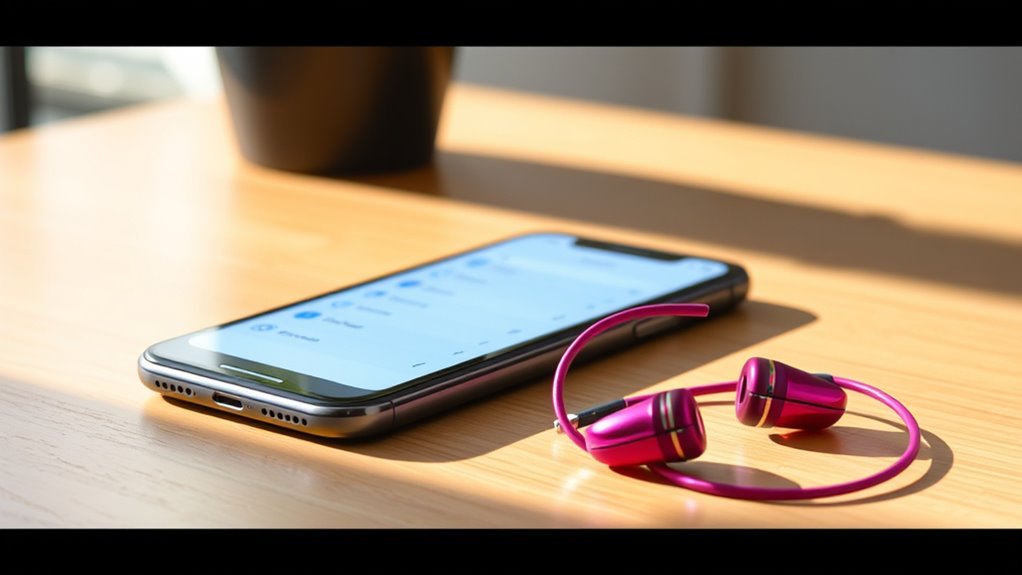

To connect your Jlab earbuds to your iPhone, first, charge them and verify Bluetooth is enabled in your iPhone settings. Next, put the earbuds into pairing mode by holding the button until the LED blinks. On your iPhone, go to Settings > Bluetooth, and find your Jlab earbuds under “Other Devices.” Tap to connect. Once connected, you can enjoy great sound. If you run into issues, keep an eye out for helpful tips on troubleshooting.
Check Your Jlab Earbuds Battery
Before you connect your Jlab earbuds to your iPhone, it’s essential to check their battery level. This step guarantees you won’t be interrupted by a dead battery while enjoying your favorite tunes. To check the battery, simply place the earbuds in their charging case; the LED indicators will show their status. For effective battery maintenance, aim to keep your earbuds charged between 20% and 80%. Avoid letting them fully discharge, as this can shorten their lifespan. When it’s time to recharge, use the original charging cable to maximize efficiency. Remember, frequent short charging sessions are better than long, infrequent ones. By following these charging tips, you’ll enjoy uninterrupted audio freedom with your Jlab earbuds.
Enable Bluetooth on Your Iphone
To connect your Jlab earbuds, you first need to enable Bluetooth on your iPhone. Go to the Settings menu and find the Bluetooth option. Once you toggle the Bluetooth feature on, you’ll confirm it’s activated and ready for pairing.
Access Settings Menu
As you prepare to connect your Jlab earbuds, it’s essential to activate Bluetooth on your iPhone. Start by accessing the settings menu through simple settings navigation. Here’s how to do it:
- Open your iPhone and locate the Settings app.
- Tap on Settings to open the menu.
- Scroll down until you find Bluetooth and tap on it.
- Confirm that Bluetooth is toggled on in the accessibility options.
Toggle Bluetooth Feature
Now that you’ve accessed the Bluetooth settings on your iPhone, it’s time to guarantee that the Bluetooth feature is enabled. Look for the Bluetooth toggle switch at the top of the screen. If it’s off, simply tap the switch to turn it on. You’ll notice the switch turns green, indicating that Bluetooth is active. This is vital for ensuring your Jlab earbuds compatibility with your iPhone. With Bluetooth enabled, your device can now search for nearby devices, including your earbuds. If you want to enjoy your music or take calls wirelessly, this step is essential. Make sure you keep the Bluetooth settings open while you prepare to connect your earbuds to your iPhone. You’re almost there!
Confirm Bluetooth Activation
Confirming Bluetooth activation on your iPhone is a straightforward process that guarantees your device is ready to connect with your Jlab earbuds. To ascertain Bluetooth compatibility and make the most of your earbud features, follow these simple steps:
- Open the Settings app on your iPhone.
- Tap on Bluetooth to access the Bluetooth settings.
- Make sure the toggle is green, indicating Bluetooth is turned on.
- Look for your Jlab earbuds in the list of available devices when they’re in pairing mode.
Put Your Earbuds in Pairing Mode
To connect your Jlab earbuds, you’ll need to put them in pairing mode. Start by locating the pairing button on your earbuds and press it to activate Bluetooth mode. Once activated, your earbuds will be discoverable by your iPhone, allowing you to confirm the connection.
Locate Pairing Button
Finding the pairing button on your Jlab earbuds is crucial for connecting them to your iPhone. Knowing the pairing button location and its function will make the process seamless. Here’s how to locate it:
- Check the Earbud Design: Most Jlab earbuds have a prominent button, often found on the right earbud.
- Look for the Logo: The Jlab logo usually indicates where the pairing button is located.
- Identify the Button Type: It may be a multi-function button, so verify you recognize its shape.
- Hold to Activate: Press and hold the button for several seconds to put your earbuds in pairing mode.
Once you find the pairing button, you’re one step closer to enjoying your music wirelessly!
Activate Bluetooth Mode
Once you’ve located the pairing button on your Jlab earbuds, it’s time to activate Bluetooth mode. Press and hold the button until you see the LED light start blinking, indicating your earbuds are in pairing mode. This is essential for establishing Bluetooth connectivity with your iPhone. If you encounter any pairing issues, make sure your earbuds are close to your device and not connected to another device.
Here’s a quick reference table to help you:
| LED Indicator | Meaning |
|---|---|
| Blinking Blue/White | Ready for pairing |
| Steady Blue/White | Connected to a device |
| No Light | Power off or not in pairing mode |
Now you’re ready to connect!
Confirm Device Discovery
How can you guarantee your Jlab earbuds are discoverable by your iPhone? To confirm device visibility and connection reliability, follow these simple steps:
- Set your earbuds to pairing mode: Press and hold the power button until the LED light flashes.
- Check Bluetooth settings on your iPhone: Go to Settings > Bluetooth, and make sure Bluetooth is enabled.
- Look for your earbuds: In the Bluetooth menu, wait for your Jlab earbuds to appear under “Other Devices.”
- Select your earbuds: Tap on the name of your earbuds to connect.
Once connected, you’ll enjoy the freedom of wireless listening. Remember, if your earbuds don’t appear, repeat the steps to confirm they’re in pairing mode.
Locate Jlab Earbuds on Your Iphone
Where can you find your Jlab earbuds on your iPhone? First, make certain your earbuds are powered on and within range. The Jlab earbuds features include easy pairing with devices, making them compatible with your iPhone. Open the Settings app on your iPhone and navigate to the Bluetooth section. Here, you’ll see a list of available devices. Look for your Jlab earbuds; they should appear under “Other Devices.” If you don’t see them, verify they’re in pairing mode. Once located, you can tap on their name to connect. Remember, Jlab earbuds are designed for seamless iPhone compatibility, giving you the freedom to enjoy your music or podcasts without fuss.
Connect to Your Jlab Earbuds
Before you can enjoy your music, you’ll need to connect your Jlab earbuds to your iPhone. Here’s how to do it easily:
- Turn on your earbuds: Press and hold the power button until you see the LED light flash.
- Enable Bluetooth on your iPhone: Go to Settings > Bluetooth and toggle it on.
- Pair your earbuds: Look for your Jlab earbuds in the list of available devices and tap to connect.
- Enjoy superior sound quality: Once connected, take advantage of your earbuds’ features, like deep bass and noise isolation.
Following these simple steps will let you immerse yourself in your favorite tunes with freedom and clarity. Enjoy your listening experience!
Test the Connection
Once your Jlab earbuds are connected to your iPhone, it’s important to test the connection to verify everything is working properly. Start by playing your favorite song or podcast. Listen closely to the sound quality—confirm it’s clear and balanced. If you notice any distortion or interruptions, you might be facing connection issues. To address this, try moving your iPhone closer to your earbuds, as distance can sometimes affect performance. Additionally, check for any obstructions that might interfere with the Bluetooth signal. If all sounds good, enjoy your newfound freedom with wireless listening! Regularly testing the connection helps confirm a seamless experience, so don’t hesitate to repeat this step whenever you connect your earbuds.
Troubleshooting Common Issues
If you encounter issues while using your Jlab earbuds with your iPhone, don’t worry—troubleshooting is often straightforward. Here are some common problems and solutions to help you regain that wireless freedom:
- Check Compatibility: Verify your Jlab earbuds are compatible with your iPhone model.
- Reset the Earbuds: Turn off your earbuds, then press and hold the power button until they reset.
- Re-pair the Devices: Forget the earbuds in Bluetooth settings and re-pair them with your iPhone.
- Update iOS: Make certain your iPhone’s software is up to date, as outdated versions can cause wireless connectivity problems.
Frequently Asked Questions
How Do I Reset My Jlab Earbuds?
To reset your Jlab earbuds, hold the power button for about 10 seconds until the LED flashes. This earbud troubleshooting step initiates the reset process, allowing you to reconnect and enjoy your music freely.
Can I Connect Jlab Earbuds to Multiple Devices?
Sure, you can connect Jlab earbuds to multiple devices, but they can’t actively pair with more than one at a time. Enjoy Bluetooth connectivity’s freedom, but expect a little juggling when switching devices.
What to Do if Earbuds Won’t Charge?
If your earbuds won’t charge, check the charging cable and port for debris. Try a different power source or reset the earbuds. These troubleshooting tips can help resolve common charging issues and restore functionality.
Are Jlab Earbuds Waterproof or Sweatproof?
JLab earbuds boast impressive water resistance features, ensuring they can handle splashes and sweat. Their sweat resistance capabilities make them perfect for workouts, but don’t submerge them—you’re not going for a swim! Enjoy freedom while listening.
How Long Is the Battery Life of Jlab Earbuds?
Jlab earbuds typically offer impressive battery performance, lasting up to 10 hours on a single charge. With a quick charging time, you can enjoy your music without interruption, giving you the freedom to roam.
