
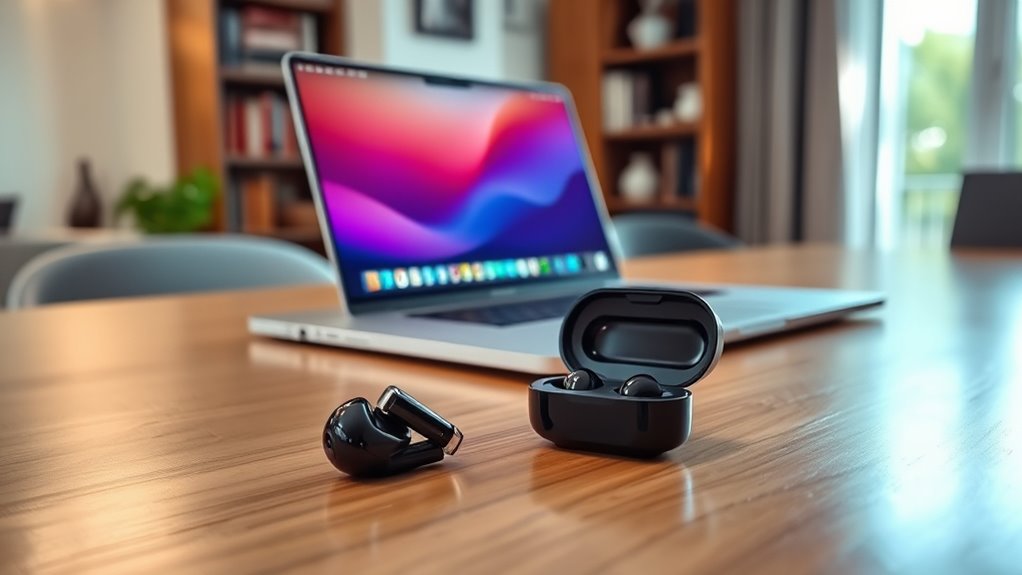

To connect your Samsung earbuds to your laptop, make sure your laptop has Bluetooth capabilities and that it’s enabled. Charge your earbuds and put them in pairing mode by holding the touchpads until the light blinks. On your laptop, go to Bluetooth settings and select “Add Bluetooth or other device,” then choose your earbuds from the list. Once they’re connected, you’ll enjoy seamless audio. Keep exploring for tips on optimizing your sound settings and troubleshooting issues.
Checking Compatibility of Your Laptop and Earbuds
Before diving into the connection process, how can you ascertain that your Samsung earbuds are compatible with your laptop? Start by checking the earbud specifications; they typically require Bluetooth connectivity. Next, look at your laptop requirements. Verify your laptop supports Bluetooth versions compatible with your earbuds, which is usually Bluetooth 4.0 or higher. If you’re unsure, consult your laptop’s manual or settings to verify Bluetooth capabilities. Additionally, check if your earbuds are charged and in pairing mode. This simple compatibility check will save you time and frustration, allowing you to enjoy your audio experience without hassle. By confirming both device specifications, you can confidently proceed to connect your Samsung earbuds to your laptop.
Enabling Bluetooth on Your Laptop
Before you can connect your Samsung earbuds, you need to guarantee that your laptop has Bluetooth capabilities. Once confirmed, you can easily access the Bluetooth settings to enable the feature. This step is essential for a smooth connection process.
Check Bluetooth Compatibility
While connecting your Samsung earbuds to your laptop can enhance your audio experience, you first need to verify that your device has Bluetooth capabilities. Check if your laptop meets the necessary Bluetooth standards. Most modern laptops should have Bluetooth built-in, but some older models might not. If you’re unsure, you can usually find this information in your laptop’s specifications or settings.
Additionally, confirm your Samsung earbuds are compatible with your laptop. They typically use standard Bluetooth profiles, which should work with most Bluetooth-enabled devices. If you find that your laptop doesn’t support Bluetooth, consider using a USB Bluetooth adapter for an easy upgrade. This way, you can enjoy the freedom of wireless audio without any hassle!
Access Bluetooth Settings
Once you’ve confirmed that your laptop has Bluetooth capabilities, the next step is to access the Bluetooth settings. You can usually find this by clicking on the Start menu and selecting “Settings.” From there, go to “Devices” and then choose “Bluetooth & other devices.” Make sure Bluetooth is turned on; you’ll see a toggle switch. This is essential for connecting your Samsung earbuds. If you want to explore additional accessibility features, you can check the “Options” or “Advanced settings” within the Bluetooth preferences. This will help you customize how your devices interact. Once Bluetooth is enabled, you’re ready to pair your earbuds and enjoy a wireless audio experience without restrictions.
Preparing Your Samsung Earbuds for Pairing
To prepare your Samsung earbuds for pairing, you’ll need to follow a few simple steps. First, make certain your earbuds are fully charged to guarantee a seamless connection. Place them in their charging case, connect the case to power, and wait for the LED indicator to show that they’re charging. If you encounter any issues, resetting the earbuds can help; just hold the touchpads on both earbuds until the LED flashes red and blue.
Here’s a quick reference table:
| Step | Action |
|---|---|
| 1. Charging Earbuds | Place in charging case |
| 2. Resetting Earbuds | Hold touchpads until LEDs flash |
| 3. Ready for Pairing | Confirm Bluetooth is enabled |
Now, you’re all set to pair!
Pairing Your Earbuds With the Laptop
Now that your Samsung earbuds are ready, it’s time to pair them with your laptop. First, make sure Bluetooth is enabled on your laptop, then follow the pairing process steps to connect. You’ll be enjoying your audio in no time!
Enable Bluetooth on Laptop
Enabling Bluetooth on your laptop is essential for connecting your Samsung earbuds smoothly. Most modern laptop models have built-in Bluetooth, but if yours doesn’t, you might need a Bluetooth adapter. Follow these simple steps to guarantee Bluetooth is activated:
| Step | Action |
|---|---|
| Check Bluetooth | Go to “Settings” |
| Enable Bluetooth | Toggle the Bluetooth switch |
| Confirm Connection | Look for “Available Devices” |
Once Bluetooth is enabled, you’re one step closer to enjoying your earbuds. Remember, if your laptop model requires it, a Bluetooth adapter can provide that necessary connection freedom. Now, you’re ready to proceed with the pairing process for your Samsung earbuds!
Pairing Process Steps
Pairing your Samsung earbuds with your laptop is a straightforward process that typically takes just a few minutes. To guarantee a smooth connection, follow these steps:
- Put your earbuds in pairing mode: Press and hold the touchpads on both earbuds until you see a blinking light, indicating they’re ready to pair.
- Access Bluetooth settings on your laptop: Open the Bluetooth settings and select “Add Bluetooth or other device.” Choose “Bluetooth” from the pairing alternatives.
- Select your earbuds: Find your Samsung earbuds in the list of available devices and click to connect.
For successful pairing, keep your earbuds close to the laptop, and make sure they’re charged. These connection tips will help you enjoy your wireless freedom!
Adjusting Audio Settings for Optimal Sound
While connecting your Samsung earbuds to your laptop is a straightforward process, adjusting the audio settings can greatly enhance your listening experience. Start by exploring the audio enhancements available in your laptop’s sound settings. Look for options like bass boost or virtual surround sound, which can elevate your audio quality. Next, consider sound equalization; adjust the frequency sliders to tailor the sound to your preference. You might prefer a balanced tone or a more pronounced bass, depending on what you’re listening to. Make sure to test different settings with various audio types, whether it’s music, movies, or gaming. With these adjustments, you’ll enjoy a more immersive sound experience that truly complements your Samsung earbuds.
Troubleshooting Common Connection Issues
If you’re having trouble connecting your Samsung earbuds to your laptop, don’t worry—common issues often have simple solutions. Here are three steps to help you troubleshoot:
- Resetting Earbuds: Sometimes, simply resetting your earbuds can resolve connection issues. Follow the manufacturer’s instructions to reset them properly.
- Updating Drivers: Verify your laptop’s Bluetooth drivers are up-to-date. Outdated drivers can cause connectivity problems, so check for updates in your device manager.
- Re-pairing: If your earbuds still won’t connect, try removing them from your Bluetooth list and pairing them again. This can refresh the connection.
Frequently Asked Questions
Can I Use Samsung Earbuds With Non-Samsung Laptops?
Absolutely, you can use Samsung earbuds with non-Samsung laptops as long as they have Bluetooth compatibility. You’ll enjoy great audio quality, letting you experience freedom in your listening without being tied to a specific brand.
How Do I Reset My Samsung Earbuds?
To reset your Samsung earbuds, place them in the charging case, press and hold both touchpads for about seven seconds until they flash red and blue. This factory reset can solve many earbud troubleshooting issues.
Do Samsung Earbuds Support Voice Assistants on Laptops?
Yes, Samsung earbuds do support voice assistants on laptops. For instance, when you use them with Windows, you can leverage voice command capabilities, though some users report assistant compatibility issues with certain models.
Can I Connect Multiple Devices to My Samsung Earbuds?
Yes, you can connect multiple devices to your Samsung earbuds. Just follow the pairing process for each device. However, be aware that audio quality may vary when switching between devices frequently. Enjoy your freedom!
How Long Do Samsung Earbuds Last on a Single Charge?
Samsung earbuds typically last around six to eight hours on a single charge, depending on usage. With the charging case, you can extend the battery lifespan for up to 20 to 30 hours total.
