
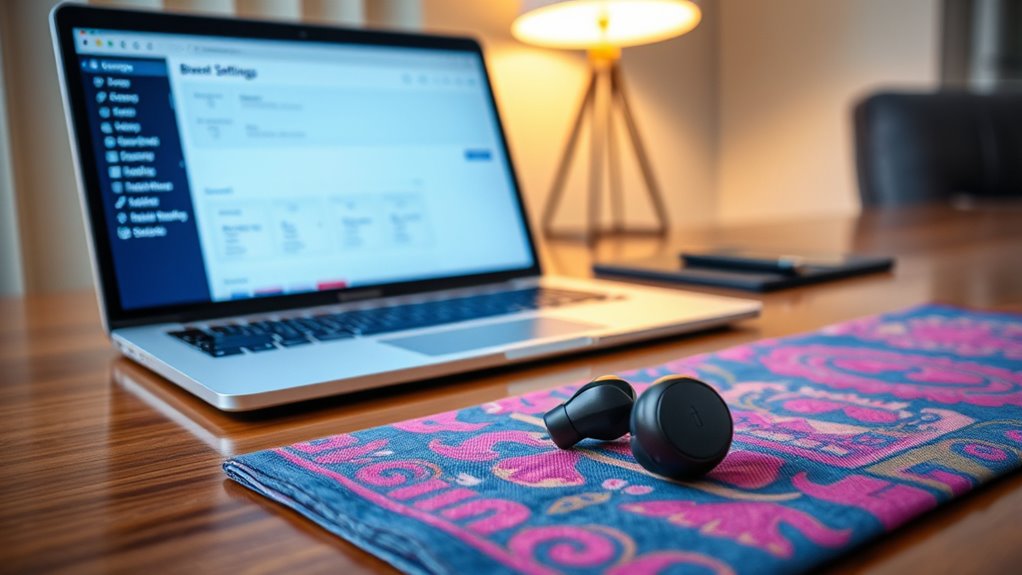

To connect your Soundcore earbuds to your laptop, first make certain they’re charged and in pairing mode. Then, enable Bluetooth on your laptop through the Settings. Look for your earbuds in the Bluetooth devices list and select them to pair. Once connected, set them as the default audio output in the sound settings. If you run into issues, there are simple troubleshooting steps you can take to guarantee a smooth connection.
Checking Your Earbuds’ Battery Life
Before connecting your Soundcore earbuds to your laptop, it’s vital to check their battery life to guarantee uninterrupted listening. To do this, simply tap the earbuds or check the companion app if you have it installed. Maintaining your battery is essential for peak performance. If you notice the battery’s low, follow these charging tips: use the original charging cable for efficiency, and avoid letting the battery drain completely before recharging. Regular charging and proper battery maintenance can extend your earbuds’ lifespan, making sure you’re always ready to enjoy your favorite tunes. By keeping an eye on battery levels, you can assure a hassle-free experience without interruptions, giving you the freedom to listen as long as you want.
Enabling Bluetooth on Your Laptop
To connect your Soundcore earbuds to your laptop, you’ll need to enable Bluetooth, which is usually a straightforward process. First, check your laptop compatibility; most modern laptops have built-in Bluetooth. If your laptop doesn’t support Bluetooth, consider using a USB Bluetooth adapter. To access Bluetooth settings, click on the Start menu, then select Settings. From there, navigate to Devices and choose Bluetooth & other devices. Toggle the Bluetooth switch to “On.” Once activated, your laptop will start scanning for available devices. Be sure your earbuds are in pairing mode, allowing them to be discovered. With Bluetooth enabled, you’re one step closer to enjoying your favorite tunes without the hassle of wires.
Pairing Your Soundcore Earbuds
With Bluetooth now activated on your laptop, it’s time to pair your Soundcore earbuds. Start by confirming your earbuds are charged and in pairing mode. You can usually activate this by pressing and holding the power button until you see the LED light flashing, indicating they’re ready to connect. On your laptop, go to the Bluetooth settings and search for available devices. Once you see your Soundcore earbuds listed, select them to initiate the pairing process.
Keep in mind some earbud features, like noise cancellation or touch controls, may require additional setup through the Soundcore app. For smooth connections, make sure there are no other Bluetooth devices nearby that could interfere. Following these connection tips will guarantee a hassle-free pairing experience.
Selecting Your Earbuds as the Audio Output
Once your Soundcore earbuds are paired with your laptop, it’s vital to select them as your audio output device. This guarantees that you can enjoy your music, videos, and calls seamlessly. Here’s how to do it:
- Open your laptop’s audio settings by right-clicking the sound icon in the taskbar.
- Select “Playback devices” or “Sound settings” to view a list of available audio devices.
- Choose your Soundcore earbuds from the list and click “Set Default.”
Troubleshooting Common Connection Issues
If you encounter issues while trying to connect your Soundcore earbuds to your laptop, don’t worry—these problems are often easy to fix. First, check for connection interference; other Bluetooth devices can sometimes disrupt the pairing process. Make sure your earbuds are in pairing mode and close enough to the laptop. If you’re experiencing poor audio quality, try disconnecting and reconnecting the earbuds. Restarting both your laptop and earbuds can also help. Verify your laptop’s Bluetooth drivers are updated, as outdated software can lead to connection issues. Finally, if all else fails, consult the user manual or the Soundcore support website for specific troubleshooting steps tailored to your model. Enjoy your wireless freedom!
Frequently Asked Questions
Can I Use Soundcore Earbuds With Non-Bluetooth Laptops?
You can’t use Soundcore earbuds with a non-Bluetooth laptop unless you’ve got a wired connection. Remember, “where there’s a will, there’s a way.” A wired connection often delivers better audio quality too. Enjoy!
How Far Can I Be From My Laptop While Using the Earbuds?
You can typically be up to 30 feet away from your laptop while using your Soundcore earbuds. However, walls and other obstacles can cause signal interference, reducing the effective Bluetooth range.
Are Soundcore Earbuds Compatible With Gaming Consoles?
Imagine gaming without limits; Soundcore earbuds deliver that freedom. They’re compatible with many gaming consoles, enhancing your gaming performance with rich sound. Just check specific models for full compatibility to maximize your experience.
Can I Connect Multiple Devices to Soundcore Earbuds Simultaneously?
You can’t connect multiple devices to Soundcore earbuds simultaneously. While they offer flexible earbud connectivity options, device switching can pose challenges, leading to potential delays or disconnections when you try to switch between devices.
What Should I Do if My Earbuds Won’t Charge?
If your earbuds won’t charge, check the charging port for debris. A friend once found success using earbud maintenance tips like cleaning and trying different cables. Also, explore battery troubleshooting methods to guarantee functionality.
