
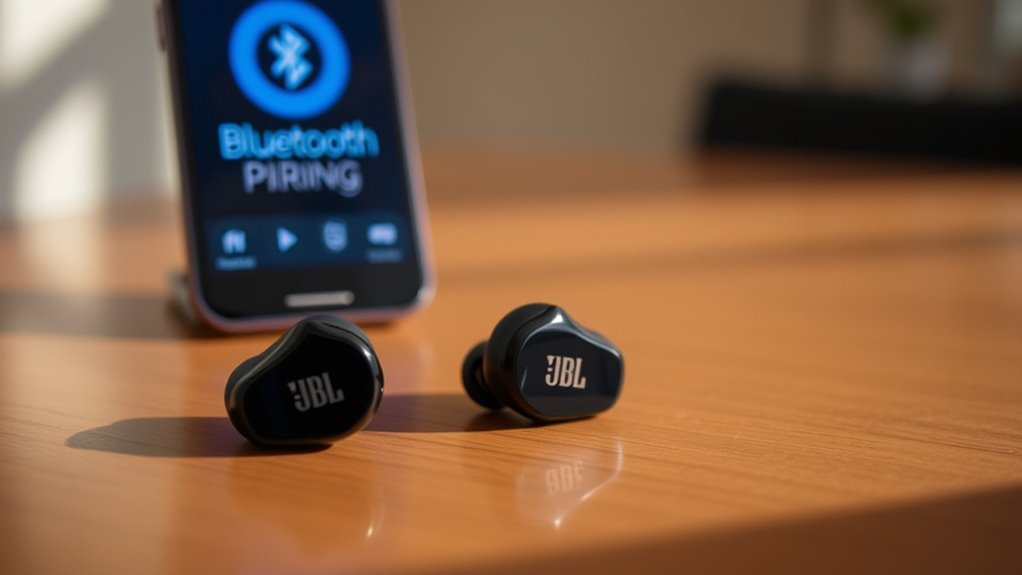

To put your JBL Vibe earbuds into pairing mode, first verify they’re charged and powered on. Then, press and hold the multifunction control button on the right earbud for five seconds. You’ll see the LED indicator flash white, which means the earbuds are now ready to connect. Look for “JBL Vibe” on your device’s Bluetooth list to complete the connection. If you encounter any issues, more troubleshooting tips can help guarantee a smooth experience.
Understanding Your JBL Vibe Earbuds
To effectively use your JBL Vibe earbuds, it’s essential to understand their key features and functionalities. These earbuds are designed for superior sound quality, delivering crisp highs and deep bass, which enhances your listening experience. They come equipped with Bluetooth technology, allowing you to connect wirelessly to your devices for ultimate freedom. The ergonomic design guarantees a comfortable fit, making them ideal for extended use. Additionally, the integrated controls let you manage playback and calls effortlessly without reaching for your device. With a long battery life, you can enjoy your favorite tunes or podcasts without interruption. Familiarizing yourself with these earbud features will empower you to maximize your audio experience and enjoy the versatility they offer.
Charging Your Earbuds Before Pairing
Before you can pair your JBL Vibe earbuds with your device, it’s important to guarantee they’re fully charged. To maximize battery life, connect your earbuds to the provided charging case. Make sure the case is plugged into a power source using the included USB cable. A full charge typically takes about two hours, so keep an eye on the LED indicator: a solid white light means charging, while a blinking light indicates low battery. To optimize performance, consider these charging tips: avoid letting the battery drain completely before recharging, and don’t expose the case to extreme temperatures. Following these guidelines will make certain your earbuds are ready for a seamless pairing experience, providing you with the freedom to enjoy your music uninterrupted.
Turning On Your JBL Vibe Earbuds
To turn on your JBL Vibe Earbuds, locate the power button, which is typically found on one of the earbuds. Before you power them on, make sure they’ve been charged adequately to avoid interruptions. Once charged, press and hold the power button until you see the indicator light activate.
Power Button Location
Locating the power button on your JBL Vibe earbuds is vital for activating them. You’ll find the power button conveniently placed on the right earbud. It’s typically a small, circular button that’s easily accessible. To turn your earbuds on, simply press and hold this button for a few seconds until you notice an LED indicator light up, signaling that they’re powered on. This step is essential for ideal earbud maintenance, ensuring your earbuds function correctly and deliver superior sound quality. Familiarizing yourself with the power button not only helps you get started quickly but also enhances your overall experience, allowing you the freedom to enjoy your music without interruption.
Charging Before Use
Once you’ve powered on your JBL Vibe earbuds, ensuring they’re fully charged is important for peak performance. Here’s how to check and charge your earbuds effectively:
- Connect the charging case: Use the provided USB-C cable to connect the case to a power source.
- Monitor charging indicators: Watch for LED lights on the case; a solid light indicates charging, while a blinking light shows the battery life is low.
- Wait for a full charge: Allow at least 1.5 hours for a complete charge to optimize battery life, ensuring your earbuds are ready for uninterrupted use.
Locating the Pairing Button
Finding the pairing button on your JBL Vibe earbuds is essential for connecting them to your devices. Typically, you’ll find the pairing button on the right earbud, integrated into the multifunction control. This button serves multiple functions, including play, pause, and answering calls, but it’s vital for initiating pairing techniques. To identify it, look for a small, raised area or a symbol that resembles a Bluetooth icon. It may require a gentle press for activation. Once you locate this button, you’ll gain the freedom to connect to any compatible device. Understanding these button functions will streamline your experience, ensuring you’re ready to enjoy your audio without unnecessary delays.
Activating Pairing Mode
To activate pairing mode on your JBL Vibe earbuds, press and hold the multifunction control button on the right earbud for approximately five seconds. You’ll know it’s successful when you see the LED indicator start flashing white. This is your cue that your earbuds are now ready for Bluetooth connectivity with your device.
Follow these steps for smooth activation:
- Confirm your earbuds are charged and powered on.
- Hold the multifunction button until the LED flashes, indicating pairing mode is active.
- Look for “JBL Vibe” on your device’s Bluetooth list to connect.
Once connected, enjoy the freedom of wireless audio without the hassle of cords!
Preparing Your Device for Connection
Before you can connect your JBL Vibe earbuds, it’s essential to prepare your device for a seamless Bluetooth pairing experience. First, make sure your device is compatible with Bluetooth audio devices. Check that your operating system is up to date to avoid any connection issues.
Here’s a quick reference for preparing your device:
| Step | Action |
|---|---|
| Check Bluetooth | Verify Bluetooth is enabled on your device. |
| Update Software | Confirm your device’s OS is up to date. |
| Audio Quality | Set audio settings for peak performance. |
Searching for Bluetooth Devices
To begin searching for Bluetooth devices, make sure Bluetooth is enabled on your device. Once activated, your device will scan for available connections. Look for the JBL Vibe Earbuds in the list of detected devices to proceed with pairing.
Enable Bluetooth on Device
Once you’ve verified your JBL Vibe earbuds are charged, the next step is activating Bluetooth on your device to search for available connections. Here’s how to access your Bluetooth settings:
- Open Settings: Navigate to the Settings app on your device. This is usually represented by a gear icon.
- Select Bluetooth: Find and tap on the Bluetooth option. Confirm it’s turned on; a toggle switch may be present.
- Check Device Compatibility: Verify your device is compatible with the JBL Vibe earbuds. Most modern smartphones and tablets support this.
Once Bluetooth is activated, your device will start scanning for available connections, allowing you to pair your earbuds effortlessly. Enjoy the freedom of wireless sound!
Locate JBL Vibe Earbuds
After activating Bluetooth on your device, you’ll need to locate your JBL Vibe earbuds to initiate the pairing process. Start by ensuring your earbuds are charged and powered on. If they’re in the charging case, remove them; they’ll automatically enter pairing mode. Your device will search for available Bluetooth devices. Look for “JBL Vibe” in the list of detected devices. The earbuds are known for their impressive sound quality and ergonomic earbud features, which enhance your listening experience. Once you select them, your device will confirm the connection. If you encounter any issues, make sure the earbuds aren’t connected to another device. Now, you’re free to enjoy your music or calls with exceptional audio performance!
Connecting Your JBL Vibe Earbuds
Connecting your JBL Vibe earbuds to a device is a straightforward process that guarantees you can enjoy high-quality audio wirelessly. To get started, follow these steps:
- Activate Pairing Mode: Press and hold the multifunction button on the earbuds until the LED indicator flashes white, signaling that they’re in pairing mode.
- Enable Bluetooth: On your device, turn on Bluetooth and search for available devices.
- Select Your Earbuds: Once your JBL Vibe earbuds appear on the list, tap to connect.
These earbud features, like their lightweight design and impressive sound quality, enhance your listening experience. Enjoy the freedom of wireless audio without compromising on performance!
Confirming the Connection
Once your JBL Vibe earbuds are connected, you’ll need to confirm the connection for ideal performance. Start by checking your device’s Bluetooth settings to verify the earbuds appear as connected. Additionally, confirm that your device is compatible with the Bluetooth version used by the earbuds for a seamless experience.
Check Bluetooth Settings
To guarantee your JBL Vibe earbuds are properly paired, checking your Bluetooth settings is essential. This step helps you avoid issues like Bluetooth interference and guarantees a smooth connection. Here’s what you need to do:
- Open Bluetooth Settings: Go to the Bluetooth menu on your device and confirm it’s enabled.
- Scan for Devices: Refresh the list to see if your JBL Vibe earbuds appear. If they’re not visible, they might not be in pairing mode.
- Forget Other Devices: Disconnect any previously paired devices that could cause interference, confirming your JBL earbuds can connect seamlessly.
Following these steps will help you verify the connection effectively, leading to a better audio experience. Enjoy your freedom with quality sound!
Verify Device Compatibility
Before attempting to pair your JBL Vibe earbuds, it’s essential to ascertain that your device is compatible with them. Check your device specifications against the compatibility requirements to guarantee a smooth pairing process. Most smartphones, tablets, and computers that support Bluetooth 4.0 or higher should work seamlessly.
Here’s a quick reference table to help you verify compatibility:
| Device Type | Compatibility | Bluetooth Version |
|---|---|---|
| Smartphones | Yes | 4.0 or higher |
| Tablets | Yes | 4.0 or higher |
| Laptops/PCs | Yes | 4.0 or higher |
Make sure your device meets these criteria to enjoy your JBL Vibe earbuds without any issues.
Troubleshooting Common Pairing Issues
Although pairing your JBL Vibe earbuds is usually a straightforward process, you may encounter some common issues that can hinder the connection. Here are a few troubleshooting steps to help you resolve these common Bluetooth issues:
Pairing your JBL Vibe earbuds is typically easy, but common Bluetooth issues may arise. Here are some troubleshooting tips to help you connect.
- Check Battery Levels: Verify both your earbuds and the device you’re connecting to have sufficient battery life. Low power can disrupt pairing.
- Clear Previous Connections: If your earbuds are paired with multiple devices, it might cause conflicts. Unpair them from previous devices before trying again.
- Use Earbud Reset Methods: Resetting your earbuds can often resolve connectivity problems. Follow the manufacturer’s instructions for a proper reset.
Frequently Asked Questions
Can I Use My JBL Vibe Earbuds With Multiple Devices?
Absolutely, you can connect your JBL Vibe earbuds to multiple devices! Just switch between them effortlessly, enjoying stellar audio quality and device compatibility without missing a beat. It’s like having your own audio freedom!
How Do I Reset My JBL Vibe Earbuds?
To reset your JBL Vibe earbuds, press and hold the power button for about 10 seconds until you see the LED light flash. This earbud troubleshooting step initiates the reset process, restoring factory settings.
What Is the Battery Life of JBL Vibe Earbuds?
JBL Vibe earbuds offer impressive battery performance, lasting up to 20 hours with the case. For ideal usage, charge them fully before first use and avoid extreme temperatures to maintain longevity and efficiency.
Are JBL Vibe Earbuds Waterproof or Water-Resistant?
JBL Vibe earbuds aren’t fully waterproof, but they do offer moisture protection with a water-resistant rating. Aren’t you glad they can handle sweat and light rain without compromising performance during your active lifestyle?
What Bluetooth Version Do JBL Vibe Earbuds Support?
JBL Vibe earbuds support Bluetooth 5.0, ensuring excellent compatibility with various devices. This version enhances earbud features like range and battery efficiency, giving you the freedom to enjoy high-quality audio without interruptions.
