
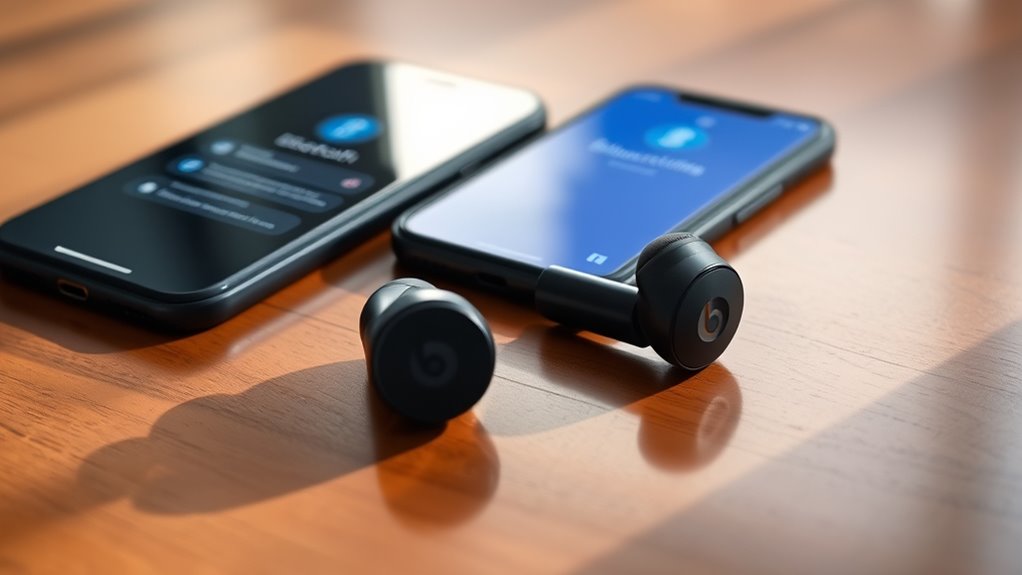

To pair your Beats earbuds to your iPhone, first, verify they’re compatible by confirming your iOS version. Then, power on the earbuds by charging them and holding the power button until the LED light turns on. Next, enable Bluetooth on your iPhone through the Settings app. Put the earbuds in pairing mode, and look for them in the Bluetooth section under “Other Devices.” If you face issues, there are some troubleshooting tips you should consider.
Checking Compatibility of Your Beats Earbuds
Before you start pairing your Beats earbuds with your iPhone, it’s essential to check their compatibility. Make sure your earbuds meet the device requirements, as different models may have varying compatibility features. Generally, most Beats earbuds work seamlessly with iPhones running iOS 10 or later. To confirm compatibility, look for any specifications on the packaging or the official Beats website. If you’re using an older iPhone, it might not support the latest Beats models. Additionally, keep in mind that some features, like noise cancellation or spatial audio, may only function with certain iPhone models. By verifying compatibility, you’ll avoid unnecessary frustration and can fully enjoy the freedom of wireless listening.
Turning On Your Beats Earbuds
Once you’ve confirmed your Beats earbuds are compatible with your iPhone, the next step is to power them on. Here’s how to do it:
After ensuring your Beats earbuds are compatible with your iPhone, it’s time to power them on and get ready for an immersive audio experience.
- Charge your earbuds: Before turning them on, verify your earbuds are charged. Connect them to a power source using the provided cable.
- Power on: Press and hold the power button on the earbuds until you see the LED light indicate they’re on.
- Resetting earbuds (if needed): If they don’t turn on, try resetting them by holding the power and volume down buttons simultaneously for about 10 seconds.
Once they’re powered on, you’re ready to connect them to your iPhone and enjoy your music. Freedom awaits!
Enabling Bluetooth on Your Iphone
To connect your Beats earbuds to your iPhone, you’ll need to enable Bluetooth on your device. Start by opening your iPhone and heading to the “Settings” app. Once there, tap on “Bluetooth” to access your Bluetooth settings. You’ll see a toggle switch at the top; simply tap it to turn Bluetooth on. When activated, your device visibility will be set to allow nearby devices to connect. It’s important to keep this setting enabled so your Beats earbuds can be discovered easily. With Bluetooth now on, you’re ready for the next step in connecting your earbuds. Enjoy the freedom of wireless listening and all the possibilities that come with it!
Pairing Your Beats Earbuds With Your Iphone
Connecting your Beats earbuds to your iPhone is a straightforward process that only takes a few moments. To guarantee a seamless experience without a connecting delay and enjoy peak sound quality, follow these steps:
Connecting your Beats earbuds to your iPhone is quick and easy, ensuring an optimal listening experience.
- Put your Beats earbuds in pairing mode: Press and hold the power button until the LED light flashes.
- Open your iPhone’s Bluetooth settings: Go to Settings > Bluetooth and verify it’s turned on.
- Select your Beats earbuds: Look for your earbuds under “Other Devices” and tap to connect.
Once connected, you’ll experience the freedom of wireless listening. If you encounter any issues, don’t worry; there are simple troubleshooting steps you can take to get back to enjoying your music.
Troubleshooting Common Pairing Issues
While pairing your Beats earbuds with your iPhone usually goes smoothly, you might occasionally run into issues that can disrupt the connection. Here are some common problems and solutions:
| Issue | Solution | Emotion |
|---|---|---|
| Earbuds won’t connect | Try resetting earbuds | Frustration |
| Connection drops frequently | Check battery levels | Anxiety |
| Earbuds aren’t recognized | Restart your iPhone | Confusion |
If you’re facing connection problems, start by checking the battery on both your earbuds and iPhone. If that doesn’t work, try resetting your earbuds by holding the system button until the LED blinks. This simple action can often clear up any pairing issues, granting you the freedom to enjoy your music without interruptions.
Frequently Asked Questions
Can I Use Beats Earbuds With Non-Apple Devices?
Yes, you can use Beats earbuds with non-Apple devices. They’re compatible with any Bluetooth connection, allowing you to enjoy your music freely, regardless of the device you choose. Just pair them like any other Bluetooth headphones.
How Do I Reset My Beats Earbuds?
To reset your Beats earbuds, hold the power button and volume down simultaneously for 10 seconds. This reset procedure can resolve connectivity issues, so keep these troubleshooting tips handy for future reference.
Can I Pair Multiple Devices to My Beats Earbuds?
Yes, you can pair multiple devices to your Beats earbuds. The pairing process is straightforward, and your earbuds are compatible with various devices. Just remember to disconnect from one device before connecting to another for best results.
What Is the Battery Life of Beats Earbuds?
Your Beats earbuds boast impressive battery performance, lasting up to 15 hours. To keep the music flowing, remember these charging tips: don’t let them drain completely, and charge them regularly for uninterrupted freedom.
Are Beats Earbuds Water-Resistant?
Beats earbuds have some water resistance features, but they’re not fully waterproof. To maintain them, avoid exposing them to excessive moisture, clean regularly, and store them in a dry place for peak performance.
