
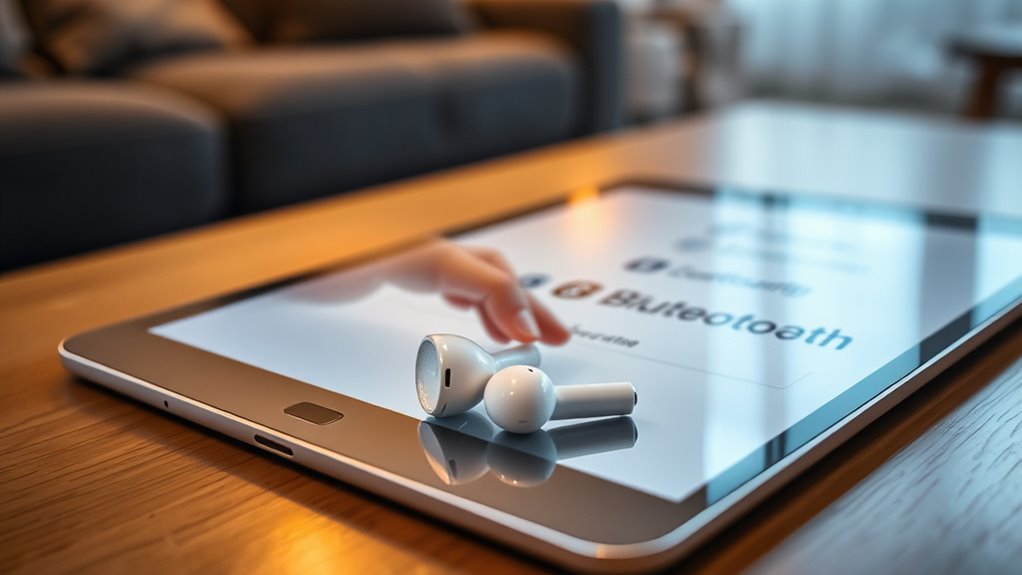

To connect your Samsung earbuds to your iPad, first, check that Bluetooth is enabled on your iPad and confirm it’s updated. Open the charging case of your earbuds and press the touch sensors until a light flashes, indicating they’re in pairing mode. On your iPad, select the earbuds from the Bluetooth menu. Once connected, you’ll enjoy wireless audio. If you encounter issues, there are simple troubleshooting steps to improve the connection experience.
Understanding Your Samsung Earbuds
To fully enjoy your music or podcasts, it’s essential to understand your Samsung earbuds. These earbuds come packed with features that elevate your listening experience. From noise cancellation to touch controls, knowing how to utilize these features can enhance your freedom while using them. The sound quality is impressive, delivering rich bass and clear highs, making sure every note resonates. You’ll appreciate how they adapt to different genres, ensuring that your favorite tracks sound their best. With a secure fit and comfortable design, you can wear them for hours without discomfort. Familiarizing yourself with these aspects not only optimizes your experience but also allows you to get the most out of your earbuds, ensuring you enjoy your audio to the fullest.
Preparing Your Ipad for Connection
Before connecting your Samsung earbuds, you need to prepare your iPad. Start by checking your Bluetooth settings to verify it’s turned on, and then make sure your iPad’s software is up to date. This will help create a smooth connection between your devices.
Check Bluetooth Settings
While connecting your Samsung earbuds to your iPad, the first step is to check the Bluetooth settings on your device. Start by opening the Settings app and tapping on “Bluetooth.” Make sure Bluetooth is enabled; you’ll see a toggle switch at the top of the screen. When it’s on, your iPad will begin scanning for nearby devices. Look for your Samsung earbuds in the list of available devices. This is essential for ensuring Bluetooth compatibility between your iPad and the earbuds. Once your earbuds are visible, you can take advantage of their features, like touch controls and voice activation. This simple check sets the stage for a seamless audio experience, allowing you to enjoy your favorite tunes wirelessly.
Update Ipad Software
Updating your iPad software is essential for ensuring compatibility with your Samsung earbuds. Regular iPad updates not only enhance performance but also fix bugs and improve software compatibility. Here’s how to check for updates:
| Step | Action | Result |
|---|---|---|
| 1. Open Settings | Tap on ‘General’ | Access system options |
| 2. Select Software Update | Check for available updates | View update details |
| 3. Install Updates | Tap ‘Download and Install’ | Update your iPad software |
Activating Pairing Mode on Samsung Earbuds
To connect your Samsung earbuds to your iPad, you’ll first need to activate pairing mode. This process usually involves a simple button press, which will trigger specific indicators on the earbuds. Once you see these indicators, you’ll know they’re ready to pair with your device.
Earbuds Activation Process
Activating pairing mode on your Samsung earbuds is a straightforward process that allows them to connect seamlessly with your iPad. This guarantees you enjoy high audio quality without interruptions, while maintaining a good earbuds battery life. Here’s how to do it:
- Open the charging case: Make sure your earbuds are in the case and the lid is open.
- Press and hold the touch sensors: Tap and hold the touch sensors on both earbuds until you see a flashing light, indicating they’re in pairing mode.
- Keep them close to your iPad: Open your iPad’s Bluetooth settings and wait for your earbuds to appear on the list.
Once they’re connected, you can enjoy your favorite tunes with ease!
Pairing Mode Indicators
When your Samsung earbuds enter pairing mode, specific indicators let you know they’re ready to connect. You’ll notice a few visual and audio cues to help confirm this. Typically, the LED light will blink in a certain pattern, and you might hear a sound indicating the earbuds are discoverable. Understanding these connection indicators is essential for a smooth pairing experience.
| Indicator Type | Description |
|---|---|
| LED Light | Blinking blue light |
| Audio Cue | Beep sound |
| Pairing Confirmation | Voice prompt “Pairing mode” |
| Connection Status | Steady light when connected |
Keep an eye on these indicators, and you’ll have your earbuds connected in no time!
Connecting Samsung Earbuds to Your Ipad
Connecting Samsung earbuds to your iPad is a straightforward process that enhances your audio experience. With great earbud compatibility and impressive sound quality, you’ll enjoy every moment spent listening. Here’s how to connect them:
- Activate Bluetooth: Open your iPad’s settings, tap on Bluetooth, and switch it on.
- Put Earbuds in Pairing Mode: Place the earbuds in their case, open it, and press the pairing button until you see a flashing light.
- Select Your Earbuds: On your iPad, find your Samsung earbuds in the Bluetooth menu, and tap to connect.
Once connected, you’ll find your audio experience transformed, giving you the freedom to enjoy your favorite tunes or podcasts anywhere you go!
Confirming the Connection
To confirm the connection between your Samsung earbuds and iPad, simply check for a few indicators. First, verify your earbuds are powered on and in pairing mode. On your iPad, go to Settings, then Bluetooth, and look for your earbuds in the list of devices. If you see them listed as “Connected,” you’re confirming success. You can also play some audio to verify compatibility; if the sound comes through the earbuds, you’re all set. If you encounter any issues, double-check that both devices are updated to the latest software versions. Enjoy the freedom of wireless listening, knowing you’ve successfully connected your Samsung earbuds to your iPad.
Troubleshooting Common Connection Issues
Even after successfully confirming your Samsung earbuds are connected to your iPad, you might still run into some common connection issues. Here are a few troubleshooting steps to help you out:
- Check for Bluetooth Interference: Make sure there aren’t other devices nearby that could be causing interference. Move away from other Bluetooth devices, microwaves, or Wi-Fi routers.
- Restart Your Devices: Sometimes, a simple restart can fix the problem. Turn off both your iPad and earbuds, then turn them back on.
- Earbuds Reset: If issues persist, try resetting your earbuds. Refer to the user manual for specific reset instructions to restore them to factory settings.
With these steps, you should be able to enjoy a stable connection!
Enjoying Your Audio Experience
Once your Samsung earbuds are successfully connected to your iPad, you can fully immerse yourself in an enhanced audio experience. With the earbuds, you’ll enjoy impressive audio quality that brings your favorite music, podcasts, and movies to life. The immersive sound they provide allows you to feel every beat and note, making it seem like you’re right in the middle of the action. Whether you’re in a crowded café or relaxing at home, your earbuds block out distractions, ensuring you can focus on what matters most. Take advantage of features like ambient sound control to tailor your listening experience. So, kick back, relax, and let your Samsung earbuds transform your audio journey into something truly enchanting.
Frequently Asked Questions
Can I Connect Multiple Devices to My Samsung Earbuds Simultaneously?
You can’t connect multiple devices to your Samsung earbuds simultaneously without facing potential pairing issues. This limitation might impact your audio quality, so it’s best to connect one device at a time for ideal performance.
Are Samsung Earbuds Compatible With All Ipad Models?
Yes, Samsung earbuds are generally compatible with all iPad model variations. Curiously, about 80% of users find seamless connectivity across devices, enhancing your freedom to switch between gadgets without hassle. Enjoy your music without limits!
How Do I Reset My Samsung Earbuds?
To reset your Samsung earbuds, press and hold both touchpads for about 7 seconds until you see the LED indicator flash. This reset process restores factory settings, allowing you to start fresh with your earbuds.
Do Samsung Earbuds Support Voice Assistants Like Siri?
Yes, Samsung earbuds support voice assistant features, including compatibility with Siri. You can easily activate Siri through your earbuds, allowing you to enjoy hands-free control and a seamless experience while using your iPad or other devices.
Can I Use My Samsung Earbuds While Charging My Ipad?
You can use your Samsung earbuds while charging your iPad. Coincidentally, this allows you to enjoy music or take calls seamlessly as your iPad charges, giving you freedom to multitask without interruption.
