
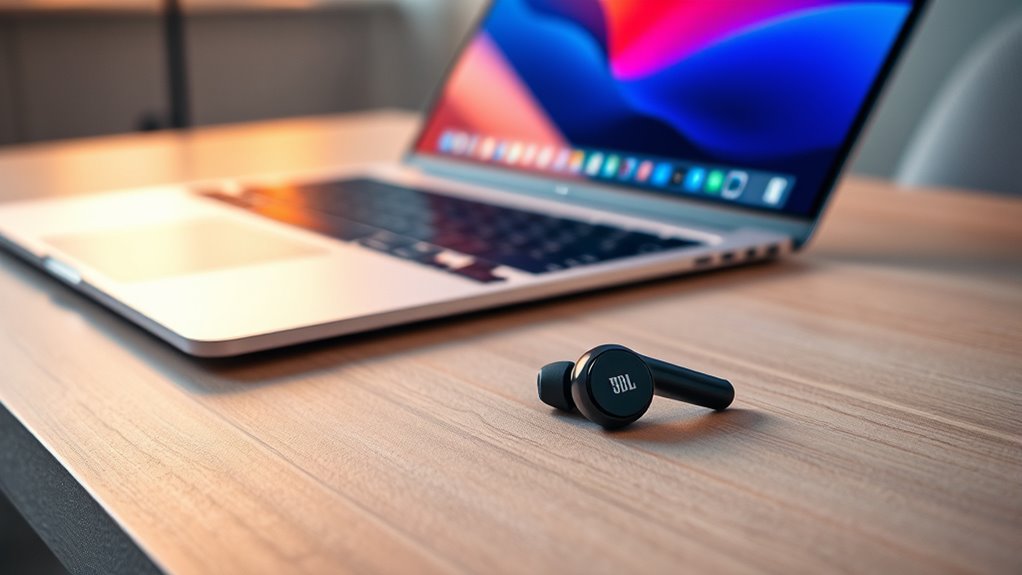

To pair your JBL earbuds to your laptop, first confirm they’re charged and in pairing mode. Go to the Bluetooth settings on your laptop by clicking on “Start,” then “Settings,” and select “Bluetooth & other devices.” Turn on Bluetooth and find your JBL earbuds in the list of available devices to connect. Enjoy great sound quality while keeping an ear out for tips on enhancing your audio experience and solving potential connection issues.
Understanding Bluetooth Technology
Bluetooth technology is a wireless communication standard that allows devices to connect and exchange data over short distances. Understanding Bluetooth basics is crucial if you want to enjoy the freedom of wireless technology. It operates on radio frequencies, typically within the 2.4 GHz band, allowing devices like your JBL earbuds and laptop to communicate without physical connections. Pairing devices is simple; just make sure both are discoverable. Once paired, they can exchange audio, data, or other information seamlessly. Bluetooth’s versatility means you’re not limited by cords, giving you the freedom to move around while enjoying your favorite tunes. With advancements in Bluetooth technology, you can expect improved sound quality and battery efficiency. Embrace this wireless world for a more liberated listening experience!
Preparing Your JBL Earbuds
Before you can enjoy your JBL earbuds with your laptop, you’ll need to prepare them for pairing. Start by verifying your earbuds are fully charged; check the battery life indicator to confirm. If your earbuds have specific features like touch controls or voice assistant support, familiarize yourself with them to maximize your experience.
To prepare, remove your earbuds from their charging case and confirm they’re powered on. Most JBL earbuds will automatically enter pairing mode when turned on, but if they don’t, you may need to press and hold the power button for a few seconds. Once they’re ready, you can move on to connecting them to your laptop. With your earbuds prepared, you’re one step closer to wireless freedom!
Accessing Bluetooth Settings on Your Laptop
Once your JBL earbuds are ready, accessing the Bluetooth settings on your laptop is straightforward. Start by clicking on the “Start” menu and selecting “Settings.” From there, find the “Devices” option and click on “Bluetooth & other devices.” Make sure Bluetooth is turned on; this will allow your laptop to discover devices nearby. It’s important to check for device compatibility to make certain your JBL earbuds connect seamlessly. You’ll also want to be mindful of Bluetooth security; verify your laptop is secure before pairing. If prompted, you may need to confirm a code on both devices to establish a secure connection. With these steps, you’re ready to enjoy your JBL earbuds on your laptop!
Putting Your JBL Earbuds in Pairing Mode
To connect your JBL earbuds to your laptop, you’ll need to put them in pairing mode first. Depending on your JBL models, the method may vary slightly. Generally, you’ll press and hold the power button until you see the pairing indicators flashing. This shows your earbuds are discoverable.
Here’s a quick overview:
| JBL Model | Pairing Button Action | Pairing Indicator |
|---|---|---|
| JBL Free | Press and hold for 5 seconds | LED flashes white |
| JBL Tune 125T | Press and hold for 3 seconds | LED alternates between blue |
| JBL Live Pro+ | Press and hold until voice prompt | LED blinks white |
Once in pairing mode, you’re ready to connect to your laptop. Enjoy the freedom of wireless listening!
Connecting to Your JBL Earbuds
After your JBL earbuds are in pairing mode, connecting them to your laptop is a straightforward process. Start by ensuring your laptop’s Bluetooth is turned on. Then, go to the Bluetooth settings on your laptop and look for available devices. You should see your JBL earbuds listed; click on them to initiate the connection. Once connected, you’ll appreciate the exceptional sound quality and various earbud features that enhance your listening experience. These features, such as noise cancellation or touch controls, let you enjoy your favorite music or podcasts without distractions. Just make sure to keep your earbuds within range for uninterrupted connectivity, allowing you the freedom to move around while enjoying high-quality audio.
Adjusting Audio Settings
Now that your JBL earbuds are connected to your laptop, it’s important to adjust the audio settings for an ideal listening experience. You can enhance your sound quality by tweaking settings like equalizer levels and volume balance. Here’s a quick reference table to help you make adjustments:
| Setting | Description |
|---|---|
| Equalizer | Adjust frequencies for audio enhancement |
| Volume Level | Balance sound output across applications |
| Bass Boost | Increase low frequencies for depth |
| Treble Adjustment | Enhance high frequencies for clarity |
Take a moment to play around with these options. Finding the right sound balance not only elevates your experience but also guarantees that your earbuds perform at their best. Enjoy your freedom!
Troubleshooting Connection Issues
While connecting your JBL earbuds to your laptop is usually straightforward, sometimes issues can arise that disrupt the process. Here are some common issues you might face and troubleshooting steps to help you regain your freedom:
- Your earbuds aren’t in pairing mode.
- Bluetooth on your laptop is turned off.
- Interference from other devices.
- Your laptop isn’t updated.
Start by ensuring your earbuds are in pairing mode and that Bluetooth is enabled on your laptop. If you still face problems, check for nearby devices that might be causing interference or update your laptop’s software. These simple troubleshooting steps can help you overcome connection challenges and enjoy your JBL earbuds without any hassle.
Disconnecting and Reconnecting Your Earbuds
When you need to disconnect your JBL earbuds from a device, it’s important to unpair them properly to avoid future connection issues. Reconnecting your earbuds is usually a simple process that can restore your audio experience quickly. Let’s go over how to unpair and then reconnect your earbuds effectively.
Unpairing From Devices
If you need to switch your JBL earbuds from one device to another, unpairing them is a straightforward process. By managing connections effectively, you can enjoy seamless changes between devices. Here’s how to feel empowered while unpairing:
- Embrace the freedom of choice.
- Experience hassle-free listening.
- Enjoy the simplicity of connection management.
- Relish in a clutter-free audio environment.
To unpair your earbuds, go to your device’s Bluetooth settings, find the JBL earbuds in the list, and select “Forget” or “Unpair.” This will disconnect your earbuds, allowing you to connect them to a new device effortlessly. With these simple steps, you can maximize your listening experience and enjoy the flexibility that comes with your JBL earbuds.
Reconnection Process Explained
To reconnect your JBL earbuds after they’ve been unpaired, you’ll want to start by ensuring Bluetooth is enabled on your laptop. Open your laptop’s Bluetooth settings and look for your earbuds in the list of available devices. When you see them, click to pair. If you encounter any issues, you might need to troubleshoot connections; sometimes, simply turning Bluetooth off and back on can help. If your earbuds don’t appear, make sure they’re charged and in pairing mode. After reconnecting devices, you should hear a confirmation tone in your earbuds. Enjoy the freedom of wireless listening again! Remember, if problems persist, consulting the user manual or the JBL support site can provide additional assistance.
Tips for Optimal Audio Experience
While enjoying your JBL earbuds, maximizing your audio experience can make a significant difference in how you perceive music or media. To enhance your audio quality, consider these tips for sound customization:
- Adjust EQ settings: Tailor the sound to your preferences, boosting bass or treble as you wish.
- Use high-quality audio files: Opt for lossless formats to truly appreciate every note.
- Experiment with fit: Confirm your earbuds have a snug fit for peak sound isolation.
- Stay updated: Regularly check for firmware updates to improve performance and features.
Frequently Asked Questions
Can JBL Earbuds Connect to Multiple Devices Simultaneously?
JBL earbuds typically can’t connect to multiple devices simultaneously due to Bluetooth limitations. However, some models offer multi-device connectivity, allowing you to switch easily between devices without needing to reconnect each time.
How Long Does the Battery Last on JBL Earbuds?
JBL earbuds can often last up to 10 hours on a single charge, with battery performance shining like a star in the night. Charging duration typically takes about two hours, granting you freedom to enjoy uninterrupted listening.
Are JBL Earbuds Waterproof or Water-Resistant?
JBL earbuds are generally water-resistant, not fully waterproof. They usually come with a waterproof rating, indicating protection against splashes and sweat. Always check the specific model’s rating to guarantee it fits your needs.
What Should I Do if My JBL Earbuds Won’T Charge?
If your JBL earbuds won’t charge, check the charging cable and port for damage. Confirm proper battery maintenance by cleaning connections and avoiding extreme temperatures. If issues persist, consider contacting customer support for assistance.
How Can I Reset My JBL Earbuds to Factory Settings?
Want your earbuds to feel brand new? To reset your JBL earbuds to factory settings, press and hold the power button for about 10 seconds until you see the indicator light flash. Enjoy your fresh start!
