
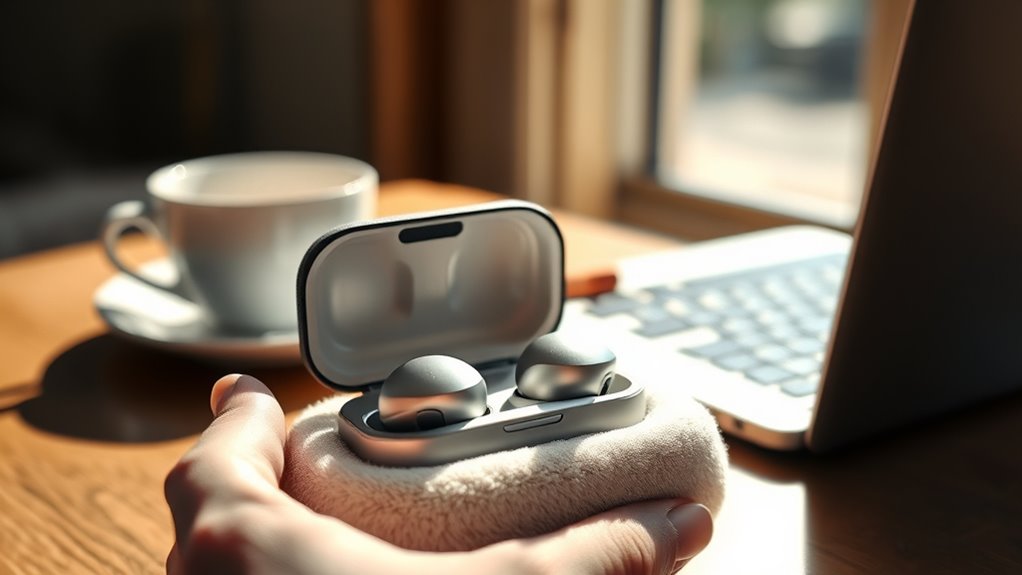

To use your Bose QuietComfort Earbuds, start by charging them and activating Bluetooth on your device. Open the charging case to pair the earbuds. You can control audio with simple gestures, like double-tapping to play/pause or swiping to adjust the volume. Customize your sound settings via the Bose Music app for a personalized experience. To manage battery life, avoid draining the battery and charge regularly. If you encounter issues, specific troubleshooting steps can help you restore functionality.
Setting Up Your Bose QuietComfort Earbuds
Setting up your Bose QuietComfort Earbuds is a straightforward process that takes just a few minutes. First, verify your earbuds are charged. Next, activate Bluetooth on your device, whether it’s a smartphone, tablet, or laptop. Open the charging case of your earbuds; this will initiate pairing mode. Look for the earbuds in your device’s Bluetooth settings, and select them to establish a connection. You’ll hear a confirmation sound once the pairing is successful. Keep in mind that these earbuds can remember multiple devices, making future connections seamless. If you ever need to switch devices, simply disconnect the current one and repeat the pairing process. This efficient Bluetooth connectivity allows you the freedom to enjoy your audio wherever you are.
Understanding the Controls and Features
Now that your Bose QuietComfort Earbuds are connected, it’s important to familiarize yourself with their controls and features to maximize your listening experience. The touch controls offer a seamless interaction through various earbud gestures, allowing you to manage playback and calls effortlessly.
| Action | Gesture |
|---|---|
| Play/Pause | Double-tap on the right earbud |
| Volume Up | Swipe up on the right earbud |
| Volume Down | Swipe down on the left earbud |
Understanding these controls enhances your freedom to enjoy music or take calls hands-free. With practice, these intuitive gestures will become second nature, letting you focus on what you love without interruptions.
Customizing Sound Settings
Customizing sound settings on your Bose QuietComfort Earbuds can greatly enhance your listening experience. By adjusting sound profiles and equalizer settings, you’re able to tailor audio to your preferences, whether you enjoy deep bass, clear vocals, or a balanced mix. The Bose Music app provides an intuitive interface for these adjustments, allowing you to experiment with various presets or create your own. Some sound profiles are designed for specific genres, helping to optimize your music playback. You can also save these custom settings for easy access later. By taking the time to personalize your audio experience, you’ll reveal the full potential of your earbuds, ensuring every note resonates with clarity and depth.
Managing Battery Life and Charging
After fine-tuning your sound settings, it’s important to contemplate how to manage battery life and charging for your Bose QuietComfort Earbuds. To maximize your listening experience, consider implementing battery optimization tips. For instance, reducing the volume and disabling features like noise cancellation when not in use can prolong battery life.
When it comes to charging best practices, always use the provided charging case, as it helps maintain the earbuds’ battery health. Avoid letting the battery fully drain; instead, try to charge them regularly. Additionally, store your earbuds in a cool, dry place when not in use. Following these strategies guarantees you get the most out of your earbuds, allowing for uninterrupted enjoyment of your favorite audio.
Troubleshooting Common Issues
While using your Bose QuietComfort Earbuds, you may encounter a few common issues that can affect your listening experience. Here are some troubleshooting tips to help you resolve connection issues and maintain audio quality:
- Connection Issues: If your earbuds won’t connect, try resetting them by placing them in the charging case, then holding the button until the LED flashes blue.
- Audio Quality: If you’re experiencing muffled sound, make sure the ear tips fit snugly in your ears. You might also want to check for software updates in the Bose app.
- Battery Performance: If the battery drains quickly, consider turning off features like noise cancellation when not in use to extend longevity.
Frequently Asked Questions
Can I Use Bose Quietcomfort Earbuds With Multiple Devices Simultaneously?
No, you can’t use Bose QuietComfort earbuds with multiple devices simultaneously. However, they feature multi-device connectivity, allowing quick audio switching between devices. Just remember, only one device streams audio at a time.
Are the Earbuds Water-Resistant or Sweat-Proof for Workouts?
The Bose QuietComfort earbuds aren’t fully water-resistant but offer some sweat protection, making them suitable for light workouts. For intense sessions, consider using more dedicated options to guarantee peak performance and longevity.
How Do I Reset My Bose Quietcomfort Earbuds?
When it comes to troubleshooting tips, you can reset your Bose QuietComfort earbuds by holding the power button for ten seconds until you see the Bluetooth light blinking. This’ll help clear any connection issues.
What Is the Warranty Period for Bose Quietcomfort Earbuds?
The warranty period for Bose QuietComfort earbuds typically spans one year. Warranty details include coverage for manufacturing defects, ensuring you have peace of mind while enjoying your auditory freedom without worries about unexpected issues.
Can I Find My Earbuds if I Lose Them?
If you lose your earbuds, you can’t directly track them. However, using earbud tracking features or apps can help locate lost items. Consider keeping them in their case when not in use for added security.
