
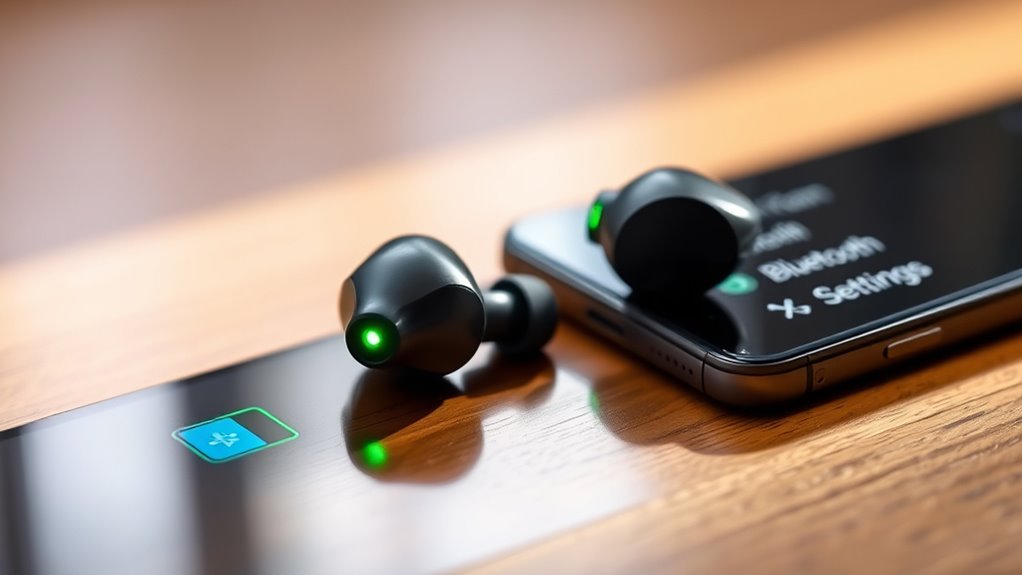

To check your earbud battery, use the LED indicators on the earbuds or charging case. For Apple AirPods, the Battery Widget shows usage, while Samsung Galaxy Buds display battery status upon opening the case. You can also check in your smartphone’s Bluetooth settings for remaining charge. Additionally, third-party apps provide more details on battery health and usage. Keep going to discover tips for optimizing your earbud battery life and troubleshooting common issues.
Understanding Earbud Battery Indicators
When you’re using your earbuds, understanding their battery indicators can be essential for a seamless listening experience. Most earbuds feature LED lights or app notifications that signal battery life. Familiarize yourself with these indicators to avoid unexpected disconnects. The battery lifespan of your earbuds varies based on usage and charging cycles; typically, more cycles can diminish overall capacity. If your earbuds are flashing red, it’s a sign that they need charging soon. Green or blue lights often indicate sufficient battery life. By monitoring these signals, you can plan your listening sessions better, ensuring you’re never left without sound when you need it most. Embracing this knowledge gives you the freedom to enjoy your music without interruptions.
Checking Battery Life on Apple AirPods
To check the battery life on your Apple AirPods, you’ve got a few easy options. You can use the Battery Widget on your device, look at the charging case, or ask Siri for the battery status. Each method provides a quick way to see how much power you have left.
Using Battery Widget
Checking the battery life of your Apple AirPods is a breeze with the Battery Widget feature. This handy tool gives you a clear view of your battery usage, ensuring you’re never caught off guard. Here’s how to customize the widget for easy access:
- Add the Battery Widget: Swipe right on your home screen, scroll to the bottom, and tap “Edit” to add the Battery Widget.
- Select Widget Size: Choose between different sizes to fit your screen layout and display battery percentage.
- Check Battery Levels: Simply tap the widget to view the battery status of both your AirPods and their charging case.
With widget customization, you can make checking your AirPods’ battery life quick and effortless!
Checking Charging Case
If you want to know the battery life of your Apple AirPods, inspecting the charging case is a straightforward method. Start by opening the lid of the case while your AirPods are inside. You’ll see case battery indicators on the front of the charging case. Green means your case is charged, while amber indicates it needs charging. If you remove the AirPods, a pop-up will appear on your connected device, showing the battery levels of both the earbuds and the case. This charging case functionality guarantees you can keep track of your AirPods’ power without hassle. Regularly checking the charging case helps you stay aware of your battery life, giving you the freedom to enjoy your music without interruptions.
Siri Battery Status
Ever wondered how to quickly check the battery status of your AirPods? Using Siri is a breeze! Just activate Siri and ask about your battery life. Here’s how you can do it:
- Say, “Hey Siri, what’s the battery status of my AirPods?”
- Wait for Siri to respond with the current battery percentage.
- You’ll also receive battery notifications for both the left and right AirPods.
This method is perfect when you’re on the go, providing instant updates without needing to check your device. Remember, keeping track of your battery life helps guarantee you’re never caught off guard during your favorite tunes or calls! Enjoy the freedom of wireless listening without worrying about power!
Monitoring Samsung Galaxy Buds Battery Status
To guarantee you’re getting the most out of your Samsung Galaxy Buds, monitoring their battery status is essential. You can easily check the battery life of your Samsung Buds through the charging case. When you open the case near your device, a pop-up will display the battery levels for both the earbuds and the case. Additionally, you can use the Galaxy Wearable app for more detailed Battery Management. This app not only shows the battery percentage but also allows you to customize settings for peak performance. Keeping an eye on your battery status guarantees you won’t be caught off guard during your listening sessions, letting you enjoy your music without interruptions.
Using Your Smartphone to Check Earbud Battery
You can easily check your earbuds’ battery status using your smartphone. By accessing the Bluetooth settings, you can see the remaining charge, and some devices even offer a battery widget for quick access. Additionally, keep an eye on app notifications for updates on your earbuds’ battery life.
Bluetooth Settings Access
Although checking your earbud battery may seem complicated, it can be easily done through your smartphone’s Bluetooth settings. Just follow these steps to access your earbuds’ battery status:
- Confirm Bluetooth permissions are enabled on your smartphone.
- Connect your earbuds to verify device compatibility.
- Open Bluetooth settings to view the battery levels of connected devices.
Once your earbuds are connected, you should see the battery percentage displayed next to their name. This feature might vary depending on your device, so it’s always a good idea to familiarize yourself with your smartphone’s settings. Remember, keeping an eye on your earbud battery can enhance your listening experience, so don’t overlook this essential step!
Battery Widget Feature
While checking your earbud battery through Bluetooth settings is effective, utilizing the battery widget feature on your smartphone can offer an even quicker glance at battery levels. This feature allows you to keep tabs on your earbuds without digging through menus. Most smartphones come with widget customization options, so you can choose a layout that suits your style. Simply add the battery widget to your home screen, and you’ll have a constant battery percentage display for your earbuds at your fingertips. This not only saves time but also helps you stay connected without interruptions. Embrace the freedom of managing your audio experience effortlessly with this handy tool. Stay charged and enjoy your music!
App Notifications Overview
How can you stay on top of your earbud battery levels without constantly checking settings? Utilizing app notification alerts can simplify this process. By adjusting your app notifications settings, you can receive timely updates about your earbuds’ battery status. Here’s how to set it up:
- Enable notifications for your earbud management app.
- Customize alert preferences based on your usage patterns.
- Regularly check for firmware updates, as they can enhance notification features.
With these settings optimized, you’ll effortlessly stay informed about your battery life. Enjoy the freedom of knowing when it’s time to recharge without the hassle of digging through your device’s settings. Let your earbuds enhance your experience, not complicate it!
Third-Party Apps for Battery Monitoring
If you want to keep a close eye on your earbud battery life, third-party apps can be a game changer. These apps offer advanced battery monitoring that goes beyond what your device might provide. They can give you real-time updates on your earbuds’ charge levels, letting you know when it’s time to recharge. You’ll find various options available, from simple battery indicators to more detailed apps that track usage patterns and battery health over time. Popular choices include apps that work seamlessly with both iOS and Android devices, allowing you to stay informed no matter what you’re using. By integrating these third-party apps into your routine, you can enjoy your earbuds without the worry of sudden battery drain.
Tips for Maximizing Earbud Battery Life
To guarantee your earbuds last as long as possible between charges, it’s essential to adopt a few best practices. Implementing these battery optimization techniques can greatly enhance your experience:
- Lower the volume: Keeping your volume at a moderate level can help conserve battery life.
- Turn off when not in use: Switching off your earbuds when you’re done using them prevents unnecessary power drain.
- Limit connection time: Disconnecting from devices when you’re not actively listening can improve battery longevity.
Troubleshooting Battery Issues
Even with the best battery-saving practices, you might still encounter issues with your earbud’s battery performance. Here are some common battery problems and troubleshooting tips to help you regain ideal functionality.
| Common Battery Problems | Troubleshooting Tips |
|---|---|
| Quick battery drain | Check for app interference |
| Earbuds won’t charge | Clean charging ports |
| Inconsistent connection | Reset Bluetooth settings |
| One side louder than the other | Adjust balance settings |
Understanding Earbud Charging Cases
While many users appreciate the convenience of wireless earbuds, understanding their charging cases is essential for maintaining ideal performance. The charging case isn’t just a storage solution; it plays a critical role in guaranteeing your earbuds operate smoothly. Here are a few key aspects to reflect on:
- Charging Case Functionality: Confirm your case has enough power to charge your earbuds effectively.
- Earbud Compatibility Issues: Not all cases work with every earbud model; check compatibility before purchasing.
- Battery Status Indicators: Many cases have lights that show charging status, helping you keep track of power levels.
Regular Maintenance for Longevity
Regular maintenance is key if you want your wireless earbuds to last longer and perform at their best. Start with proper battery care—avoid letting your earbuds fully discharge regularly, as this can shorten their lifespan. Instead, charge them when they drop to around 20%. Clean your earbuds often to prevent dirt and grime from affecting sound quality and battery efficiency. Use a soft, dry cloth to wipe them down. Additionally, store your earbuds in their charging case when not in use to protect them from damage. Follow these longevity tips, and you’ll enjoy extended use and peak performance from your earbuds, giving you the freedom to enjoy your favorite tunes without interruption.
Frequently Asked Questions
Can I Use My Earbuds While Charging Them?
You can’t use your earbuds while they’re charging, as it could affect their battery life and performance. Good charging habits guarantee ideal battery indications, helping you enjoy uninterrupted listening time when they’re fully powered.
Do Earbud Batteries Degrade Over Time?
Yes, earbud batteries do degrade over time. Their lifespan shortens with each charging cycle, leading to reduced performance. To maximize longevity, avoid extreme temperatures and don’t let them fully discharge frequently.
What Should I Do if My Earbuds Won’t Charge?
If your earbuds won’t charge, try a different cable or outlet; about 20% of charging issues stem from faulty connections. Use these troubleshooting tips: clean the charging port and reset the earbuds to restore functionality.
How Long Does It Take to Fully Charge My Earbuds?
Typically, it takes about 1 to 2 hours to fully charge your earbuds, depending on their battery capacity. Make certain you use the right charger to guarantee efficient charging time and peak performance.
Are There Any Safety Concerns With Earbud Batteries?
Yes, there are battery safety concerns. Overcharging can lead to overheating and damage. Always use the manufacturer’s charger to minimize charging risks, ensuring your earbuds last longer and remain safe during use.
