
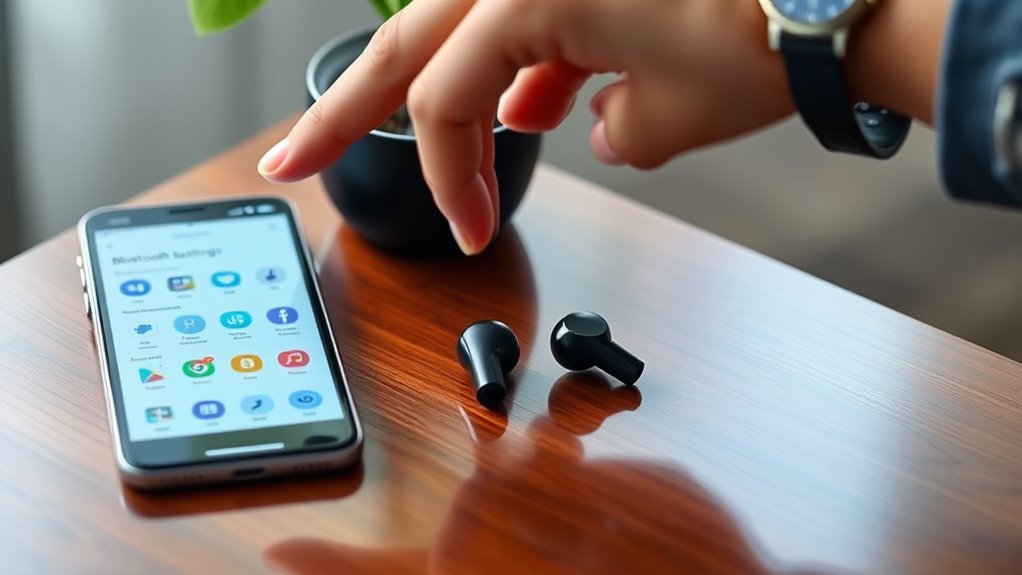

To connect your Miniso earbuds, start by ensuring they’re charged and in pairing mode. On your device, activate Bluetooth in the settings menu. Look for your earbuds in the available devices list and select them to pair. For smartphones, tablets, or laptops, the steps are quite similar. If you encounter any issues, troubleshooting steps can help you resolve them. Discover more tips to optimize your experience with your Miniso earbuds.
Unboxing Your Miniso Earbuds
Unboxing your Miniso earbuds is an exciting first step toward enjoying high-quality sound. As you peel back the packaging, you’ll discover the sleek design and impressive earbud features that make these earbuds stand out. Inside, you’ll find the earbuds securely nestled, along with a charging case, extra ear tips, and a USB cable. The unboxing experience feels premium, giving you a taste of the quality waiting to be explored. Take a moment to appreciate the craftsmanship and attention to detail. These earbuds are built for comfort and performance, ready to elevate your listening experience. You’re one step closer to wireless freedom, ready to plunge into your favorite tunes and podcasts. Enjoy the anticipation; the sound adventure is just beginning!
Preparing Your Device for Connection
Before diving into your music, you’ll need to prepare your device for connection. First, check your device compatibility to verify it supports Bluetooth functionality. Most smartphones, tablets, and laptops are ready to go, but it’s always good to confirm. Next, head to your device’s Bluetooth settings. Open the settings menu, and look for the Bluetooth option, often found under “Connections” or “Wireless & Networks.” Make sure Bluetooth is turned on; if it’s off, you won’t be able to connect your Miniso earbuds. Some devices may require you to set them to “discoverable” mode, allowing your earbuds to find it easily. With these steps completed, you’re set for the pairing process ahead. Enjoy the freedom of wireless listening!
Pairing Miniso Earbuds With Smartphones
Pairing your Miniso earbuds with your smartphone is a straightforward process that takes just a few moments. First, verify your earbuds are charged and in pairing mode; this often involves holding down a button until you see a light flash. Next, on your smartphone, access the Bluetooth settings. Look for your earbuds in the list of available devices. Once you find them, tap to connect. If prompted, confirm any pairing techniques by entering a code or simply accepting the connection. It’s crucial to check for smartphone compatibility; most modern devices will work seamlessly. After successful pairing, you’re ready to enjoy your music or calls without the hassle of wires. Embrace the freedom of wireless audio!
Connecting Miniso Earbuds to Tablets
To connect your Miniso earbuds to a tablet, you’ll first need to prepare your device for pairing. Next, activate the earbuds’ pairing mode so they can be discovered. Finally, finalize the connection by selecting your earbuds from the tablet’s Bluetooth settings.
Preparing Your Tablet
How can you guarantee your tablet is ready to connect to your Miniso earbuds? Start by checking your tablet settings. Confirm Bluetooth is enabled; this is essential for pairing with your earbuds. Next, verify that your device is compatible with the app you’ll be using. Some tablets may require specific apps for peak performance, so it’s worth a quick check. If you haven’t already, update your tablet’s software to the latest version. This not only enhances app compatibility but also improves overall functionality. Finally, make certain your tablet isn’t connected to any other Bluetooth devices, as this can interfere with the connection process. Once these steps are complete, you’ll be all set to connect your Miniso earbuds seamlessly.
Activating Earbuds Pairing
Activate your Miniso earbuds for pairing by pressing and holding the power button until you see a flashing light. This indicates that your earbuds are in pairing mode, ready to connect to your tablet. To guarantee a smooth connection, make sure your tablet’s Bluetooth is turned on and search for available devices. You’ll find the Miniso earbuds listed among the options. When you see them, select them to initiate the pairing process. Keep in mind some earbud features, like auto-reconnect, may vary by model, so check your user manual for specific details. For effective pairing tips, stay within a close range for ideal signal strength. Enjoy your wireless freedom and immerse yourself in your favorite tunes!
Finalizing the Connection
Once your Miniso earbuds are in pairing mode, finalizing the connection to your tablet is straightforward. First, navigate to your tablet’s Bluetooth settings. Make sure Bluetooth is enabled; this guarantees compatibility with your earbuds. Look for the name of your Miniso earbuds in the list of available devices. Tap on it to connect. If prompted, confirm the pairing by selecting “Yes” or entering a code if required.
For final connection tips, verify your tablet is within range and that no other devices are connected to your earbuds. If you encounter issues, toggle Bluetooth off and on again or restart your tablet. Your earbuds should now be ready to use, giving you the freedom to enjoy your favorite audio.
Setting up Miniso Earbuds With Laptops
To set up your Miniso earbuds with your laptop, start by turning them on. Next, activate the Bluetooth feature on your laptop to search for the earbuds. Once connected, test the sound to guarantee everything’s working properly.
Turn On Earbuds
Getting your Miniso earbuds ready to use with your laptop is a straightforward process. First, locate the power button on your earbuds. Press and hold it until you see the LED indicator light up, indicating they’re on.
Here’s a quick guide to help you understand the earbud features and battery life:
| Step | Action | Notes |
|---|---|---|
| 1 | Find the power button | Usually on the right earbud |
| 2 | Press and hold | Hold until the light turns on |
| 3 | Check battery life | Verify they’re charged |
| 4 | Adjust fit | Comfort enhances sound quality |
| 5 | Enjoy your music | Wireless freedom awaits! |
Now you’re all set to connect your Miniso earbuds seamlessly!
Activate Bluetooth on Laptop
Before you can enjoy your music through Miniso earbuds, you’ll need to activate Bluetooth on your laptop. Start by checking your laptop compatibility; most modern laptops have Bluetooth built-in. Click on the Start menu, then navigate to “Settings.” From there, select “Devices” and find “Bluetooth & other devices.” Toggle the Bluetooth switch to “On” if it isn’t already activated. If you don’t see the Bluetooth option, your laptop might not support it, so double-check your specifications. Once Bluetooth is enabled, you’ll be ready to connect your earbuds. This step is essential for a seamless audio experience, allowing you to enjoy your favorite tunes freely and without the hassle of wires.
Connect and Test Sound
Now that Bluetooth is activated on your laptop, you can connect your Miniso earbuds. First, put your earbuds into pairing mode by pressing and holding the power button until the LED light flashes. On your laptop, go to the Bluetooth settings and select your earbuds from the available devices list. Once connected, it’s time for audio testing. Play a song or video to check the sound quality. Make certain the volume is adjusted to your liking, and listen for any distortions or interruptions. If everything sounds good, you’re ready to enjoy your music or calls. If you encounter issues, try disconnecting and reconnecting the earbuds to guarantee a stable connection. Enjoy your wireless freedom!
Troubleshooting Common Connection Issues
When you encounter issues connecting your Miniso earbuds, it can be frustrating, especially if you’re keen to enjoy your favorite tunes. Start by checking for common connection errors. Confirm your earbuds are fully charged and in pairing mode. If they’re not pairing, it might be a device compatibility issue. Verify that your smartphone or laptop supports Bluetooth 5.0 or higher, as older devices can struggle. Try disconnecting other Bluetooth devices nearby, as they can interfere. If problems persist, reset your earbuds by holding the power button until you see a flashing light. Finally, confirm your device’s Bluetooth is turned on and updated. With these steps, you should be back to enjoying your music in no time!
Frequently Asked Questions
Are Miniso Earbuds Compatible With All Bluetooth Devices?
Miniso earbuds generally dance well with most Bluetooth devices, but don’t forget to check compatibility first. Their Bluetooth device range is decent, ensuring you enjoy your favorite tunes without being tethered down.
How Do I Reset My Miniso Earbuds?
To reset your Miniso earbuds, press and hold the power button for about 10 seconds until the indicator light flashes. This factory reset process resolves most issues and helps with earbud troubleshooting tips.
Can I Use Miniso Earbuds While Charging?
You can’t use Miniso earbuds while they’re charging due to usage limitations. For charging safety, it’s best to let them charge fully before using to guarantee peak performance and avoid potential damage.
What Is the Battery Life of Miniso Earbuds?
Miniso earbuds typically offer around 4-5 hours of battery longevity on a single charge, with the case extending it to 20 hours. Charging time is usually about 1.5 hours for a full recharge. Enjoy your listening!
Are Miniso Earbuds Water-Resistant?
Miniso earbuds aren’t water-resistant, so think of them as delicate flowers needing care. Their durability relies on proper maintenance; keep them dry and clean to enjoy your audio freedom without worry of damage.
