
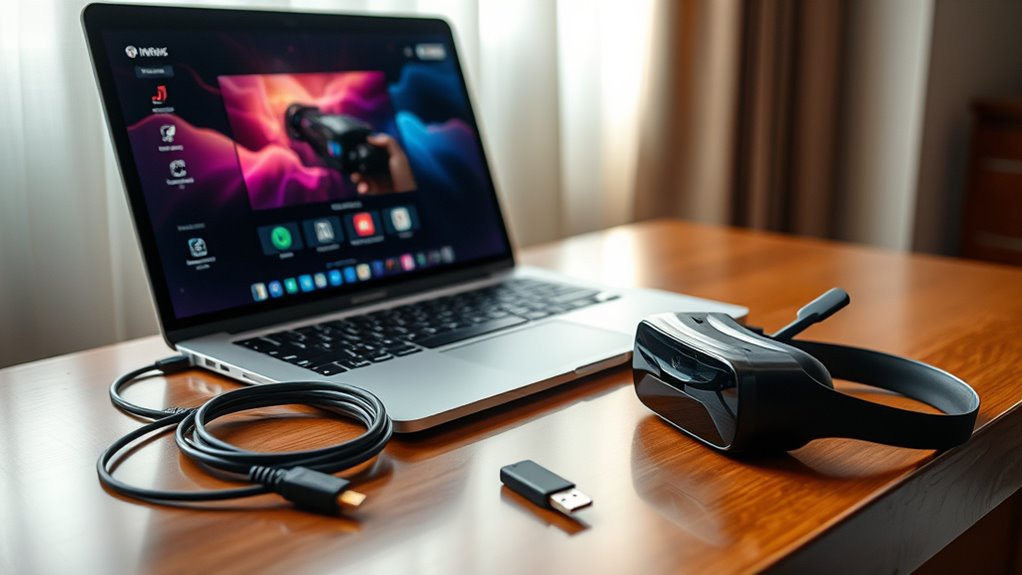

To hook up a VR headset to your laptop, make sure your laptop meets the minimum specifications, including at least an Intel i5 or AMD Ryzen 5 processor and a dedicated GPU like NVIDIA GTX 1060. You’ll need HDMI or DisplayPort cables, USB connectors, and possibly a power adapter. Don’t forget to install the latest graphics drivers and necessary VR software. Want to enhance your setup further? There’s plenty more to explore!
Understanding VR Headset Types
When diving into the world of virtual reality, understanding the different types of VR headsets is essential. You’ll find options ranging from tethered headsets, which connect directly to your laptop, to standalone devices that don’t require any external hardware. Each of these different headset types offers unique experiences, but you’ll need to evaluate headset compatibility factors like resolution, refresh rate, and tracking systems. For example, some headsets work best with specific laptops or graphics cards, while others may have broader compatibility. Knowing these details will help you make an informed choice that aligns with your VR aspirations. So, take the time to explore your options and verify you pick a headset that truly enhances your virtual adventures.
Minimum Laptop Specifications
To fully enjoy the immersive experiences that VR headsets offer, your laptop needs to meet certain minimum specifications. Ensuring your device has the right laptop performance is vital for VR compatibility. Here’s what you should look for:
To fully enjoy VR headsets, your laptop must meet essential performance specifications for an optimal experience.
- Processor: At least an Intel i5 or AMD Ryzen 5 to handle VR applications efficiently.
- RAM: A minimum of 8GB is essential for smooth multitasking and performance.
- Graphics Card: A dedicated GPU like NVIDIA GTX 1060 or AMD equivalent is necessary for rendering high-quality graphics.
Meeting these specs will help you avoid lag and glitches, allowing you to immerse yourself in virtual worlds seamlessly. Don’t skimp on these requirements; they’re key to accessing your VR experience!
Recommended Graphics Card
Choosing the right graphics card is essential for an ideal VR experience, as it directly impacts your visual performance and immersion. For a smooth and responsive VR experience, consider brands like NVIDIA and AMD, known for their excellent graphics performance. Models such as the NVIDIA GeForce RTX 3060 or the AMD Radeon RX 6700 XT are highly recommended, as they can handle demanding VR applications with ease. Look for cards that offer at least 6GB of VRAM to guarantee you can run the latest VR games without hiccups. Investing in a powerful graphics card not only enhances your gaming experience but also gives you the freedom to explore virtual environments without limitations. Get ready to plunge into the immersive domain of VR!
Necessary Cables and Connectors
Connecting your VR headset to your laptop requires the right cables and connectors to guarantee a seamless experience. Understanding the various cable types and connection standards is vital for peak performance. Here’s what you’ll need:
Connecting your VR headset to your laptop demands the right cables and connectors for an optimal experience.
- HDMI or DisplayPort cable: Most VR headsets use one of these for video output.
- USB cables: These are essential for data transfer and tracking sensors, typically USB-A or USB-C.
- Power adapter: Some headsets may need an external power source for full functionality.
Make sure to check your laptop’s ports to verify compatibility with these cables. Investing in high-quality connectors will enhance your VR experience, allowing you to fully immerse yourself in the virtual world without interruptions.
Software Installation Requirements
To get your VR headset up and running, you’ll need to verify your laptop’s operating system meets the requirements. You’ll also need to install specific VR software platforms and update your drivers for peak performance. Let’s break down what you’ll need to make your VR experience seamless.
Required Operating System
While many VR headsets are compatible with various operating systems, it’s crucial to verify your laptop meets the specific software installation requirements for the headset you plan to use. Here are key points to reflect on regarding operating system compatibility:
- Supported Versions: Check if your OS is on the manufacturer’s list of supported versions.
- Updates: Confirm your operating system is fully updated to avoid compatibility issues.
- Drivers: Install the latest drivers for your graphics card to enhance VR performance.
VR Software Platforms
Before diving into the virtual world, you’ll need to confirm that you have the right VR software platforms installed on your laptop. Start by checking the VR software compatibility with your headset; not all platforms support every device. Popular options like SteamVR, Oculus, and Windows Mixed Reality each offer unique VR platform features that enhance your experience. Make sure to download the latest versions and any necessary applications to optimize performance. You’ll also want to verify your laptop meets the minimum system requirements for each platform, as this can affect gameplay and visual quality. Once everything’s set up, you’re free to explore immersive worlds without technical hitches holding you back. Get ready to lose yourself in the adventure!
Drivers and Updates
Having the right VR software platforms is just the beginning; ensuring your drivers and software are up to date is essential for peak performance. Outdated drivers can lead to compatibility issues, so regular updates are key. Here’s what you should focus on:
- Driver Compatibility: Make sure your laptop’s graphics drivers are compatible with your VR headset.
- Update Frequency: Check for updates regularly to keep everything running smoothly; aim for at least once a month.
- Software Version: Always run the latest software versions for your VR applications for optimal functionality.
Setting Up Your VR Environment
To get the most out of your VR experience, you’ll need to set up your environment properly. Start by ensuring you have the required hardware components and arrange your space effectively for movement. Once that’s done, follow the software installation steps to get everything running smoothly.
Required Hardware Components
Setting up your virtual reality environment requires a few essential hardware components to secure a superior experience. First, confirm your laptop has VR headset compatibility, as not all systems can support the immersive technology. Next, consider your cable management; tangled wires can be a hassle and disrupt your freedom of movement.
Here’s what you need:
- A powerful laptop with a dedicated GPU for smooth performance.
- USB ports to connect your VR headset and sensors.
- HDMI or DisplayPort for the visual connection to your headset.
Optimal Space Arrangement
As you prepare to plunge into your virtual reality experience, ensuring an ideal space arrangement is essential for both safety and enjoyment. Start by designating a clear area, aiming for a prime room layout that allows for free movement. Remove any obstacles, like furniture or decor, that could cause accidents. Effective space utilization is key—try to create a play area of at least 6.5 feet by 6.5 feet. If you’re using a room-scale VR system, make sure your headset can track your movements without obstructions. You might also want to think about using a mat or visual markers to define your space, helping you stay grounded in the real world while immersing yourself in the virtual one.
Software Installation Steps
Before diving into the virtual world, you’ll need to install the necessary software to create your VR environment. Start by conducting software compatibility checks to verify your laptop meets the requirements. Here’s how to set things up smoothly:
- Download the VR platform software from the official website.
- Follow the installation prompts carefully, and keep an eye out for any installation troubleshooting tips that pop up.
- Restart your laptop after installation to finalize the setup.
Once everything’s installed, connect your VR headset and run a test to confirm everything’s working. Embrace your newfound freedom in the virtual domain, and don’t hesitate to refer back to troubleshooting guides if you encounter any hiccups along the way!
Additional Accessories for Enhanced Experience
Wondering how to take your VR experience to the next level? Adding the right VR accessories can transform your time in virtual worlds. Consider investing in high-quality headphones for immersive audio, ensuring you feel every sound around you. Motion controllers can give you more freedom in your movements, making interactions feel more natural. A comfortable VR mat can enhance spatial awareness and keep you grounded.
Here’s a quick comparison of essential accessories:
| Accessory | Benefits |
|---|---|
| High-Quality Headphones | Immersive audio experience |
| Motion Controllers | Enhanced movement freedom |
| VR Mat | Improved spatial awareness |
| VR Gloves | Realistic touch interactions |
| Cable Management Clips | Organized setup and safety |
With these additions, you’ll elevate your VR adventures!
Troubleshooting Common Connection Issues
If you’re experiencing connection issues with your VR headset, you’re not alone, and resolving them can be simpler than you might think. Start with these key steps for effective connection troubleshooting:
- Check headset compatibility: Verify your headset is compatible with your laptop’s specifications.
- Inspect cables and ports: Look for damage or loose connections in the cables or ports; a faulty cable can be the culprit.
- Update drivers: Make certain your graphics and USB drivers are up to date, as outdated software can lead to connectivity problems.
Frequently Asked Questions
Can I Use a VR Headset With a Mac Laptop?
Yes, you can use a VR headset with a Mac laptop, but watch for compatibility issues and performance limitations. It might feel like trying to run a marathon in flip-flops—challenging, but not impossible.
What Is the Average Cost of a VR Headset?
The average cost of a VR headset ranges from $300 for budget options to over $1,000 for high-end models with advanced VR features. You’ll find something that suits your style and needs without breaking the bank.
Do I Need a Gaming Laptop for VR?
You don’t necessarily need a gaming laptop for VR, but it helps. Make certain your laptop meets the performance requirements and has proper compatibility to enjoy a smooth virtual reality experience without limitations.
Can I Use Wireless VR Headsets With My Laptop?
Yes, you can use wireless VR headsets with your laptop, as long as your laptop meets the necessary requirements for wireless compatibility. Make certain your hardware supports the headset’s specifications for best performance and experience.
How Do I Clean My VR Headset Lenses?
Cleaning your VR headset lenses isn’t just maintenance; it’s essential for clarity. Use a microfiber cloth and gentle lens cleaning solution. Avoid paper towels or rough fabrics—you’ll preserve the freedom of your immersive experience.
