
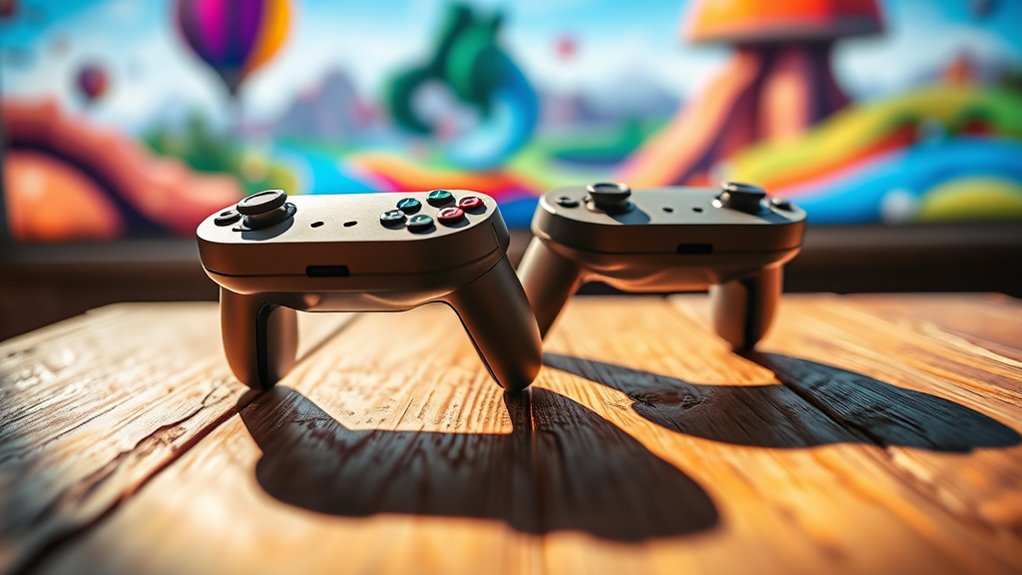

To use VR controllers without a headset, connect them to your device via Bluetooth or USB. Make sure to check compatibility with your hardware and software. Once connected, explore interactive applications like virtual tourism or educational simulations that don’t require a headset. Focus on proper calibration and button mapping to enhance performance. Engage with immersive gaming experiences and optimize settings for better control. For more tips on maximizing your VR controller experience, continue exploring the details.
Understanding VR Controllers
Virtual Reality (VR) controllers are essential tools that enhance your immersive experience by allowing you to interact with digital environments. Understanding controller ergonomics is crucial for optimizing comfort and efficiency. These controllers are designed to fit naturally in your hands, enabling intuitive interaction methods like pointing, grabbing, and swiping. You’ll find that the placement of buttons and triggers is strategically designed to minimize strain during prolonged use. By familiarizing yourself with these features, you can maximize your control over the virtual world. Experiment with different configurations and settings to find what feels most comfortable for you. This will not only improve your gameplay but also enhance your overall experience, giving you the freedom to explore and engage with digital content seamlessly.
Setting Up Your VR Controllers
Before diving into your immersive experience, it’s essential to properly set up your VR controllers to guarantee peak performance and responsiveness. Start by employing effective controller calibration techniques, which assure your controllers accurately reflect your movements. You can typically access calibration settings through your device’s VR menu. Adjust sensitivity and tracking to suit your preferences for more natural interactions.
Next, focus on optimizing button mapping. Tailor the button functions to your play style, allowing for quick access to essential controls. This customization can enhance your overall experience, making it feel more intuitive. Remember, taking the time to fine-tune these settings not only boosts your performance but also empowers you to explore your virtual environment freely and comfortably.
Connecting VR Controllers to Your Device
To connect your VR controllers to your device, you first need to check compatibility, as not all controllers work with every system. Once you confirm compatibility, you can choose from various connection methods, such as Bluetooth or USB, depending on your device’s capabilities. Understanding these options will guarantee a smooth setup process for your VR experience.
Compatible Devices Overview
When connecting VR controllers to your device, it is crucial to guarantee compatibility with the specific hardware and software requirements. You’ll need to take into account various controller types, such as motion controllers or gamepads, to make certain they function seamlessly with your device. Check the manufacturer’s specifications for both the controllers and your device to confirm device compatibility. For instance, some controllers may work with PCs but not with mobile devices, while others may require specific operating system versions. Additionally, be mindful of any required drivers or software updates to enhance compatibility. Understanding these aspects will empower you to maximize your VR experience without a headset, allowing you to explore the virtual domain freely and effectively.
Connection Methods Explained
Although connecting VR controllers to your device might seem straightforward, it’s important to understand the different methods available to guarantee a successful pairing. Here are three primary connection methods you can use:
- Bluetooth: Most controllers connect wirelessly via Bluetooth. Enable Bluetooth on your device, put your controller in pairing mode, and select it from the list of available devices.
- USB Connection: For those who prefer a wired setup, connecting your controller directly with a USB cable ensures low latency and stable performance.
- Alternative Input Methods: Consider using third-party applications that allow for controller customization, enabling you to tailor the experience to your preferences.
Choosing the right method can enhance your experience, offering greater flexibility and control without the need for a headset.
Exploring VR Applications Without a Headset
While traditional virtual reality often relies on headsets to create immersive experiences, you can still explore various VR applications using controllers alone. These applications enable you to engage in interactive simulations, allowing for remote collaboration and facilitating training scenarios. You’ll find educational tools that enhance your learning experience, as well as platforms for social interactions where you can connect with others in a virtual space. Additionally, virtual tourism experiences let you navigate famous landmarks and destinations without the need for a headset. By utilizing your VR controllers, you can access a diverse range of content that expands your horizons and offers freedom in how you engage with virtual environments, all while maintaining your comfort and convenience.
Using VR Controllers for Gaming
Using VR controllers for gaming opens up a world of interactive possibilities, allowing you to engage in experiences that traditional gaming setups can’t match. To maximize your gaming experience, consider the following:
Using VR controllers transforms gaming into an immersive experience, surpassing the limitations of traditional setups.
- Controller Compatibility: Confirm your VR controllers are compatible with the games you want to play. Some titles may require specific controllers for peak performance.
- Game Selection: Choose games that leverage VR capabilities. Look for titles designed for immersive interaction, enhancing your gameplay.
- Setup and Calibration: Properly set up your controllers for precise tracking and responsiveness. Calibration is essential to avoid lag and guarantee fluid gameplay.
Engaging in Creative Projects
Engaging in creative projects with VR controllers can transform your artistic expression by allowing you to interact with digital environments in unprecedented ways. You can create 3D sculptures, paint in space, or design intricate models, all with intuitive gestures. Use your controllers to manipulate virtual objects precisely, enabling seamless creative collaborations with others in real-time. Experiment with various applications that support collaborative features, allowing you to co-create with artists worldwide. These tools empower you to explore your imagination freely, breaking conventional boundaries of art. Whether you’re sketching, animating, or composing music, VR controllers enable a unique blend of tactile feedback and visual engagement, fostering a rich landscape for your artistic expression. Embrace this technology and release your creativity.
Navigating Virtual Environments
Maneuvering virtual environments with VR controllers offers a seamless way to explore digital landscapes and interact with virtual objects. To enhance your immersive experiences exploration, you can employ various virtual navigation techniques:
- Point and Click: Use your controller to point at objects and click to interact, allowing for intuitive engagement with the environment.
- Teleportation: Quickly move from one location to another by selecting a spot in the virtual space, providing freedom of movement without disorientation.
- Gesture Control: Utilize hand movements to manipulate objects or navigate menus, creating a more natural interaction that mimics real-life actions.
Utilizing VR Controllers for Fitness
Incorporating VR controllers into your fitness routine can revolutionize how you approach workouts, offering a unique blend of fun and exercise. Use the controllers to track your movements and engage in virtual workouts that simulate real-world activities like boxing, dancing, or yoga. Begin by selecting an appropriate fitness application that supports controller use, then calibrate your space to guarantee you have enough room to move freely. Focus on maintaining proper form to maximize effectiveness and reduce injury risk. Adjust the intensity of your virtual workouts to match your fitness level, gradually increasing difficulty as you progress. Embrace the freedom VR provides to customize your fitness experience, keeping you motivated and engaged as you explore new routines and challenges.
Experimenting With VR Controller Features
Exploring the various features of VR controllers can greatly enhance your immersive experience. By experimenting with these functionalities, you can reveal new levels of interaction. Here are three essential features to focus on:
- Gesture Recognition: Utilize hand movements for intuitive control. Practice different gestures to see how they correspond with in-game actions, allowing for a more natural experience.
- Haptic Feedback: Pay attention to the controller’s vibrations. This tactile response can provide vital information about interactions, deepening your sense of presence within the virtual environment.
- Customizable Buttons: Explore the settings to remap buttons according to your preferences. This customization can streamline your gameplay, making it more enjoyable and tailored to your unique style.
Dive in and enjoy the freedom these features offer!
Troubleshooting Common Issues
While mastering the features of VR controllers can enhance your experience, it’s not uncommon to encounter issues that can disrupt gameplay. If your controller isn’t responding, start by checking the battery level. Low batteries can lead to erratic performance. Next, verify proper controller calibration; navigate to your system settings and follow the calibration instructions specific to your device. If the buttons aren’t functioning as expected, review your button mapping settings. Incorrect mappings can cause confusion during gameplay. You can often reset these to default settings within the software. Finally, make sure the controllers are within range of any paired devices; distance can impact connectivity. By following these steps, you can troubleshoot effectively and regain control over your VR experience.
Frequently Asked Questions
Can I Use VR Controllers With Non-Vr Games?
Yes, you can use VR controllers with non-VR games if they’re compatible. Check the controller’s software for non-VR functionality and adjust settings accordingly to enhance your gaming experience, enjoying the freedom of alternative controls.
What Are the Battery Life Expectations for VR Controllers?
Imagine your favorite car’s fuel efficiency; VR controllers typically last 20 to 30 hours, depending on battery types and usage patterns. Rechargeable batteries can extend playtime, providing freedom to explore without frequent interruptions.
Are There Specific VR Controllers for Different Devices?
Yes, there’re specific VR controllers for different devices. Verify you check device compatibility before purchasing, as controller types vary widely. For peak performance, use controllers designed specifically for your VR system, enhancing your immersive experience.
How Do I Clean and Maintain My VR Controllers?
A clean controller’s a happy controller. For maintenance, regularly wipe surfaces with a microfiber cloth, avoid harsh chemicals, and make certain battery contacts are free from dirt. These controller cleaning tips will enhance your gaming experience considerably.
Can VR Controllers Be Used for Productivity Applications?
Yes, VR controllers can enhance productivity using VR productivity tools. However, you might encounter controller compatibility issues depending on the software. Verify your controllers support the specific applications to maximize your efficiency and user experience.
