
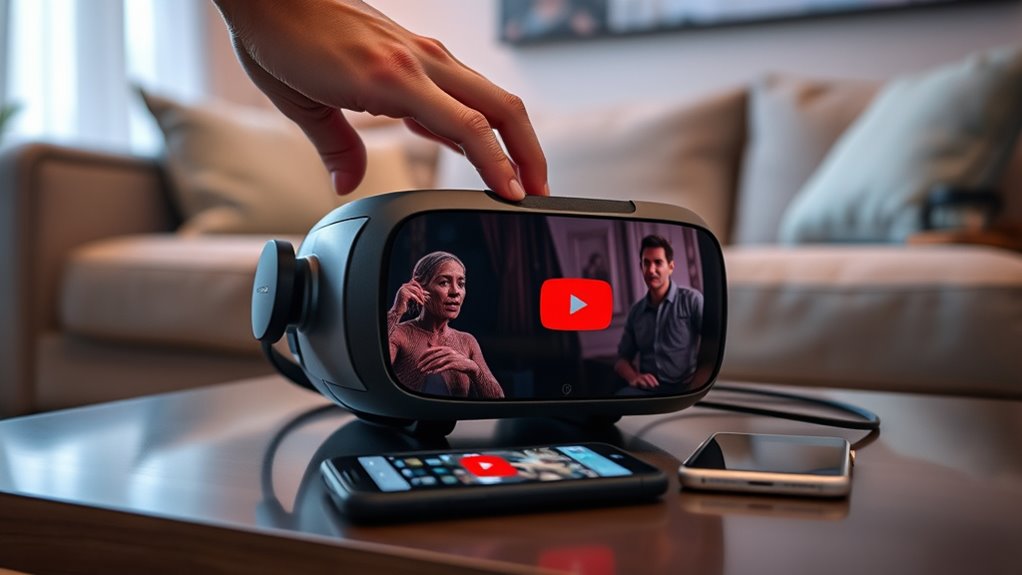

To watch YouTube on a VR headset, first, choose a compatible headset that fits your needs. Next, install the YouTube app from the device’s app store and connect to Wi-Fi. Once installed, navigate the immersive interface to select videos and explore 360-degree content. Adjust the settings for a personalized experience and make sure your headset fits comfortably. If you want to learn tips for enhancing your viewing pleasure, there’s more to discover.
Choosing the Right VR Headset
When you’re diving into the world of virtual reality, choosing the right VR headset can feel overwhelming, especially with so many options available. First, consider PC compatibility; some headsets require a powerful gaming rig, while others can operate independently. If you’re looking for mobile options, there are affordable headsets that work with your smartphone, providing a more accessible entry point. Budget considerations are essential too—set a range to avoid overspending, but don’t compromise on quality. Finally, brand comparisons play a key role; popular brands often offer superior support and software. By weighing these factors, you can find a headset that truly enhances your freedom to explore immersive YouTube content without breaking the bank.
Installing the YouTube App
Installing the YouTube app on your VR headset is a straightforward process that opens the door to a vast array of immersive content. First, make sure your headset is powered on and connected to Wi-Fi. Navigate to the app store specific to your device, whether it’s Oculus, HTC Vive, or another brand. Search for “YouTube” and select the app. You’ll see an option for installing; click that, and the app will download. Once installed, you may need to grant permissions for ideal VR compatibility. It’s that simple! With the YouTube app, you can plunge into countless videos, explore 360-degree content, and enjoy a fully immersive viewing experience. Now you’re ready to discover a new dimension of entertainment!
Navigating the VR YouTube Interface
How do you make the most of the YouTube experience in virtual reality? Steering the VR YouTube interface is essential for enjoying your favorite content fully. Here are some VR steering tips to help you:
| Action | Gesture | Outcome |
|---|---|---|
| Select a video | Point and click | Opens video in full screen |
| Access menu | Look at the menu icon | Displays options |
| Search for content | Use voice command or keyboard | Finds videos quickly |
| Adjust settings | Steer to the settings icon | Customizes your experience |
| Exit VR mode | Press the home button | Returns to the main menu |
With these interface features, you’ll glide through content effortlessly, making your virtual journey enjoyable and liberating.
Discovering 360-Degree Videos
While diving into the world of YouTube on your VR headset, you’ll discover an incredible selection of 360-degree videos that immerse you in experiences like never before. These videos offer a unique opportunity for 360 video exploration, allowing you to look around and absorb every detail of your surroundings. From breathtaking landscapes to thrilling adventures, immersive storytelling transports you to places you’ve only dreamed of. You can go underwater with vibrant marine life or soar above majestic mountain ranges, all from the comfort of your home. This interactive format brings a sense of freedom, enabling you to dictate your view and engage with the content like never before. So, strap on your headset and get ready to explore!
Tips for an Enhanced Viewing Experience
After exploring the enchanting domain of 360-degree videos, you’ll want to make the most of your VR viewing experience. Start by adjusting your headset for comfort; a snug fit enhances immersion. Seek out content that showcases immersive storytelling, drawing you into enthralling narratives that feel almost real. Don’t forget to explore social viewing options, letting you share experiences with friends and family in virtual spaces. Experiment with different video settings to find what’s visually stimulating for you. Finally, take breaks to avoid fatigue; a refreshed mind enhances your enjoyment. By following these tips, you’ll elevate your VR experience, diving deeper into the limitless domains of YouTube’s virtual universe. Embrace the freedom that comes with this exciting technology!
Frequently Asked Questions
Can I Watch Youtube Without a VR Headset?
Absolutely, you can watch YouTube without a VR headset. In fact, over 2 billion users enjoy non-VR viewing. Explore YouTube alternatives like Vimeo or Dailymotion for diverse content, expanding your viewing freedom even more!
Is a Stable Internet Connection Necessary for VR Youtube?
Yes, a stable internet connection’s essential for streaming VR YouTube. With high internet speed and connection stability, you’ll enjoy smoother experiences, reducing buffering and enhancing immersion, so you can fully engage in your virtual adventures.
Can I Use My Smartphone as a VR Headset?
Imagine your smartphone as a magic portal to new worlds. Yes, you can use it as a VR headset! Just verify smartphone compatibility and download VR apps to explore immersive experiences beyond your wildest dreams.
Are There Any Age Restrictions for Using Youtube in VR?
Yes, there are age guidelines for YouTube in VR. Users under 13 need parental controls set up. Make sure to review these options to guarantee a safe and enjoyable experience while exploring content in virtual reality.
How Do I Report Inappropriate Content on VR Youtube?
To report inappropriate content on VR YouTube, you’ll need to follow the reporting procedures. Just click on the three dots next to the video, select “Report,” and choose the reason. Your voice matters!
