

Connecting your Sonos speaker to your TV is straightforward and can enhance your audio experience significantly. By following a few simple steps, you can enjoy richer sound from your favorite movies and shows. In this guide, you’ll learn how to set up your Sonos system with your television quickly and efficiently, whether through HDMI ARC or optical audio cables.
Understanding Sonos Connection Options
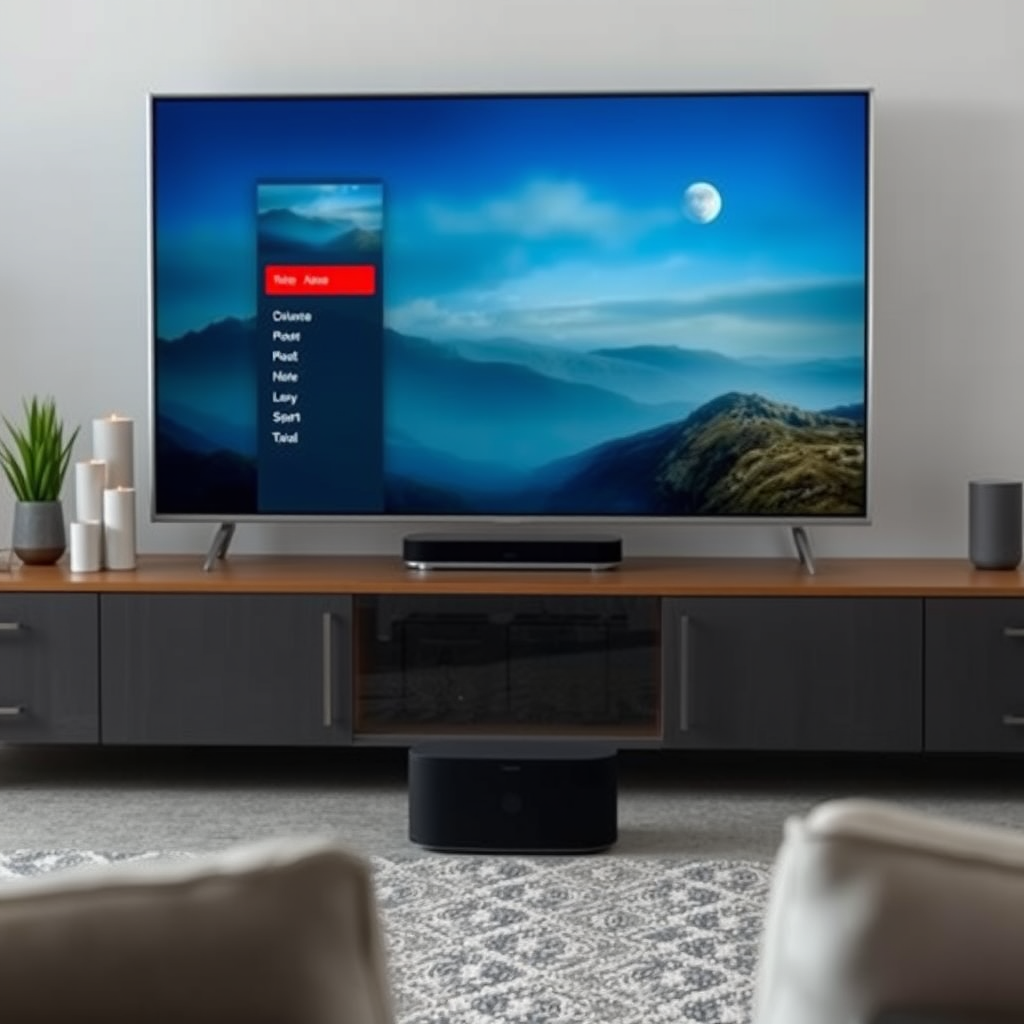
When it comes to connecting your Sonos speaker to your TV, there are primarily two main options to consider: HDMI ARC and optical audio cables. Understanding these options is essential for ensuring the best audio quality and compatibility with your devices.
– HDMI ARC: Many Sonos speakers, such as the Sonos Arc and Sonos Beam, feature HDMI ARC (Audio Return Channel) ports. This connection method allows for high-quality audio transmission and simplifies the setup by enabling control of the speaker through your TV remote. HDMI ARC can transmit multi-channel audio formats, including Dolby Atmos, providing an immersive sound experience.
– Optical Audio Cable: If your television does not support HDMI ARC, using an optical audio cable is a reliable alternative. Optical connections transmit digital audio signals and can handle high-fidelity audio, although they do not support advanced formats like Dolby Atmos. This method is often found on older TVs, making it a viable option for many users.
Setting Up Sonos with HDMI ARC
Connecting your Sonos speaker using HDMI ARC is one of the most efficient methods to enjoy high-quality sound. Here’s how to do it:
– Locate the HDMI ARC Port: Most modern televisions have an HDMI port labeled as ARC (Audio Return Channel). This port is typically found among the HDMI inputs on the back or side of your TV. Consult your TV’s manual if you’re having trouble locating it.
– Connect the Sonos Speaker: Once you’ve identified the HDMI ARC port, take a high-speed HDMI cable and connect one end to the HDMI ARC port on your TV. Connect the other end to your Sonos speaker.
– Power On: Ensure both your TV and Sonos speaker are turned on. You may need to adjust some settings on your TV to ensure it recognizes the Sonos speaker as the audio output device.
Using Optical Audio Cables
If your Sonos speaker does not have an HDMI input, or if your TV lacks HDMI ARC, you can connect using an optical audio cable. Follow these steps:
– Get the Right Adapter: Ensure you have an optical audio adapter if necessary. Some Sonos speakers, like the Sonos Playbar, require an adapter to connect via optical audio.
– Make the Connection: Plug one end of the optical cable into the optical audio output on your TV. Connect the other end to the optical input on your Sonos speaker. Ensure the connections are secure to avoid audio issues.
– Check Compatibility: Some older TVs may require settings adjustments to ensure the audio is transmitted via the optical output. Check your TV’s audio settings to ensure the optical output is enabled.
Configuring Your TV Settings
After connecting your Sonos speaker to your TV, you will need to configure the audio settings to optimize your listening experience:
– Select Audio Output: Navigate to your TV’s audio settings and select the output option. Ensure that it is set to the correct Sonos device you have connected.
– Adjust Sound Settings: Depending on your Sonos speaker model, you may have access to various audio settings, such as enabling Dolby Digital or adjusting sound modes. Optimizing these settings can enhance your overall audio experience, especially for movies and music.
Using the Sonos App for Setup
The Sonos app is an invaluable tool for managing your audio experience, making the setup process much smoother.
– Download the App: First, download the Sonos app on your smartphone or tablet from the App Store or Google Play Store.
– Follow the In-App Instructions: Once installed, open the app and follow the on-screen instructions. The app will guide you through connecting your Sonos speaker to your TV and configuring audio settings. This can include setting up voice control features, adjusting EQ settings, and managing multi-room audio.
Troubleshooting Connection Issues
If you encounter issues connecting your Sonos speaker to your TV, consider the following troubleshooting steps:
– Check All Connections: Ensure that all cables are securely connected. Loose cables can lead to audio dropouts or no sound at all.
– Firmware Updates: Both your TV and Sonos speaker may require firmware updates for optimal performance. Check for updates in your TV’s settings menu and through the Sonos app to ensure compatibility and improved functionality.
– Restart Devices: Sometimes, a simple restart of both the TV and Sonos speaker can resolve connectivity issues.
Enhancing Your Sonos Experience
Once your Sonos speaker is connected to your TV, there are several ways to enhance your audio experience further:
– Multi-Room Setup: Consider adding more Sonos speakers throughout your home. This allows you to create a multi-room audio system where you can play music in different rooms simultaneously, providing an immersive experience.
– Voice Control Integration: Many Sonos devices support voice control through platforms like Amazon Alexa or Google Assistant. Setting this up allows for hands-free operation, letting you control your audio experience with simple voice commands.
📋 MANDATORY DATA TABLE
Top Sonos Speakers for TV Connection (2024)
| # | Speaker Model | Connection Type | Audio Format Support | Rating |
|---|---|---|---|---|
| 1 | Sonos Arc | HDMI ARC | Dolby Atmos, Dolby Digital | ★★★★☆ |
| 2 | Sonos Beam | HDMI ARC | Dolby Digital | ★★★★☆ |
| 3 | Sonos Playbar | Optical Cable | Dolby Digital | ★★★★☆ |
| 4 | Sonos One | Optical Cable | Stereo | ★★★★☆ |
| 5 | Sonos Five | Optical Cable | Stereo | ★★★★☆ |
| 6 | Sonos Sub | HDMI ARC | Stereo | ★★★★☆ |
| 7 | Sonos Roam | Bluetooth, Optical | Stereo | ★★★★☆ |
By following these steps, you can successfully connect your Sonos speaker to your TV and elevate your audio experience. Enjoy your favorite shows with the immersive sound quality Sonos provides, and don’t hesitate to explore additional features to enhance your setup even further. Whether it’s optimizing audio settings through the app or integrating voice control, each addition can significantly enhance your home entertainment system.
Frequently Asked Questions
How do I connect my Sonos speaker to my TV?
To connect your Sonos speaker to your TV, you can use the HDMI ARC port on your TV and connect it to the Sonos device using an HDMI cable. Alternatively, if your Sonos speaker supports optical input, you can use an optical cable from your TV to your Sonos. Ensure that your TV’s audio output is set to the appropriate setting for the connection you choose.
What type of Sonos speaker is best for connecting to my TV?
The Sonos Arc and Sonos Beam are the best options for connecting to your TV due to their built-in surround sound capabilities and HDMI ARC compatibility. These models can enhance your viewing experience with rich audio and integrate seamlessly with your home theater setup, making them ideal choices for TV connection.
Why isn’t my Sonos speaker producing sound when connected to my TV?
If your Sonos speaker isn’t producing sound when connected to your TV, check the audio output settings on your TV to ensure they are directed to the Sonos device. Additionally, verify that all cables are securely connected and that the Sonos app is configured correctly. Sometimes, a simple restart of both the TV and the Sonos speaker can resolve the issue.
How can I enhance the audio experience when connecting my Sonos to my TV?
To enhance your audio experience when connecting your Sonos to your TV, consider using a Sonos subwoofer for deep bass and surround speakers for a more immersive sound environment. Additionally, adjusting the EQ settings in the Sonos app can help tailor the sound to your preferences, allowing you to enjoy movies and shows with superior audio quality.
Which apps or services can I use with my Sonos speaker when connected to my TV?
When your Sonos speaker is connected to your TV, you can use popular streaming apps like Netflix, Hulu, and Amazon Prime Video for an enhanced audio experience. Many of these apps support surround sound formats that can be played through your Sonos system, providing you with rich and dynamic sound while watching your favorite shows and movies.
References
- Sonos
https://en.wikipedia.org/wiki/Sonos - https://www.pcmag.com/how-to/how-to-connect-sonos-to-your-tv
https://www.pcmag.com/how-to/how-to-connect-sonos-to-your-tv - Google Scholar Google Scholar
https://scholar.google.com/scholar?q=connect+Sonos+to+TV - Google Scholar Google Scholar
https://scholar.google.com/scholar?q=Sonos+TV+setup - Google Scholar Google Scholar
https://scholar.google.com/scholar?q=Sonos+audio+system+TV+connection - Google Scholar Google Scholar
https://scholar.google.com/scholar?q=how+can+i+connect+my+sonos+to+my+tv - how can i connect my sonos to my tv – Search results
https://en.wikipedia.org/wiki/Special:Search?search=how+can+i+connect+my+sonos+to+my+tv - https://www.ncbi.nlm.nih.gov/search/research-articles/?term=how+can+i+connect+my+sonos+to+my+tv
https://www.ncbi.nlm.nih.gov/search/research-articles/?term=how+can+i+connect+my+sonos+to+my+tv
