

Connecting your phone to a Vizio TV is definitely possible, and it can enhance your viewing experience by allowing you to stream videos, photos, and more directly from your mobile device. With various methods available, including wireless options like SmartCast and wired connections such as HDMI, you can easily enjoy your favorite content on a larger screen. This guide will walk you through the different methods to connect your phone to your Vizio TV, ensuring you maximize your home entertainment setup.
Understanding Vizio TV Connectivity Options
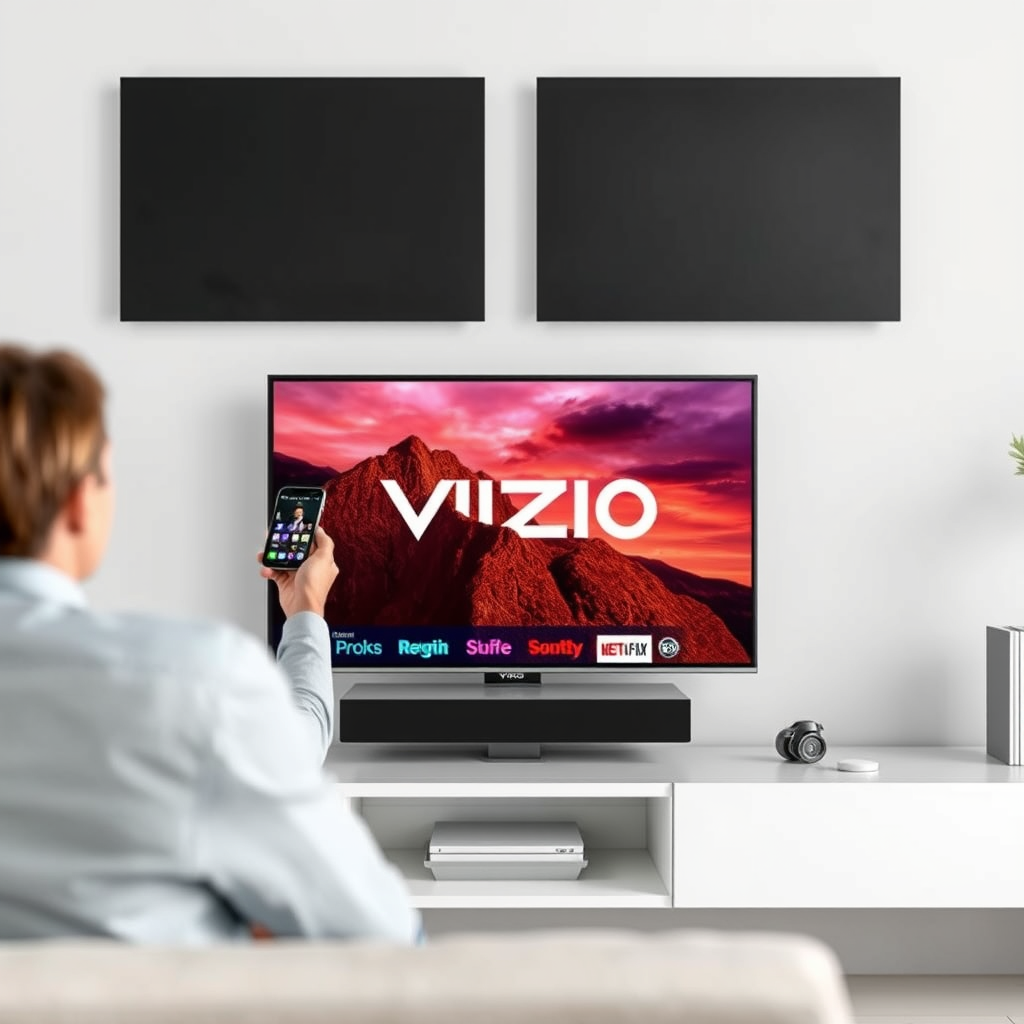
Vizio TVs are designed with versatility in mind, supporting a range of connectivity options to cater to different user preferences. Typically, these include Wi-Fi, Bluetooth, and HDMI ports. Understanding these options is crucial for selecting the best method for your connection.
1. Wi-Fi: Most Vizio Smart TVs come equipped with Wi-Fi capabilities, allowing for wireless streaming and casting from mobile devices.
2. Bluetooth: Some models may support Bluetooth, providing an easy way to connect your phone without the need for cables.
3. HDMI: For those who prefer a wired connection, HDMI ports allow for high-quality audio and video streaming from your phone.
Knowing the specific model of your Vizio TV can guide you in choosing the ideal connection method, as features and capabilities may vary across models.
Using SmartCast for Wireless Connection
SmartCast is Vizio’s proprietary technology that facilitates seamless streaming from mobile devices to Vizio TVs. This innovative platform allows users to cast content directly from their phones to the TV screen, providing a user-friendly experience. To utilize SmartCast, follow these steps:
1. Download the SmartCast App: Ensure you have the SmartCast app installed on your mobile device, available on both iOS and Android platforms.
2. Connect to the Same Wi-Fi Network: For SmartCast to work effectively, both your Vizio TV and your mobile device must be connected to the same Wi-Fi network.
3. Launch the App: Open the SmartCast app on your phone, and select the media you wish to stream.
4. Select Your TV: Tap on the TV icon within the app to establish a connection to your Vizio TV.
Once connected, you can start streaming content from popular services like Netflix, YouTube, and Hulu directly to your TV, enhancing your viewing experience significantly.
Connecting via HDMI Cable
For users who prefer a direct connection, using an HDMI cable is an excellent choice. This method is particularly beneficial for streaming high-quality video and audio without the risk of lag or buffering. Here’s how to connect your phone to your Vizio TV using an HDMI cable:
1. Check Compatibility: Ensure your phone has a compatible HDMI output. Most smartphones require a special adapter (like a Lightning to HDMI for iPhones or a USB-C to HDMI for many Android devices).
2. Connect the HDMI Cable: Plug one end of the HDMI cable into your Vizio TV and the other end into the adapter connected to your phone.
3. Select the Input Source: Turn on your Vizio TV and use the remote to select the correct HDMI input source.
4. Start Streaming: Once connected, your phone’s display should mirror on the TV screen, allowing you to stream videos, games, or presentations easily.
This method guarantees a stable connection and high-resolution playback, ideal for gamers or users who want the best audio-visual experience.
Utilizing Screen Mirroring Features
Most modern smartphones come equipped with screen mirroring options, allowing users to display their phone’s screen on a larger TV. For iPhone users, AirPlay is the go-to feature, while Android users can utilize the Cast function. Here’s how to enable screen mirroring:
1. For iPhones (AirPlay):
– Swipe down from the upper-right corner of your iPhone to access the Control Center.
– Tap on “Screen Mirroring” and select your Vizio TV from the available devices.
– Enter the AirPlay code if prompted, and your iPhone screen will be mirrored on the TV.
2. For Android Phones (Cast):
– Go to your phone’s settings and select “Connected devices” or “Connection preferences” depending on the model.
– Tap on “Cast” and select your Vizio TV from the list of available devices.
– Once connected, your phone’s display will appear on the TV.
This functionality is perfect for sharing photos, videos, or even presentations in a more expansive format, providing an interactive experience for gatherings or events.
Comparison of Connection Methods for Vizio TV
| # | Method | Connection Type | Quality | Ease of Use |
|---|---|---|---|---|
| 1 | SmartCast | Wireless | High | Easy |
| 2 | HDMI Cable | Wired | Very High | Moderate |
| 3 | AirPlay | Wireless | High | Easy |
| 4 | Cast | Wireless | High | Easy |
| 5 | Bluetooth | Wireless | Medium | Moderate |
Troubleshooting Common Connection Issues
While connecting your phone to a Vizio TV is generally straightforward, you may encounter some common issues along the way. Here are some troubleshooting tips to help resolve those problems:
1. Update Software: Ensure that both your Vizio TV and your mobile device are running the latest software versions. Updates often include bug fixes and improved connectivity features.
2. Restart Devices: If you experience connectivity issues, try restarting both your phone and your Vizio TV. This can refresh network connections and resolve minor software glitches.
3. Recheck Wi-Fi Connection: Confirm that both devices are connected to the same Wi-Fi network. A common mistake is having one device connected to a guest network or a different Wi-Fi band.
4. Check HDMI Connections: For wired connections, ensure that the HDMI cable is securely connected to both the TV and the adapter on your phone.
These troubleshooting steps can help you swiftly resolve connection problems, ensuring you can get back to enjoying your favorite content seamlessly.
Exploring Third-Party Apps
In addition to the built-in features of Vizio TVs, various third-party apps can enhance your viewing experience by providing additional functionality and ease of use. Some popular options include:
1. Google Home: Ideal for Android users, this app allows you to manage and control your casting devices, including your Vizio TV, from a single interface.
2. AllCast: This app supports various media formats and allows you to stream photos, videos, and music from your phone to your Vizio TV wirelessly.
3. LocalCast: Another great option for casting media, LocalCast supports streaming from cloud services and offers a user-friendly interface for easy content sharing.
These apps can provide additional features and compatibility, making it easier to connect and control your Vizio TV from your mobile device.
Enhancing Your Viewing Experience
Once connected, the possibilities for enhancing your viewing experience are endless. Here are some ways to maximize your enjoyment:
– Stream Movies and Shows: Use popular streaming services like Netflix, Hulu, or Disney+ to watch your favorite movies and shows on a larger screen.
– Play Mobile Games: Experience mobile gaming on the big screen, enjoying better graphics and sound quality.
– Create Photo Slideshows: Share your vacation photos or family pictures with friends and family by displaying them on your Vizio TV.
– Customize Settings: Explore the audio and video settings on your Vizio TV to optimize your viewing experience. Adjust picture modes, sound settings, and more to suit your preferences.
By leveraging the connection between your phone and Vizio TV, you can create a dynamic entertainment environment that caters to your needs and enhances your leisure time.
Summarizing the various methods to connect your phone to a Vizio TV, it’s clear that there are multiple options available to suit your preferences and devices. Whether you choose to use SmartCast, HDMI, or other methods, enjoy the convenience of streaming content directly from your mobile device. For more tips and tricks, consider exploring Vizio’s user guides or relevant tech forums. With the right approach, you can transform your viewing experience into something truly exceptional.
Frequently Asked Questions
How can I connect my phone to a Vizio TV?
You can connect your phone to a Vizio TV using several methods, including screen mirroring, Chromecast, or using the Smartcast app. For screen mirroring, ensure both devices are on the same Wi-Fi network, then access the screen mirroring option on your phone and select your Vizio TV from the list. Alternatively, you can download the Vizio Smartcast app to control your TV and stream content directly from your phone.
What types of phones are compatible with Vizio TVs?
Most modern smartphones, including iPhones and Android devices, are compatible with Vizio TVs for screen mirroring and streaming. For iPhones, AirPlay functionality is available on newer Vizio models, while Android phones typically use the Google Home app or built-in casting features. Always check your specific phone and Vizio TV model for compatibility to ensure a seamless connection.
Why isn’t my phone connecting to my Vizio TV?
If your phone isn’t connecting to your Vizio TV, it could be due to several reasons, such as both devices being on different Wi-Fi networks, outdated software, or Bluetooth issues. Ensure that both your TV and phone are updated to the latest software versions and that they are connected to the same network. Restarting both devices can also help resolve connectivity issues.
What is the best way to stream video from my phone to a Vizio TV?
The best way to stream video from your phone to a Vizio TV is through the Vizio Smartcast app or by using Chromecast if your TV supports it. The Smartcast app allows you to effortlessly cast videos, photos, and music from your device to the TV. For a more versatile option, Chromecast offers a broader range of streaming services and is user-friendly for both Android and iOS devices.
Which Vizio TV models support screen mirroring from phones?
Most Vizio Smart TVs released in recent years support screen mirroring, including models from the D-Series, V-Series, and P-Series. These models typically feature built-in Chromecast and Apple AirPlay 2 capabilities, allowing for easy connection with both Android and iOS devices. Always check the specifications of your specific model to confirm screen mirroring compatibility.
References
- https://www.vizio.com/en/faq
https://www.vizio.com/en/faq - https://support.vizio.com/s/article/How-to-Connect-Your-Phone-to-Your-VIZIO-TV-Using-Bluetooth?language=en_US
https://support.vizio.com/s/article/How-to-Connect-Your-Phone-to-Your-VIZIO-TV-Using-Bluetooth?language=en_US - Google Scholar Google Scholar
https://scholar.google.com/scholar?q=connecting+phone+to+Vizio+TV - Google Scholar Google Scholar
https://scholar.google.com/scholar?q=Vizio+TV+mobile+device+connection - Google Scholar Google Scholar
https://scholar.google.com/scholar?q=smart+TV+connectivity+options - https://www.vizio.com/en/faq#streaming
https://www.vizio.com/en/faq#streaming - Google Scholar Google Scholar
https://scholar.google.com/scholar?q=can+you+connect+your+phone+to+a+vizio+tv - can you connect your phone to a vizio tv – Search results
https://en.wikipedia.org/wiki/Special:Search?search=can+you+connect+your+phone+to+a+vizio+tv - https://www.ncbi.nlm.nih.gov/search/research-articles/?term=can+you+connect+your+phone+to+a+vizio+tv
https://www.ncbi.nlm.nih.gov/search/research-articles/?term=can+you+connect+your+phone+to+a+vizio+tv

[…] router app. Many routers also offer a dedicated app (like Netgear Nighthawk, TP‑Link Tether, or Google Home) where you can manage WiFi without remembering the old login. If you can’t access the account at […]
[…] Google Home App → Wi‑Fi […]
[…] are on the same Wi‑Fi network. If the projector supports Chromecast or Google Cast, open the Google Home app or tap the Cast icon in supported apps (like YouTube). Then select your projector from the […]