
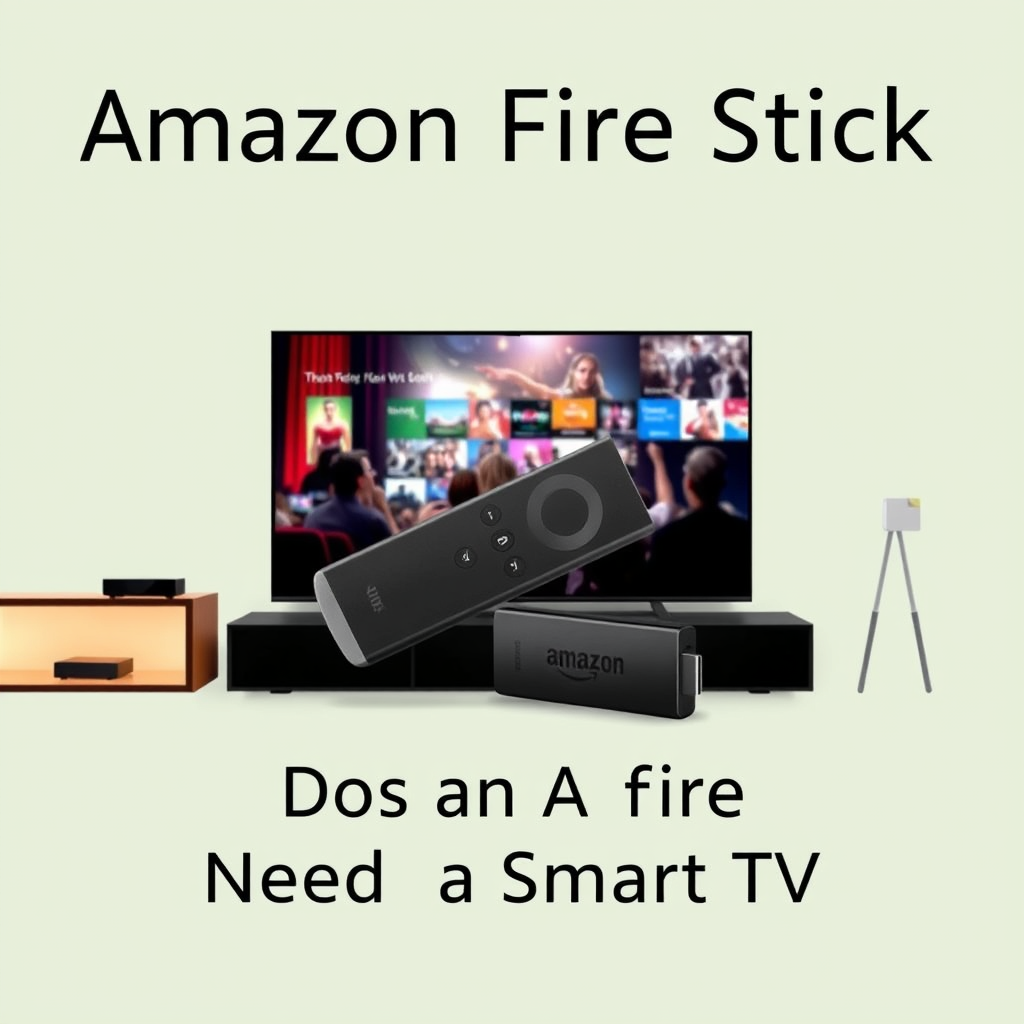

The Amazon Fire Stick does not require a smart TV to function. It can be used with any television that has an HDMI port, allowing users to stream content even on older models. This versatility makes the Fire Stick an excellent choice for anyone looking to enhance their viewing experience without investing in a new television. In this article, we’ll explore how the Fire Stick works, its compatibility with different TV types, and the benefits it offers, regardless of whether your TV is smart or not.
Understanding the Amazon Fire Stick
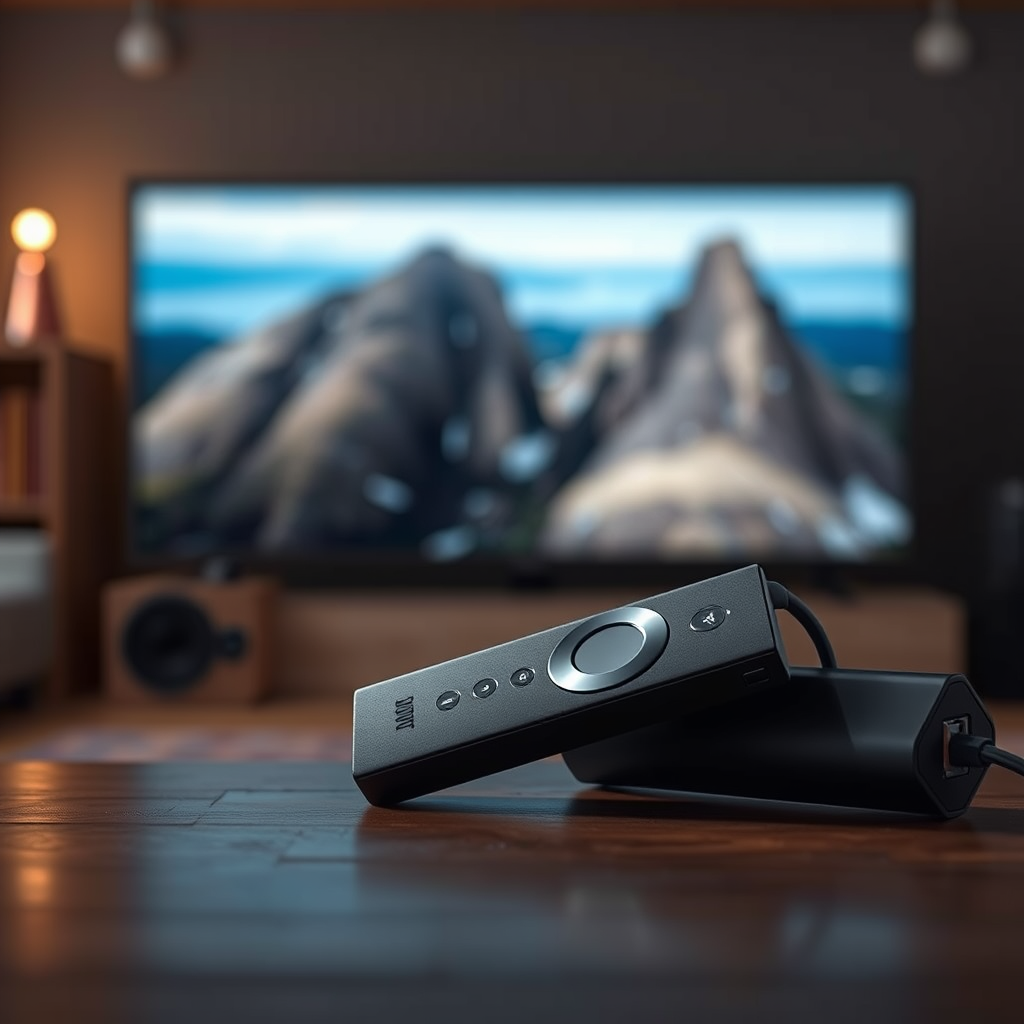
The Amazon Fire Stick is a compact streaming device that plugs directly into your TV’s HDMI port. Its primary function is to provide access to a plethora of streaming services, which include popular platforms like Netflix, Hulu, Prime Video, Disney+, and many others. This device connects to your home Wi-Fi network, enabling users to stream content in high-definition quality, depending on their internet speed.
In essence, the Fire Stick transforms any regular television into a smart TV, providing access to a wide range of entertainment options. The user-friendly interface is designed to make navigation simple, allowing users to browse through their favorite apps and shows with ease. Additionally, many Fire Stick models come equipped with Alexa, Amazon’s voice assistant, allowing for convenient voice control over various functions.
Compatibility with Non-Smart TVs
One of the standout features of the Amazon Fire Stick is its compatibility with non-smart TVs. If you have an older television that lacks built-in streaming capabilities, the Fire Stick can seamlessly bridge that gap. All that’s needed is a simple HDMI connection to get started.
To set up the Fire Stick with a non-smart TV, you simply plug it into an available HDMI port and connect the device to a power source. Once plugged in, you can use the provided remote control to navigate the setup process, which includes connecting to your Wi-Fi network and signing into your streaming service accounts. This straightforward setup process means that even those who aren’t tech-savvy can enjoy streaming content without hassle.
Benefits of Using Fire Stick with a Non-Smart TV
The Amazon Fire Stick offers several benefits, especially for users with non-smart TVs:
– Enhanced Functionality: By adding smart features to older TVs, the Fire Stick enables streaming capabilities that were otherwise unavailable. This means you can watch your favorite shows and movies from various streaming services without the need to upgrade your television.
– User-Friendly Interface: The Fire Stick provides an intuitive interface that simplifies the process of finding and accessing content. Users can easily navigate through different apps, search for specific titles, or browse categories.
– Voice Control with Alexa: Many Fire Stick models feature Alexa integration, allowing users to control playback and search for content using voice commands. This hands-free functionality can be particularly convenient, especially for users who may have difficulty using a traditional remote.
– Regular Updates: Amazon frequently updates the Fire Stick’s software, ensuring users have access to the latest features and improvements. This keeps the device relevant and capable of supporting new streaming services.
– Affordable Solution: Compared to the cost of purchasing a new smart TV, the Fire Stick is an inexpensive alternative that offers a wide range of features and capabilities.
📋 MANDATORY DATA TABLE
Top Streaming Devices for Non-Smart TVs (2024)
| # | Device | Price | Resolution | Voice Control |
|---|---|---|---|---|
| 1 | Amazon Fire Stick 4K | $49.99 | 4K UHD | Yes |
| 2 | Roku Streaming Stick+ | $39.99 | 4K UHD | Yes |
| 3 | Google Chromecast | $29.99 | 1080p HD | No |
| 4 | Amazon Fire TV Stick Lite | $29.99 | 1080p HD | No |
| 5 | NVIDIA Shield TV | $199.99 | 4K UHD | Yes |
| 6 | Apple TV 4K | $179.00 | 4K UHD | Yes |
| 7 | Roku Express | $29.99 | 720p HD | No |
Setting Up Your Fire Stick
Setting up your Amazon Fire Stick is a straightforward process that can be completed in a few simple steps:
1. Connect the Fire Stick: Plug the Fire Stick into an available HDMI port on your TV. If your TV is older, you may need to use an HDMI adapter.
2. Power Up: Connect the Fire Stick to a power source using the included USB power cable and adapter. Turn on your TV and select the HDMI input to which the Fire Stick is connected.
3. Connect to Wi-Fi: Follow the on-screen prompts to connect the Fire Stick to your home Wi-Fi network. You will need your Wi-Fi password for this step.
4. Sign In: Log into your Amazon account. If you don’t have one, you can create a new account during this step.
5. Download Apps: Once set up, you can browse the Amazon Appstore to download your preferred streaming apps. Popular choices include Netflix, Hulu, Disney+, and many others.
6. Voice Control Setup: If your Fire Stick supports Alexa, you can enable voice control features by following the instructions on-screen.
By following these steps, you will have your Fire Stick up and running, ready to stream your favorite content in no time.
Limitations of Using Fire Stick with Older TVs
While the Fire Stick is a fantastic addition to non-smart TVs, there are a few limitations to consider:
– Resolution Constraints: Some older TVs may not support high-definition resolutions. Even if the Fire Stick can stream in 4K, the output is limited by the capabilities of the TV. Therefore, users with HD or SD TVs may not fully experience the device’s capabilities.
– HDMI Port Availability: It’s essential to ensure that your TV has an available HDMI port for the Fire Stick. Some older models may have limited ports, which can be a drawback if multiple devices are in use.
– Limited Features: Certain advanced features available on newer smart TVs might not be supported by the Fire Stick when connected to older models. This includes features like Picture-in-Picture or advanced audio settings.
– Sound Issues: Depending on the age of the TV, you may encounter compatibility issues with sound formats. If your TV does not support Dolby Audio, you may not experience the full audio quality available from streaming services.
Alternatives to the Fire Stick
If you are considering alternatives to the Amazon Fire Stick, there are several other streaming devices that work well with non-smart TVs. Here’s a brief overview:
Streaming Device Comparison
| Device | Price | Resolution | Voice Control | Features |
|————————|———|————|—————|———————————————–|
| Amazon Fire Stick 4K | $49.99 | 4K UHD | Yes | Alexa support, access to many apps |
| Roku Streaming Stick+ | $39.99 | 4K UHD | Yes | Wide app selection, user-friendly interface |
| Google Chromecast | $29.99 | 1080p HD | No | Cast from mobile devices |
| Amazon Fire TV Stick Lite | $29.99 | 1080p HD | No | Budget-friendly, basic streaming capabilities |
| NVIDIA Shield TV | $199.99 | 4K UHD | Yes | Gaming capabilities, extensive app support |
| Apple TV 4K | $179.00 | 4K UHD | Yes | Integration with Apple ecosystem |
| Roku Express | $29.99 | 720p HD | No | Basic streaming, budget-friendly |
These alternatives offer various features and price points, allowing users to choose according to their preferences and needs. Each device has unique strengths that may cater to different user requirements, whether it be gaming, voice control, or budget constraints.
The Amazon Fire Stick is a versatile device that enhances your viewing experience, even on non-smart TVs. With easy setup and a wide range of content options, it provides a great solution for anyone looking to upgrade their entertainment system without buying a new TV. If you’re interested in streaming without the need for a smart television, consider getting an Amazon Fire Stick today!
Frequently Asked Questions
Does an Amazon Fire Stick work with a non-smart TV?
Yes, an Amazon Fire Stick can work with a non-smart TV as long as the TV has an available HDMI port. The Fire Stick connects to the HDMI input, allowing you to stream content from various apps and services without needing a smart TV. Just ensure that your non-smart TV has the necessary HDMI inputs and that you have a reliable internet connection.
What are the benefits of using an Amazon Fire Stick with a smart TV?
Using an Amazon Fire Stick with a smart TV enhances your streaming experience by providing access to a wider range of apps and features. While most smart TVs have built-in streaming services, the Fire Stick offers regular updates, a user-friendly interface, and additional features like Alexa voice control, which can improve your overall viewing experience.
How do I set up my Amazon Fire Stick on a non-smart TV?
To set up an Amazon Fire Stick on a non-smart TV, first, plug the Fire Stick into an available HDMI port on your TV. Then, connect the included power adapter to the Fire Stick and plug it into a power outlet. Finally, switch your TV input to the corresponding HDMI port and follow the on-screen instructions to connect to Wi-Fi and start streaming.
Why should I choose an Amazon Fire Stick over a smart TV?
Choosing an Amazon Fire Stick over a smart TV can be more cost-effective and flexible. Fire Sticks are usually less expensive than smart TVs and can be easily upgraded or replaced. Additionally, they allow you to transform any TV into a smart TV, offering access to thousands of streaming apps, games, and Alexa features without committing to an expensive new television.
Which Amazon Fire Stick model is best for my needs?
The best Amazon Fire Stick model for your needs depends on your viewing preferences and TV capabilities. For standard streaming, the Fire TV Stick Lite is an affordable choice, while the Fire TV Stick 4K offers enhanced picture quality and support for Dolby Vision and HDR. If you want an all-in-one experience with voice control, the Fire TV Stick 4K Max provides the latest technology for seamless streaming.
References
- https://www.lifewire.com/amazon-fire-stick-on-non-smart-tv-5075458
https://www.lifewire.com/amazon-fire-stick-on-non-smart-tv-5075458 - https://www.lifewire.com/fire-stick-with-non-smart-tv-5075460
https://www.lifewire.com/fire-stick-with-non-smart-tv-5075460 - Google Scholar Google Scholar
https://scholar.google.com/scholar?q=does+amazon+fire+stick+work+with+non-smart+tv - Google Scholar Google Scholar
https://scholar.google.com/scholar?q=amazon+fire+stick+compatibility+with+tv - Google Scholar Google Scholar
https://scholar.google.com/scholar?q=amazon+fire+stick+smart+tv+requirements - https://www.bbc.com/news/technology-58610845
https://www.bbc.com/news/technology-58610845 - Google Scholar Google Scholar
https://scholar.google.com/scholar?q=does+amazon+fire+stick+need+smart+tv - does amazon fire stick need smart tv – Search results
https://en.wikipedia.org/wiki/Special:Search?search=does+amazon+fire+stick+need+smart+tv - https://www.ncbi.nlm.nih.gov/search/research-articles/?term=does+amazon+fire+stick+need+smart+tv
https://www.ncbi.nlm.nih.gov/search/research-articles/?term=does+amazon+fire+stick+need+smart+tv
