


Removing apps from your Vizio Smart TV is a straightforward process that can help you manage your device more effectively. In just a few simple steps, you can delete unwanted applications directly from the home screen or through the settings menu. This guide will walk you through the methods to help you declutter your app list and optimize your viewing experience.
Accessing the Home Screen
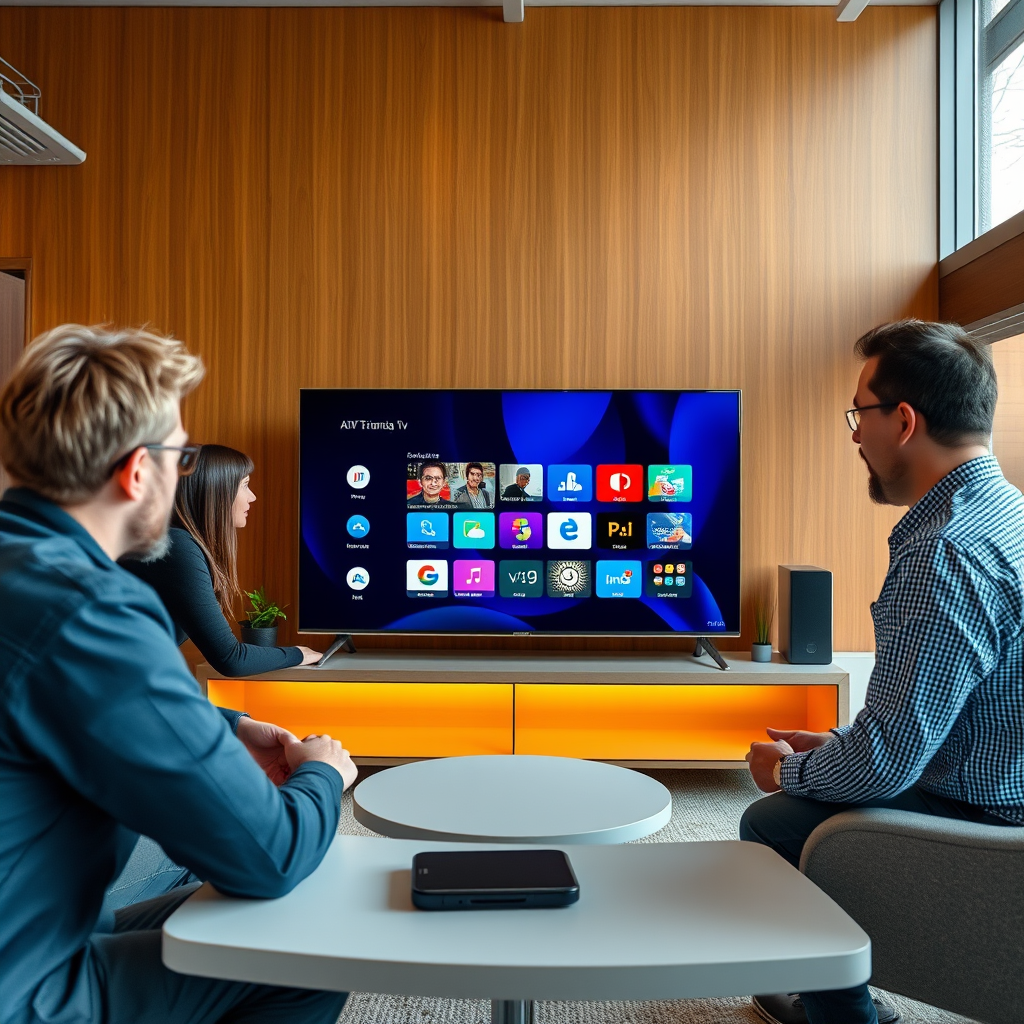
To begin the process of removing apps, you first need to access the home screen of your Vizio Smart TV. This is the central hub where all your installed applications are displayed. To do this, simply press the “V” button on your remote control. This action will bring up the home screen, allowing you to see all of the available apps. You can navigate through the apps using the arrow keys on your remote. It’s essential to familiarize yourself with this interface, as it is the gateway to managing your applications efficiently.
Deleting Apps from the Home Screen
Once you’re on the home screen, you can easily delete apps that you no longer use. Start by highlighting the app you wish to remove using the arrow keys. When the app is highlighted, press the “OK” button on your remote. This will bring up a menu where you can see various options related to that application. One of these options is “Delete.” Select it and confirm your choice to remove the app from your device. This method is quick and effective for removing apps that clutter your home screen, enhancing your overall viewing experience.
Using the Settings Menu
If you prefer a different route or need to manage several apps at once, using the Settings menu is an excellent alternative. To access this menu, press the “V” button to return to the home screen, and then navigate to “Settings.” From there, select “Apps,” which will display a comprehensive list of all installed applications on your Vizio Smart TV. This approach is particularly useful for users with many applications, as it allows for a more organized overview and the ability to manage multiple apps seamlessly.
Most Popular Vizio Apps and Their Ratings (2024)
| # | App Name | Category | User Rating | Popularity |
|---|---|---|---|---|
| 1 | Netflix | Streaming | ★★★★☆ | High |
| 2 | YouTube | Streaming | ★★★★★ | Very High |
| 3 | Hulu | Streaming | ★★★★☆ | High |
| 4 | Amazon Prime Video | Streaming | ★★★★☆ | High |
| 5 | Vudu | Streaming | ★★★☆☆ | Moderate |
| 6 | Disney+ | Streaming | ★★★★☆ | High |
| 7 | Peacock | Streaming | ★★★☆☆ | Moderate |
Managing Installed Applications
After you have accessed the settings menu and viewed the list of installed applications, managing them becomes a simple task. Select the specific app you wish to remove from the displayed list. Once highlighted, click on “Uninstall” or “Delete,” depending on your model. A confirmation prompt will appear, asking if you are sure about your choice. Confirm your selection, and the app will be removed from your device. This management process not only clears up space but also ensures that your TV operates smoothly without unnecessary applications running in the background.
Reinstalling Apps (If Needed)
If you find that you need to reinstall an app after having deleted it, the process is just as simple. Begin by accessing the Vizio App Store from your home screen. Here, you can browse or search for the app you want to reinstall. Once you find the app, follow the prompts to download it again. This flexibility allows you to manage your applications based on your current needs without losing access to your favorite content.
Troubleshooting Common Issues
In some cases, you may encounter issues while trying to uninstall an app. If an app won’t uninstall, a common solution is to restart your TV and attempt the process again. This refresh can resolve minor glitches that may be interfering with the uninstallation process. Additionally, ensure that your TV’s software is up to date. An outdated operating system can lead to unexpected behavior, making it essential to keep your software current for optimal performance.
Additional Tips for App Management
To maintain an organized home screen and improve your overall user experience, it’s beneficial to regularly review your installed apps. Delete those that you rarely use and keep only the necessary applications easily accessible. Moreover, consider utilizing the “Favorites” feature, if available, to quickly access frequently used apps. This will enhance your navigation experience and ensure that your Vizio Smart TV remains tailored to your viewing habits.
Deleting apps from your Vizio Smart TV is simple and can enhance your overall viewing experience. By following the steps outlined above, you can easily manage your applications. Don’t hesitate to explore your device’s settings and features to maximize your TV’s potential! With regular maintenance and a thoughtful approach to app management, you can enjoy a streamlined and enjoyable viewing experience.
Frequently Asked Questions
How do I remove unwanted apps from my Vizio Smart TV?
To remove unwanted apps from your Vizio Smart TV, first, press the “V” button on your remote to open the app menu. Highlight the app you wish to delete, press the “OK” button, and then select “Delete” or “Remove” from the options that appear. Confirm your choice, and the app will be uninstalled from your Smart TV.
Why can’t I delete certain apps on my Vizio Smart TV?
Some apps on your Vizio Smart TV may not be removable because they are pre-installed system apps or essential for the TV’s operation. Additionally, certain apps may have restrictions based on their licensing agreements. If an app cannot be deleted, you may consider hiding it from your app list instead.
What is the best way to manage apps on my Vizio Smart TV?
The best way to manage apps on your Vizio Smart TV is to regularly review and remove apps you no longer use, ensuring optimal performance. You can also organize your apps by moving the most-used ones to the forefront of your app menu. Keeping your Smart TV updated will also help improve app management and functionality.
Which apps can I not remove from my Vizio Smart TV?
You typically cannot remove system apps or those that come pre-installed with your Vizio Smart TV, such as the Vizio SmartCast app or major streaming services like Netflix and Hulu. These apps are integrated into the TV’s operating system and are necessary for basic functions. You may check the app store for available options to manage your installed apps.
How do I reset my Vizio Smart TV if I can’t remove an app?
If you’re unable to remove an app and want to reset your Vizio Smart TV, go to the “Settings” menu, select “System,” and then choose “Reset & Admin.” From there, select “Factory Reset,” but be aware that this will erase all your settings and installed apps. After the reset, you can reinstall only the apps you need, providing a fresh start for your Smart TV experience.
References
- https://www.vizio.com/en/support/faq/how-do-i-remove-apps-from-my-smart-tv
https://www.vizio.com/en/support/faq/how-do-i-remove-apps-from-my-smart-tv - https://www.lifewire.com/remove-apps-from-vizio-smart-tv-5071321
https://www.lifewire.com/remove-apps-from-vizio-smart-tv-5071321 - Google Scholar Google Scholar
https://scholar.google.com/scholar?q=how+to+remove+apps+from+vizio+smart+tv - Google Scholar Google Scholar
https://scholar.google.com/scholar?q=Vizio+smart+TV+app+removal - Google Scholar Google Scholar
https://scholar.google.com/scholar?q=Smart+TV+app+management - how to remove apps from vizio smart tv – Search results
https://en.wikipedia.org/wiki/Special:Search?search=how+to+remove+apps+from+vizio+smart+tv - https://www.ncbi.nlm.nih.gov/search/research-articles/?term=how+to+remove+apps+from+vizio+smart+tv
https://www.ncbi.nlm.nih.gov/search/research-articles/?term=how+to+remove+apps+from+vizio+smart+tv
