


To determine if your television is a smart TV, look for built-in internet connectivity and access to streaming services. Smart TVs usually come equipped with apps like Netflix, Hulu, and others either pre-installed or downloadable from an app store. This article will guide you through various features and methods to identify whether your television qualifies as a smart device, ensuring you can maximize your entertainment experience.
Check for Internet Connectivity
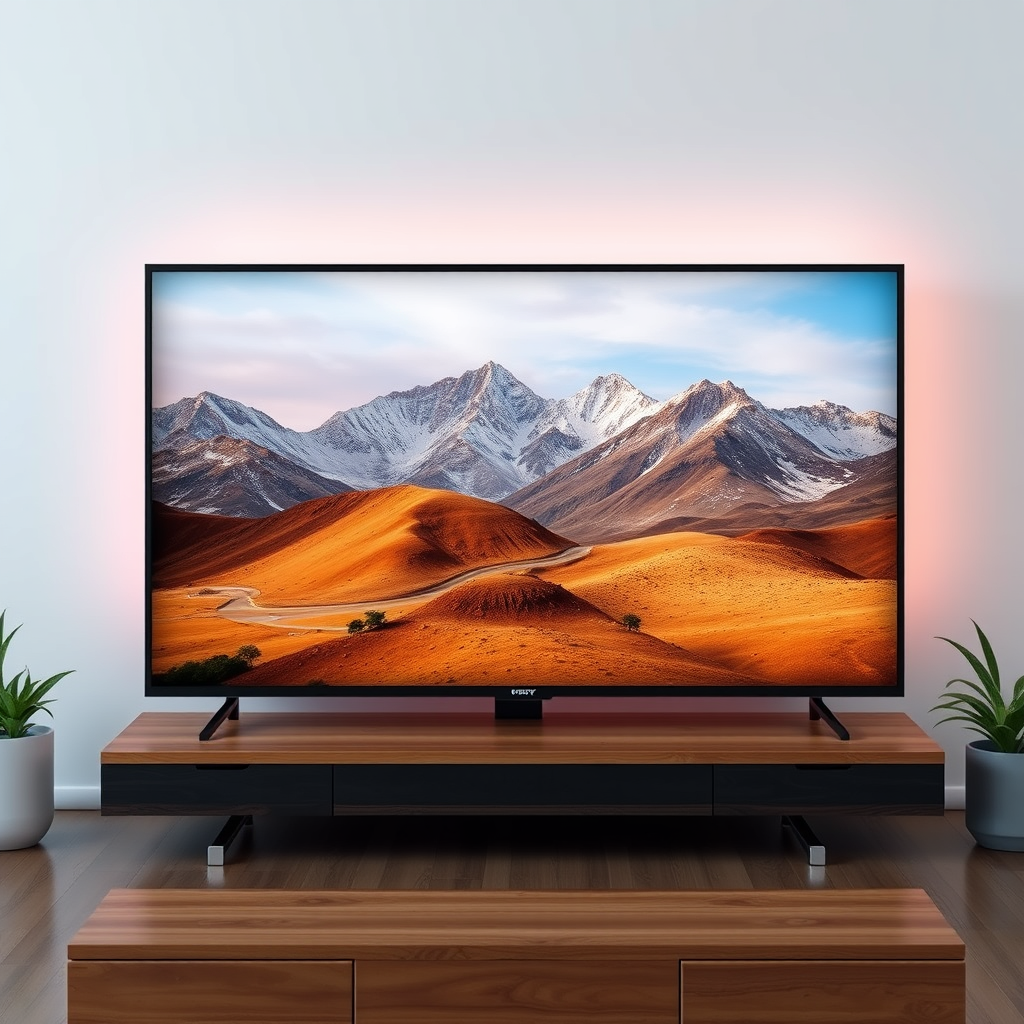
One of the primary characteristics of a smart TV is its ability to connect to the internet. Start by examining your TV’s specifications for Ethernet ports or Wi-Fi capability. If your television has an Ethernet port, it can connect directly to your router for a stable internet connection. Alternatively, many smart TVs come with built-in Wi-Fi, allowing you to connect wirelessly to your home network.
Once connected, navigate to your TV’s menu to look for a “Network Settings” option. If you find a section dedicated to network configuration, it’s a strong indication that your TV is smart. You may also be able to see connected devices, signal strength, and other related information, which are typical features of a smart TV.
Identify Installed Apps
Another clear sign that your television is a smart model is the presence of streaming apps on the home screen. Check to see if there are app icons for services like Netflix, Hulu, Amazon Prime Video, or YouTube. These apps are often pre-installed on smart TVs, and you can typically access them directly from the main interface without needing additional devices.
If you can access an app store or marketplace on your TV, such as Google Play Store or the Apple App Store, you can download additional applications, further confirming that your TV is smart. This capability allows you to customize your viewing experience by adding apps for news, sports, games, and more.
Assess Remote Control Features
The remote control that accompanies your TV can also offer clues regarding its smart capabilities. A smart TV remote will typically feature dedicated buttons for quick access to popular streaming services. For instance, you may find buttons labeled for Netflix, Hulu, or other platforms, allowing you to jump directly into your favorite content with a single press.
Moreover, many modern smart TV remotes come equipped with voice recognition technology, enabling you to issue commands or search for content using spoken queries. If your remote has a microphone or a voice control button, it’s likely that your television is a smart device designed for a more interactive viewing experience.
Examine the Operating System
Smart TVs operate on various platforms, including Android TV, Roku TV, Tizen OS, and others. Each of these systems supports app installations and offers unique features tailored to enhance user interaction. To identify the operating system of your TV, consult the user manual or search online for your specific model.
For example, if your TV runs on Android TV, it will support Google Assistant and allow you to download apps from the Google Play Store. In contrast, if it uses Roku TV, you will benefit from a simple interface that aggregates content from different streaming services.
Look for Software Updates
A critical aspect of smart TVs is their ability to receive software updates. These updates are crucial for enhancing functionality, fixing bugs, and adding new features. Navigate to the settings menu and look for an option labeled “Software Update” or “System Update.” If you find this option, it is a strong indicator that your TV is a smart model.
Regular updates ensure that your TV remains compatible with the latest streaming apps and services, thereby improving your overall viewing experience. If your TV has not received updates in a while, it may be worth exploring whether it is indeed a smart model or if it is limited to basic functionalities.
Review the User Manual
The user manual that comes with your TV is a valuable resource for determining its capabilities. Most manuals will explicitly state whether the TV is a smart device, outlining its features such as internet connectivity, app usage, and remote control functionalities. Look for sections that discuss connecting to Wi-Fi, downloading apps, or using smart features.
If you no longer have the physical manual, you can often find a digital version on the manufacturer’s website by searching for your TV model. This information can give you a comprehensive understanding of what your television can do.
Explore the Manufacturer’s Website
Lastly, visiting the manufacturer’s official website can provide you with detailed specifications and confirmation regarding whether your TV is classified as a smart TV. Enter your model number into the search bar to access product details, including features and capabilities. This is an excellent way to verify the information you have gathered from other sources.
Manufacturers usually provide clear information about their products, including whether they support internet connectivity, app downloads, and other smart features. This can also guide you in maximizing your TV’s potential.
Top 7 Smart TV Brands and Their Features (2024)
| # | Brand | Operating System | Screen Sizes | Smart Features |
|---|---|---|---|---|
| 1 | Samsung | Tizen OS | 43″ – 85″ | Voice Control, Smart Hub |
| 2 | LG | webOS | 49″ – 86″ | AI ThinQ, Magic Remote |
| 3 | Sony | Android TV | 43″ – 85″ | Google Assistant, Chromecast |
| 4 | TCL | Roku TV | 32″ – 85″ | Roku Channel, Voice Search |
| 5 | Vizio | Smartcast | 40″ – 85″ | Apple HomeKit, Voice Control |
| 6 | Philips | Android TV | 43″ – 86″ | Voice Control, Google Assistant |
| 7 | Hisense | Android TV | 32″ – 75″ | Voice Control, Built-in Apps |
In summary, determining whether your TV is a smart device involves checking for internet connectivity, installed apps, and various remote control features. If your current television lacks smart capabilities, consider exploring upgrade options to enhance your viewing experience. With a smart TV, you gain access to a world of content, convenience, and interactive functionality that can significantly elevate your entertainment setup.
Frequently Asked Questions
How can I check if my TV is a smart TV?
To determine if your TV is a smart TV, look for built-in internet connectivity options such as Wi-Fi or Ethernet ports. Additionally, check for pre-installed apps like Netflix, Hulu, or YouTube in the TV’s menu. If it has an app store or allows you to browse the internet, it’s likely a smart TV.
What features distinguish a smart TV from a regular TV?
Smart TVs offer internet connectivity, allowing access to streaming services, web browsing, and app downloads. They typically come with features like voice control, screen mirroring, and built-in voice assistants, distinguishing them from regular TVs, which mainly display content from external devices.
Why does it matter if my TV is a smart TV?
Knowing if your TV is a smart TV is important because it influences your viewing options and the types of content you can access. Smart TVs provide convenience by eliminating the need for additional streaming devices, enabling you to enjoy a wide range of online content directly from your television.
Which brands offer the best smart TVs?
Some of the best brands for smart TVs include Samsung, LG, Sony, and TCL. These manufacturers are known for their high-quality displays, user-friendly interfaces, and a wide variety of apps available through their smart platforms, ensuring a superior viewing experience.
How do I update my smart TV to ensure it has the latest features?
To update your smart TV, navigate to the settings menu and look for a software update option. Ensure your TV is connected to the internet, then follow the prompts to download and install any available updates. Regular updates are essential for enhancing performance and accessing new features or apps.
References
- Smart TV
https://en.wikipedia.org/wiki/Smart_TV - https://www.lifewire.com/how-to-tell-if-you-have-a-smart-tv-4689741
https://www.lifewire.com/how-to-tell-if-you-have-a-smart-tv-4689741 - https://www.pcmag.com/news/how-to-check-if-your-tv-is-a-smart-tv
https://www.pcmag.com/news/how-to-check-if-your-tv-is-a-smart-tv - TVs – Pro Reviews, Best Lists, Format Explainers – CNET
https://www.cnet.com/topics/tvs/best-tvs/smart-tv-guide/ - Google Scholar Google Scholar
https://scholar.google.com/scholar?q=how+to+tell+if+my+tv+is+a+smart+tv - Google Scholar Google Scholar
https://scholar.google.com/scholar?q=identifying+smart+tv+features - Google Scholar Google Scholar
https://scholar.google.com/scholar?q=smart+tv+definition+and+characteristics - how to tell if my tv is a smart tv – Search results
https://en.wikipedia.org/wiki/Special:Search?search=how+to+tell+if+my+tv+is+a+smart+tv - https://www.ncbi.nlm.nih.gov/search/research-articles/?term=how+to+tell+if+my+tv+is+a+smart+tv
https://www.ncbi.nlm.nih.gov/search/research-articles/?term=how+to+tell+if+my+tv+is+a+smart+tv

[…] WiFi password,” the quickest path is finding it on the router label or in your device’s saved network settings. This article gets you to the exact password fast—whether you’re on Windows, macOS, iPhone, or […]
[…] can find your router IP address by checking your device’s network settings—where it’s listed as the Default gateway (Windows) or Router/Gateway (macOS and mobile). If you […]
[…] during the update, clients may temporarily show “Connected, no internet” until they renew network settings. This is expected behavior: the device is associated to the SSID, but the session needs a […]
[…] quickly, the fastest approach is to retrieve it from a device that’s already connected (saved network settings on Windows, macOS Keychain, Android WiFi details, or iOS sharing prompts). If that fails, the next […]
[…] to check your router IP fast? The quickest method is to find it directly from your device’s network settings—no guesswork, no third-party tools. If that fails, you’ll confirm it instantly by checking the […]
[…] check your router IP address fast, use your device’s network settings or the default gateway field—this is the quickest, most reliable method for most people. If […]
[…] you’re on a device already connected, the quickest method is to view the saved password in your network settings—no guessing, no third‑party tools. This guide will show the fastest way to reveal the exact […]
[…] This step-by-step Ethernet setup guide walks you through connecting your cable, configuring your network settings, and confirming you have a working connection. If you follow the checklist, you’ll be online on […]
[…] Wi‑Fi, or set up features like port forwarding, you can find it quickly using your device’s network settings (Windows/macOS/mobile) and confirm it in your […]
[…] the device you’re currently connected to—on Windows and Mac you can view it from your Wi‑Fi network settings, and on iPhone and Android you can pull it from your saved network details. This guide will tell […]
[…] Windows PC, Mac, or laptop. Follow the clear instructions to plug in the cable, confirm the correct network settings, and verify that your connection is working. By the end, you’ll know exactly how to connect to […]
[…] network’s default gateway. On Windows, open Command Prompt and run `ipconfig`; on macOS, use Network settings or `route -n get default`; on iPhone and Android, look under Wi‑Fi details for “Router” or […]
[…] can usually see your Wi‑Fi password inside your device’s saved network settings (or via a QR code) after authenticating with your screen lock or admin credentials. If your device […]
[…] to see your WiFi password fast? Use your device’s saved network settings first—this is the quickest way to view it without extra tools. If that won’t show the password, […]
[…] What if I can’t find my router IP address?Check your device’s “Default Gateway” in network settings; if you still can’t locate it, look for the router label or use your router manufacturer’s app […]
[…] If your settings won’t save or you can’t log back into the admin page, focus on connectivity and access first. Then use a reset only as a last resort because it can wipe custom network settings. […]
[…] can usually check your Wi‑Fi password instantly by viewing it in your phone or computer’s saved network settings; if it’s not visible there, the fastest fallback is the router label or the router’s admin […]
[…] From my hands-on IT support work, I’ve found that the fastest path is usually: label → device network settings → (if needed) command line on Windows. As of 2024–2026, this workflow remains the most reliable […]
[…] your router IP address fast? The quickest win is checking your router’s IP from your device’s network settings—works immediately on Windows, macOS, Android, and iOS. If that’s blocked or unclear, the next […]
[…] Verify Wi‑Fi password and network settings after hardware […]
[…] shows you the exact fastest way to find it on your device—using the command line on Windows, the network settings on macOS, or the router details page on most phones. You’ll get the number you need (typically […]
[…] Find the IP of your router fast by checking the default gateway on your device—this is the address your network uses to route traffic. If you’re on Windows, macOS, iPhone, or Android, the correct steps take under a minute and give you the exact router IP. You’ll know you’ve got it right when it matches the gateway value in your network settings. […]
[…] not sure of the IP, check the router label or look under “Default Gateway” in your device’s network settings. When the login page appears, enter the router username and password to access the router admin […]
[…] Q: Where do I find the router login address?Check the router label for the admin IP (often 192.168.0.1 or 192.168.1.1), or look for your “Default Gateway” in your device’s network settings. […]
[…] can usually retrieve your saved WiFi password directly from your computer’s WiFi/network settings (Windows) or Keychain Access (macOS). This guide walks through the fastest, safest approach for […]
[…] find out your gateway address, check the default gateway shown in your network settings—this is the fastest, most reliable method. On Windows, run `ipconfig` and read the “Default […]
[…] or export saved credentials from a connected device, you avoid resetting the router and changing network settings.” Microsoft support guidance on Wi‑Fi network […]
[…] to the Wi‑Fi, you can often reveal the saved Wi‑Fi password for the specific SSID from Windows Network settings. The exact menu names vary by Windows version and whether your organization enforces security […]