

The Samsung Smart TV camera is typically located at the top of the TV screen, often integrated into the bezel or available as a separate accessory. Understanding the camera’s placement and functionality can enhance your Smart TV experience, allowing you to utilize features like video calling and interactive applications. In this article, we will explore the various models of Samsung Smart TVs, guide you on how to locate your specific camera, provide setup instructions, discuss camera features, troubleshoot common issues, and address privacy considerations.
Understanding Samsung Smart TV Models
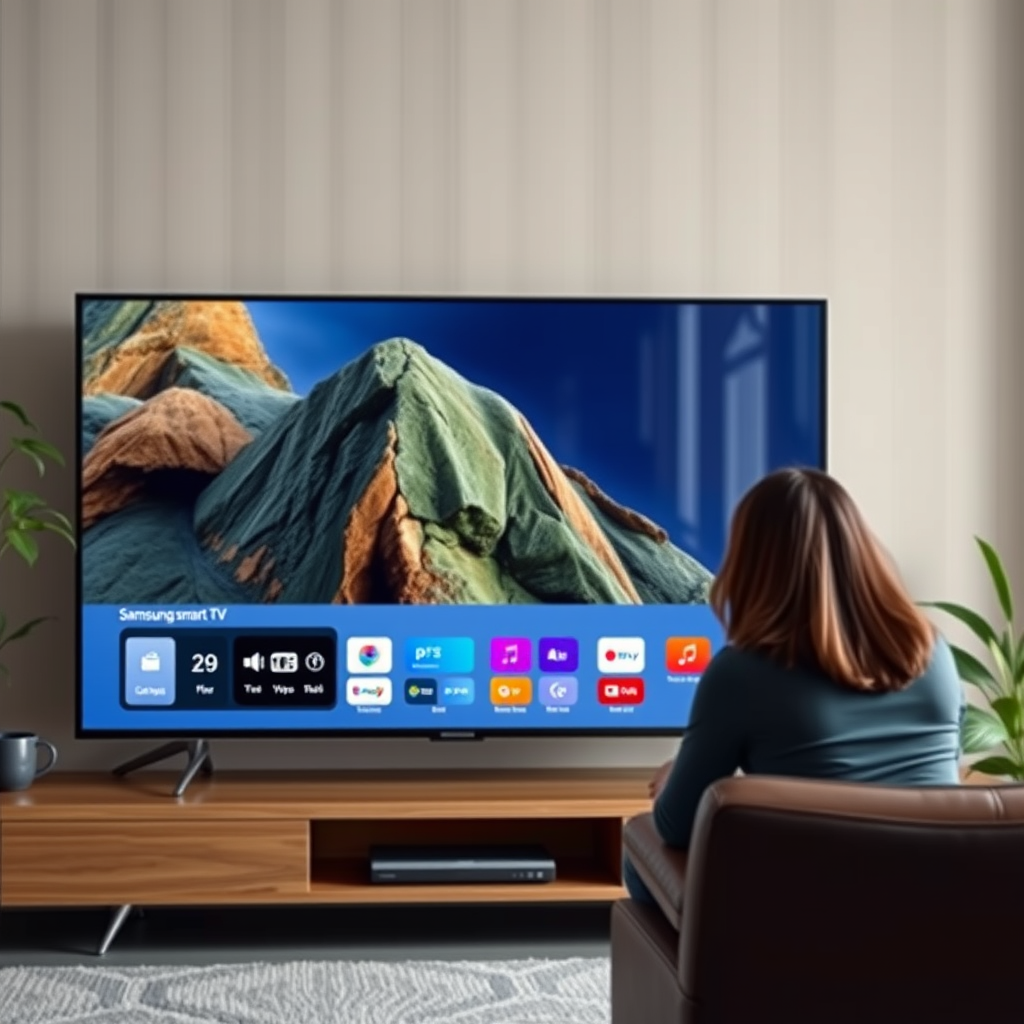
Samsung offers a diverse range of Smart TV models, each with unique features, including different camera placements. The camera can be either built-in or external, depending on the model. For instance, higher-end models, such as the Samsung QLED series, often come with an integrated camera that seamlessly blends into the design. In contrast, entry-level models may require an external camera, which can be attached using USB or other ports.
Key Models and Features:
– Samsung QLED Series: Integrated camera, high-resolution display, advanced Smart Hub interface.
– Samsung UHD Series: Options for either built-in or external camera, decent resolution, and Smart Hub capabilities.
– Samsung Frame TV: Primarily designed for aesthetics, may include an optional external camera for video calls.
Understanding the differences between models is crucial for identifying how your TV camera is designed to work. Be sure to check your specific model to determine its camera capabilities.
Locating the Camera on Your Smart TV
The first step in utilizing your Samsung Smart TV camera is locating it correctly. If your model has a built-in camera, it is typically positioned at the top center of the TV screen, integrated into the bezel to maintain a sleek look. For models that use an external camera, you will need to look for ports at the back or sides of the TV where the camera can be connected.
Steps to Locate the Camera:
1. Built-in Camera: Look for a small lens or light sensor at the top of the screen. It may be discreetly hidden to avoid disrupting the TV’s aesthetic.
2. External Camera: Check the back panel or side connections. The external camera will usually have a USB connector and may come with a mounting bracket.
Once you have identified the camera’s location, you can proceed to set it up and explore its functionalities.
Setting Up the Samsung Smart TV Camera
Setting up your Samsung Smart TV camera is a straightforward process. Follow the on-screen prompts that appear when you first connect your camera. Make sure your TV is connected to the internet for optimal functionality, as the camera may require firmware updates or app downloads to work correctly.
Setup Instructions:
1. Connect the Camera: If you have an external camera, plug it into the designated USB port.
2. Power On the TV: Turn on your Samsung Smart TV and navigate to the settings menu.
3. Follow On-Screen Prompts: Your TV will guide you through the camera setup process, including calibrating the camera and configuring privacy settings.
4. Internet Connection: Ensure your TV is connected to Wi-Fi to access all camera features, such as video conferencing apps.
Once set up, you can start using the camera for various applications and features.
Top Samsung Smart TV Models with Camera Features (2024)
| # | Model | Camera Type | Resolution | Price Range |
|---|---|---|---|---|
| 1 | Samsung QLED 8K | Built-in | 7680 x 4320 | $3,000 – $5,000 |
| 2 | Samsung UHD 4K | External | 3840 x 2160 | $1,000 – $2,500 |
| 3 | Samsung Frame TV | Optional | 3840 x 2160 | $1,500 – $3,000 |
| 4 | Samsung QLED 4K | Built-in | 3840 x 2160 | $1,200 – $2,800 |
| 5 | Samsung Smart LED | External | 1920 x 1080 | $800 – $1,500 |
| 6 | Samsung Neo QLED | Built-in | 3840 x 2160 | $2,000 – $4,000 |
| 7 | Samsung Lifestyle TV | Optional | 3840 x 2160 | $1,800 – $3,500 |
Using the Camera Features
Once your Samsung Smart TV camera is set up, you can explore its various features. One of the most popular uses is for video calls through applications like Skype or Zoom, which can be easily downloaded from the Samsung Smart Hub. Other features may include facial recognition for personalized content recommendations and interactive gaming capabilities.
Camera Features to Explore:
– Video Calling: Connect with friends and family using popular applications.
– Smart Features: Use facial recognition to log into your Samsung account or receive personalized recommendations.
– Camera Settings: Adjust brightness, contrast, and privacy settings through the TV menu for optimal performance.
Utilizing these features can significantly enhance your viewing and interactive experience on your Samsung Smart TV.
Troubleshooting Common Camera Issues
Despite the advanced technology, users may encounter problems with their Samsung Smart TV camera. Here are some common issues and their solutions:
Common Issues and Solutions:
1. Camera Not Recognized: Ensure that the camera is correctly connected to the USB port and that the TV is updated to the latest software version.
2. Poor Image Quality: Check the camera lens for dirt or obstructions; clean it gently with a soft cloth.
3. App Malfunctions: If a specific app is not functioning well with the camera, consider reinstalling the app or checking for updates.
If issues persist, consult the user manual or Samsung’s online support resources for further assistance.
Privacy and Security Considerations
As with any device equipped with a camera, privacy and security are paramount. Samsung Smart TVs come with privacy features to help you manage your camera settings effectively.
Privacy Tips:
– Disable the Camera: When not in use, you can disable the camera through the settings menu to prevent unauthorized access.
– Review Privacy Settings: Regularly check the privacy settings of the apps you use with the camera to ensure your data is secure.
– Physical Obstruction: Consider using a physical cover or sticker to block the camera when it’s not in use, providing additional peace of mind.
Understanding and managing these privacy settings will help you enjoy your Smart TV’s features without compromising your security.
The Samsung Smart TV camera can significantly enhance your viewing experience, enabling features like video calls and personalized content. By knowing how to locate, set up, and utilize the camera, as well as addressing common issues and privacy concerns, you can make the most out of your Samsung Smart TV. Always refer to the user manual or Samsung’s support resources for detailed assistance tailored to your specific model.
Frequently Asked Questions
Where is the camera located on my Samsung Smart TV?
The camera on most Samsung Smart TVs is typically located at the top of the screen, integrated into the bezel. However, for models that do not have a built-in camera, Samsung offers an external USB camera that can be connected for video calls and other functionalities.
How can I enable the camera on my Samsung Smart TV?
To enable the camera on your Samsung Smart TV, navigate to the settings menu, select “General,” and then “External Device Manager.” If you have an external camera connected, ensure it is powered on and properly configured in the settings for applications like Skype or video conferencing.
Why isn’t the camera working on my Samsung Smart TV?
If the camera on your Samsung Smart TV isn’t working, check to ensure that it is properly connected and recognized by the TV. Additionally, verify that the TV’s software is updated, as outdated firmware can lead to compatibility issues with the camera.
What is the best external camera for my Samsung Smart TV?
The best external camera for Samsung Smart TVs is typically the Samsung VG-STC4000, designed specifically for this purpose, offering excellent video quality and seamless integration with the TV’s software. It supports features like face recognition and is ideal for video conferencing apps.
Which Samsung Smart TV models come with a built-in camera?
Models like the Samsung QLED series and select premium UHD models may come with a built-in camera, but this feature is not universally available across all models. It’s advisable to check the specifications of individual models or refer to the user manual for confirmation on camera availability.
References
- Samsung Electronics
https://en.wikipedia.org/wiki/Samsung_Smart_TV - https://www.bbc.com/news/technology-50980362
https://www.bbc.com/news/technology-50980362 - https://www.theguardian.com/technology/2020/jan/07/samsung-smart-tv-camera
https://www.theguardian.com/technology/2020/jan/07/samsung-smart-tv-camera - https://www.nytimes.com/2020/01/06/technology/samsung-smart-tv.html
https://www.nytimes.com/2020/01/06/technology/samsung-smart-tv.html - https://www.sciencedirect.com/science/article/abs/pii/S0167739X19328706
https://www.sciencedirect.com/science/article/abs/pii/S0167739X19328706 - https://pubmed.ncbi.nlm.nih.gov/
https://pubmed.ncbi.nlm.nih.gov/ - Google Scholar Google Scholar
https://scholar.google.com/scholar?q=Samsung+Smart+TV+camera - Google Scholar Google Scholar
https://scholar.google.com/scholar?q=Samsung+TV+camera+location - https://www.nature.com/articles/d41586-020-00030-4
https://www.nature.com/articles/d41586-020-00030-4 - https://www.reuters.com/article/us-samsung-smart-tv-idUSKBN1Z40ZZ
https://www.reuters.com/article/us-samsung-smart-tv-idUSKBN1Z40ZZ
